This web application is designed for the visually-impaired and the blind people to avoid obstacles. All the instructions are told by speech. Users can tell their preference by speaking through microphone. This web application is based on the Intel_IXN_SightPP Server.
Notice: you should wear headphones when you use this system. With a microphone would be better.
- Install the Intel_IXN_SightPP Server
The SightPP_VoiceInterface is based on the Intel_IXN_SightPP Server. Please install the server following the instructions this page provides: https://github.com/SightPP/Intel_IXN_SightPP
- Install Node.js
Download the installation package from the official website of Node.js (https://nodejs.org/en/). Choose the LTS version.
- (For Windows) Add the installation directory into the environment variables of your OS.
- Install the dependencies
After you download the project package and extract it, open CMD in the 'webapp' folder. Run these commands below:
npm install- Run the Intel_IXN_SightPP Server
Please run the Intel_IXN_SightPP Server before running the web application following the instructions this page provides: https://github.com/SightPP/Intel_IXN_SightPP
- Run the web application
yarn start- Open one of the recommended browsers (Google Chrome, Firefox, Microsoft Edge, Opera Browser), the web address is "localhost:3000";
***Notice: the "Voice Mode" and "Mark Preferred Objects" are NOT supported on Android browsers.
-
Make sure the computer where you are running the web application and the mobile phone where you access the interface connect to the same WIFI.
-
In the win10 computer, open the CMD and input "ipconfig" to get the IPv4 address of the PC.
-
Find the file "navigation.jsx" under the "SightPP_VoiceInterface\webapp\src\components". In line 64, replace the string "localhost" by the IPv4 address of your computer and save this change.
-
Open Android Chrome or Android Firefox in your mobile phone, input the website address (IPv4: 3000), for example, if the IPv4 address is 100.65.152.15, then the website address should be 100.65.152.15:3000.
There are five buttons in the page.
***Notice: the "Voice Mode" and "Mark Preferred Objects" are NOT supported on Android browsers.
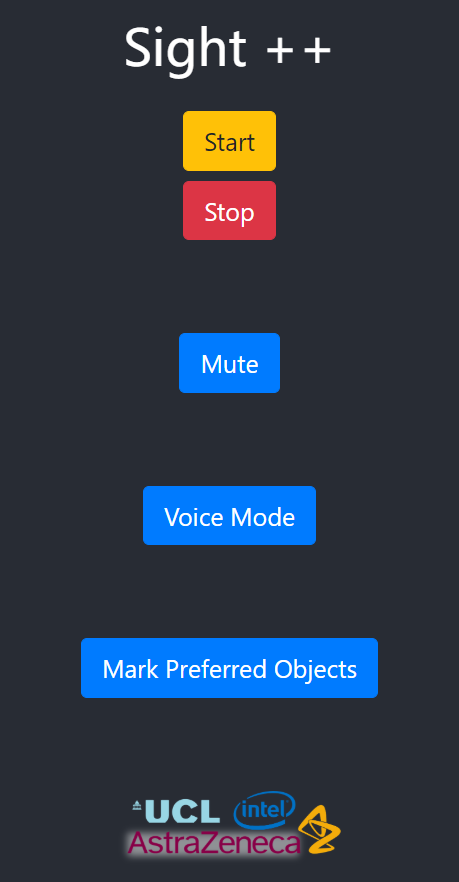
Their functions are below:
- Users can click "Start" to start the obstacle avoidance service.
- If users click it, the system will firstly tell an instruction to the user: "This button can offer obstacle avoidance service. If you want to use this function, please click it again immediately.".
- If users want to use the service, they can click it immediately to start the service formally. In this way, users can listen to the instructions received to learn the environment. These instructions are neat and simple, for example, "Person, Left, 2 meters".
- If an obstacle is too near to be avoided, the application will sound a beep sound to remind the user.
- Users can click "Stop" to stop the running obstacle avoidance service.
- If users click it and the obstacle avoidance service is running, the service will stop immediately and users will be told by the speech: "Obstacle avoidance stopped." (This means the connection between the web application and the server stops).
- If users click it and the obstacle avoidance service is NOT running, the user will be told by the speech: "You have not open the obstacle avoidance service.".
- Users can click "Mute" to mute or resume all the speech in the application. If a user want to focus on other sounds while using this application, for example, chatting a while with their friends, they can use this button. If they want to resume the speech for the obstacle avoidance service, they can click this button again to resume the speech.
- The application will tell the user that all the sounds are muted by the speech: "Sounds are muted. If you want to resume the sound, please click this button again." Moreover, The application will tell the user that all the sounds are resumed by the speech: "Sounds are resumed."
- If users click it while the obstacle avoidance service is running, these instructions will be muted but the service will NOT stop. The system will continue receive obstacle information but will not report it by speech.
- Notice: Because speech instructions are the main way for the target users to use this application. NOT ALL the speeches can be muted by "Mute" permanently. Only the speeches of the obstacle avoidance service instructions can be muted.
- Users can click "Voice Mode" to set their preferred speech voice properties including the language type (British English or American English), the speed (0.1 ~ 4), the pitch(0 ~ 2).
- If a user click "Voice Mode", the application will firstly tell the user what this button is. If the user click it again immediately, the user will be told that "'Hello, in this system, you can choose British English or American English. You can also set the speed and pitch of the voice. The recommended voice speed and pitch are both 1.5. But you can still set them by speaking… For example, if you choose British English and a lower speed and pitch, both of them are 1, please say your preference in this form... British English, speed 1, pitch 1. Now, please say your preferred language, speed and pitch. after three d sound. d d d"
- After the user tell their preference through microphone, the application will give feedback about if the preference is set successfully. If the users tells an invalid value, the application will tell the user how to tell it in a correct form.
- Users can click "Mark Preferred Objects" to set the obstacle they want to be reported first.
- If a user click "Mark Preferred Objects", he will be told that "Hello, in this system, you can mark the objects you preferred by speaking. Now, please say the names of your preferred objects after three d sound. d d d".
- After the user tell their preference through microphone, the application will give feedback about if the preference is set successfully. If the user tells an invalid value, the application will tell him/her how to tell it in a correct form.
- Users do not need to wait until the read-button instructions finish, they can click that button again before the application says that "you can click it immediately". The read-button instructions will be skipped and the corresponding service will start directly.
- Users can change the functions flexibly between buttons. However, if the obstacle avoidance service is running, it's better to stop it before you use other functions like "Voice Mode", "Mark Preferred Objects".
- Microsoft Speech-to-text API
https://docs.microsoft.com/en-gb/azure/cognitive-services/speech-service/index-speech-to-text
- MDN Speech Synthesis API
https://developer.mozilla.org/en-US/docs/Web/API/WebSocket
- MDN Websocket API
https://developer.mozilla.org/en-US/docs/Web/API/SpeechSynthesis