Repository navigation
Facts & Conditionals
Facts are variables within your worldstate. They can be a character becoming known, or the player learning a key piece of information.
Facts can be named any string, are case-sentive, and cannot share names.
Facts can be created / declared as you need them. When you open a fact container (you may need to toggle the check button), you can add facts. Give them a name, and the value they should become when that position in the dialog is reached. The message below a new fact simply informs you that the fact will be defaulted to the other value, so you get a meaningful change in worldstate for that fact.
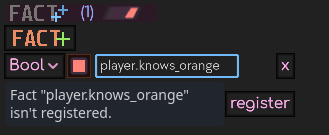
As an example, you may want to have the player character know of the color orange at some point. You declare player.knows_orange with true. Because the player doesn't know orange before that point, DIISIS will start the first page with player.knows_orange set to false.
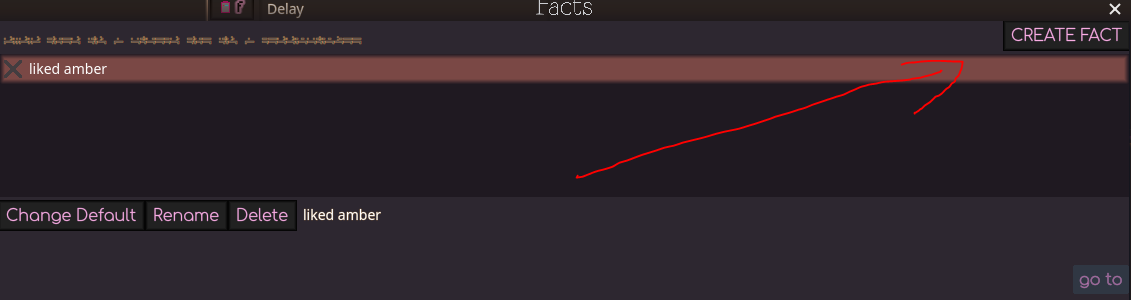
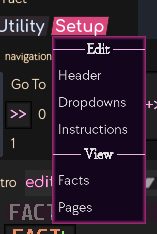
Alternatively, you can create facts inside the Facts menu (Setup -> Facts)
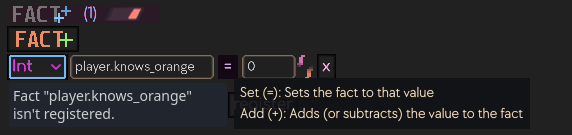
Facts can be either boolean (true/false) or integer. To change the data type, use the dropdown on the left.
Click the checkbox to change the value the fact will become when that place in the file is reached.
Integers start out at 0, and have two modes. Set (=) sets the value. Add (+) changes the value by the specified amount. Negative numbers are allowed. Click the button to toggle between the two modes.
Facts can be attached to three hooks from within the dialog editor, and a fourth one in Godot itself.
Page-bound facts become set when a page is reached. This can be useful for:
- When you want to have an overall scene convey some change, but don't know yet what point introduces that change
- Don't have a clean point in the narrative that acts as the turning point
- Start a page with some effect instructions (like a fade to / from black), which would bury an immediate change around line index 4
Line-bound facts become set when the line starts being read. This also applies to non-text line types. This can be useful for:
- Having sudden mid-scene changes
Choice-bound facts become set when a choice gets pressed, or it triggers an auto switch. Assuming you don't set facts from elsewhere in your code, this is where you give the player agency and an impact on the world. (If you're writing a game with choices, that is.)
Lastly, the Parser autoload provides the function change_fact(). This can be called from anywhere in the project, and will set the fact to the desired value.
Conditionals are the way to use those facts you have set. Add the name of the fact you would like to check. The check box determines the value you want for that fact.
Furthermore, you can determine the operand and true behavior.
The currently existing operands are:
- AND: Requires all conditionals to be true (NOTE: this means the current value of that fact matches the check box, not that it is of value
trueinternally) - OR: Requires at least one conditional to be true
- N or more: Requires at least N conditionals to be true
- N or less: Requires at most N conditionals to be true
- Between N - M (inclusive): Requires between N and M conditionals to be true. Returs false if M > N
The behavior determines the behavior of that line / choice item if the condition is true. If false, its complement will be enacted instead. (show <> hide, enabled <> disabled).
For lines, show and enabled, and hide and disabled are equivalent respectively.
Instructions do not get executed if they are hidden / disabled.
If a folder gets hidden / disabled, all of its contents will be skipped.
Assuming auto_switch is not checked, Choice Items get displayed as Buttons (inheriting from the ChoiceButton class). In the editor, you can determine if a choice items' default mode is enabled or disabled, corresponding to the behavior of regular buttons. If you want to hide a button entirely, use show / hide conditionals for that. If you want the player to see the button regardless, and just make them unable to pick it, use an enabled / disabled conditional.
Assuming auto_switch is checked, the choice option will simply go to its target page if the conditional evaluates to true, regardless of set behavior.
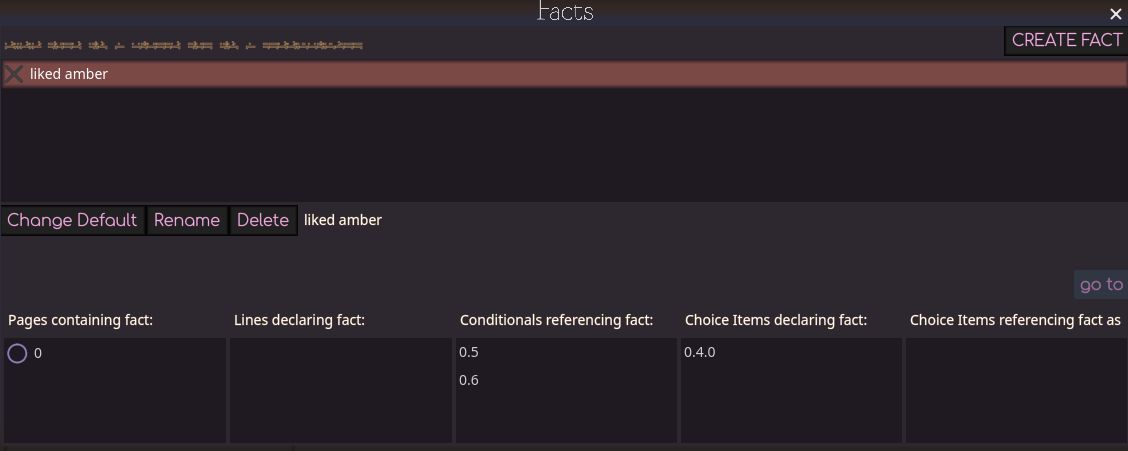
Using the Setup -> Facts menu, you can get an overview of all facts that you have declared at any point in your project.
Additionally, you can rename and delete facts again.
If you want to change to change the default value of a fact, you can use the facts menu. The default value is what the fact will be at runtime before anything happens to it.
Page indices with a filled purple circle  are pages on which the fact is bound to the page itself.
You can go to any item that has a fact by clicking on the address in the lower half, and then using the "go to" button to the right. Alternatively, you can double-click on the address.