Repository navigation
LineReader & Parser
Once you have created your dialog, it is time to put it into the game.
Parser is an AutoLoad can be configured by you. It is located at res://addons/diisis/parser/autoload/parser.tscn. Implicitly, when you save a file, the parser will automatically read that file (bound by Godot project). You can override this with any DIISIS-Generated file however if you set source_file_override. Note that this can break things if other output files include instructions you have not defined.
Here you can also adapt the look of the history.
LineReader is the other part of this equasion. It is a node you can add with CTRL + A like any other node. Add it to the scene where you want the text from your file to be read in.
When a new character starts speaking, the name_label will need to be upadted accordingly. For simplicity of overrides, the line reader offers a name_map, which should have String as both key and value. Keys should be the raw internal strings used in the dialog syntax dropdown, and the value is the string you want to appear in the label.
If no override is found, the raw string will be displayed.
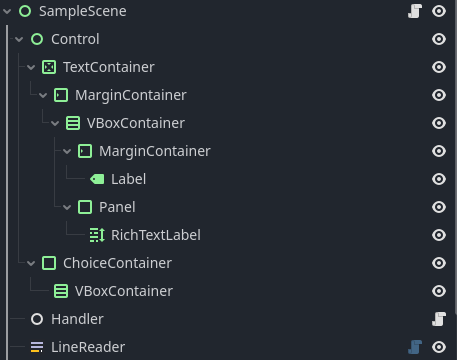
LineReader itself only controls the output flow of the text and cannot know how you want it displayed. In the same scene tree, you have to add the respective and needed Control nodes yourself.
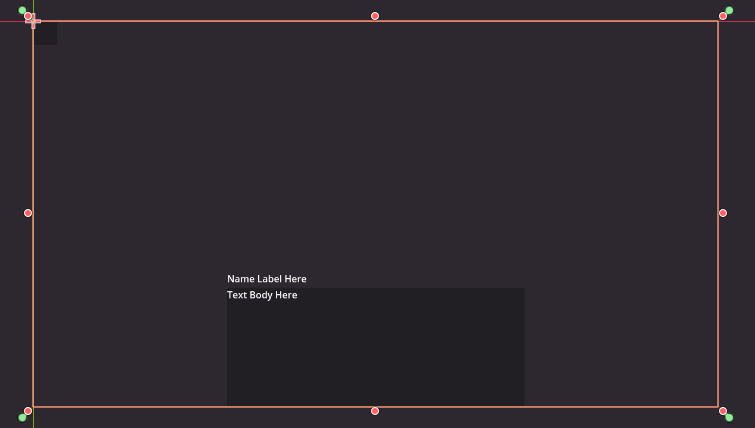
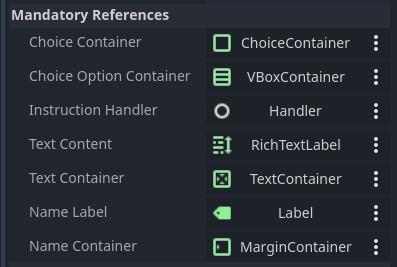
A simple visual novel-style layout may look like this:
| Scene Tree | Look in game | Filled variables |
|---|---|---|
 |
 |
 |
You will also see the Handler node. It inherits from InstructionHandler and cannot be omitted, even if you do not use instructions in your game. For the simplest version, add a blank Node and give it the InstructionHandler.gd script. For usage of instructions, head to here.
If you want to start a blank new game, call Parser.reset_and_start(). (This starts parsing the dialog file with a blank state.)
To continue from a loaded game state, call:
Parser.load_parser_state_from_file("user://path/to/parser_state.json")
Parser.paused = falseLineReader is user-input driven. Within your input system, you need to call request_advance() to make the line reader do the next thing, such as:
- completing text if it's in the middle of it
- clearing text and starting to read the next line of text if it's full
A very simple approach for the scene tree above would be to put these lines of code into the scene root.
func _gui_input(event: InputEvent) -> void:
	if event is InputEventMouseButton:
		if event.button_index == MOUSE_BUTTON_LEFT and event.pressed:
$LineReader.request_advance()To save the parser state when saving or quitting the game, simply call Parser.save_parser_state_to_file(). To load a game state, call Parser.load_parser_state_from_file().
LineReader similarly comes with a simple system that you can utilize for its behavior (text speed, etc.), assuming you have a rudimentary IO system yourself (which you should if you have any game settings.)
When you want to save the preferences When loading those options, call Parser.line_reader.get_preferences(). Fetch that saved value and call Parser.line_reader.apply_preferences() when you load a game state to apply those preferences.


