Competitive Programming Operating System
Open a problem in your browser. CPOS creates the file, loads the samples, and lets you run and submit — without copy-pasting anything.








Capture a problem · auto-create your file · run samples · submit from VS Code
CPOS has three parts — a browser companion, a terminal app, and a VS Code extension. Install all three; they share the same files and stay in sync over localhost.
The flow:
- Pick your folder — open any folder in VS Code, or let the terminal app use
~/cpos. - Open a problem in your browser — any Codeforces or CSES problem page.
- CPOS captures it — the browser companion reads samples and sends them to CPOS on your machine.
- A file appears — e.g.
1971D.cpp, with sample tests attached. - Write your solution — in VS Code.
- Run samples — from the panel or with
Tin the terminal. - Submit — CPOS autofills the judge form in your browser (log in to Codeforces/CSES first).
No copying samples. No manually creating files.
Write code in the editor. The CPOS panel runs samples and submits.

Install from the Marketplace. Open your folder, capture a problem from the browser, then use the CPOS panel:
- Tests / Statement tabs — switch between samples and the captured problem statement, rendered natively with MathJax
- Run All — compile and test every sample
- Submit — autofill the judge submit page in your logged-in browser
- Problem — open the statement again
- Search — Google search for editorials and solutions for the linked problem
- GitHub — open the CPOS repository
- Test cases — edit samples; multi-case inputs show linked input/output blocks when captured from Codeforces
- Theme — five panel themes (see Settings)
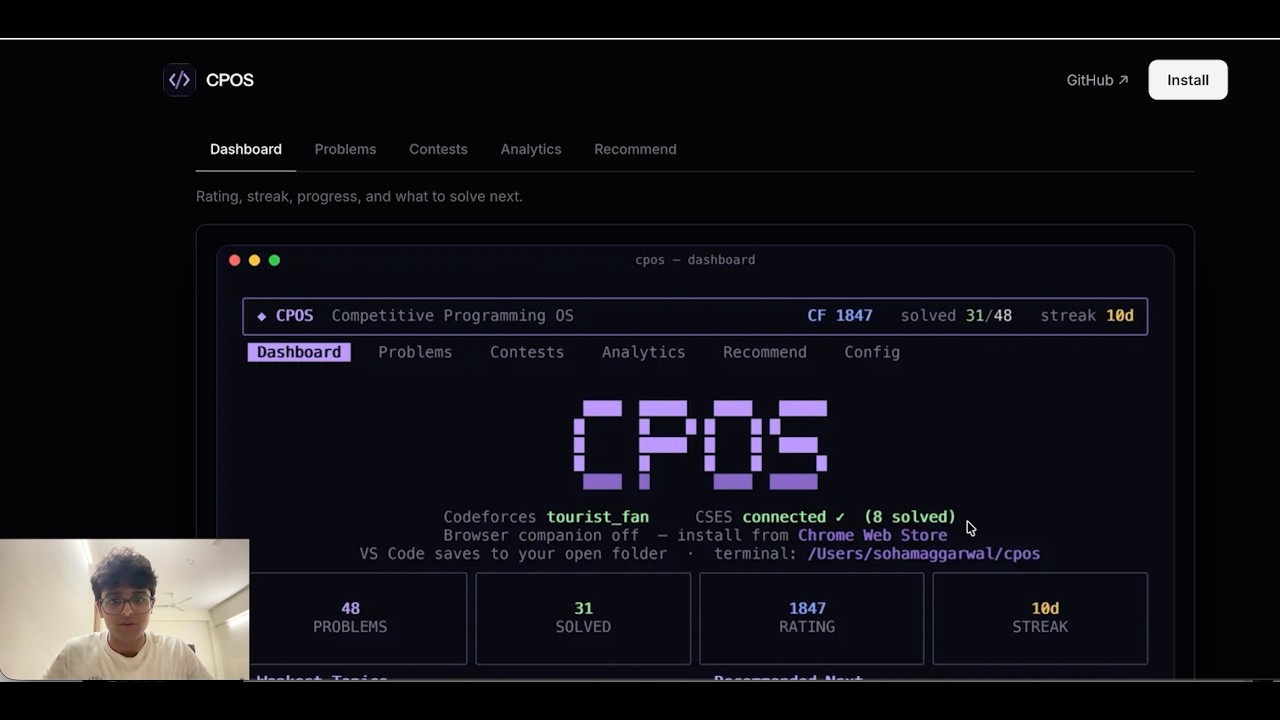
Browse the catalog, sync rating, track contests, and get recommendations — without opening Codeforces in a tab.
brew tap Soham109/cpos https://github.com/Soham109/cpos
brew install cpos
cpos
Windows with Scoop:
scoop bucket add cpos https://github.com/Soham109/cpos
scoop install cpos
cpos| Key | What it does |
|---|---|
o / Enter |
Open a problem — creates the file in your project folder when VS Code has synced a path, otherwise in ~/cpos or your configured workspace |
T |
Run against samples |
s |
Submit |
b |
Open problem in browser |
U |
Open by URL |
/ · f · p |
Search · filter by rating · switch platform |
Tab |
Switch between Dashboard, Problems, Contests, Analytics, Recommend, Target |
r |
Sync with Codeforces and CSES |
Keep the terminal running while you code in VS Code — same captures, same submits, same progress.
The first time you launch cpos (before a Codeforces handle is set) a quick 4-step wizard runs:
- Handle — type your Codeforces handle.
- Language — pick your default language (
←/→to browse). - Template — choose how to supply your solution template:
- Paste (default): copy your template, then press
v(orCtrl+V/⌘V) to paste the whole thing — multi-line formatting is preserved. - Upload: press
Tabto switch modes, type or paste a file path, then Enter to load it. A live preview shows the loaded template. - Leave it blank to use the built-in template.
- Paste (default): copy your template, then press
- CSES (optional) — press
oto open the CSES login, then paste yourPHPSESSIDcookie to sync solved problems. You can skip this and set it later in Config.
Re-run the wizard any time by clearing your handle in config.toml (or deleting the config file — see Config location).
You choose where solution files live:
- VS Code: open a project folder before you capture. CPOS creates files such as
1982C.cppin that folder. - Terminal: defaults to
~/cpos/, or uses the same project folder as VS Code when captures have been synced.
Configure the VS Code save location under Settings → Extensions → CPOS (cpos.saveLocation, cpos.fixedDir). Configure the terminal workspace in config.toml (workspace_dir).
| What | Where |
|---|---|
| Browser companion | Chrome Web Store (Chrome, Edge, Brave) |
| Browser companion | Firefox source install (temporary/self-installed for now; AMO publishing later) |
| VS Code extension | VS Code Marketplace |
| Terminal app | macOS/Linux: brew tap Soham109/cpos https://github.com/Soham109/cpos then brew install cpos |
| Terminal app | Windows: scoop bucket add cpos https://github.com/Soham109/cpos then scoop install cpos |
Install all three for the full experience. The browser companion is required for capture and submit.
The package-manager installs use prebuilt binaries from GitHub Releases, so users do not need Rust, Cargo, Visual Studio Build Tools, or a linker. Developers can still build from source with:
cargo install --git https://github.com/Soham109/cposSee INSTALL.md for release assets, manual downloads, and publishing notes.
When the terminal app starts, CPOS does a quick best-effort update check for the terminal app. If the terminal app is outdated, CPOS asks before running an update; it never updates silently. If the check is slow or offline, CPOS opens normally.
You can also update manually:
cpos updateFor Homebrew installs, CPOS delegates to Homebrew. For Scoop installs, CPOS delegates to Scoop. Your config, cache, templates, and problem data are kept.
Set CPOS_NO_UPDATE_CHECK=1 to skip startup checks.
VS Code extension — updates from the Marketplace automatically (or Extensions → CPOS → Update).
Browser companion — Chrome/Edge/Brave update automatically from the Chrome Web Store. Firefox source installs do not auto-update yet; pull the latest repo changes, reload extensions/firefox/manifest.json, or rebuild/sign a new XPI.


- Auto file creation — open a problem, get a ready-to-edit solution file in your folder
- Sample capture — public tests pulled from the problem page, with multi-case grouping on Codeforces when available
- Run & submit — from the VS Code panel or terminal keys; submit autofills your browser
- Multi-language templates — start new solutions in your configured language
- Progress & analytics — rating history, topic breakdown, activity heatmap
- Recommendations — personalized unsolved problems aimed at your weak topics (see below)
- Targeted practice — set a rating goal and get the topics you still need plus an ordered plan to reach it (see below)
- Contests — upcoming and running Codeforces contests with countdowns
- Private — everything stays on your machine (
127.0.0.1, no external servers)
After you sync (r in the terminal), CPOS builds a focused list of unsolved problems to practice next. Find them on the Recommend tab or the Recommended Next panel on the Dashboard.
CPOS only considers unsolved problems with a Codeforces rating in a band around your level (roughly −250 to +350 from your current rating, targeting about +100 above you).
Each candidate gets a score from:
| Signal | What it means |
|---|---|
| Weak topics | Tags where your solve rate is low get the most weight — a topic you fail 100% of the time counts more than one you're half-comfortable with |
| Multiple weak tags | Problems that combine several weak areas get a small bonus |
| Unfinished attempts | Problems you tried but didn't solve are boosted so you can finish what you started |
| Rating fit | Problems near your target practice rating score higher |
| Popularity | Well-known problems (many solves on Codeforces) are preferred — they're usually better written |
The top scorers are then diversified: CPOS caps how many problems share the same primary tag or exact rating so the list isn't fifteen identical DP problems.
If you haven't accepted anything yet, CPOS can't infer weak topics. It falls back to popular problems around 1200, spread across tags and ratings, until your submission history fills in.
Press r after solving more problems to refresh recommendations.
Recommend answers "what's a good next problem." The Target tab answers the goal-shaped question: where am I, what's left, and in what order.
Set a goal — cycle Codeforces rank milestones with [ / ], or press t to type an exact rating (e.g. 1600). CPOS then shows:
- Status — your effective level, the gap to your goal, an overall readiness %, and how many problems you've solved in the goal band.
- Topics to Cover — each prerequisite topic for the goal, labelled Ready / Developing / Gap / Untouched (weakest and most relevant first), with the rating it starts to matter at and your best solve so far.
- A step-by-step plan — unsolved problems on rating rungs from your level up to the goal, with weak and uncovered topics front-loaded, labelled Base → Build → Push → Target. Press
enter/oon a step to start it in the normal solve flow.
The plan is Codeforces-only, since CSES tasks don't carry ratings.
VS Code — Settings → Extensions → CPOS:
| Setting | Default | What it does |
|---|---|---|
cpos.saveLocation |
workspaceFolder |
Save files in your open folder |
cpos.fixedDir |
~/cpos |
Folder when save location is fixed |
cpos.defaultLanguage |
cpp |
Language for new files |
cpos.runTimeoutMs |
5000 |
Per-test timeout |
Panel themes — use the theme control in the CPOS panel header. Your choice is remembered.
| Theme | Look |
|---|---|
CPOS |
Signature purple — the default |
Midnight |
Calm slate-blue |
Amber |
Warm terminal / sepia |
Paper |
High-contrast grayscale, minimal color |
Native |
Inherits your active VS Code color theme — Run All matches VS Code button styling |
Terminal app — ~/.config/cpos/config.toml (Linux), ~/Library/Application Support/cpos/config.toml (macOS), or %APPDATA%\cpos\config.toml (Windows):
default_language = "cpp"
theme = "purple"   # purple | cyan | green | amber | mono | plain | light
editor = "code {file}"

[handles]
codeforces = "your_handle"
plainis a neutral grayscale theme for a low-color terminal interface;monois the single-accent minimal one;lightis a bright canvas for light terminal / VS Code light-theme users.
macOS C++: run
brew install gccif you needbits/stdc++.h— CPOS auto-detects Homebrew's g++.
Having issues? See TROUBLESHOOTING.md (TUI install, Run All errors, submit, source builds, and more).
- AtCoder & CodeChef support
- Contest mode with per-problem timers
- Read submission verdicts back into CPOS
CPOS is built and maintained by one person, in the open, for the competitive programming community. It's free, MIT-licensed, and runs entirely on your own machine — no accounts, no servers, no tracking, no paywalled features.
If CPOS saves you time on every problem, sponsoring keeps it that way and funds what's next:
- More judges — AtCoder and CodeChef support
- Contest mode — per-problem timers and a focused contest workflow
- Verdicts in CPOS — read submission results back without leaving the editor
- Maintenance — keeping capture and submit working as Codeforces and CSES change

Not in a position to sponsor? Starring the repo, filing a clear bug report, or sending a PR helps just as much — see CONTRIBUTING.md.
MIT — see LICENSE.
CPOS is fully open source. You're free to use it, fork it, and build on it.
Contributions are welcome and appreciated — whether that's a bug report, a doc fix, a new platform, or a polish pass on the TUI. Start with CONTRIBUTING.md for dev setup and PR guidelines.
| Doc | Purpose |
|---|---|
| INSTALL.md | TUI binary install, update, and release publishing |
| TROUBLESHOOTING.md | Common fixes (TUI install, Run All, submit, source builds) |
| CONTRIBUTING.md | How to contribute |
| ARCHITECTURE.md | How the components connect |
| CHANGELOG.md | Version history |
| SECURITY.md | Report vulnerabilities |
Questions or ideas: GitHub Issues.