Home
🚧🚧🚧 Under Construction 🚧🚧🚧
Folks I am still putting this together so a few things are missing but over this week it will all be uploaded.
🌟 What Is OpenBlocks Scratch? Imagine building your own video game or toy by snapping together colorful puzzle pieces. That’s what OpenBlocks Scratch lets you do! It’s a special kind of computer language made just for kids and beginners. Instead of typing tricky code, you drag and drop blocks that tell your toy what to do—like “move forward,” “make a sound,” or “change color.”
It’s like giving your toy a set of instructions using building blocks!
🧸 How Can You Use It With a Small Board and Screen? You have a tiny computer board with a little screen. You can use OpenBlocks Scratch to make that board do fun things!
For example:
- Make a dancing robot: Use blocks to tell it when to wiggle or spin.
- Create a talking pet: Program it to say “Hello!” when you press a button.
- Build a mini game: Show a maze on the screen and move a character with arrow keys.
- Design a mood lamp: Change colors based on how you feel—just tap a sensor!
You connect your board to your computer, build your project with blocks, and then send the instructions to the board. Ta-da! Your toy comes to life!
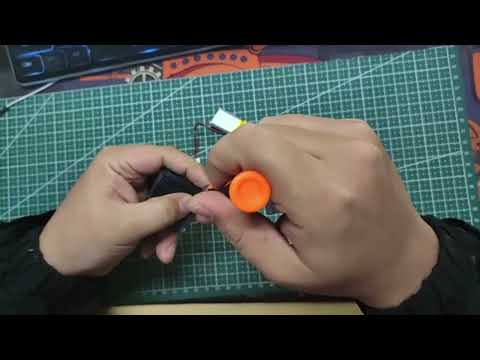
You can watch the video on how to put your Spotpear C3 MiniTV keychain together. Its not difficult and can be quite fun.
The OpenBlocks Scratch UI is specially tailored for the Spotpear C3 MiniTV Keychain device, and the device must load special software first in order to use this tool. The devices handed out in class ALREADY have all this setup so you dont need to worry.
Android and iPAD probably wont be able to see the device to program it, you will need Windows PC. I didnt try MacOS but if someone with a machine can let me know it would be nice.
Basically you will need a USB 2.0 Micro-B connector cable to charge and program the device. Once you plug it in it will show up as a serial port which the most modern web browsers can talk to and this is how we send the program to the device. The OpenBlocks Scratch editor has an "UPLOAD" button that automatically loads in the program.

Here are all the types of cables for USB courtesy of https://www.szapphone.com/blog/usb-connector-types-guide/

They shouldnt be more than a few 100 yen from Amazon.
-
USB2/3 Type-A to USB Micro-B ( HERE> https://www.amazon.co.jp/dp/B005C8RW1A/ref=twister_B005D5YJ9U )
-
USB3 Type-C to USB 2.0 Micro-B ( HERE> https://www.amazon.co.jp/-/en/Transfer-Compatible-Smartphones-Humidifiers-Panasonic/dp/B0F5GK5168 )
Power on the spotpear device, press the top two buttons and whilst holding them both down press the reset button. This wipes any program that might have been uploaded and puts it back to an idle state.
Click the spotpear-scratch.github.io link to open the Scratch Editor in your browser, we used Chrome but it should work in Safari, and Microsoft Edge.
Then click the "No Device Selected" button and click the obvious keychain device.

Its going to ask to connect to the serial port, it should show up in the list, and then click connect.

Then choose the serial port connected to the JTAG/DEBUG

Then wait for it to show up in the scan list. If it doesnt unplug your board, press reset, wait 5s, reload your web browser and plug it back in.

Drag the blocks from the left into the middle panel and create your master piece

Upload it

Now press the reset button and watch it work!
The website should work with anything that has USB but we found ...
- Android often didnt work
- iPAD we didnt try
- MacOS we didnt have access to it
- Linux worked but you have to give the user dialup/dialout/uart permissions
If it doesnt unplug your board, press reset, wait 5s, reload your web browser and plug it back in.
Press the two top buttons, keep them pressed, then press and release just the reset button. Now the program has been wiped away and it should start up normally.
email me or file and issue with us