Repository navigation
Usage
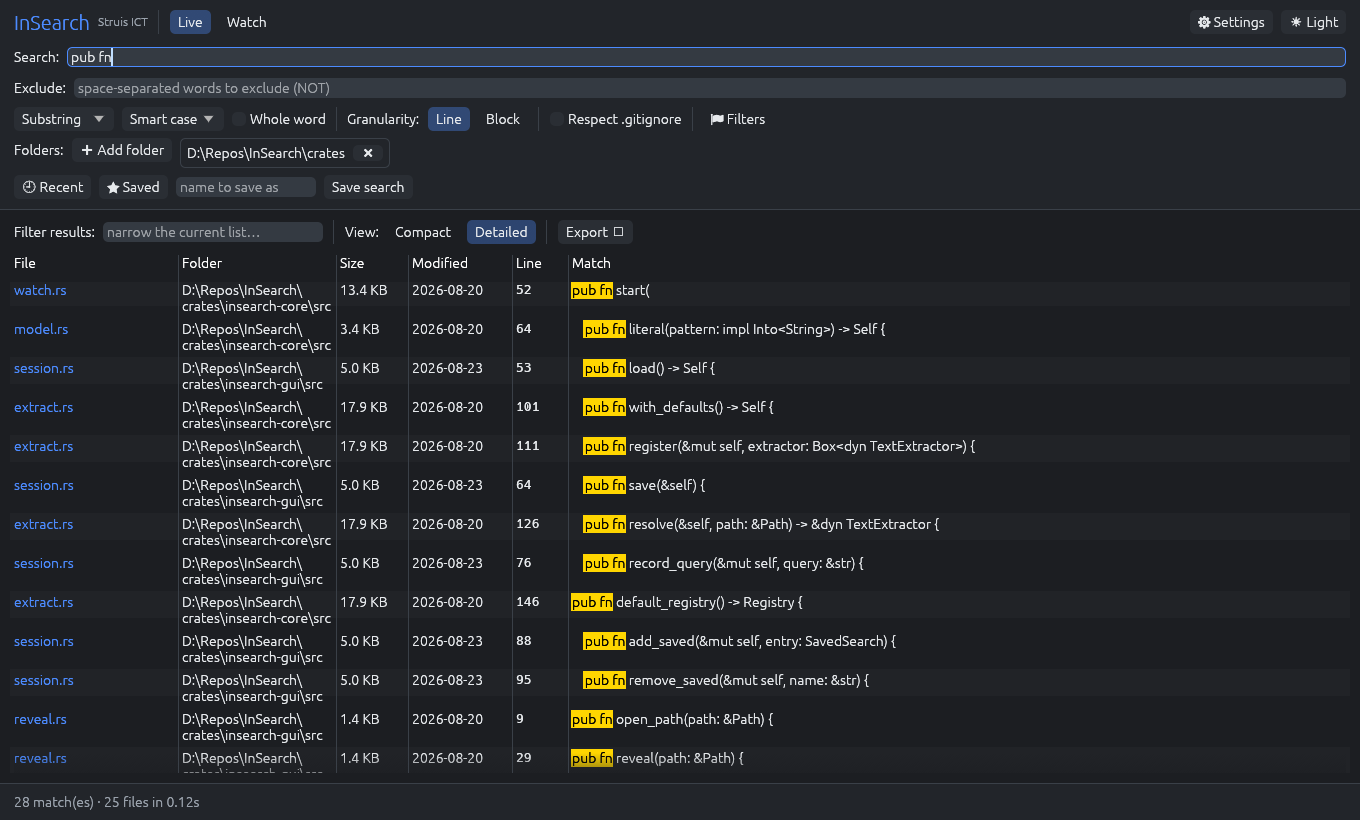
Add one or more folders, type a query, and matches stream in as InSearch walks the tree and searches inside each file. Results appear in a File / Line / Match table with the matched text highlighted.
The query area runs Search → Exclude → Folders, then a divider, then 🕘 Recent / ★ Saved / Save; the match-mode and case options plus ⚑ Filters sit on the row below.
Pick a match mode from the dropdown:
| Mode | Meaning |
|---|---|
| Substring | plain literal text (default) |
| Regex | a regular expression — see below |
| All words | every space-separated word must appear (AND), in any order |
| Any words | any of the space-separated words may appear (OR) |
Plus:
- Exclude — a separate field for words that must not appear (NOT).
- Whole word — match whole words only (word boundaries).
- Case — Smart (case-insensitive unless your query has an uppercase letter), Case sensitive, or Ignore case.
Regex mode uses Rust's regex engine (the same one as ripgrep): character classes, |, quantifiers, anchors (^ $ \b), groups, \d \w \s, and inline flags like (?i). For performance it is linear-time, so backreferences and look-around are not supported.
- Line — one result per matching line.
-
Block — one result per timestamp-to-timestamp block. A line that begins with a timestamp (ISO-8601, syslog,
MM/DD/YYYY, or epoch) starts a block; following non-timestamped lines (stack traces, pretty-printed JSON, …) belong to it. Ideal for logs.
- Live — search-as-you-type; each change re-scans the chosen folders.
- Watch — keep results live as files change. New matches in growing logs appear automatically (log-tailing); removed files drop out.
Watch applies the same file filters and the entry-time filter as Live, so a watched view stays scoped to exactly what you'd see in a one-off search.
Open ⚑ Filters to narrow a search. Every filter is empty by default and self-activating — a blank field is ignored, so you only fill in the ones you need. Filters are kept for the session (not written to disk unless you Save the search). Every date field accepts YYYY-MM-DD with an optional HH:MM, and each has a 📅 calendar button.
| Filter | Narrows to… |
|---|---|
| Name | files matching a glob (*.log); click the .* chip to switch that pattern to regex |
| Type | only these extensions, and/or not these — Save as default (from 0.7.0) remembers the not these list for every new search; see Search defaults |
| Size KB | a min–max size range |
| Recent | files modified within the last N days |
| File date | files whose last-modified time is in an after → before window |
| Entry time | log entries whose in-content timestamp is in a from → to window |
From 0.7.0, three settings apply to every search and are remembered across sessions:
-
Excluded types — a global list of extensions (e.g.
dll, exe, png, jpg, zip) pre-filled into the Type → not these filter at launch. Set it with Save as default next to that filter, or edit/clear it under ⚙ Settings → Search defaults (Apply now pushes it into the current search). A saved search with its own exclusion list wins; one saved without any falls back to the default. -
Skip hidden (options row) — skips dot-prefixed files and folders (
.git,.cache, …) and, on Windows, anything with the Hidden attribute. -
Skip system folders (options row) — when searching a whole drive, prunes the Windows-owned folders at the drive root:
Windows,Program Files,Program Files (x86),ProgramData,PerfLogs,Recovery,$Recycle.Bin,System Volume Informationand similar. Only folders directly under a drive root are affected, and a folder you add explicitly is always searched — a project's ownsrc\Windowsis never skipped.
The ⚑ Filters toggle shows a • whenever any filter is set, so a pre-filled default exclusion is never invisible. Watch mode honours all three as well.
These answer different questions:
- File date filters on the file's modification time — i.e. which files to search.
-
Entry time filters on the timestamp written inside each match (ISO-8601, syslog,
MM/DD/YYYY, or epoch) — i.e. which log entries to keep. It slices a multi-day log down to just the lines/blocks in your window, regardless of when the file was last written. (In Line mode, lines without their own timestamp are dropped while this filter is active; in Block mode, a block inherits its opening timestamp.)
Once an Entry-time bound is set, a ⚡ skip files older than "from" toggle appears — an optional accelerator that skips any file whose modified time predates the lower bound (its newest entry can't be in range) without reading it. Turn it off if file timestamps aren't reliable (e.g. copied or touched files).
Switch the results View between Compact (File · Line · Match) and Detailed, which adds Folder, Size, and Modified columns. (Metadata is read lazily for the rows on screen, so Compact searches stay fast.)
- Double-click a file name — or anywhere on its row — to open the file in its default app.
-
Right-click a result for: Open, Reveal in file manager, Copy path, Copy matched text, Copy result (
path:line: text), and Copy all results. - Export the visible results to CSV, JSON, or plain text.
- Filter results — a box that narrows the current list without re-searching.
- The status bar shows the match count, files scanned, and elapsed time.
- 🕘 Recent — reuse a recent query.
- ★ Saved — save the current query, options, filters, and folders under a name and restore it all later. Loading a saved search replaces your current filters with the saved set (and opens the Filters panel if it carries any). Recents and saved searches persist between sessions.
Top-right of the window:
- ☀ Light / 🌙 Dark — switch between the warm-white light theme and the dark theme.
-
⚙ Settings — the Explorer integration panel: install or remove the right-click "Search with InSearch" entry for files and folders (per-user,
HKCU, no admin needed). It shows whether the entry is installed and still points at this copy of InSearch. See Installation. Below it, Search defaults holds the global excluded-types list (see Search defaults). - ℹ About — the InSearch version, the active Renderer (e.g. DirectX 12 · your GPU, or Microsoft Basic Render Driver — software rendering on a machine without one), a link to Struis ICT, the GitHub source, the MIT license, and a Buy me a coffee ☕ link.
| Shortcut | Action |
|---|---|
| Ctrl+F | focus the search box |
| Ctrl+L | toggle Live / Watch |
| Esc | close an open calendar/dialog popup, otherwise clear the query |
Alongside recent and saved searches, InSearch remembers your theme, result view (Compact/Detailed), last-used folders, the window size and position, and (from 0.7.0) the search defaults — excluded types, Skip hidden, Skip system folders — across sessions. Reopen it and you pick up where you left off.
insearch-cli exposes the engine for scripting:
insearch-cli <pattern> [roots...] [options]By default it prints path:line: text (pipe-friendly — works with head, grep -q, etc.), exiting 0 on a match and 1 on none.
| Group | Flags |
|---|---|
| Query |
--regex · --all-words · --any-words · --exclude "a b" · --whole-word · --case-sensitive · --ignore-case · --block · --gitignore · --no-hidden · --skip-system-dirs
|
| File filters |
--name <glob> · --name-regex · --ext <a,b> · --exclude-ext <a,b> · --min-kb <n> · --max-kb <n> · --days <n> · --after <when> · --before <when>
|
| Entry time |
--entry-after <when> · --entry-before <when> (<when> = YYYY-MM-DD or 'YYYY-MM-DD HH:MM:SS', local) |
| Output |
--json (JSONL) · --count · -l/--files-with-matches
|
| Info |
--version / -V · --help
|
# count ERRORs in today's logs, only .log files
insearch-cli ERROR C:\logs --ext log --count

# JSON lines for entries timestamped in a window
insearch-cli timeout C:\logs --entry-after 2026-08-01 --json

# whole-drive search that skips Windows system folders and hidden files
insearch-cli "connection refused" C:\ --skip-system-dirs --no-hidden --ext log -l
Run insearch-cli --help for the full list.
© Struis ICT — https://struisict.com · Buy me a coffee ☕