User Manual
- Install Particle CLI
- Download latest release and make sure you have the following files in the same folder
- Particle.bin
- flash.bat
- monitor.bat
- Double click on flash.bin and follow the instructions until you see 'flash successful'
- Double click on monitor.bat to see the logs coming from the board.
- max data operations
- pump id
- number of particles you own
- Download Particle app from Google Play Store or App Store(IOS)
- Create account using app or web page (https://console.particle.io/login)
- Follow Particle app instructions to claim the board
- Check both sites: https://console.particle.io/devices and https://console.particle.io/sims, and make sure there is an active device/sim
Required Downloads
- Flash Tool Download
- From Latest Release: Flash.zip (See right sidebar on GitHub Code page)
- Connect the ESP32 to your computer
- Extract/Unzip the Flash Download tool
- In the extracted folder, open the Flash Download Tool (Will be named something like: flash_download_tool_3.8.5.exe)
- Press Developer Mode then ESP32 DownloadTool
- Go back to where you downloaded Flash.zip and extract this file
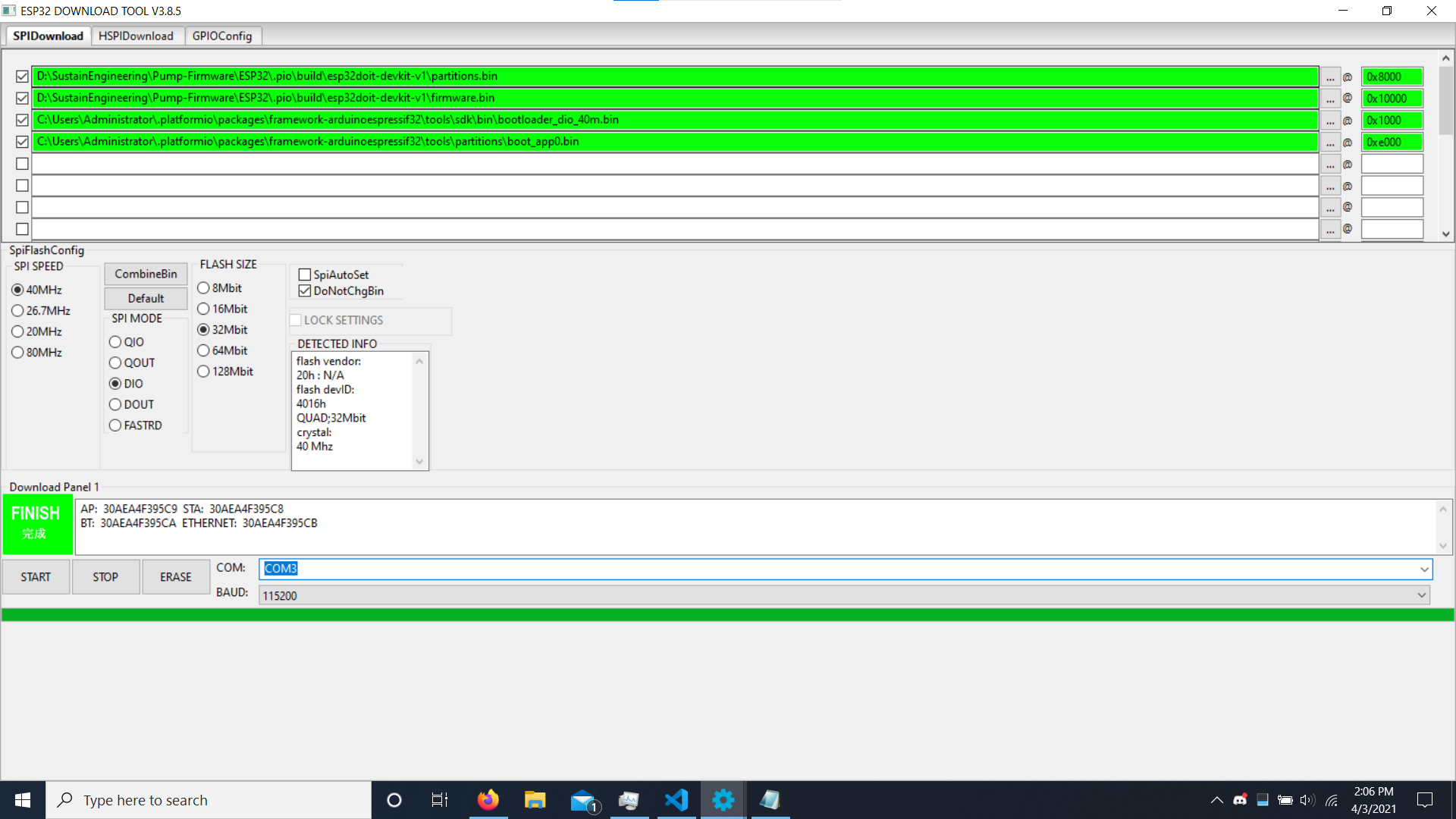
- Add the extracted files inside Flash.zip to tool (Click the "..." boxes next to the lines to browse and find the files)
- Next to the files, there is a "@" symbol followed by a box, write the following values into those boxes
- partitions.bin - 0x8000
- firmware.bin - 0x10000
- boot_app0.bin - 0xe000
- bootloader_dio_40m.bin - 0x1000
- Ensure SPI Speed is 40MHz, SPI MODE is DIO, FLASH SIZE is 32Mbit, and DoNotChngBin is checked
- Ensure the COM port is set and BAUD is 115200
- Refer to the Picture below to double check are settings are correct
- Press Start to begin uploading
- Should be complete when the green box says "Finished"