Application notes:
- By default, application uses In memory database with seeded test data. (Please specify DefaultConnection in appsettings.json file to start using SQL server)
- You can find SQL Server mdf file by this "~\PAManagement\AgreementManagement.SQL\AgreementManagementDB.mdf" path
- Also you can find db schema in AgreementManagement.SQL project (dbo) folder.
- To made ModelBuilder configurations, please take a look at AgreementManagementDbContext.designer.cs file.
- All entities and db related logic are stored on AgreementManagement.Data project.
Task Mismatch - a typos I've noticed in the task description
- Plase fix "logging" keyword because it makes misunderstanding that the developer needs to implement application logging instead of creating login registration
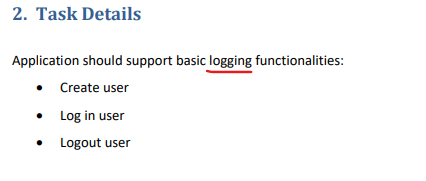
Application should support basic logging functionalities:
- Create user
- Log in user
- Logout user
You should create simple login page. You can use all autogenerated code and tables from Asp Net MVC project for these functionalities.
You should create appropriate tables in the database (listed in the section 3.) and populate them with some test data.
After successfully login, user will be presented home page. Home page consists of one data table and one ‘New Agreement’ button. When user clicks on ‘New Agreement’ button dialog will be shown. That dialog will contain following inputs:
- Group input (select control)
- Product input (select control)
- Effective date input
- Expiration date input
- New price
- Active/Inactive checkbox
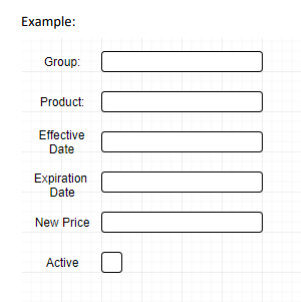
Dialog will have two buttons: ‘Close’ and ‘Save’. Implement validation for ‘Saving’ process. All fields are required. ‘New price’ must be a number and Dates fields must be in date format ‘MM/dd/yyyy’. E.g. if user clicks save and Product is not populated, that field should be marked with red border and appropriate tooltip message (‘Product is required field’)
That table should have following columns:
- Username
- Product Group Code (with group description as a tooltip)
- Product Number (with product description as a tooltip)
- Effective Date
- Expiration Date
- Product Price
- New Price
- Action column that will have ‘Edit’ and ‘Delete’ buttons.
Table should support sorting, pagination and search by Product Number, Group Code and Username.
When user clicks on edit button, ‘New Agreement’ dialog will appear with populated data for that agreement. User can edit data in the dialog and click save, then record will be updated. When user clicks on delete button he will be prompted with Yes/No dialog. If he clicks Yes, record from the table will be deleted (also in database). After ‘Save’, ‘Delete’ actions table should be refreshed.
Below are tables names and field that you should use in the application.
Product
- Id (incremental primary key)
- Product Group Id (foreign key)
- Product Description
- Product Number (unique)
- Price
- Active (bit)
Product Group
- Id (incremental primary key)
- Group Description
- Group Code (unique)
- Active (bit)
Agreement
- Id (incremental primary key)
- User Id (user that created agreement)
- Product Group Id (foreign key)
- Product Id (foreign key)
- Effective Date
- Expiration Date
- Product Price
- New Price
User Management tables should be default MVC5 tables. Those tables are created by default in Asp Net MVC project when authentication is enabled. Example of those tables: AspNetUsers, AspNetRoles…
ASP.NET Core MVC 2 or 3, .net 5, .net 6 SQL Server jQuery jQuery Data Table (https://datatables.net) Entity Framework .Net Framework Bootstrap
Full source code of the application (use Git) DB dump with the table structure and example data