- Operates on objects, not text.
- Has
cmdletsThey are built on a common runtime rather than seperate executables. This provides a consistent experience in parameter parsing and pipeline behaviour. - Has many types of commands
- Native Executables
- cmdlets
- Named acording to the verb-noun structure
- functions
- scripts
- aliases
- Tab autocomplete - Typing the start of what you want an pressing 'Tab' will start cycling through all posible commands that start with what you have typed in.
- You can write multiple commands on the same line by seperating them with a
;. (doesn't use objects) - By putting
( )around a command that is returning an object(s), you can change the object. For example, if you 'get' a process you can then call thekill()method on it, like you would call methods on objects in C#(Process_name).kill()
- Try to keep an object for as long as possible
- Always try to keep the number of objects down by filtering early on in a chain.
- Filter left, Format right
A pipeline is a series of commands connected by pipeline operators |. Each pipeline operator sends the results of the preceding command to the next command.
Command-1 | Command-2 | Command-3$_ represents the current pieline object.
When a cmdlet runs, it returns an object. Every action in powershell happens within the context of objects. As data moves from one command to the next, it moves as one or more identifiable objects.
An object is a collection of data and is made up of three types of data: the objects type, its methods, and its properties.
- The object type tells what kind of object it is.
- An object representing a file is a FileInfo object.
- The object methods are actions that you can perform on the object.
- FileInfo objects have a CopyTo method that you can use to copy the file.
- Object properties store information about the object.
- FileInfo objects have a LastWriteTime property that stores the date and time that the file was most recently accessed.


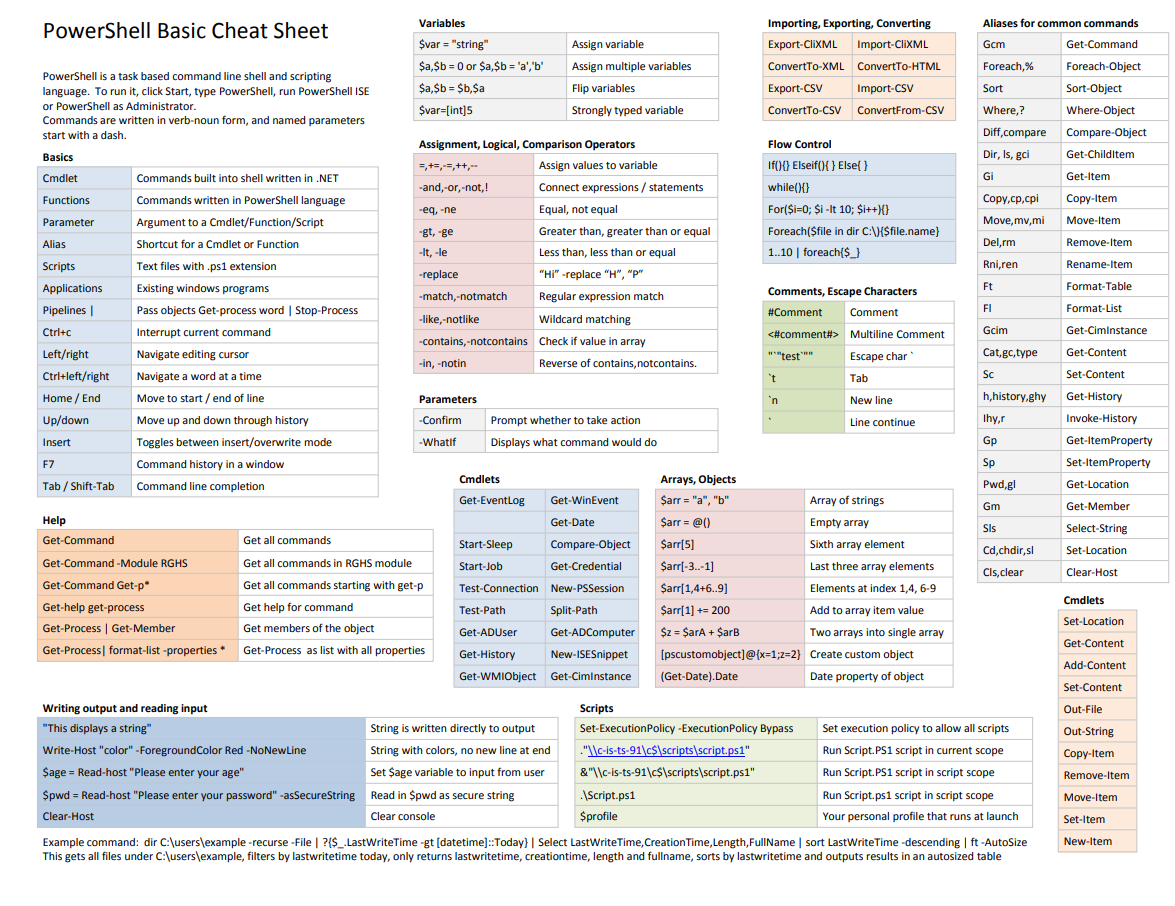
#-----------------------------#
# Help / 'More info' commands #
#-----------------------------#

# Help #

Get-Help -Name name_of_command
# Returns a list of commands


get-verb
# Returns a list of all available verbs.


Get-Command
# Returns a list of all available commands.

Get-Command -Verb verb_name
# Returns a list of commands with a verb including the input.

Get-Command -Noun noun_name*
# Returns a list of commands with a noun including the input.

Get-Command -Verb verb_name -Noun noun_name*
# Returns a list of commands with both a matching verb and noun.

Get-Command -Name command_name*
# Returns a list of commands matching the input.


# More info #

get-alias command_name_alias
# Returns the full name for the command that you've provided the alias for.

get-alias -Definition command_name
# Returns the alias for the command that you've provided the name of.


returned_object(s) | get-member or gm
# Returns a list containing the type of object, and all events, methods, and properties that the object has.


Get-Command -ParameterType object_type
# Returns a list of all cmdlets that operate on this type.#--------------------------------#
# Files, Folders and Directories #
#--------------------------------#
Get-PSDrive
# Returns a list of all drives on this machine.
dir and ls
# Returns all files and folder in current directory.
cd path
# Change directory to provided path.
cd ..
# Go up a directory.
new-item file_name.file_extension
# Create a new file in current directory.
cat file_path
# View the contents of a file.#--------#
# Basics #
#--------#
cls
# Clears the screen#-----------#
# Variables #
#-----------#
$variable_name = value
# Creates and / or assigns a value to a variable.
$variable_name
# Returns the contents of the variable.
$variable_name.property_name
# Returns the contents of the property for that variable. Properties can be nested.#----#
# #
#----#