Entrypoints User Guide
This page describes the setup and usage of the different parts of the Entrypoints system. It assumes that the Entrypoint extensions have already been installed, refer to the Install Guide if this isn't the case yet.
ℹ️ Extensions can be accessed via the hamburger menu of your Roon Remote: ☰→Settings→Extensions
There should be one Gateway running in the local network, it provides the different audio streams to the Roon Core.

There is no specific setup for the Gateway. The status message reports its IP address, this might be required information for the setup of the Entrypoint that captures the music.
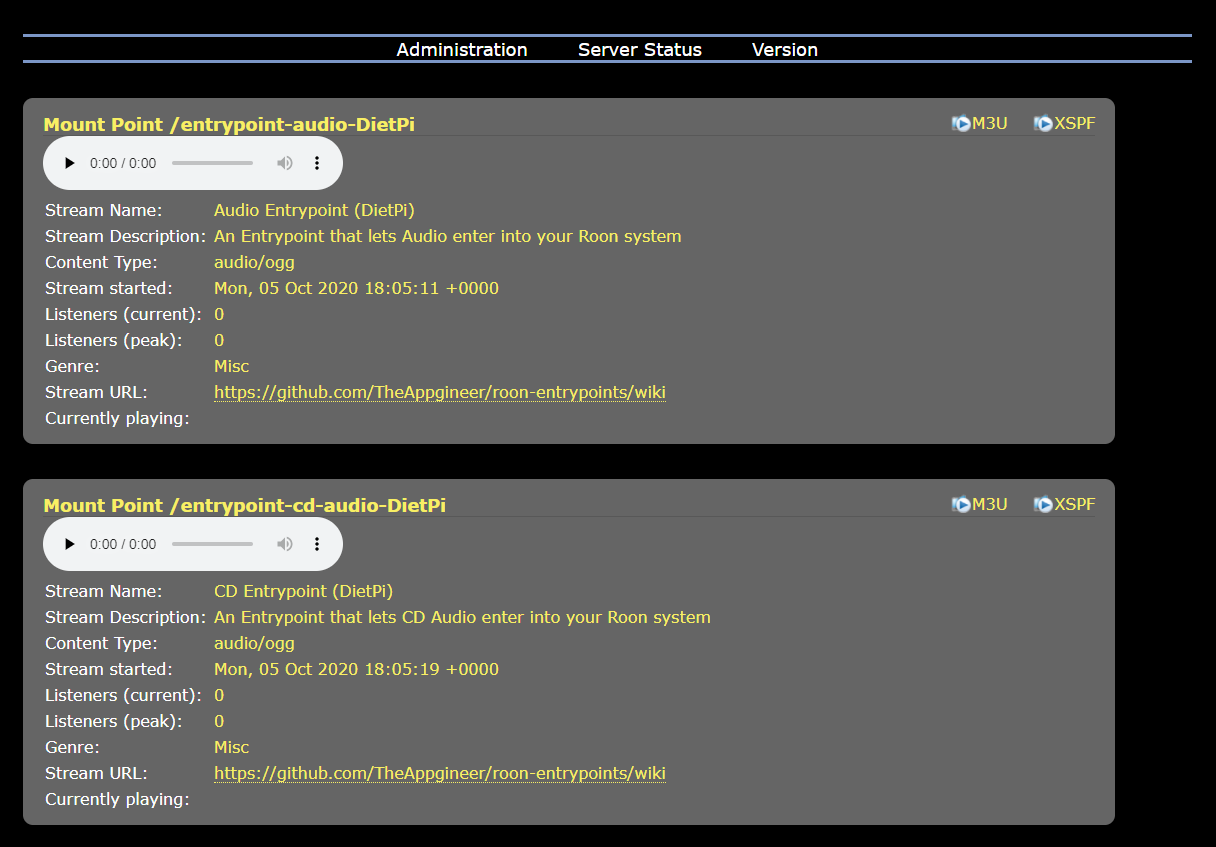
The streams currently playing in the network can be viewed by clicking the link of the Entrypoint Gateway.
- Enable the Entrypoint you want to stream from and open its Settings
- Set the Gateway IP to the address that is reported by the Gateway Entrypoint (the default 127.0.0.1 (i.e. localhost) can remain if the Gateway and the Entrypoint you are setting up run on the same device)
- Copy the text in the Station URL input field (this is provided to avoid the typing)
- Select Save if the Gateway IP was changed
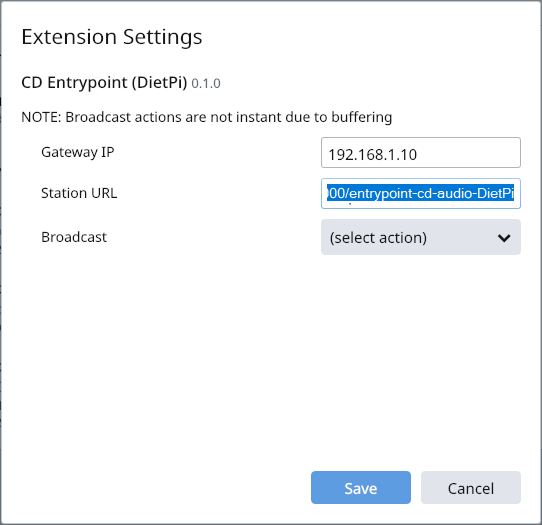
- Open the Settings again and select Start from the Broadcast pulldown (CD Entrypoint only)
- Go to My Live Radio via the hamburger menu of your Roon Remote: ☰→My Live Radio
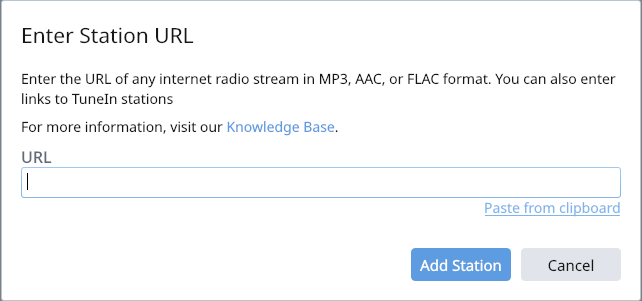
- Select ADD STATION
- Select Add Station URL
- Select Paste from clipboard
- Select Add Station
- Start Playback by playing the newly created Live Radio station
ℹ️ If Roon reports that a radio station at this URL could not be found then it might be necessary to supply the Entrypoint with an input signal.
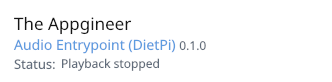
- Open the Settings of the Audio Entrypoint
- Set the Sampling Frequency to the required value
ℹ️ For digital inputs it is important that the Sampling setting of the extension matches that of the incoming signal (44.1 and 48 kHz are supported), as no sample rate conversion is taking place. The word length of a incoming signal can be 16 or 24 bits, but 24 bits samples will be truncated to 16 bits.
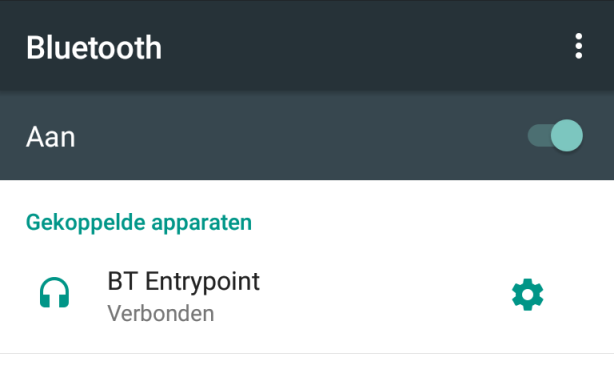
ℹ️ The BT Entrypoint advertises itself as a Bluetooth speaker, you connect your phone to it like you do with any other Bluetooth speaker
- Connect your phone, tablet or laptop (i.e. the Input Device) to the BT Entrypoint device
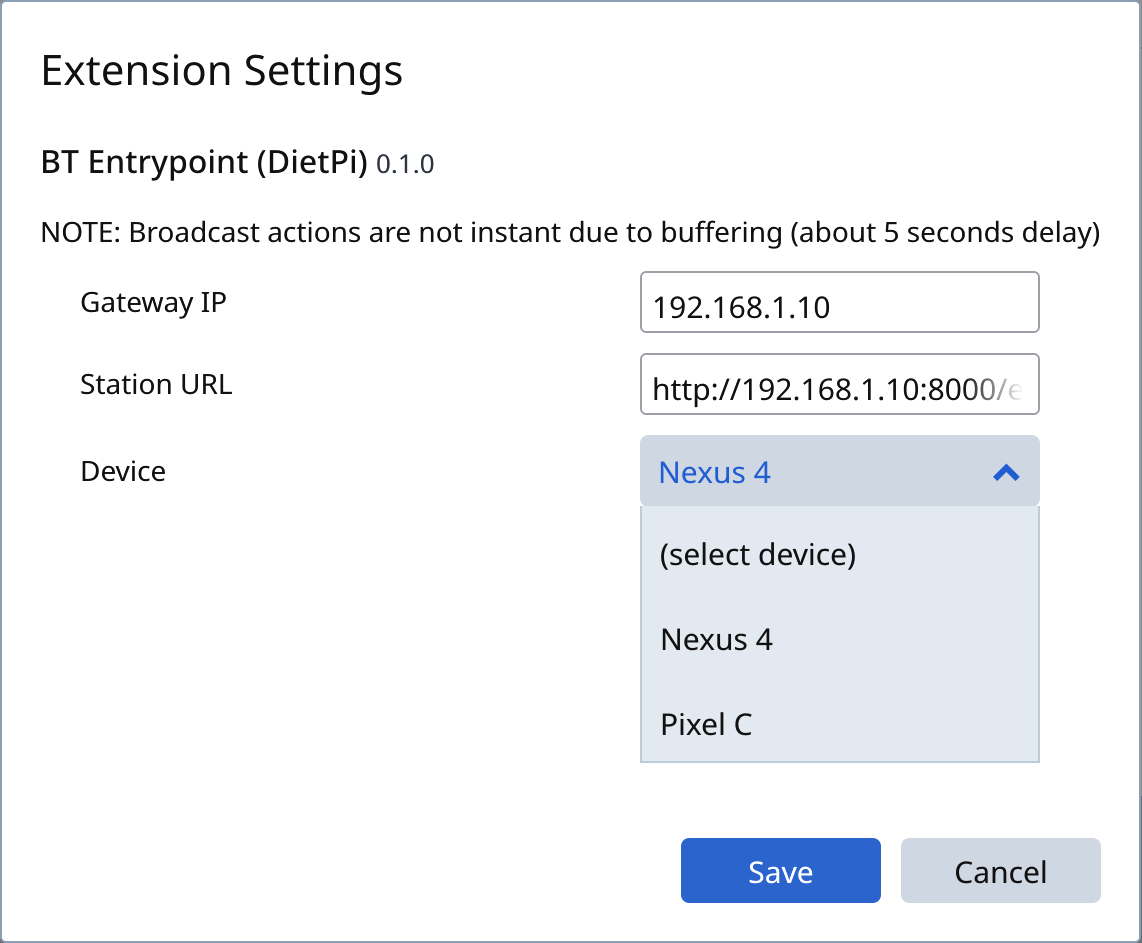
- Open the Settings of the BT Entrypoint
- Select the Input Device from the dropdown list
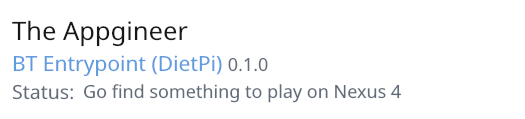
- Go find something to play on the Input Device

- Open the Settings of the CD Entrypoint
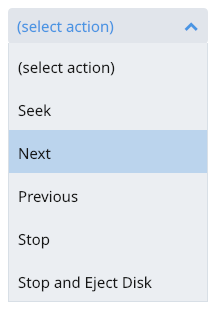
- Use the controls available in Broadcast to change track during playback
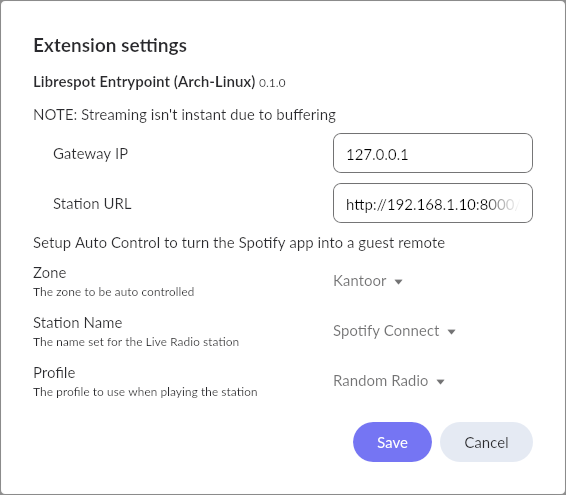
- Open the Settings of the Librespot Entrypoint
- Setup the Zone, Station Name and Profile (only provided if there are multiple) if you want to make use of the Auto Control feature