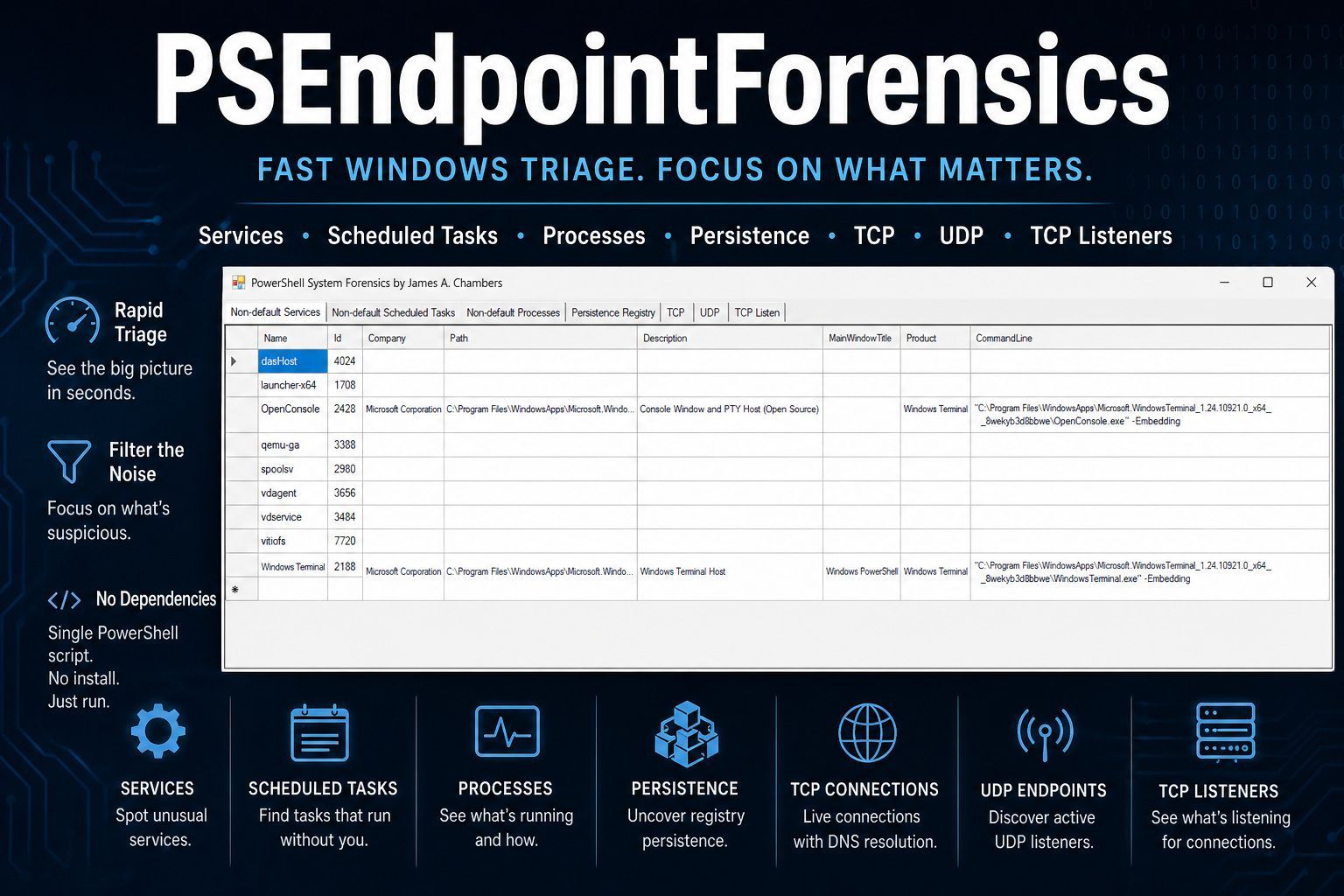
A PowerShell-based endpoint forensics tool that provides a graphical interface for investigating Windows systems. It collects and displays data across seven focused views, helping analysts quickly identify indicators of compromise, suspicious persistence, and unusual network activity.
Author: James A. Chambers
PSEndpointForensics aggregates forensic-relevant data from a living Windows system and presents it in a tabbed WinForms GUI. The tool filters out default Windows components to surface third-party services, scheduled tasks, and processes — then supplements that view with registry persistence artifacts and live network connection data, including async DNS resolution.
Full blog post available at https://jamesachambers.com/psendpointforensics-fast-windows-triage-without-the-noise/

Enumerates all installed Windows services via WMI (win32_service) and filters out built-in Windows, Edge, and gaming services. Displays the following columns for each remaining service:
- Name – Service identifier
- ProcessId – Associated PID
- StartMode – Startup type (Automatic, Manual, Disabled)
- State – Running or Stopped
- Status – Operational state
- AcceptStop – Whether the service accepts a stop request
- Caption – Display name
- Description – Service description
- PathName – Full executable path
Queries all registered scheduled tasks using Get-ScheduledTask and excludes \Microsoft\Windows* paths and Microsoft Edge/Xbox tasks. Displays:
- TaskName – Scheduled task name
- TaskPath – Task folder path
- Author – Task creator
- State – Current state (Ready, Running, Disabled)
- Date – Last modification date
- Triggers – Trigger collection (schedule, event-based, etc.)
- Description – Task description

Lists all running processes, excludes Microsoft-signed OS components and well-known system processes, and enriches each entry with the full command line from WMI (Win32_Process). Displays:
- Name – Process executable name
- Id – Process ID
- Company – Product company
- Path – Executable file path
- Description – Product description
- MainWindowTitle – Main window title (if applicable)
- Product – Product name
- CommandLine – Full command-line arguments (via CIM/WMI)
Scans well-known Windows registry persistence locations for autorun and startup entries. Covers these hives and keys:
| Registry Path | Purpose |
|---|---|
HKLM\...\CurrentVersion\Run |
System-wide autorun |
HKLM\...\CurrentVersion\RunOnce |
One-time system autorun |
HKCU\...\CurrentVersion\Run |
User-level autorun |
HKCU\...\CurrentVersion\RunOnce |
One-time user autorun |
HKLM\...\CurrentVersion\RunOnceEx |
Advanced one-time autorun |
HKLM/HKCU\...\Policies\Explorer\Run |
Group Policy-run keys |
HKLM\...\Wow6432Node\...\Run / RunOnce |
32-bit autorun on 64-bit systems |
HKLM\...\Winlogon |
Userinit / Shell hijack detection |
HKLM\...\Image File Execution Options |
IFEO debugger injection (per child key) |
HKLM\...\Session Manager |
BootExecute, SafeBoot, PendingFileRenameOperations, Execute |
Each discovered entry reports the hive, full path, value name, and value data.

Shows all established TCP connections with local/remote address and port, connection state, owning process ID, and resolved process name. Includes a Resolve DNS button that performs asynchronous reverse-DNS lookups on all remote IPs (excluding 127.0.0.1) using background jobs, appending the hostname directly to the grid cell.
Lists all active UDP endpoints (excluding system PID 4) with local address, local port, owning process ID, and process name.
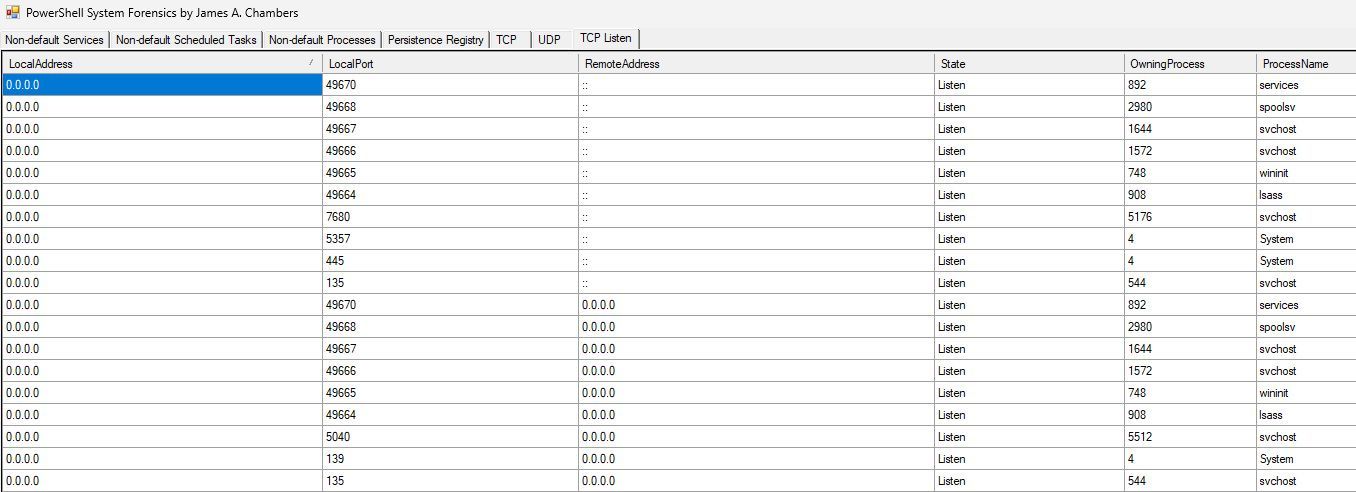
Displays all TCP sockets in the LISTEN state, showing the local port, owning process ID, and process name — useful for identifying services waiting for inbound connections.
- Operating System: Windows 10/11 or Windows Server (2016+)
- PowerShell: 5.1 (Windows PowerShell) or PowerShell 7+
- Execution: Must be run with administrative privileges for full access to WMI, registry hives, and network connection data
- Dependencies: None — uses only built-in PowerShell cmdlets and .NET Framework assemblies (
System.Windows.Forms,System.Drawing)
# Open an elevated PowerShell session, then:
.\PSEndpointForensics.ps1
A GUI window will appear with seven tabs. Data is collected at launch — progress is shown in the console as each category loads.
On the TCP tab, click the Resolve DNS button to perform reverse-DNS lookups against all remote IP addresses. Resolved hostnames are appended in parentheses next to the IP address column. The button is disabled while resolution is in progress.
All data grids support the following:
- Column reordering – drag column headers to rearrange
- Auto-resize – columns auto-fit when switching tabs
- Sorting – network tabs sort by local address on load; all grids can be sorted by clicking column headers
| Tab | Data Source | Key Cmdlets |
|---|---|---|
| Non-default Services | Installed services (non-Windows) | Get-WmiObject win32_service |
| Non-default Scheduled Tasks | Third-party scheduled tasks | Get-ScheduledTask |
| Non-default Processes | Running third-party processes | Get-Process, Get-CimInstance Win32_Process |
| Persistence Registry | Autorun and startup registry keys | Get-ItemProperty, Test-Path |
| TCP | Established TCP connections | Get-NetTCPConnection |
| UDP | Active UDP endpoints | Get-NetUDPEndpoint |
| TCP Listen | TCP listener sockets | Get-NetTCPConnection |
PSEndpointForensics.ps1
├── Get-NetworkConnections()          # TCP, UDP, TCP listener collection
│   ├── Pre-fetches process name map
│   ├── Queries Get-NetTCPConnection (Established + Listen)
│   └── Queries Get-NetUDPEndpoint
│
├── Get-PersistenceRegistryKeys()     # Registry persistence scan
│   ├── Iterates known autorun paths
│   ├── Enumerates IFEO child keys
│   └── Checks Session Manager + Winlogon values
│
└── WinForms GUI                      # Seven-tab interface
    ├── Tab 1: Non-default Services (DataGridView)
    ├── Tab 2: Non-default Scheduled Tasks (DataGridView)
    ├── Tab 3: Non-default Processes (DataGridView)
    ├── Tab 4: Persistence Registry (DataGridView)
    ├── Tab 5: TCP (DataGridView + DNS resolve button)
    ├── Tab 6: UDP (DataGridView)
    └── Tab 7: TCP Listen (DataGridView)
- The tool is designed for authorized, defensive use — use only on systems you own or have explicit permission to investigate.
- DNS resolution may take several seconds depending on the number of established connections and network latency. Unreachable IPs will show "Unable to resolve".
- The process filtering lists are heuristic-based and focus on excluding Microsoft/Windows default components. Adjust the filter lists in the script if your environment has additional trusted processes you wish to exclude (or include).
- The tool collects a point-in-time snapshot — data reflects the system state at the moment the script runs.