Repository navigation
Devices and riding
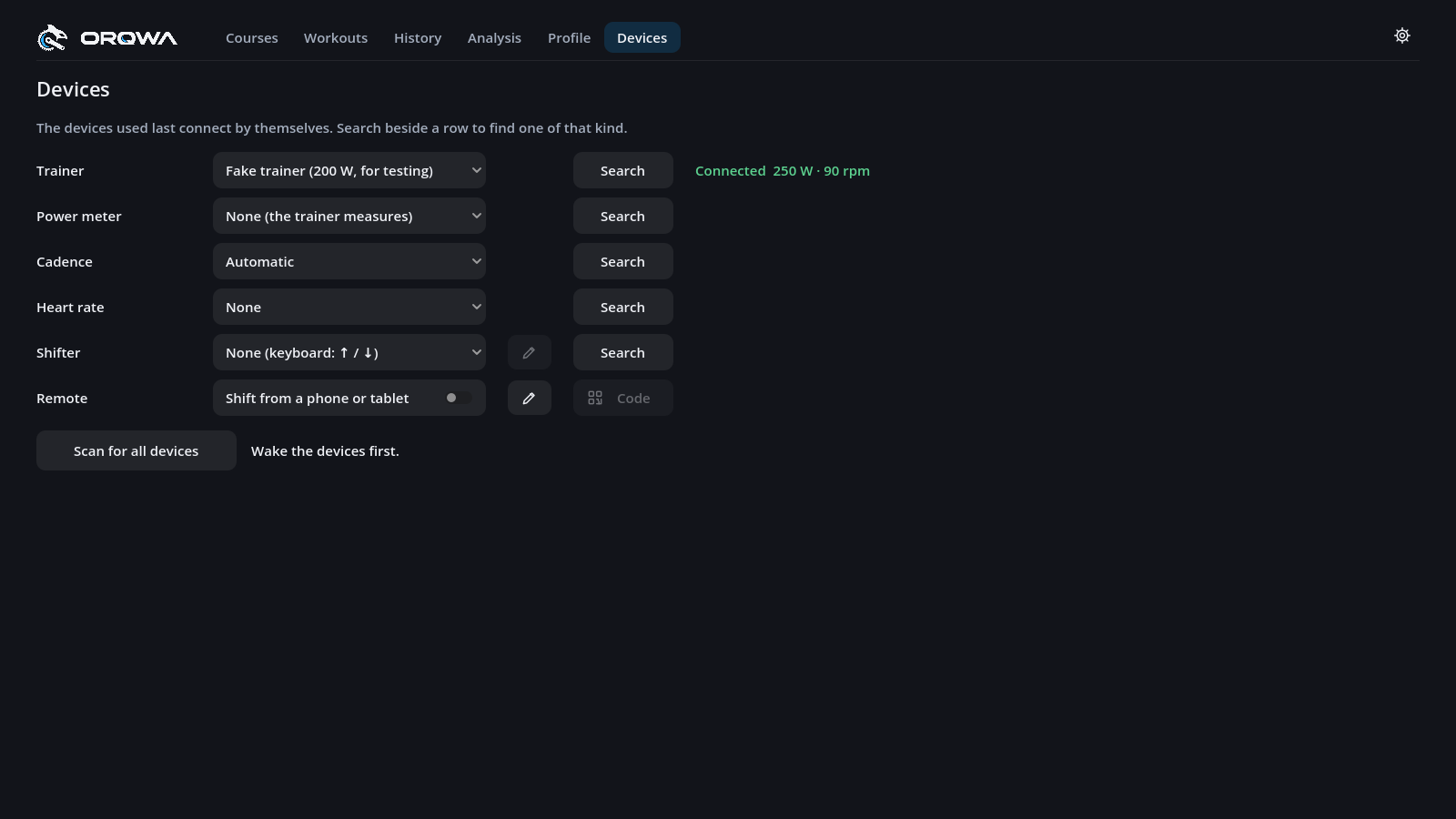
Your trainer, power meter, cadence source, heart-rate strap and shifter (a Shimano Di2 or a Zwift Click, original or v2) each have a row under Devices. Press Search beside a row and ORQWA looks for that kind of device alone, picks the nearest one it finds and connects it. A device connects the moment it is chosen, and its row tells you how it is doing: amber Searching… and Connecting… while it works, green Connected once the device reports, red Not found or Failed when it does not. Choosing None lets a device go.
Beside Connected you see what the device reports right now, so you can check it before the ride: the trainer's and a power meter's watts and cadence, a cadence sensor's cadence, the strap's heart rate. Where a device tells how full its battery is, you see that too, say battery 80 %; a Zwift Click v2 shows each pod's, battery left 80 %, right 75 %. Beside Failed you see why the last attempt failed, say connecting timed out or device not found, while ORQWA keeps trying: wake the device or close the other app that holds it, and the row turns green by itself.
ORQWA remembers your devices and reconnects them by itself at start: their rows show their names in amber until they are back. One that is not found stays chosen and shows Not found, so it is looked for again next time. A device that drops during a ride, say the strap while you are off the bike during a pause, shows Reconnecting… and connects again by itself once it is back in reach.
The devices are each rider's own, and so are the cadence choice and what the shifter's buttons do. When you switch rider, ORQWA lets go of the devices that are not the new rider's and reconnects theirs. A device you share, such as the trainer, stays connected. A new rider starts with the devices in use, so adding one disconnects nothing.
Device not found? Pedal to wake the trainer or put on the strap, make sure no other app is connected to it, then search again. Scan for all devices below the rows looks for every kind at once. Fake trainer rides a simulation without hardware.
The last row, Remote, turns a phone or tablet into a remote for shifting and the ride's controls.
Power pedals (such as Favero Assioma), crank and spider power meters work over Bluetooth alongside the trainer. While the meter reports, its power is yours: for your speed, the HUD, the saved ride and the analysis. If the meter drops, the trainer's power counts until it is back, and if the trainer drops, the meter's power keeps you moving.
ORQWA only picks a power meter or a heart-rate strap after a scan if you used it last: pedals nearby may be on another bike, a strap on another rider. In ERG workouts the trainer still holds the target by its own measurement, so the meter may show a few watts more or less.
Cadence chooses where your cadence comes from, as in Zwift:
| Choice | Cadence from |
|---|---|
| Automatic | a cadence sensor if one is connected, else the power meter, else the trainer |
| Trainer | the trainer |
| Power meter | the power meter (pedals estimate it from their motion) |
| a sensor's name | a Bluetooth cadence sensor, such as Wahoo RPM or a Garmin cadence sensor |
While the chosen device sends no cadence, the others stand in. Choosing anything other than a sensor lets go of the sensor chosen before.
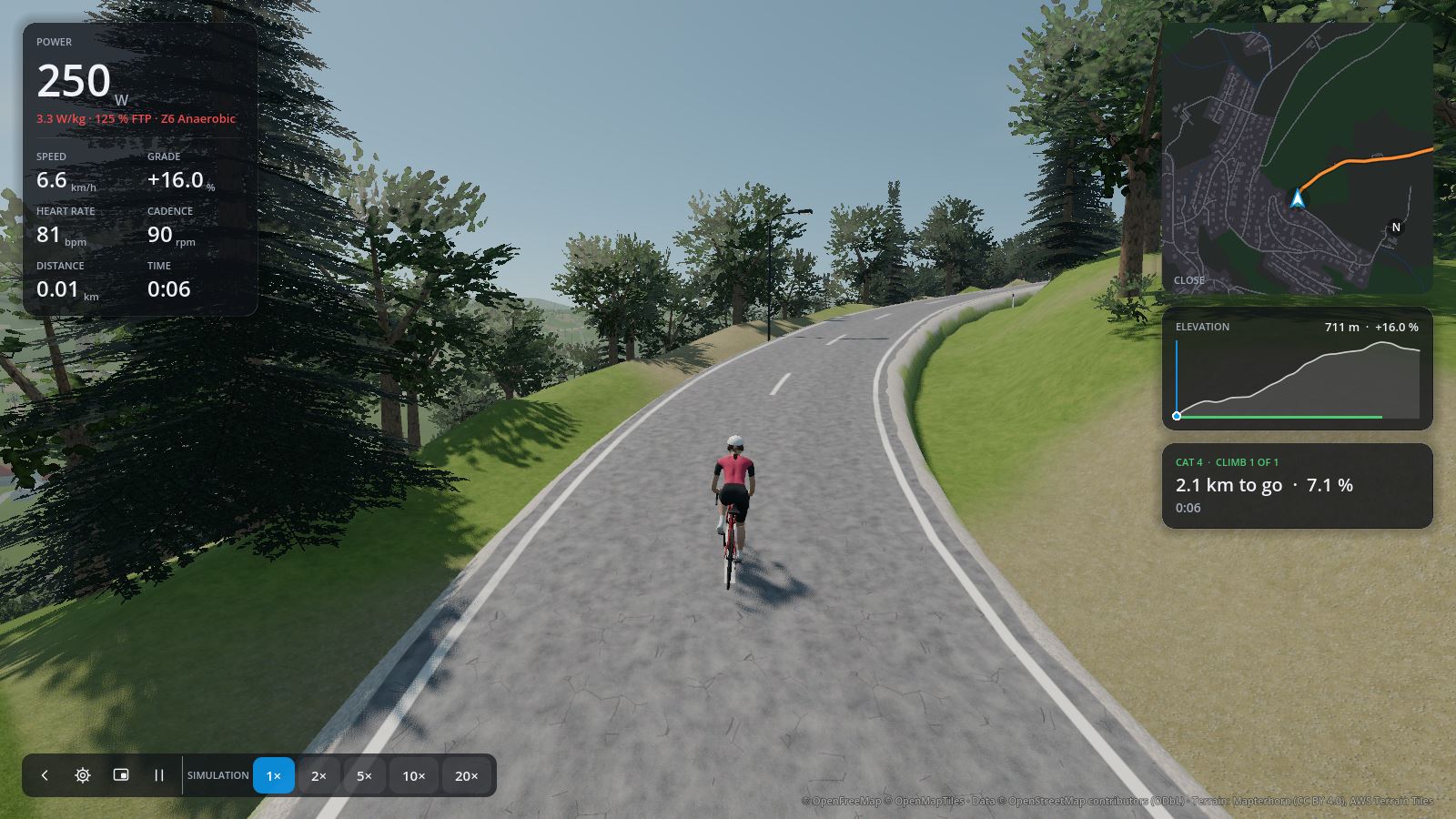
Your figures are on the left; map, elevation profile, climbs and ghosts on the right; controls at the bottom left.
The map shows the land around the whole route, also on video courses and offline. Close follows you, heading up, with the roads and buildings along the route; click it for the whole Route, north up. Each rider draws it colored or dark (see Riders).
| Key | Action |
|---|---|
| P or space | Pause and resume (the trainer lets go; paused time is not recorded). Pausing opens the ride settings; going on closes them |
| C | Switch camera: chase, first person, drone |
| S | Ride settings |
| O | Overlay on top of other windows |
| ↑ / ↓ | Shift virtual gears |
| H / E | Trainer difficulty 10 % harder / easier |
| I / L | Workout intensity 5 % more / less |
| N | Next step of a structured workout |
| M / . / , | Music: play/pause, next, previous |
| F11 or Alt + Enter | Full screen |
Settings changes the ride while it keeps going: camera, trainer difficulty, descents, time of day, weather, the workout and your HUD. Profile changes your profile during the ride, for example a forgotten drivetrain, your weight or your FTP. Devices shows whether your trainer, strap and shifter are connected; Reconnect devices looks for those that are not, for example a strap that was not found at start. Finish & save ends and saves the ride; Abort without saving discards it. Pausing the ride opens the settings, and going on closes them again.
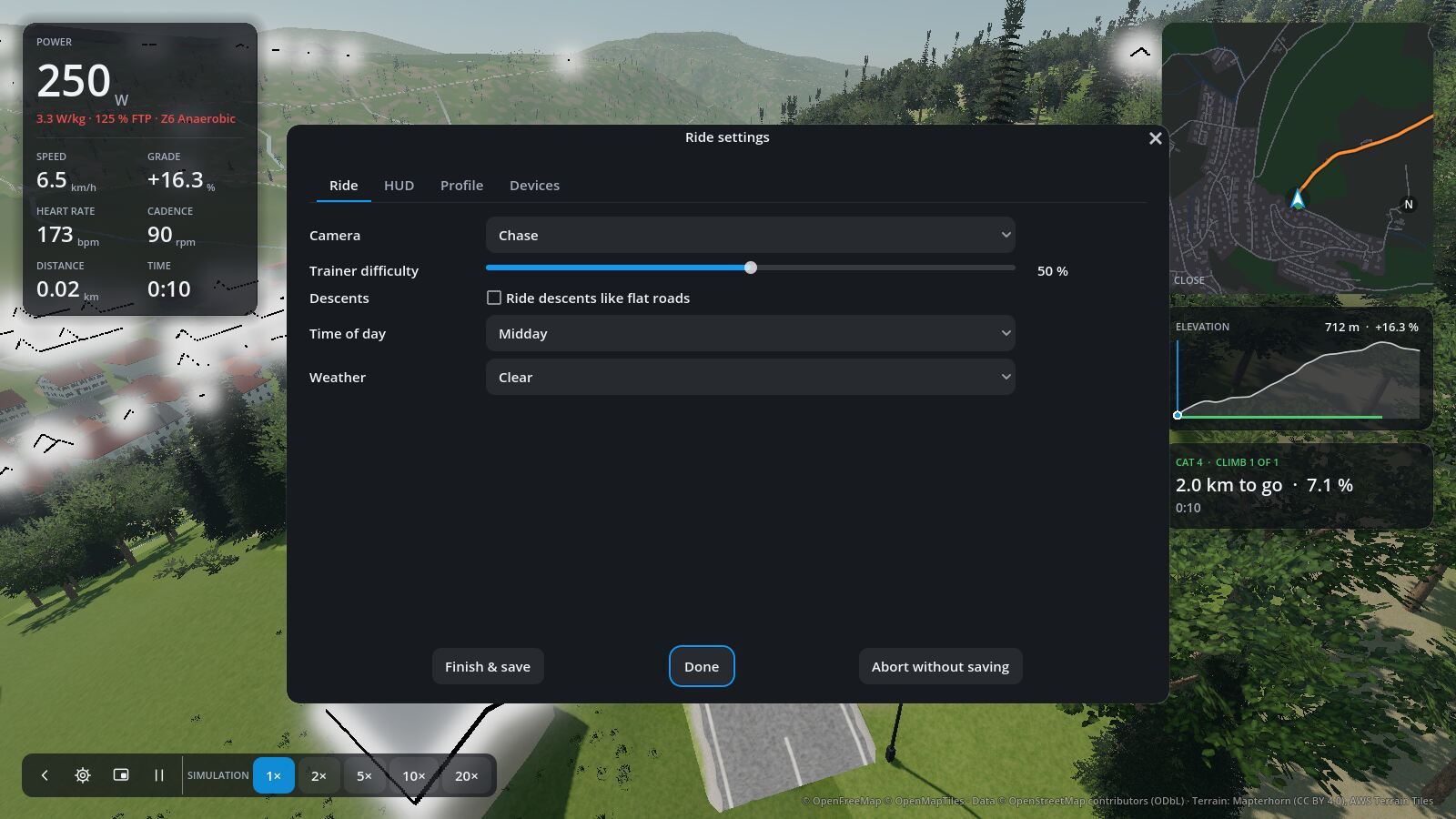
Trainer difficulty is the share of the road's gradient you feel (50 % by default, set per rider). Speed always uses the real gradient.
M, . and , control the music app you listen to:
- macOS: Spotify if running, otherwise Apple Music. Allow ORQWA when macOS asks.
- Windows: the active media player.
-
Linux: any MPRIS player, via
playerctl.
On a single-cog drivetrain (such as the Zwift Cog), ORQWA gives you 24 virtual gears, shifted with ↑ and ↓. New riders start on virtual gears with a 50-tooth chainring over a 14-tooth cog; set your own teeth under Riders. If you ride a cassette and shift on the bike, choose it there instead: then there are no virtual gears, and a shifter's presses do not shift. Both can also be changed during a ride, on the ride settings' Profile tab: the ride takes the new drivetrain at once, and your profile keeps it. Switching to virtual gears starts in the gear closest to your real one; other teeth keep the gear you are in.
With Shimano Di2, the hood buttons can shift too:
- In E-TUBE, assign the buttons to D-Fly channels.
- Choose the shifter under Devices.
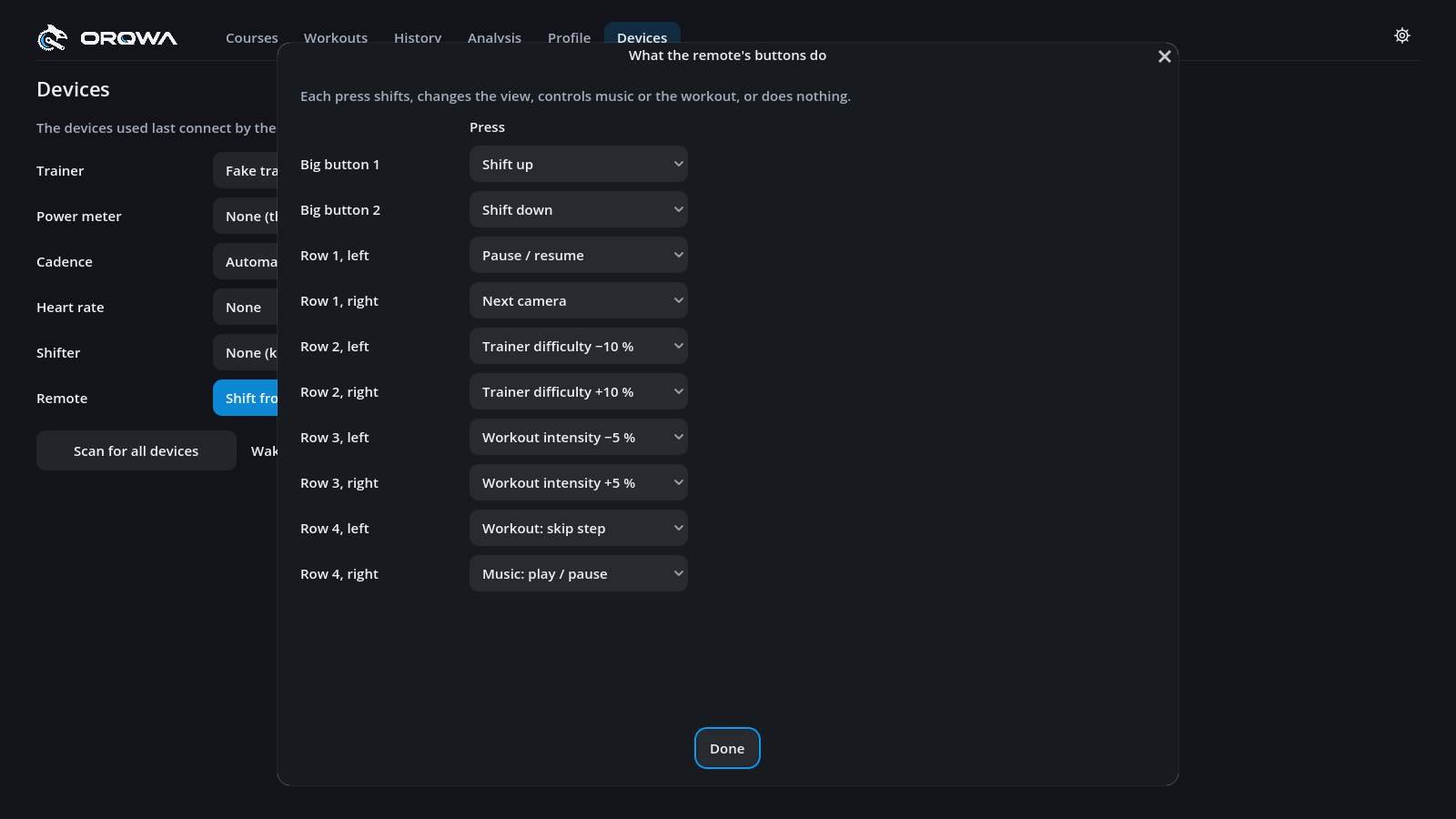
- Press the pen (✎) beside the shifter's row and choose what each channel does when pressed, held or double-pressed: shift, change camera, overlay or music, pause and resume the ride, make the trainer difficulty 10 % harder or easier, or, in a workout, make it 5 % harder or easier or skip to its next step.
With a Zwift Click (the original single unit with + and −, sold with the Zwift Cog), switch it on, scan and choose it under Devices; no Zwift account or app is needed, and nothing has to be unlocked. Out of the box + shifts up and − down. As with a Di2, a press and a hold of each button can be given any of the actions above, behind the pen beside the shifter's row; the Click has no double press, so a tap shifts the moment you let go. ORQWA talks to the unit directly, so close Zwift and the Zwift Companion app first: the Click takes one connection at a time.
With a Zwift Click v2 (the two pods: a right one with +, Y, Z, A and B, a left one with − and four arrows), press a button on each pod to wake them, scan and choose Zwift Click v2: ORQWA connects both pods as one shifter. + shifts up and − down out of the box; each of the ten buttons can be given an action for a press and a hold. Two things to know:
- Zwift may lock the left pod to its own app: riders of other apps report that it only sends its buttons within about a day of a Zwift session. The pods ORQWA was checked on worked without one. If − and the arrows do nothing, log in to Zwift (a free account will do), connect the Click there, wait a few seconds, close Zwift fully, then ride in ORQWA. The right pod is never locked: give B (or any lettered button) "shift down" and you can ride without Zwift at all.
- The Click v2 driver was checked on one pair. If yours behaves differently, please open an
issue with the log (
RUST_LOG=orqwa_devices=debug).
The Zwift Play and the Zwift Ride are not supported.
Each kind of shifter keeps its own buttons: what you give a Di2's channels leaves a Click's + and − as they were, and the other way round, so you can switch between them without setting them up again.
Workouts in ERG mode hold their power in any gear.
No Di2 or Click? A phone or tablet can shift, in its browser, with nothing to install:
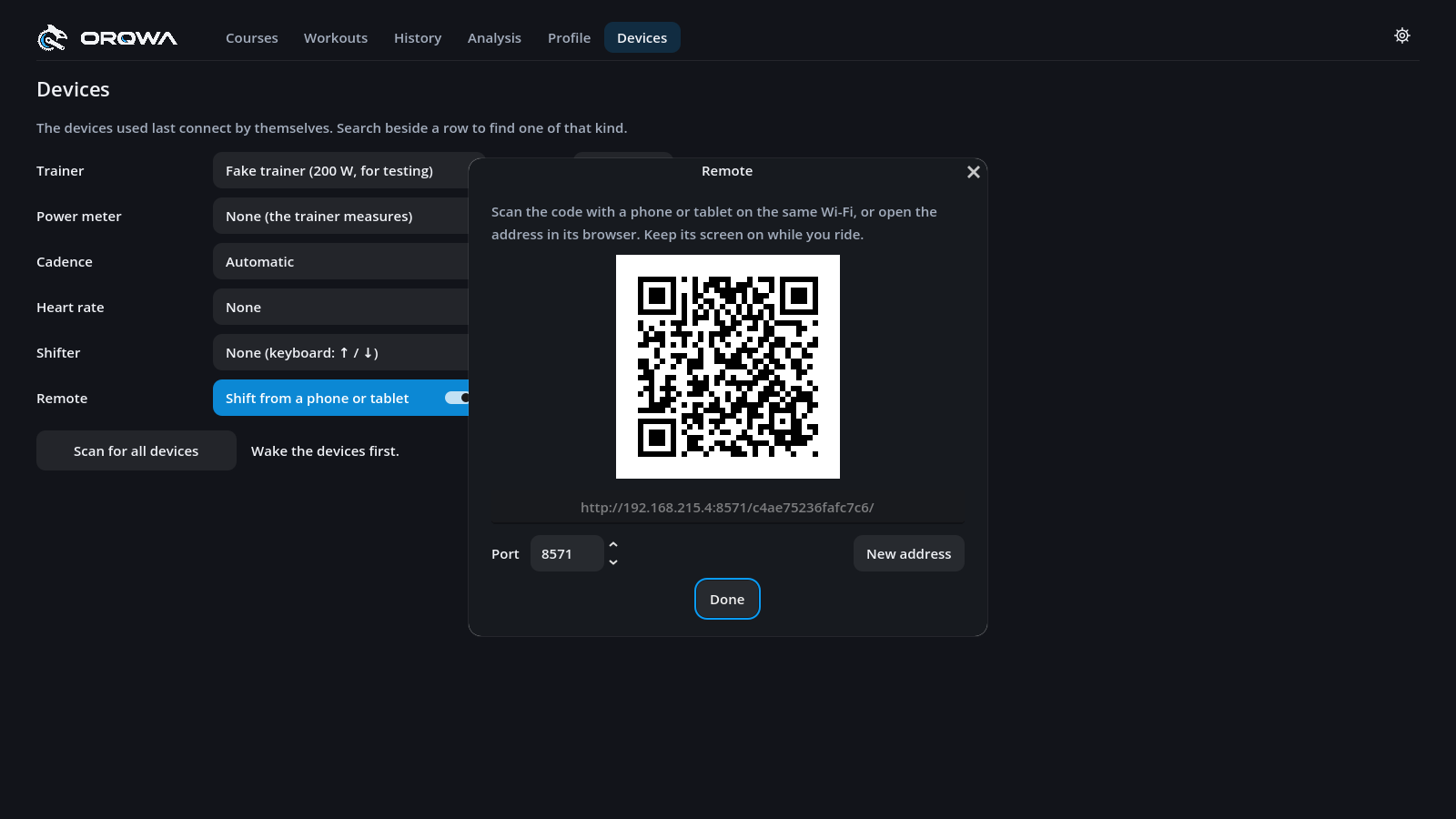
- Under Devices, turn on Shift from a phone or tablet in the Remote row. ORQWA shows a QR code and an address.
- On a phone or tablet on the same Wi-Fi as the computer, scan the code with the camera, or type the address into the browser. Bookmark the page or add it to the home screen, and it keeps working: the address stays the same.
- The first time, macOS or Windows asks whether ORQWA may accept incoming connections: allow it, or the phone or tablet cannot reach it.
The page has ten buttons below your gear: two big ones and a grid of eight. Out of the box, the big ones are Shift up and Shift down. The others pause and resume the ride, change camera, make the trainer difficulty 10 % harder or easier on a course, make a workout 5 % harder or easier or skip to its next step, and play or pause the music. A button acts the moment your finger lands. Every button you gave an action stays on the page at all times, so its layout is the same on a course and in a workout. A button that does nothing in the ride under way is dimmed in its place: the trainer difficulty in a workout, the workout's buttons on a course, and shifting with the bike's own gears, where there are no virtual gears. A button left alone in its row of the grid, because you gave its neighbour nothing, widens to fill the row. The page speaks your rider's language. On a tablet or a phone turned sideways, the big buttons stand beside the others.
Press the pen (✎) beside the Remote row to give each button what you like, as with a shifter: any of the actions a Di2's or a Click's buttons can have, or nothing, which takes the button off the page. The page shows the change at once. The buttons are each rider's own and are kept with their shifters' buttons; the remote has presses only, no holds.
Between rides, the page turns into a TV remote: arrows round OK, with Back below. They go through ORQWA's screens as the keyboard's arrows, Enter and Escape do, and a blue ring on ORQWA's screen shows where you are. Pick the Courses or Workouts tab, move to a course and press OK to open it, then OK on Ride; or choose a workout and Start it. The first arrow on a screen goes straight to its main button, such as Ride. Hold an arrow to keep moving. Back closes a dialog, or goes from a course back to the gallery and from a ride's summary to the start page.
During a ride, Finish & save stands at the top right of the page: hold it for a second, until its red bar is full, to end and save the ride, as the ride settings' Finish & save does. A tap only tells you to hold it, so a stray touch never ends your ride. You can also give Finish & save to a Di2's or a Click's button, say a hold.
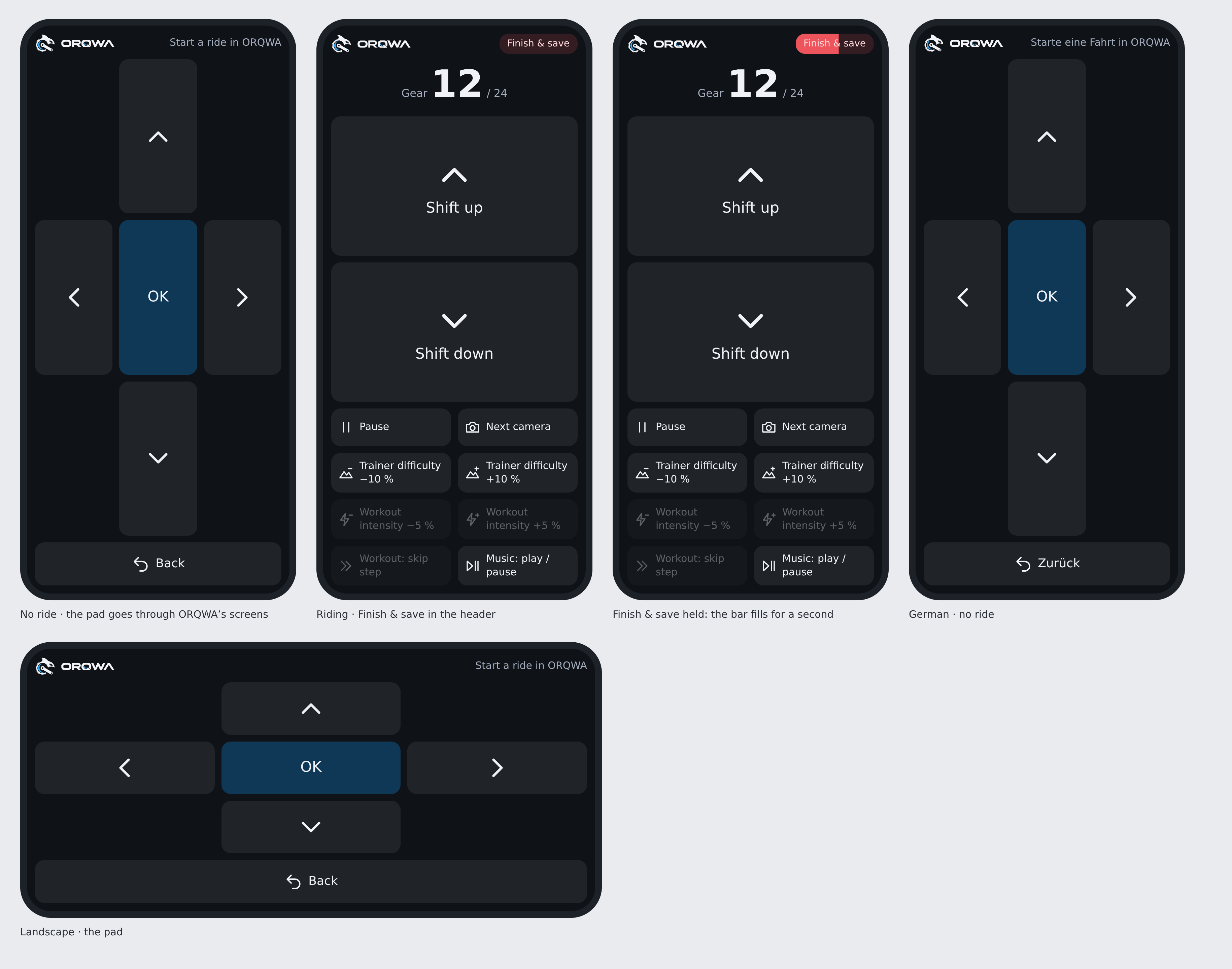
The Remote row shows Waiting for a phone or tablet… while none has the page open, and Connected once one has. During a ride you see when it connects or drops.
The page keeps the phone's or tablet's screen on while it is open, so you need not change its auto-lock. It does so by playing a tiny silent video you never see. On an iPhone or iPad this starts with your first touch on the page, and its silence mixes with any music the phone plays, so the music keeps going. If the page asks you to keep the screen on, or the screen locks anyway, turn off the auto-lock for the ride. A locked phone or tablet counts as gone after 25 seconds. Unlock it and it reconnects by itself.
The Code button beside the row shows the code and address again. There you can also:
- New address: phones and tablets with the old address can no longer control the ride, and their page says so. Scan the new code on those you still want to use.
- Port: 8571 unless you change it. Change it if ORQWA says another program uses the port.
The remote is off until you turn it on, and it is this computer's: on, off, its port and its address stay with the computer, whichever rider rides. Nothing of it goes to the internet. Only the address leads to the page, so others on the network cannot press without it. But the page is plain http: someone who can watch your network's traffic could read the address. Use it on your own network, not on a public one, and give it a new address if in doubt.
A phone or tablet cannot reach the computer on a guest network that keeps devices apart, or while it is on mobile data. A touch screen has no feel of a button: a Di2 or a Click is still nicer to shift with if you have one.
ORQWA builds a realistic world around the route from real terrain and OpenStreetMap: roads, bridges, tunnels, rivers, forests and buildings. Buildings get a style from where they stand — churches, chalets, farmhouses, apartment blocks, shops with awnings — and palms grow in the subtropics. Along the road stand guard rails where the ground falls away, white delineator posts along country roads and red-and-white snow poles on mountain roads above about 1,300 m. Towns have street lamps instead, benches with bins and bus shelters; the countryside has pasture fences, hay bales in the fields, wayside crosses where farm lanes join and power lines on wooden poles. Signs name each village where you ride into it and warn of hairpins and steep stretches ahead. Mornings bring valley fog; rain darkens the roads and leaves puddles.
Every model is shown in the art gallery.
How much of it is drawn, and in how much detail, is set for each computer in the settings.
With the Fake trainer, a ride is a simulation:
- Speed it up 1× to 20× in the bottom bar, or with + / −.
- Jump by clicking the map or elevation profile.
- Free camera: press C past the drone view.
Sped-up or jumped rides are saved but never count as records. The simulated rider has a heart rate too, so heart-rate workouts can be tried without a strap.
Free camera controls
| Keys or mouse | Action |
|---|---|
| ↑ / ↓ / ← / → | Move |
| Shift + ← / → | Turn |
| Shift + ↑ / ↓ | Tilt |
| R / F | Rise and sink |
| Shift + mouse, or right-drag | Look around |
| Mouse wheel | Fly slower or faster |