Repository navigation
Riders
Each rider has their own profile, zones, HUD, rides, accounts and devices. Courses and workouts are shared by everyone.
On the Profile tab, Use switches rider, the plus adds one, the pencil edits one and the bin deletes a rider with all their rides. The chevron unfolds a card to show its zones and accounts.
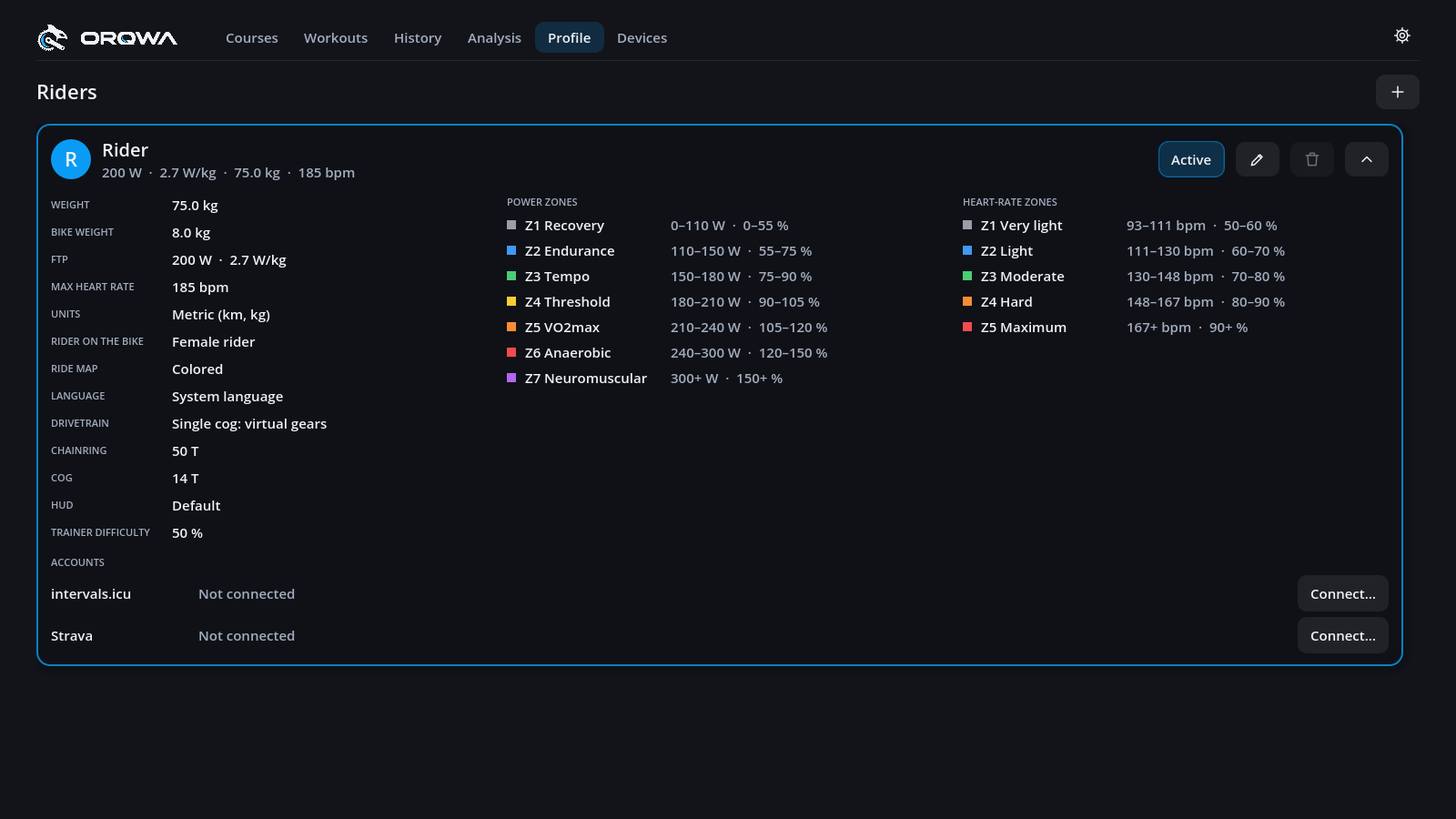
The pencil opens Rider settings, with the tabs Profile, Zones and HUD. The unfolded card lists them all.
| Setting | What it does |
|---|---|
| Name | How the rider is listed, and the initial on their badge |
| Weight, bike weight | How hard climbs are and how fast you roll |
| FTP | Your power zones, W/kg and workouts |
| Max heart rate | Your heart-rate zones |
| Trainer difficulty | Share of the road's gradient you feel (0–100 %, default 50 %) |
| Units | Metric or imperial |
| Language | The computer's, or one you choose |
| Rider on the bike | A female or male rider in cycling kit in the 3D world; they stand up on the pedals on steep climbs when you push and in sprints |
| Ride map | The minimap during rides: colored, or dark like the course cards |
| Drivetrain | A single cog with virtual gears (the default for new riders), or a cassette |
| Chainring, cog | With a single cog: the teeth of your chainring and of the cog on the trainer |
| HUD | The figures on the ride screen, the default or your own (see Ride HUD) |
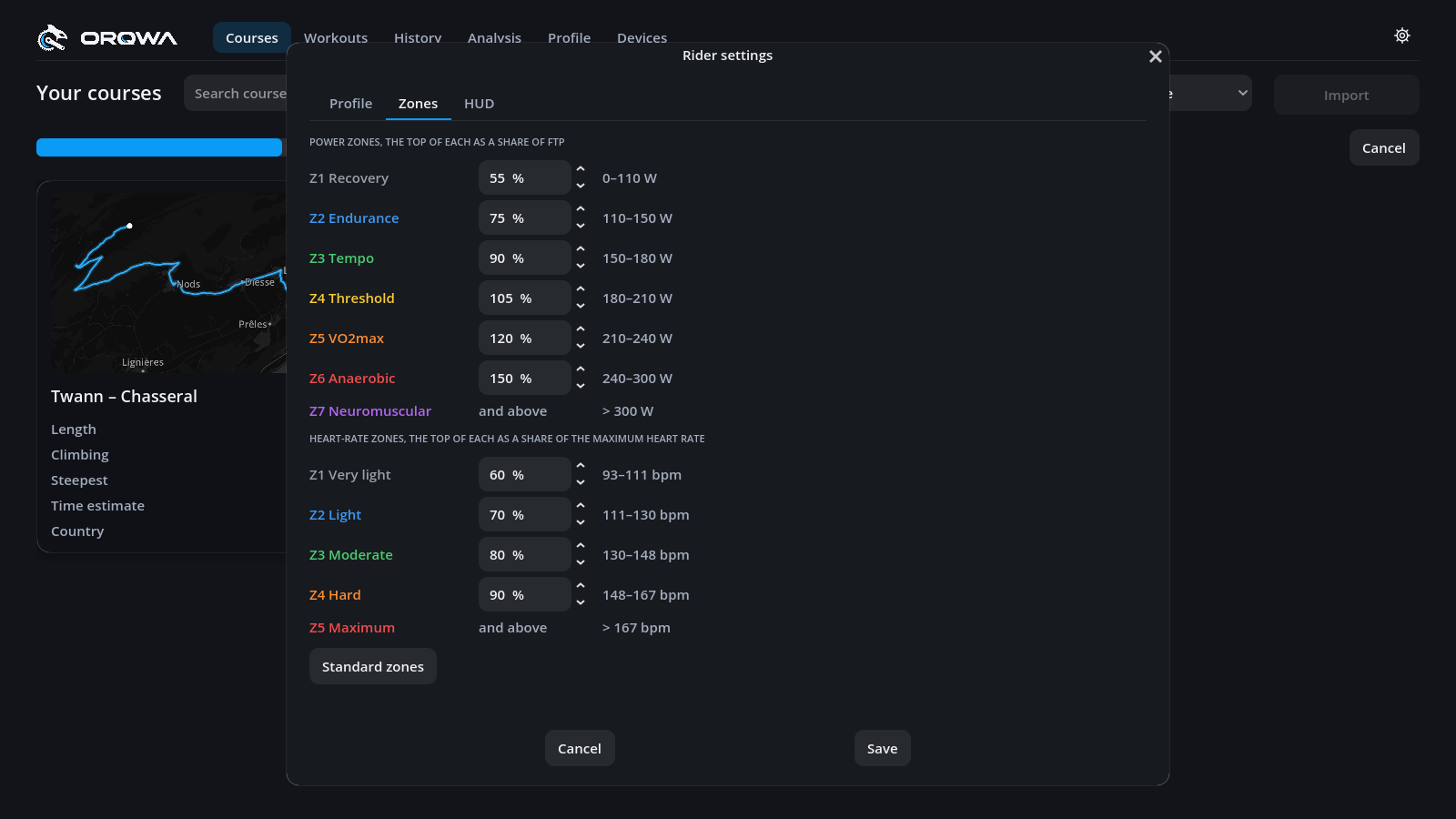
Seven power zones from your FTP and five heart-rate zones from your maximum heart rate. Set the top of each zone yourself, or press Standard zones to reset them. The HUD, history and heart-rate workouts all follow your zones.
| Power zone | Up to | Heart-rate zone | Up to |
|---|---|---|---|
| 1 Recovery | 55 % FTP | 1 | 60 % max |
| 2 Endurance | 75 % | 2 | 70 % |
| 3 Tempo | 90 % | 3 | 80 % |
| 4 Threshold | 105 % | 4 | 90 % |
| 5 VO2max | 120 % | 5 | above |
| 6 Anaerobic | 150 % | ||
| 7 Neuromuscular | above |
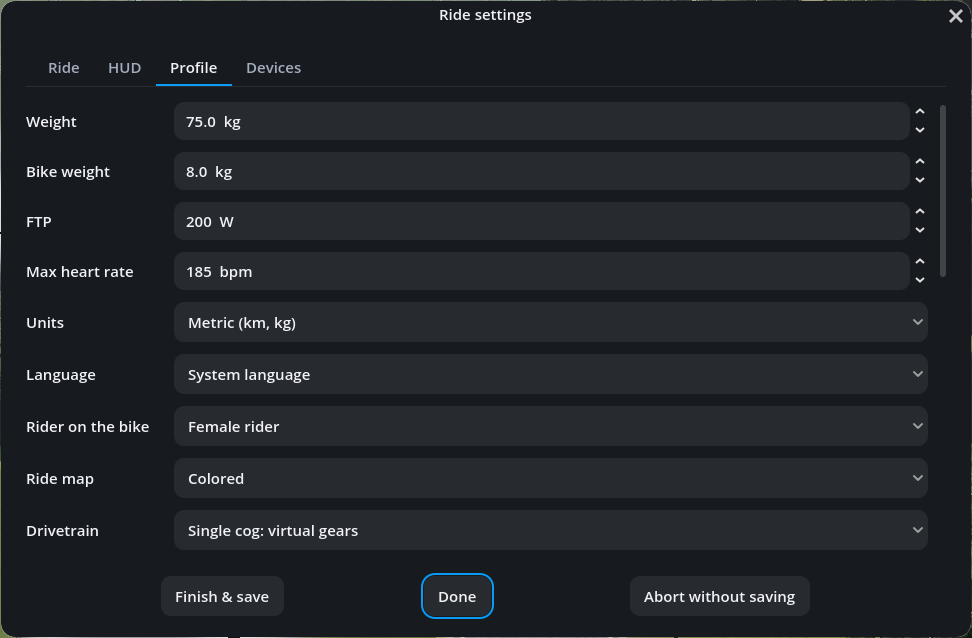
The ride settings' Profile tab has the same settings and zones, without the name and the trainer difficulty rides start with (the ride's own is on the Ride tab). Pausing the ride opens the settings. Every change is kept in your profile and the ride follows it at once:
- Weight and bike weight: how fast you climb and roll from here on.
- Drivetrain, chainring and cog: the virtual gears.
- FTP: the powers of a structured workout, from the step you are in; an FTP test keeps the FTP it started with.
- Zones: the HUD's colors and a heart-rate zone you hold.
- Units, language, rider on the bike and ride map: the ride screen.
Each rider has a folder profiles/<rider>/ in the ORQWA data directory: profile.toml, the
rides/, accounts.toml, the HUD layout, the overlay's place and the devices
(devices.toml). The data directory may live
in a synced folder: riders and rides then follow you from computer to computer. What belongs to
one computer — the graphics quality and full screen
and the courses kept ready to ride —
stays with it, in ORQWA's cache folder.
Want ORQWA in your language? See Translating ORQWA.
The profile's Language applies to the interface and explanations of errors. German uses
Swiss spelling (ss), informal du, Routen, Aktivitäten and Trainings. The five
heart-rate zones are Aufwärmen, Leicht, Aerob, Schwelle and Maximum.
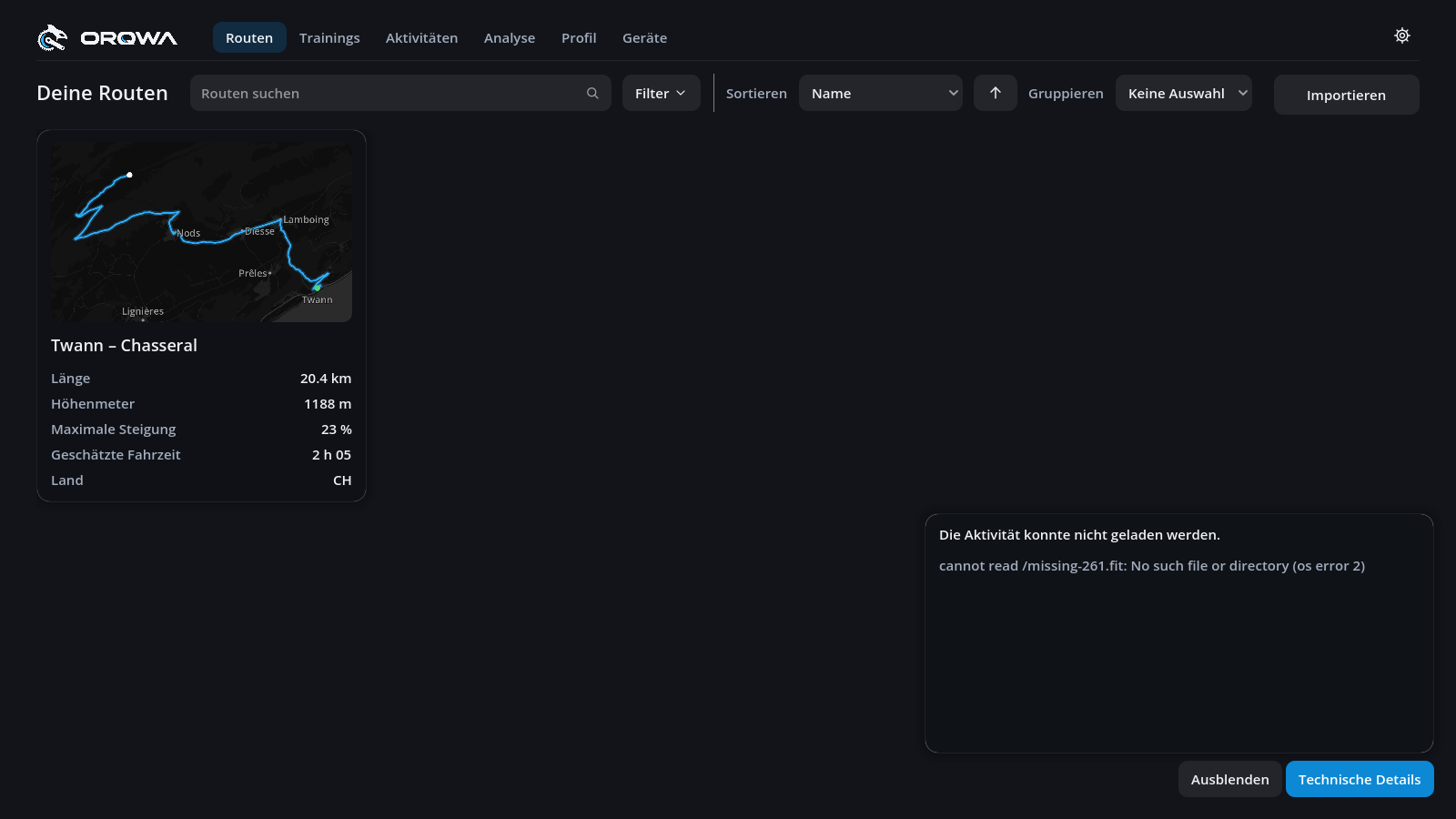
When something fails, the explanation appears in your language. Expand Technical details (Technische Details) at the bottom right to see the original diagnostic separately. The latest 20 errors remain available during the session, even after a ride notification disappears; opening details does not pause or end the ride. Dismiss (Ausblenden) clears the list and hides the control until the next error. Account connection dialogs also show this control. Filenames, device names and external technical messages stay unchanged. When Strava or intervals.icu turns an upload or a connection down, its own reason follows the translated explanation, e.g. that it takes no more uploads for a while; the platforms answer in English.