Installation‐Guide
- Connect your capture card to your PC using USB 3.0 (or USB 2.0).
- Connect HDMI from your console to the input of the capture card.
The first time you run the installer, Windows might show a blue screen saying:
"Windows protected your PC – Microsoft Defender SmartScreen prevented an unrecognized app from starting."
This is a standard Windows security warning. It is normal and safe to continue.
To proceed:
- Click on "More info".
- Then click on "Run anyway".
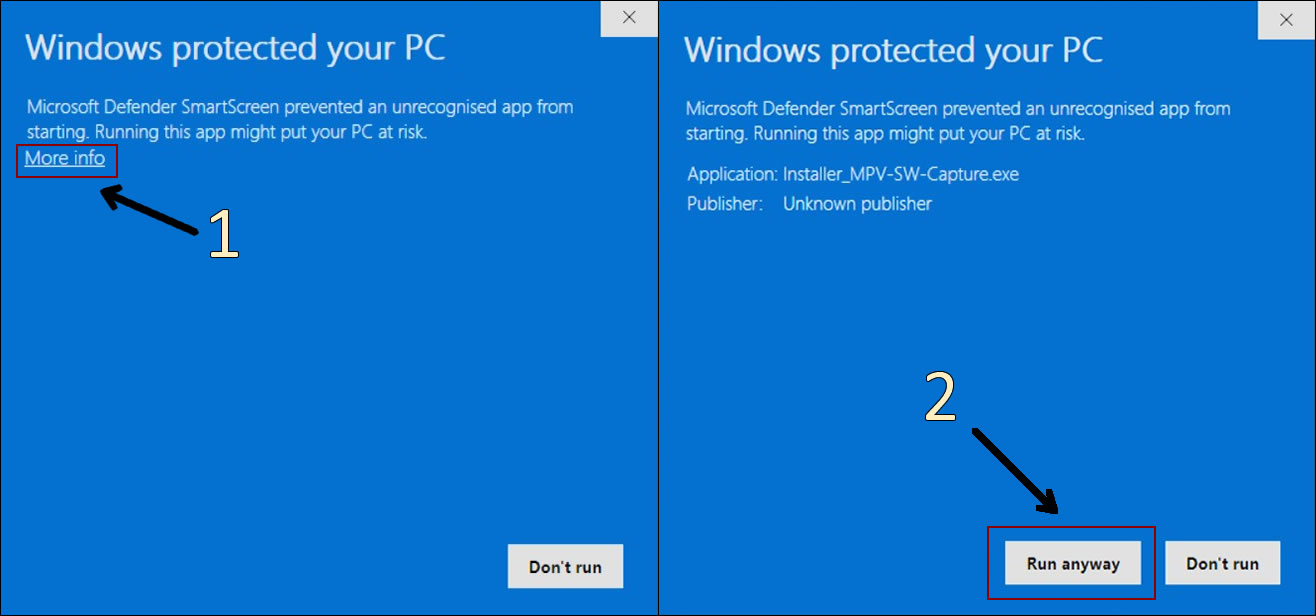
You'll only see this message the first time. After that, the installer will run normally.
Inside the folder, run Installer_MPV-SW-Capture.exe.
You will find a GUI window similar to this:
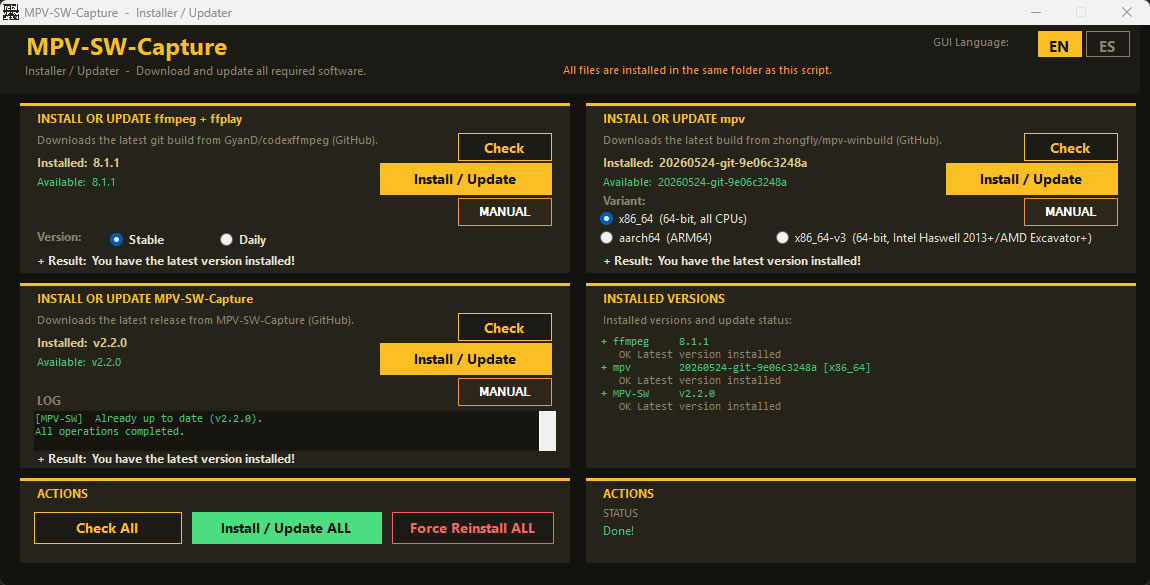
- Change anything you want in any options, or use the default ones.
- Press "Install / Update ALL" and wait for the installer to do the job.
Now, inside the folder, run Setup_MPV-SW-Capture.exe.
You will find a GUI window similar to this:
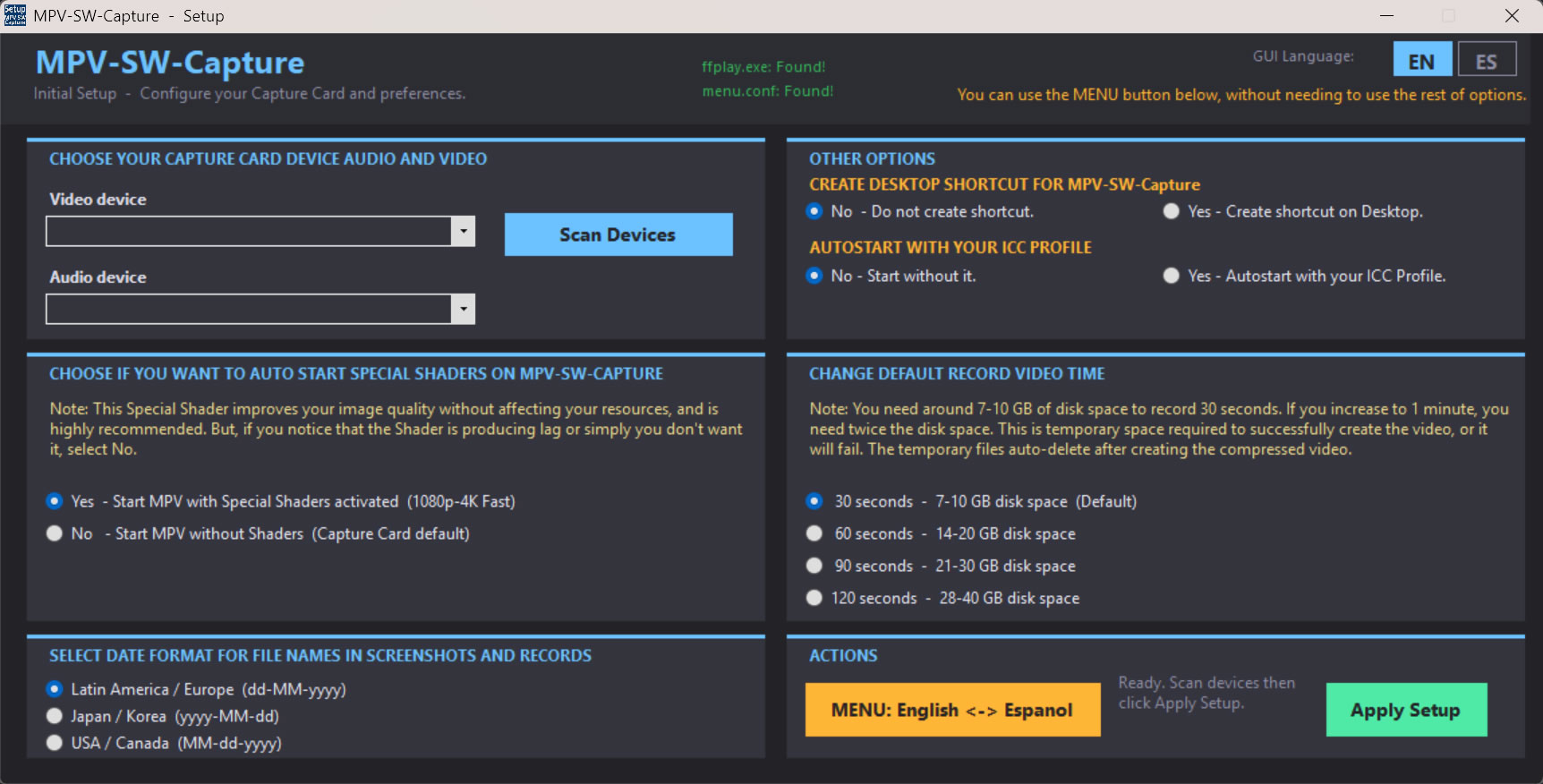
- If you want to change your GUI Language to Spanish, press the ES button. You can swap whenever you want.
- Press "Scan Device", it will list all audio and video devices currently attached.
(If nothing is connected, the list will be empty. Connect your devices and try pressing the button again.) - Choose the video device in the list and then the audio device (must be the same type as the capture card).
- Choose Date Format, Auto Start Special Shaders, Default Record Video Time, Create Desktop Shortcut to set your preferences.
- When you are ready, press the green "Apply Setup" button. If all is okay, you will receive a confirmation message with the changes.
If you want, you can translate the menu to Spanish. You must press "MENU: English <-> Español".
You can do it without using the main options – it's independent.
Run MPV.exe (you can create a desktop shortcut for convenience).
If everything is set correctly, you will see your console with audio and video.
- To access the menu, right‑click inside the window or press ESC.
- Double‑click toggles full screen.
If you want to use the old way to install MPV-SW-Capture (that still works), you are having problems, or anything else, you can find it here:
➡️ MANUAL Install (or the link you prefer)