Installation‐Guide
-
Download files
- Get MPV‑SW‑Capture (v3.0.0 or more):
- Download the latest release of this repository (ZIP) in "Assets". Only the file with the name
MPV-SW-Capture-v.X.Y.Z.zip.
- Download the latest release of this repository (ZIP) in "Assets". Only the file with the name
- Get MPV‑SW‑Capture (v3.0.0 or more):
-
Prepare the folder
- Create a folder (e.g.
MPV-SW-Capture) anywhere you like. - Open the latest MPV‑SW‑Capture release and extract all the files into this same folder.
You should end up with something like:
MPV-SW-Capture/ ├── bezels/ ├── data/ ├── scripts/ ├── shaders/ ├── tools/ ├── Installer_MPV-SW-Capture.exe ├── Setup_MPV-SW-Capture.exe ├── input.conf ├── menu.conf └── mpv.conf - Create a folder (e.g.
-
First setup
Connection
- Connect your capture card to your PC using USB 3.0 (or USB 2.0).
- Connect HDMI from your console to the input of the capture card.
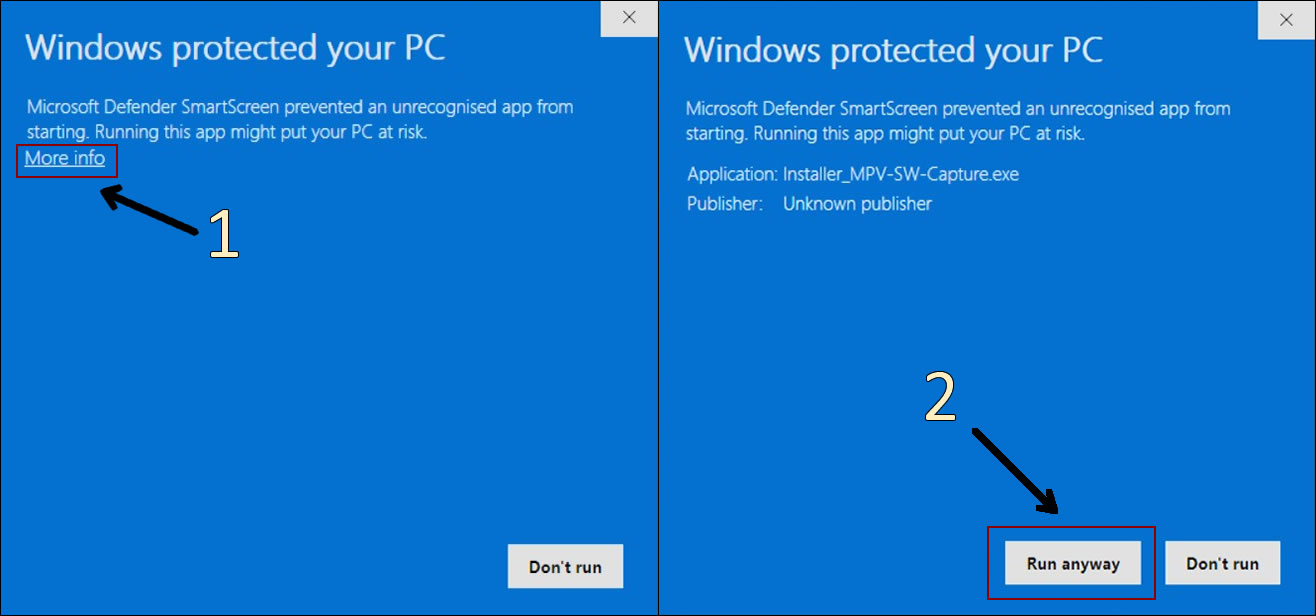
⚠️ Windows SmartScreen may appearThe first time you run the installer, Windows might show a blue screen saying: "Windows protected your PC – Microsoft Defender SmartScreen prevented an unrecognized app from starting."
This is a standard Windows security warning. It is normal and safe to continue.
To proceed:
- Click on "More info".
- Then click on "Run anyway".
You'll only see this message the first time. After that, the installer will run normally.
INSTALL file
- Inside the folder, run Installer_MPV-SW-Capture.exe. You will find a GUI window similar to this:

SETUP file
- Now, inside the folder, run Setup_MPV-SW-Capture.exe. You will find a GUI window similar to this:

- When you are ready, press the green "Apply Setup" button.
- If all is okay, you will receive a message with the changes.
- OPTIONAL: You can translate the MENU tu Spanish if you want. You must press "MENU: English <- -> Espanol". You can do it without using the main options (It's independent)
-
Launch the stream in MPV-SW-Capture
- Run
MPV.exe(you can create a desktop shortcut for convenience). - If everything is set correctly, you will see your console with audio and video.
- To access the menu, right‑click inside the window or press
ESC. Double‑click toggles full screen.
- Run
If you want to use the old way to install MPV-SW-Capture (that still works), you are having problems, or anything else, you can find it here: MANUAL Install