The tutorial guides you through the following activities:
- initializing a cluster of Docker Engines in swarm mode
- adding nodes to the swarm
- deploying application services to the swarm
- managing the swarm once you have everything running
Docker installed on the system.
Open HyperV Mananger and create a Virtual Switch using Virtual Switch Mananger with type "external".
The first step is to create a set of Docker machines that will act as nodes in our Docker Swarm.
Run the Gitbash as Administrator and use the standard command to create a Docker Machine named manager1.
- docker-machine create -d hyperv --hyperv-virtual-switch "Virtual Switch Name" machine_name
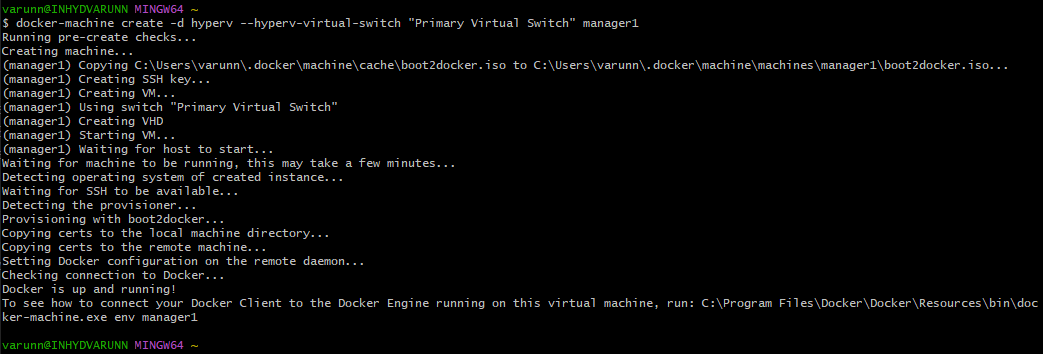
Similarly, create the other worker nodes.
After creating, fire the following command to check on the status of all the Docker machines.
- docker-machine ls
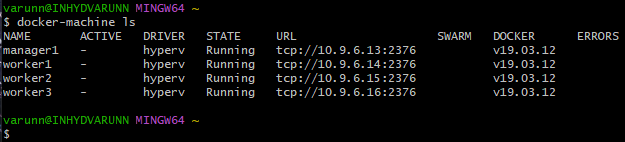
Note down the IP Address of the manager1. One way to get the IP address of the manager1 machine is
- docker-machine ip manager1
10.9.6.13
Now our machines are setup, we can proceed with setting up the Swarm.
The first thing to do is initialize the Swarm. We will SSH into the manager1 machine and initialize the swarm in there.
- docker-machine ssh manager1
This will initialize the SSH session.
Perform the following steps:
- docker swarm init --advertise-addr MANAGER_IP
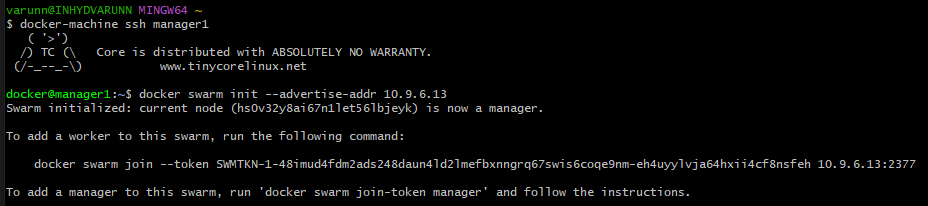
Note down the command from the output to join other nodes as workers.
Now we can do a SSH into each of the worker Docker machines and then fire the respective join command in them.
SSH into the worker1 machine. Then fire the respective command got for joining as a worker.
- docker swarm join --token SWMTKN-1-48imud4fdm2ads248daun4ld2lmefbxnngrq67swis6coqe9nm-eh4uyylvja64hxii4cf8nsfeh 10.9.6.13:2377

Do the same thing by launching SSH sessions for worker2/3 and then pasting the same command.
Go back to manager1 SSH session and fire the following command to check on the status of Swarm i.e. see the nodes participating in it:
- docker node ls

You can see there are 4 nodes, one as the manager (manager1) and the other 3 as workers.
Also execute the "docker info" command here to check out the details for Swarm.
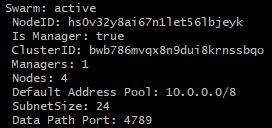
Now we tell the manager to run the containers for us and it will take care of scheduling out the containers, sending the commands to the nodes and distributing it.
To do that, I am again in the SSH session for my manager1 node. And give the following command:
- docker service create --replicas 4 -p 3000:3000 --name service_name image_name

Here I launched 4 replicas of a simple frontend application.
You can find out the status of the service, by giving the following command:
- docker service ls

You can also see how it is getting orchestrated to the different nodes by using the following command:
- docker service ps service_name

You can access the service by hitting any of the manager or worker nodes.
Hit the URL (http://machine-ip) in the browser. You should be able to get a simple frontend application.
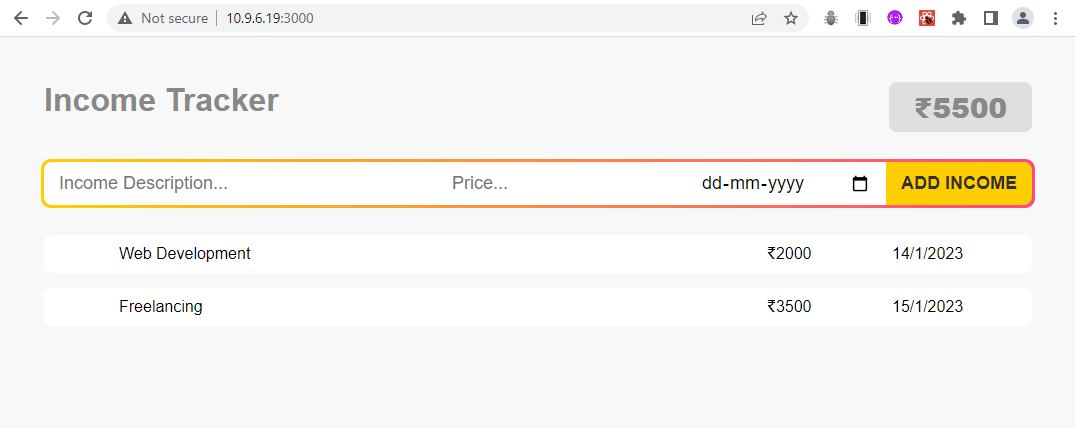
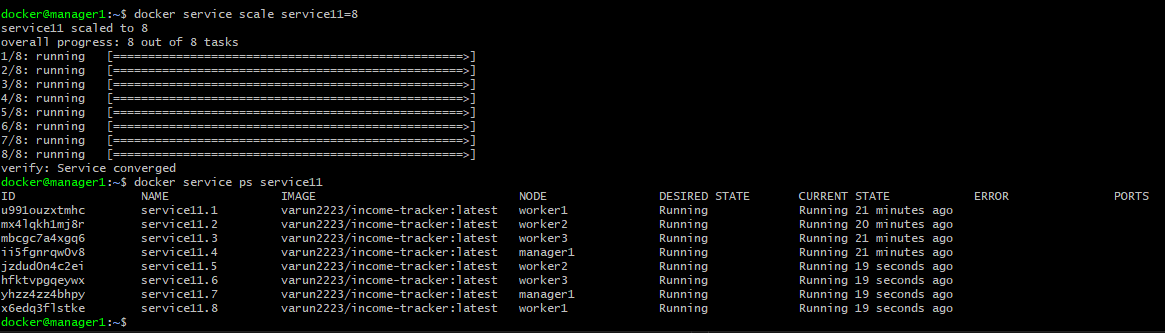
We currently have 4 containers running. Let us scale it up to 8 by executing the command on the manager1 node.
- docker service scale service_name=8
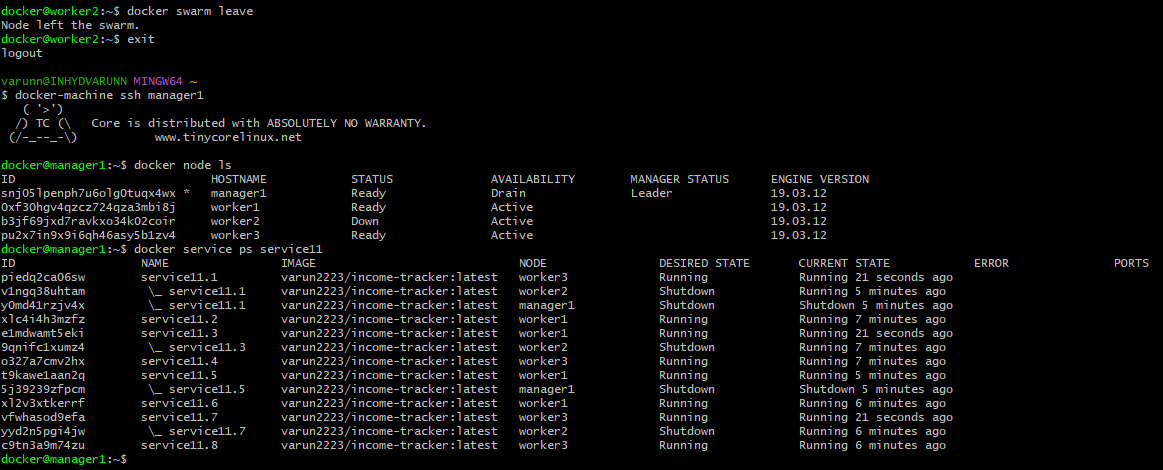
If the node is ACTIVE, it is ready to accept tasks from the Manager.
Now, let us set the Availability to DRAIN so that Manager will stop tasks running on that node and launches the replicas on other nodes with ACTIVE availability.
- docker node update --availability drain node_name

If any worker node goes down, then Manager launches the replicas running on that node on other nodes.
Currently we have 4 nodes. Let's add 2 more worker nodes to our swarm.
We can promote workers to become Managers by using the command
- docker node promote worker_node

We can see there are 3 managers where 1 is leader and other 2 are "reachable".
To take advantage of swarm mode’s fault-tolerance features, Docker recommends you implement an odd number of nodes so that you can recover from the failure of a manager node without downtime.
- A three-manager swarm tolerates a maximum loss of one manager.
- A five-manager swarm tolerates a maximum simultaneous loss of two manager nodes.
- An odd number N of manager nodes in the cluster tolerates the loss of at most (N-1)/2 managers. Docker recommends a maximum of seven manager nodes for a swarm.
We have a three-manager swarm, so if Manager1 node goes down, then any one of the remaining two managers become leader and starts handling the cluster.
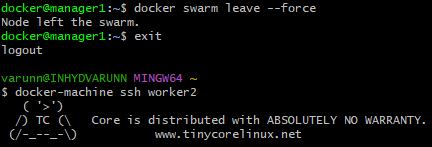
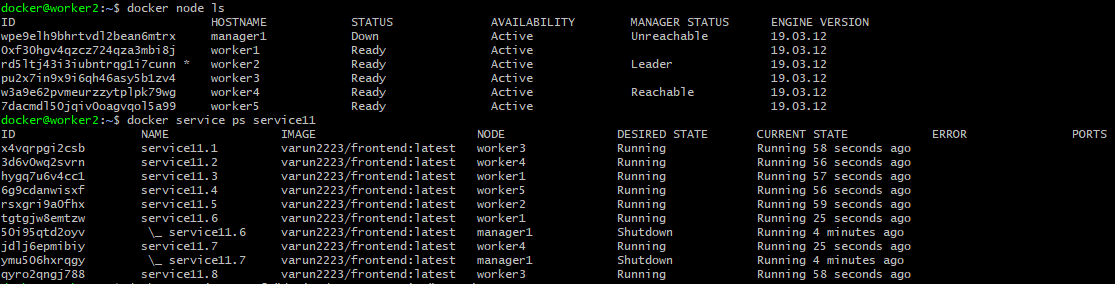
NOTE: In a swarm cluster, more than 50% of the managers should be online to manage the cluster.
In our case if two of the managers goes down simultaneously, then our swarm has less than 50% of the managers online, so we lose the control over the cluster and the cluster runs into a disaster.

SSH into the last active manager node and run the command:
- docker swarm init --force-new-cluster

This re-initializes the cluster with last active manager as leader and starts handling the cluster.

https://docker-docs.netlify.app/machine/drivers/hyper-v/
https://docker-docs.netlify.app/machine/drivers/hyper-v/#example