Repository navigation
Generate Paintings from an Image
The Generate Painting Tool in the Unity Modding Project creates all the assets needed for a Mondo Museum painting in one button click.
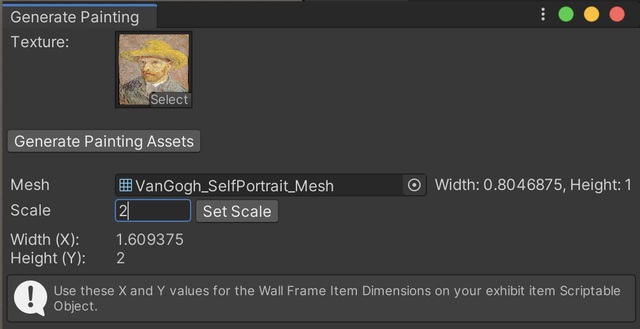
Menu Item Mondo Museum > Generate Painting from Image
- Find a suitable image. The Metropolitan Museum of Art has a database that lets you find Open Access paintings in their collection.
- Drag the image into the YourMod/Assets folder. You don't have to worry about any of the Texture Import Settings, as these are set automatically when creating the painting's assets.
- Open the Generate Painting Tool (Mondo Museum > Generate Painting from Image), and select your image in the
Texturefield. - Press the Generate Painting Assets button. You'll see a Material, Mesh, and Prefab have been created in the same folder as your texture. An instance of the prefab will also be instantiated in the Scene.
- Your new mesh will appear in the
Meshfield below the button. You can also manually select meshes from previously generated assets if you'd like to change the scale later. Using the scene view and maybe comparing its size to other reference items, set the scale to something you're satisfied with. - Paste the
Width (X)andHeight (Y)values into theWall Frame Item Dimensionson your exhibit item Scriptable Object (See the Exhibit Items page for more info on the Scriptable Object--just rememberSub Typeneeds to be set toWall Frameto see the Wall Frame options).
ℹ️ Painting Wall Frames are automatically created at runtime using
Wall Frame Item Dimensions, and the spacing between the frame and edge of the painting is determined byWall Frame Padding. Mod support for creating new Wall Frame styles will be added soon.