Repository navigation
Publish to Steam Workshop
The Steam Workshop Utility (Window > Steam Workshop Utility)
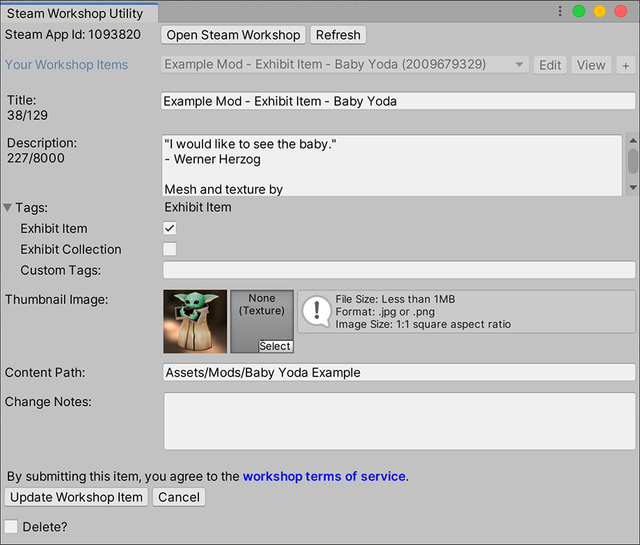
-
Open Steam Workshop Button: Launches Steam and goes to the Mondo Museum Workshop page.
-
Refresh Button: Attempts to connect to Steam again if it wasn't open or there was a connection error.
-
Your Workshop Items: List of all the mods you've created that have been found on the Mondo Museum Workshop (Appearing in this list does not mean they are visible to other users).
- Edit Button: Allows you to edit and upload changes to the item on the Steam Workshop.
- View Button: Go to the page for the selected mod in Steam, to preview and finalize it for release.
- New (+) Button: Create a new item on the Mondo Museum Workshop. It will be hidden to other users by default.
-
Title: The mod's title.
-
Description: The mod's description.
-
Tags: The type of mod this is. Users can browse mods on the Mondo Museum Workshop by tag (Custom Tags are currently hidden and unused).
-
Thumbnail Image: The mod's thumbnail image. This must be less than 1MB, .jpg or .png, and a 1:1 aspect ratio. The image's Texture settings in the Inspector panel are irrelevant for this image, as what is being uploaded is the actual image file. If you've already uploaded a thumbnail image it will appear here, indicating you don't need to add it again each time you update the mod, only if you want to replace it.
-
Content Path: The path to the mod's folder in Unity (right-click the appropriate mod folder in the Project panel and select "Copy Path", then paste it here). If you're not updating the actual mod content/assets from that folder (ie. just changing the thumbnail or tags) you can leave this blank.
-
Change Notes: An optional message you'd like to include under the mod's Change Notes tab on the Mondo Museum Workshop.
-
Update Workshop Item Button: Updates the mod on the Mondo Museum Workshop with any changes you've made here.
-
Cancel Button: Stop editing the currently selected mod, discarding any changes.
Testing Your Mod
You can test your mod without making it visible to everyone else on the Mondo Museum Workshop. Its visibility was set to "Hidden" by default, but as the creator ("owner") you can still view it and subscribe to it like any other mod. You should only set Visibility to Public after subscribing to it and testing it in Mondo Museum yourself.
Releasing Your Mod
The Steam Workshop Utility lets you upload your mod's content and most of its metadata, but you'll need to do a few things in Steam to get it ready for other players to view and subscribe to on the Mondo Museum Workshop.
The quickest way to navigate to your mod's Workshop page is to select it in the Steam Workshop Utility and click the "View" button. You should see a sidebar titled "Owner Controls".
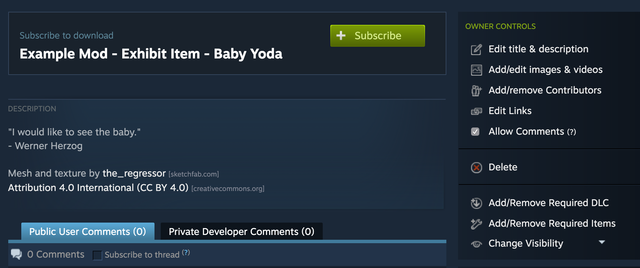
- Edit title & description: This is the same as using the Workshop Utility's title and description fields, but maybe easier for small edits.
- Add/edit images & videos: The Workshop Utility only lets you upload the thumbnail that is seen when browsing mods. Here you can add high resolution screenshots or video to better show off your mod.
- Change Visibility: When you're ready to release your mod, set this to Public to make it visible to everyone on the Mondo Museum Workshop.