Repository navigation
Prefabs
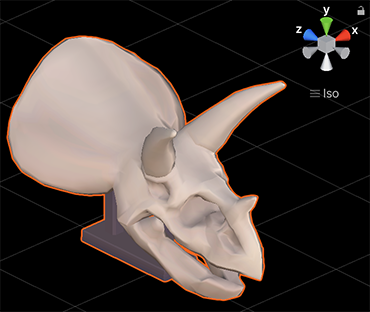
See the Prefabs included in the project's Examples folder for reference.
To create a Prefab you'll first need a Mesh (See Assets: Meshes) and Material (See Assets: Materials) for your item.
- Drag your item's Mesh into the Scene.
- Select it and make sure the Position on its Transform component is set to
0, 0, 0. - Verify your Mesh has the correct orientation with its Transform Rotation at
0, 0, 0. The above image shows how the object should align with the Scene Gizmo. The item's back is facing the blue part of the Z axis, and its left is facing the red part of the X axis. If the mesh doesn't align with the Scene Gizmo as shown, the best way to fix this is in your 3D modelling application and exporting it again. If you can't do that, see the Fixing Rotation section below. - Replace
Default-Materialon the Mesh Renderer with your Material. - Drag the item from the Hierarchy panel into your mod's Assets folder in the Project panel. On the Create Prefab prompt that appears, select the Original Prefab button.
- Done!
Sometimes you'll have an exhibit item where parts of it extend over the edges of the display case. By default, the game only checks if the display case is colliding with anything when determining valid object placement. Adding additional colliders to the prefab will make the game recognise that a T-Rex tail clipping through an adjacent wall is also an invalid placement position.
In the Unity Modding Project, see the example "Special Colliders".
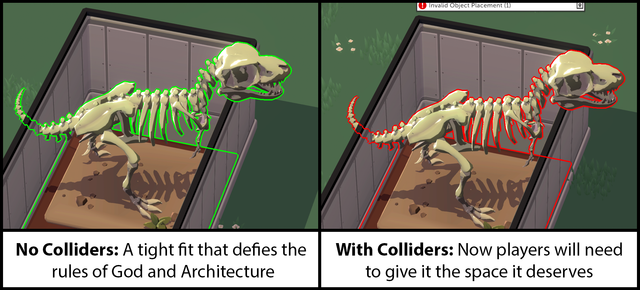
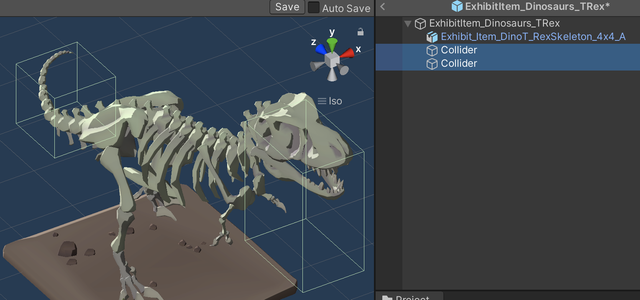
When creating and sizing the Box Colliders, you should try to picture what is needed to intersect with a nearby wall. It's not necessary to perfectly match the geometry of the exhibit item. For example, the collider on the T-Rex head goes down quite a bit, because the head is normally above the actual walls, but we still want to collide with them (let's not get into whether ceilings do or do not exist in Mondo Museum. That's a question for philosophers).
And on the Collider component, Is Trigger must be checked!
If your mesh has a wacky rotation and you want to fix it within Unity, you need to make the mesh a child of an empty GameObject before rotating it.
- Right-click in the Hierarchy panel and select Create Empty.
- Rename "GameObject" to whatever you want the Prefab to be named.
- Select it and zero out the Transform component's Position.
- Make your Mesh a child of this empty game object by dragging the Mesh onto it in the Hierarchy panel. Zero out the Mesh's Transform Position.
- Select the Mesh and rotate it until it's in the correct orientation. The parent GameObject Rotation should always be
0, 0, 0. - Continue at Step 4 above, but you're creating the Prefab from the parent object this time, not the mesh.