Repository navigation
Interface Overview
ℹ️ If you've never used Unity before, you may want to check out this Using the Unity Interface tutorial before continuing.
📁 Common Assets: Several textures, materials, and shaders used in the base game are included here. By using these assets on your mod's meshes they will look consistent with the other items in the game. If you want to modify anything in here you must duplicate it first and put it in your mod folder. These assets represent what exists in the base game, so changing them won't have any effect on your mod and might break things.
📁 Examples: The Mesh, Prefab, and Data assets for different item types can be found here. You can refer to them to see how they're set up when creating your own.
📁 Mods: This is where your mods and their associated assets go. See the Mod Folders section below for more details.
📁 Scenes: Contains the Screen Capture Scene for easily making icons for your item mods (See Assets: Icon Sprites).
📁 Scripts: These scripts are for the modding Unity project, and Mondo Museum's item data structures. Unfortunately modding new code into Mondo Museum is not supported, so changing anything in these scripts will break the game and the modding project.
📁 Steamworks 2.3.2: The API for the Steam Workshop Utility that lets you publish mods. You don't need to touch this.
📁 StreamingAssets: Images from the Screen Capture Scene that you can turn into icons are saved here (See Assets: Icon Sprites).
📁 Packages (see Setting Up Unity): The Unity Packages required by the Mondo Museum Modding Project, and some others that were installed by default. It can be ignored.
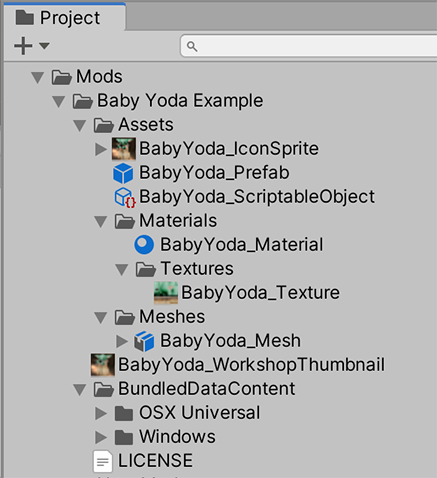
ℹ️ The Project panel doesn't look like the above image in the default Unity interface layout, but this way you can see all of the folders and files at once.
📁 Mods: Contains folders for each of your mods, and the Baby Yoda Example mod. You shouldn't have separate Unity projects for each mod you make--they can all exist in here.
📁 Mods/Baby Yoda Example: A mod folder containing sub-folders Assets and BundledDataContent. The image in here named BabyYoda_WorkshopThumbnail is uploaded to the Steam Workshop when publishing your mod. You can also put any LICENSE files in here, if applicable.
📁 Mods/Baby Yoda Example/Assets: The assets folder contains the "content" of your mod that is loaded in the game.
- BabyYoda_IconSprite: The icon used in the game UI for this exhibit item.
- BabyYoda_Prefab: The exhibit item as it appears in the game.
- BabyYoda_ScriptableObject: Scriptable Objects as they're used in Mondo Museum mods are basically a game item as data structure. This is where you give it a name, description, size, etc. and tell it which IconSprite and Prefab to use. A single mod can of course have multiple exhibit items if you make multiple Scriptable Objects.
- BabyYoda_Material/Texture: This BabyYoda model has a unique texture instead of using one that appears in the base game.
- BabyYoda_Mesh: The exhibit item mesh, used in the Prefab with a material applied to it.
📁 Mods/Baby Yoda Example/BundledDataContent:
- The mod's asset bundles, created when you're ready to upload it to the Steam Workshop. See How To: Create Asset Bundles.