Slack export viewer to unpack, search, filter, and work with your JSON export archives.
A practical guide to viewing Slack export data (.zip exports containing JSON files) in a readable, browsable format. This repo walks you through what's inside a Slack export, how to generate one, and the easiest ways to view it — including ViewExport.com, an in-browser Slack export viewer that requires no installation.
- What is a Slack export?
- How to export your Slack workspace
- What's inside the export ZIP
- Option 1: View your export with ViewExport (no install)
- Option 2: Read the raw JSON manually
- Troubleshooting common issues
- FAQ
A Slack export is a ZIP archive containing your workspace's message history as raw JSON files. Slack generates it from the admin dashboard, and it's the standard way to back up conversations, meet compliance or legal-hold requirements, or migrate to another platform.
The catch: the export is not human-readable out of the box. There's no built-in Slack export viewer: you get folders of JSON, with user IDs instead of names and Unix timestamps instead of dates. That's the problem this guide solves.
Note: Standard exports include public channels only. Private channels and DMs require a Business+ plan with an approved export application, or Enterprise Grid.
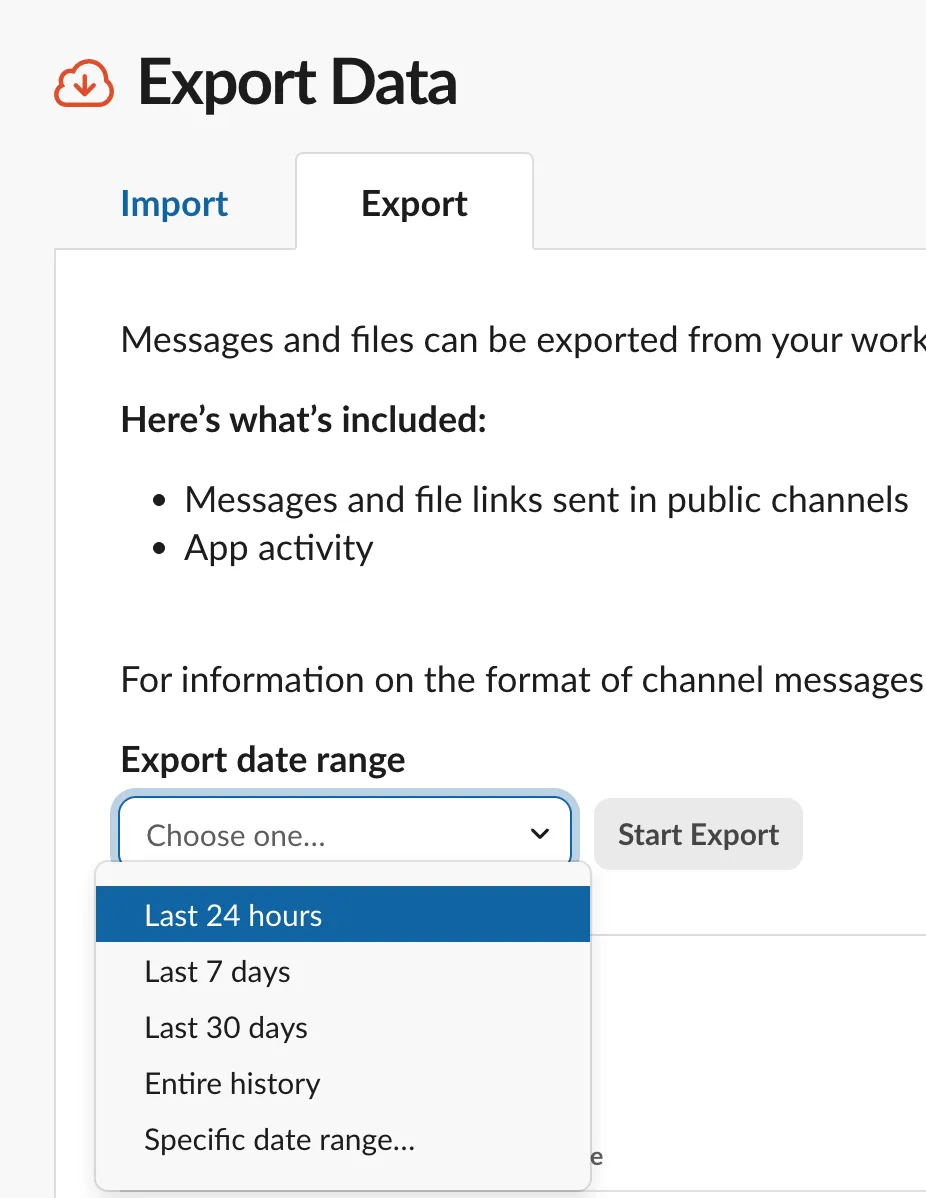
- Open Slack in your browser and go to Settings & administration → Workspace settings.
- Click Import/Export Data in the top-right corner.
- Select the Export tab.
- Choose a date range (or Entire history) and click Start Export.
- Slack emails you when the export is ready — download the
.zipfile from the link provided.
Unzipping a Slack export gives you a structure like this:
slack-export-2026-06-10.zip
├── channels.json        # Channel metadata
├── users.json           # User IDs mapped to names and profiles
├── integration_logs.json
├── general/             # One folder per channel
│   ├── 2026-05-01.json  # One JSON file per day of messages
│   ├── 2026-05-02.json
│   └── ...
└── engineering/
    └── ...
Each daily JSON file contains an array of message objects. A single message looks like this:
{
  "user": "U02ABCD1234",
  "type": "message",
  "ts": "1717550400.000200",
  "text": "Hey <@U03WXYZ9876>, the report is ready"
}
To read this manually, you'd need to cross-reference users.json for every user ID and convert every ts timestamp. For anything more than a handful of messages, you'll want a Slack export viewer.
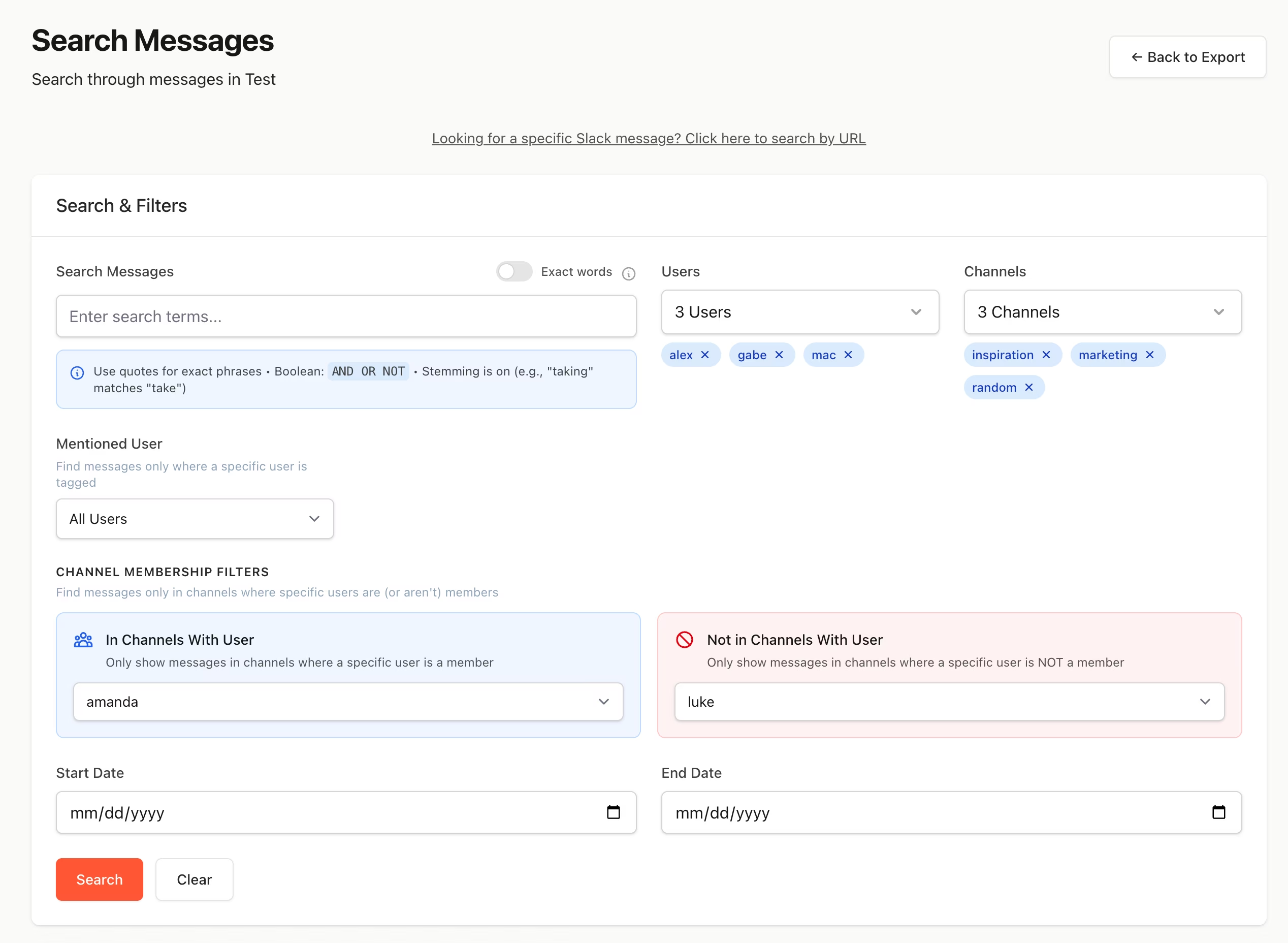
ViewExport.com renders your Slack export as a familiar, Slack-style interface directly in your browser:
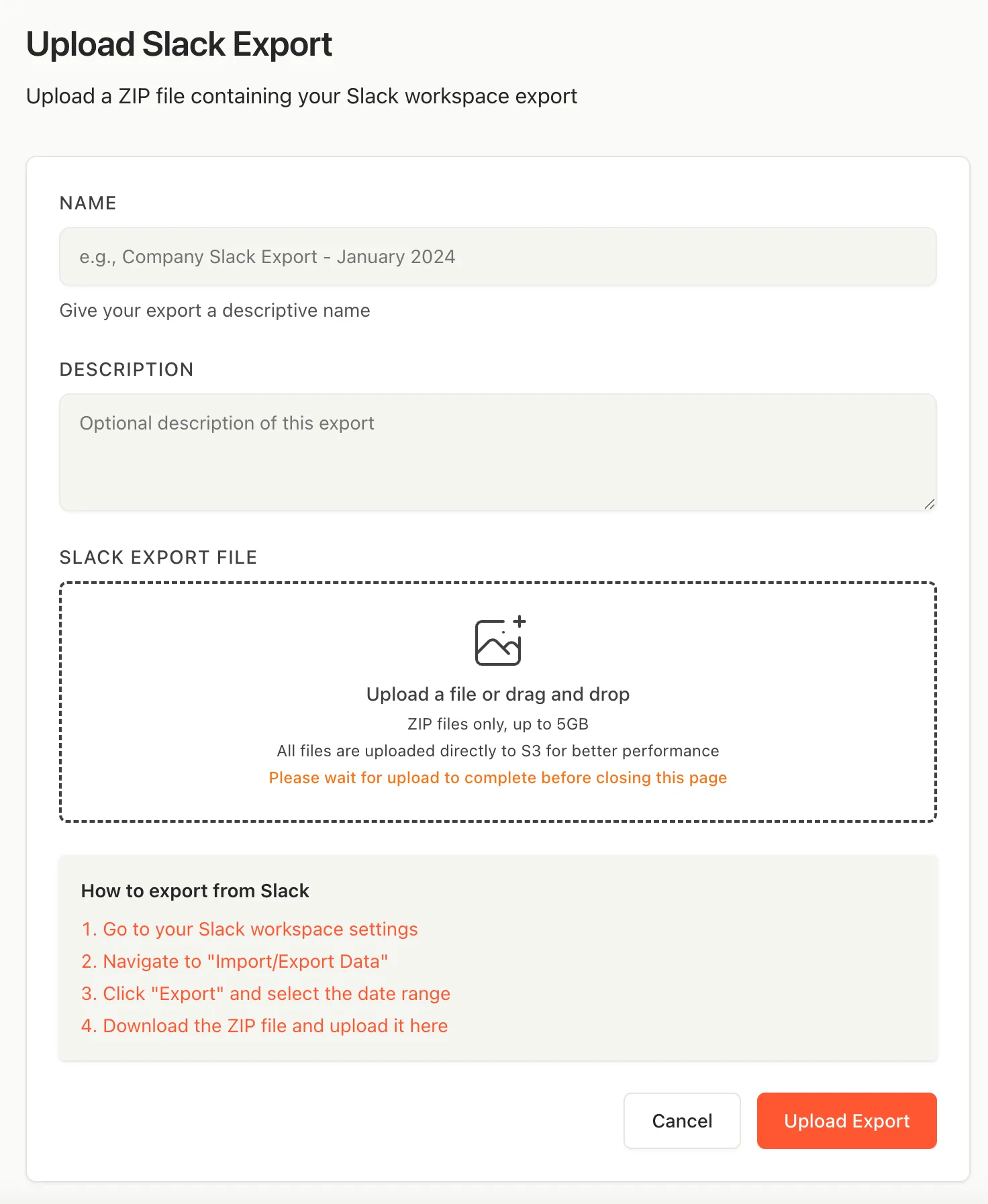
- Go to viewexport.com.
- Drag and drop your export
.zipfile onto the page (don't bother unzipping it first). - Browse channels in the sidebar, scroll message history, and use Advanced search to find specific conversations.
What you get:
- Readable messages: user names, avatars, dates, threads, and formatting resolved automatically
- Full-text search across all channels and dates; the cloud version adds optional AI semantic search
- No installation for the cloud version — works in any modern browser
- Desktop version available: a fully offline download with no external calls, keeping your export entirely on your own machine
If you only need to check a few messages and prefer not to use a viewer, you can work with the JSON directly:
- Unzip the export archive.
- Open
users.jsonand note theid→real_namemappings for the people you care about. - Navigate to the channel folder and open the JSON file for the relevant date.
- Convert timestamps as needed — the portion of
tsbefore the decimal is a Unix timestamp. On macOS/Linux:date -r 1717550400.
A small jq one-liner can make this less painful:
jq -r '.[] | "\(.ts) \(.user) \(.text)"' general/2026-05-01.jsonThis works fine for spot checks but becomes impractical for browsing full history, following threads, or searching... that's where a dedicated viewer like ViewExport saves real time.
My export only contains some channels. Standard Slack plans export public channels only. Private channels and DMs require Business+ (with Slack's approval for the export type) or Enterprise Grid.
File attachments don't open. Exports contain links to files, not the files themselves, and those links may require authentication or expire. Download important attachments separately while your workspace is active.
The ZIP is too large to email or share. Daily JSON files compress well, but media-heavy workspaces produce large archives. Consider exporting a narrower date range, or share the rendered view instead of the raw archive.
Names show as USLACKBOT or raw IDs. Deactivated users and bots sometimes have incomplete profiles in users.json. A viewer like ViewExport falls back to display names where available.
Is there an official Slack export viewer? No. Slack provides the export but no tool to read it. You either parse the JSON yourself or use a third-party viewer.
Can I view a Slack export without uploading my data anywhere? Yes. ViewExport offers a downloadable desktop version that runs fully on your own machine — it makes no external calls, so your export never leaves your computer. This suits legal, compliance, and security-sensitive use cases. (The desktop edition doesn't include AI semantic search, which is what keeps it fully offline.) The browser-based cloud version processes uploads on ViewExport's hosted infrastructure (servers on Render.com, with AWS Bedrock used for the optional AI semantic search feature). Choose the desktop version if your data can't leave your environment.
Can I convert a Slack export to PDF or HTML? Yes — once rendered in a viewer, you can typically print to PDF from the browser, or use an export feature if the tool provides one.
Does this work with Slack Connect or shared channels? Exports include messages from shared channels for your side of the connection, subject to your plan and retention settings.
Spotted something out of date, or have a tip for working with Slack exports? Open an issue or submit a PR. Crrections and additions are welcome.
This guide is published under the MIT License.