


Generate and transform text in Inkscape using local AI models (Ollama, llamafile)
A powerful Inkscape extension that leverages local Large Language Models to create, modify, translate, summarize, expand, and rewrite text directly within your designs. Privacy-focused with no cloud dependencies.
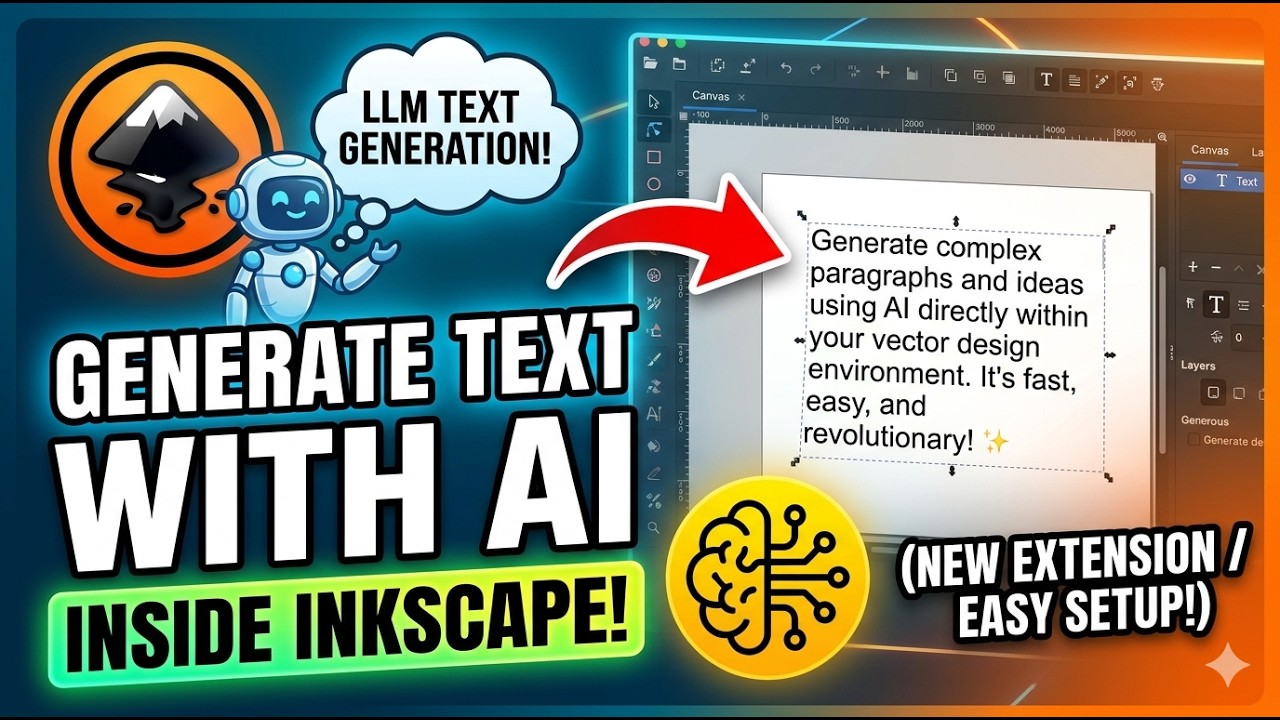
Click to watch the full tutorial on YouTube
- Features
- Requirements
- Installation
- Quick Start
- Usage Guide
- Configuration
- Examples
- Troubleshooting
- Contributing
- License
-
🤖 Multiple AI Providers
- Ollama: Popular local LLM runner
- llamafile: Single-file executable LLMs
- Custom API: Any OpenAI-compatible endpoint
-
📝 Six Operation Modes
Mode Description Create Generate new text from a prompt Modify Change selected text based on instructions Translate Convert text to another language Summarize Condense text to key points Expand Add detail and elaboration Rewrite Improve grammar, clarity, and style -
🎨 Rich Styling Options
- Font family, size, weight, and style
- Text color and decorations
- Background boxes with customizable padding
- Text alignment and spacing controls
- Scale multiplier for easy resizing
-
🎯 Smart Positioning
- 9 preset positions (center, corners, edges)
- Cursor/selection-based placement
- Custom X/Y offsets
-
🔧 Advanced Features
- Auto-detect available models
- Temperature and token limit controls
- 8 tone presets (formal, casual, humorous, etc.)
- Automatic markdown cleanup
- Preserve existing text styles
| Component | Version | Purpose |
|---|---|---|
| Inkscape | 1.0+ | Vector graphics editor |
| Python | 3.6+ | Extension runtime (bundled with Inkscape) |
🦙 Option 1: Ollama (Recommended)
Ollama is the easiest way to run local LLMs.
Installation:
# macOS/Linux
curl -fsSL https://ollama.com/install.sh | sh

# Windows
# Download from: https://ollama.com/download
Pull a model:
# Recommended models
ollama pull llama3.2        # Fast, good quality (2GB)
ollama pull mistral         # Excellent for text (4GB)
ollama pull gemma2          # Google's model (5GB)
ollama pull qwen2.5         # Multilingual (4GB)
Start the server:
ollama serve
# Server runs at http://localhost:11434
📦 Option 2: llamafile
llamafile packages models as single executables.
Installation:
- Download a llamafile from Mozilla's collection
- Make it executable and run:
# Linux/macOS
chmod +x mistral-7b-instruct-v0.2.Q4_0.llamafile
./mistral-7b-instruct-v0.2.Q4_0.llamafile --server

# Windows
# Just double-click the .llamafile or run:
mistral-7b-instruct-v0.2.Q4_0.llamafile.exe --server
Server runs at http://localhost:8080 by default.
⚙️ Option 3: Custom API
Any OpenAI-compatible API endpoint works:
- LM Studio
- LocalAI
- Text Generation WebUI (with --api flag)
- vLLM
- Any other OpenAI-compatible server
Windows:
C:\Users\[YourUsername]\AppData\Roaming\inkscape\extensions\
macOS:
~/Library/Application Support/org.inkscape.Inkscape/config/inkscape/extensions/
Linux:
~/.config/inkscape/extensions/
💡 Tip: In Inkscape, go to Edit → Preferences → System to find your extensions directory.
-
Create the extension folder:
mkdir -p [extensions-directory]/text_gen
-
Copy the files:
cp text_gen.py [extensions-directory]/text_gen/
cp text_gen.inx [extensions-directory]/text_gen/
-
Set permissions (Linux/macOS):
chmod +x [extensions-directory]/text_gen/text_gen.py
-
Restart Inkscape
Open Inkscape and check: Extensions → Text → AI Text Generator
- Open Inkscape
- Go to Extensions → Text → AI Text Generator
- In the Mode tab, select Create
- In the Prompt tab, enter your prompt:
Write a catchy tagline for a coffee shop - Click Apply
- Select a text object in your document
- Open Extensions → Text → AI Text Generator
- Select Translate mode
- Choose target language (e.g., "French")
- Click Apply
| Tab | Purpose |
|---|---|
| Mode | Select operation (create, modify, translate, etc.) |
| Prompt | Enter your text generation prompt |
| Style | Configure font, color, and decorations |
| Layout | Set alignment, spacing, and positioning |
| Background | Add optional background box |
| API Config | Configure AI provider and model |
| Advanced | Fine-tune generation parameters |
Generate new text from scratch.
Prompt: "Write a professional bio for a graphic designer"
Change selected text based on instructions.
Selected text: "Our product is good"
Prompt: "Make it more enthusiastic and professional"
Result: "Our product delivers exceptional results that exceed expectations"
Convert text to another language while preserving meaning.
Selected text: "Welcome to our store"
Target language: Spanish
Result: "Bienvenido a nuestra tienda"
Condense long text to key points.
Add detail and elaboration to short text.
Improve grammar, clarity, and style.
| Option | Description | Default |
|---|---|---|
| Font Family | Any installed font | Arial |
| Font Size | Size in pixels | 24 |
| Font Weight | normal, bold | normal |
| Font Style | normal, italic | normal |
| Text Color | Hex color code | #000000 |
| Text Decoration | underline, overline, line-through | none |
| Text Scale | Multiplier (0.5 = half, 2.0 = double) | 1.0 |
┌─────────────────────────────────────┐
│ top_left    top_center    top_right │
│                                     │
│ middle_left   center   middle_right │
│                                     │
│ bottom_left bottom_center bottom_right │
└─────────────────────────────────────┘
- cursor: Place at selected object's center
- Custom offsets: Add X/Y offset to any position
| Tone | Effect |
|---|---|
| formal | Professional, business language |
| casual | Conversational, relaxed |
| professional | Corporate, polished |
| friendly | Warm, approachable |
| enthusiastic | Energetic, excited |
| humorous | Witty, playful |
| serious | Straightforward, no-nonsense |
| poetic | Artistic, metaphorical |
| Setting | Description | Default |
|---|---|---|
| Provider | ollama, llamafile, or custom | ollama |
| API URL | Server address | http://localhost:11434 |
| Model | Model name (leave empty for auto-detect) | (auto) |
| Auto-detect | Automatically find available model | ✓ |
| Setting | Description | Default |
|---|---|---|
| Temperature | Creativity (0.0 = focused, 1.0 = creative) | 0.7 |
| Max Tokens | Maximum response length | 500 |
| Remove Asterisks | Strip markdown bold/italic markers | ✓ |
| Remove Quotes | Strip surrounding quotation marks | ✓ |
| Capitalize First | Ensure first letter is uppercase | ✗ |
| Preserve Style | Keep existing text styling when modifying | ✓ |
| Provider | Default URL | Notes |
|---|---|---|
| Ollama | http://localhost:11434 | Default Ollama port |
| llamafile | http://localhost:8080 | Default llamafile port |
| LM Studio | http://localhost:1234 | Default LM Studio port |
Settings:
- Mode: Create
- Prompt:
Write a bold headline for an eco-friendly product launch - Tone: Enthusiastic
- Font Size: 48
- Font Weight: Bold
Result:
🌱 Revolutionize Your World with Sustainable Innovation!
Settings:
- Mode: Translate
- Target Language: Japanese
- Preserve Style: ✓
Original: "Innovation starts here"
Result: "イノベーションはここから始まる"
Settings:
- Mode: Create
- Prompt:
Write a 2-sentence professional bio for a UX designer named Sarah - Tone: Professional
- Max Tokens: 100
Result:
Sarah is an award-winning UX designer with over 8 years of experience crafting intuitive digital experiences. Her work spans Fortune 500 companies and innovative startups, where she transforms complex challenges into elegant, user-centered solutions.
Settings:
- Mode: Expand
- Tone: Friendly
Original: "Fresh coffee daily"
Result: "Every morning, we roast our carefully sourced beans to perfection, ensuring each cup delivers the rich, aromatic experience you deserve. Our commitment to freshness means your coffee is never more than 24 hours from roasting to your cup."
Extension not appearing in menu
Solutions:
- Verify files are in the correct location:
ls [extensions-directory]/text_gen/ # Should show: text_gen.py, text_gen.inx - Check file permissions (Linux/macOS):
chmod +x text_gen.py
- View Inkscape error log:
- Edit → Preferences → System → Open Error Log
- Restart Inkscape completely
Cannot connect to Ollama
Error: Cannot connect to Ollama at http://localhost:11434
Solutions:
- Ensure Ollama is running:
ollama serve
- Check if a model is installed:
ollama list
- Pull a model if needed:
ollama pull llama3.2
- Verify the URL in API Config tab
Model not found
Error: model 'xyz' not found
Solutions:
- List available models:
ollama list
- Pull the required model:
ollama pull [model-name]
- Enable "Auto-detect model" in API Config
- Manually enter the exact model name
Text not appearing in document
Solutions:
- Check the position mode settings
- Zoom out to see if text is off-canvas
- Try "center" position mode
- Check that the AI generated a response (look for errors)
Slow response times
Solutions:
- Use a smaller model:
ollama pull phi3      # 1.5GB, very fast
ollama pull tinyllama # 600MB, fastest
- Reduce max tokens (150-300 for simple tasks)
- Ensure your system has enough RAM
- Close other resource-intensive applications
Selected text not detected
Solutions:
- Ensure you've selected a text object (not a group or path)
- Click directly on the text with the Selection tool
- For grouped text, enter the group first (double-click)
- Check that the text element has actual text content
Enable debug output to diagnose issues:
- Run Inkscape from terminal:
inkscape
- Debug messages will appear in the terminal
- Check the Inkscape error log: Edit → Preferences → System → Open Error Log
| Use Case | Recommended Model | Size | Speed |
|---|---|---|---|
| Quick drafts | phi3 or tinyllama |
1-2GB | ⚡⚡⚡ |
| General text | llama3.2 or mistral |
4GB | ⚡⚡ |
| Translation | qwen2.5 |
4GB | ⚡⚡ |
| Creative writing | llama3.1:8b |
8GB | ⚡ |
| Best quality | llama3.1:70b |
40GB | 🐢 |
text_gen/
├── text_gen.py          # Main extension code
├── text_gen.inx         # Inkscape extension definition
└── README.md            # This file
Contributions are welcome! Please:
- Fork the repository
- Create a feature branch (
git checkout -b feature/amazing-feature) - Commit your changes (
git commit -m 'Add amazing feature') - Push to branch (
git push origin feature/amazing-feature) - Open a Pull Request
Development Setup:
git clone https://github.com/YouvenZ/textgen_ink.git
cd textgen_ink
# Symlink to extensions directory for testing
ln -s $(pwd) ~/.config/inkscape/extensions/text_genThis project is licensed under the MIT License - see LICENSE file for details.
- Issues: GitHub Issues
- Discussions: GitHub Discussions
- Email: youvenz.pro@gmail.com
- Built on Inkscape Extension API
- Powered by Ollama and llamafile
- Inspired by the need for local, privacy-respecting AI tools
- ✨ Initial release
- ✅ Ollama integration
- ✅ llamafile support
- ✅ 6 operation modes
- ✅ Auto model detection
- ✅ Rich styling options
- ✅ 8 tone presets
- ✅ Background box support
- ✅ Markdown cleanup