Running version available at Heroku
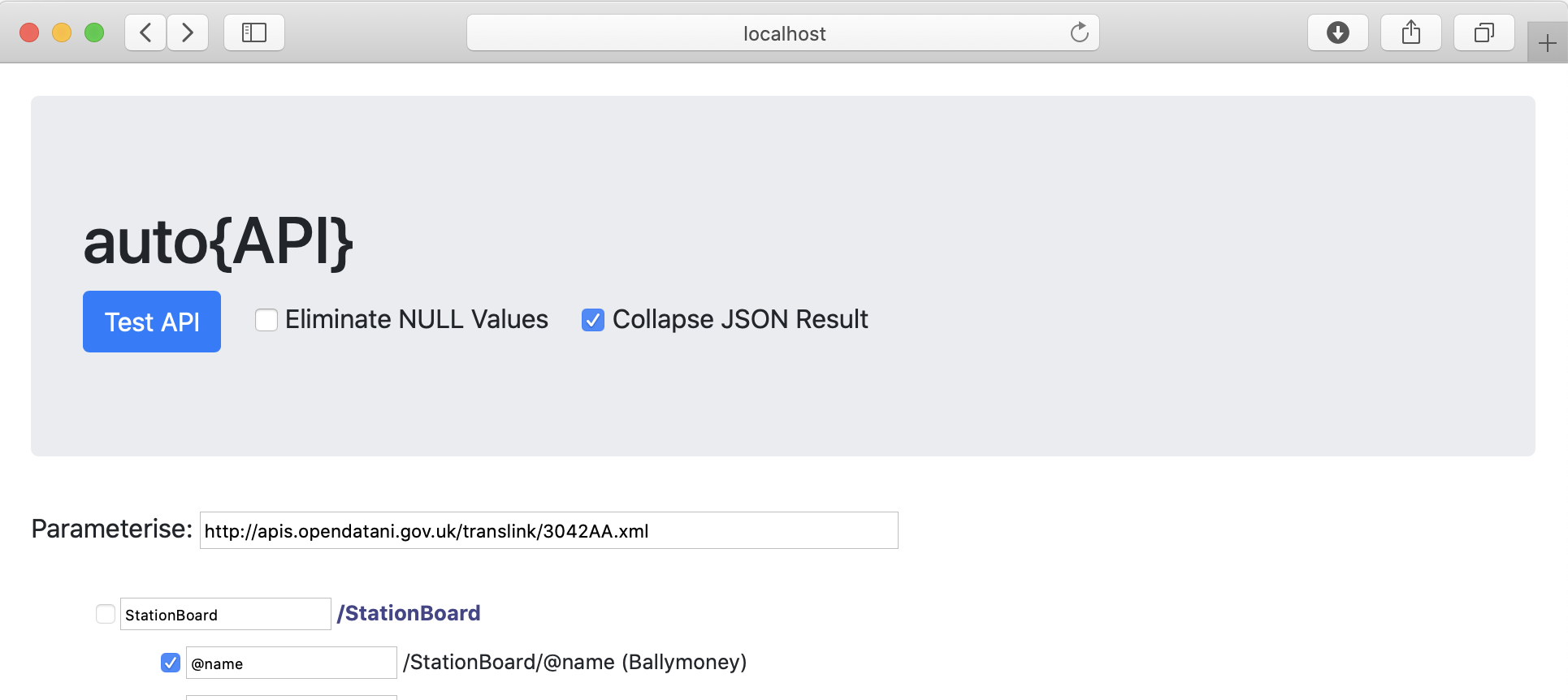
Run the Python application and access it in a web browser, passing the URL of the XML source as the querystring. For example, with a local installation running on port 5000, we request the XML data shown below by the URL http://localhost:5000/?http://apis.opendata.gov.uk/translink/3042AA.xml.
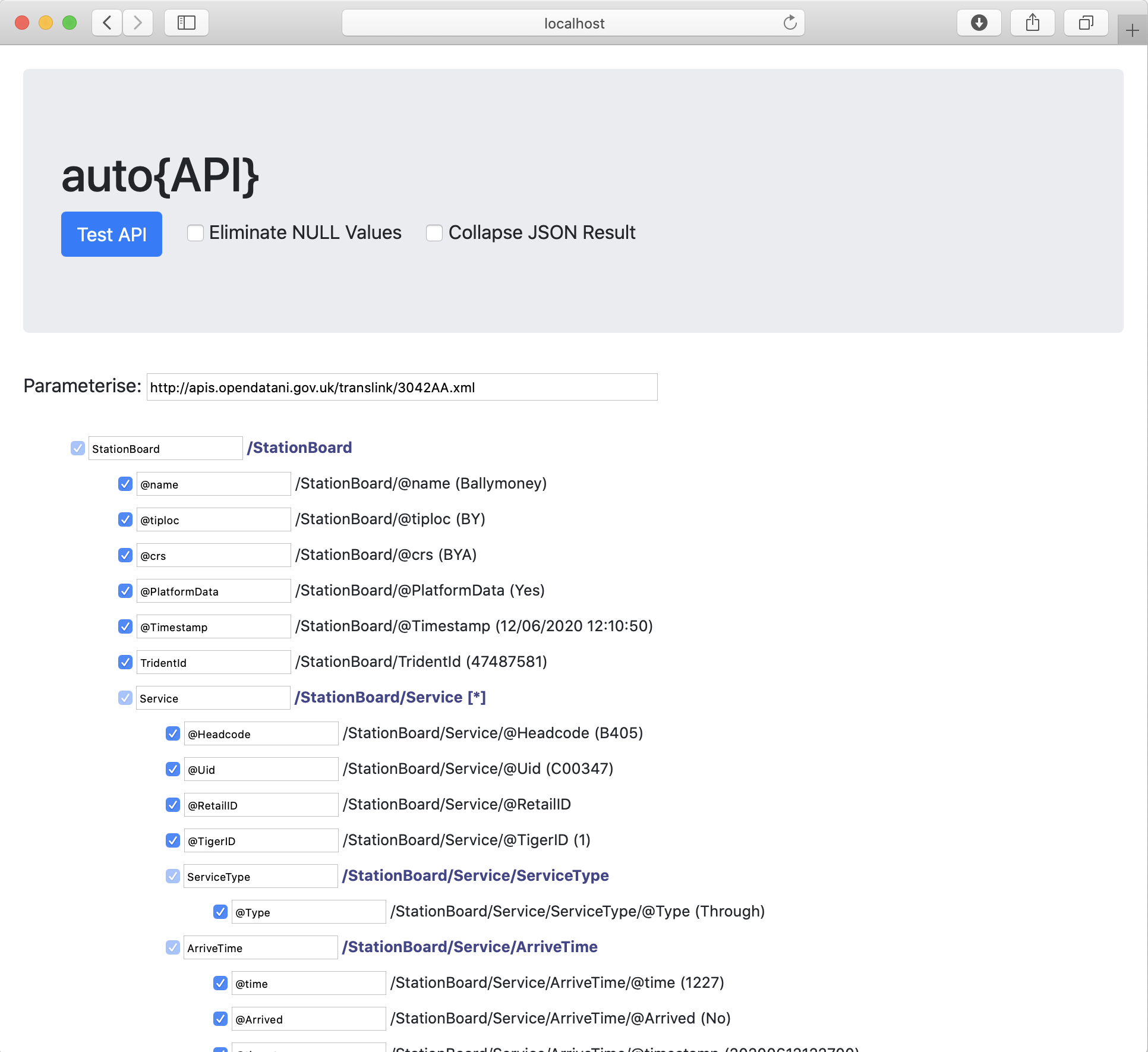
The application reads the XML file from the source and displays it in a clickable node tree.
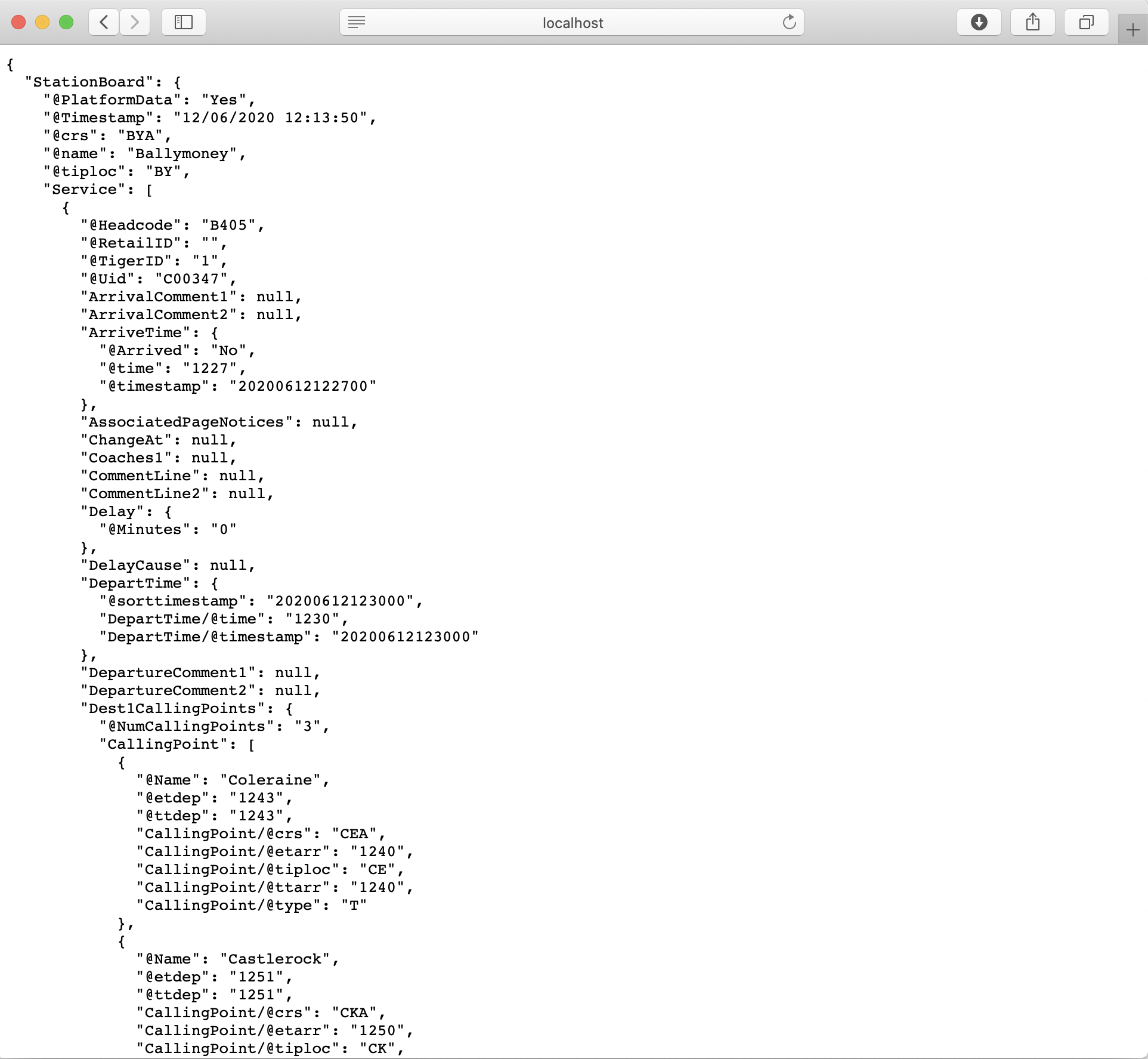
Clicking on the "Test API" button generates the JSON equivalent of the XML data. By default, all fields are selected and the JSON structure matches that of ther original XML.
To filter the data we can select only the station name, the arrival and departure times for each service...

... and the origin station and final destination for each service. We also choose to rename these fields as "ComingFrom" and "GoingTo" to provide more intuitive field names. Now click on the "Submit" button to store these selections in the database.

The details are stored, so we click "Test API" again...

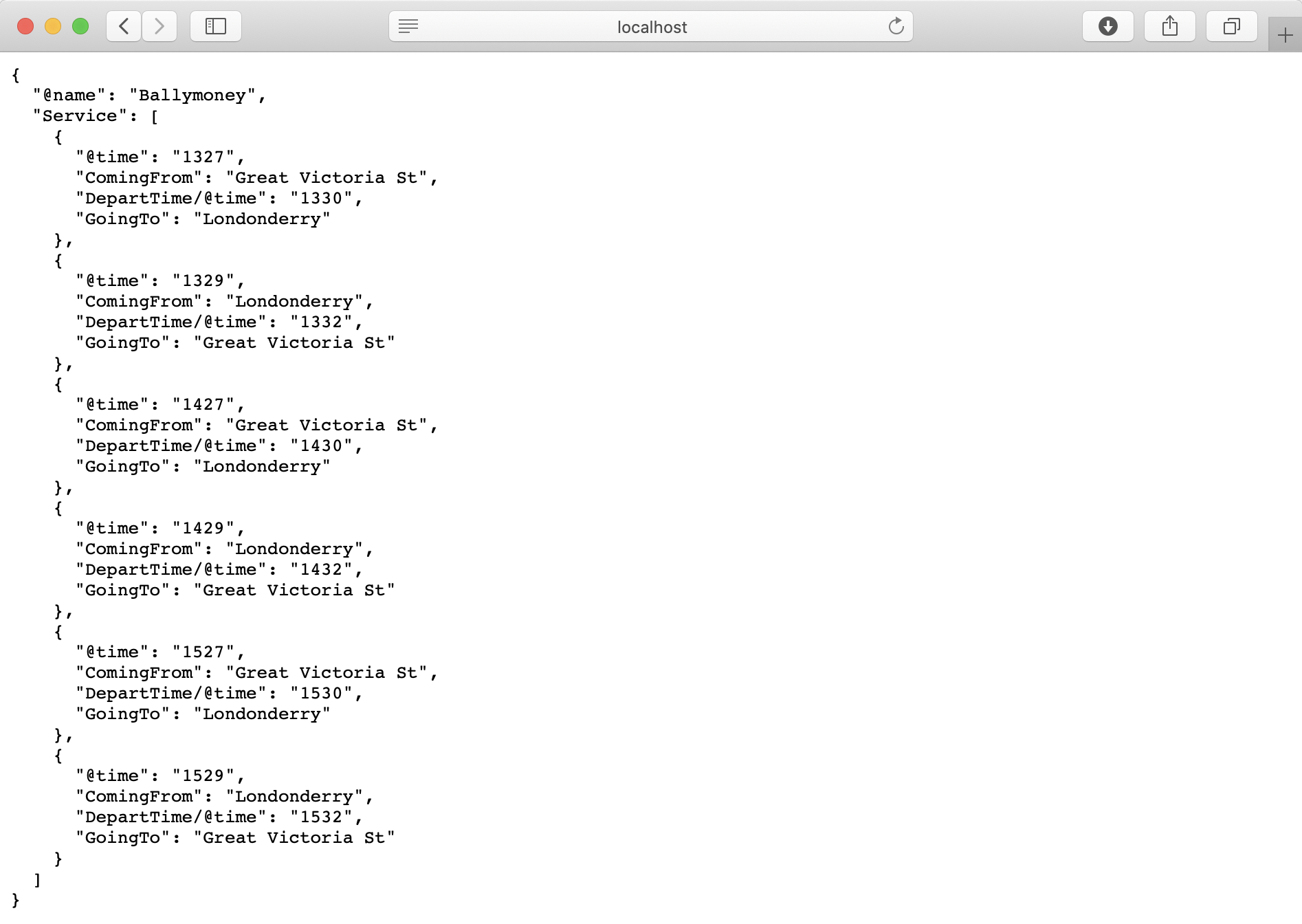
... and only the fields selected are present in the JSON structure.
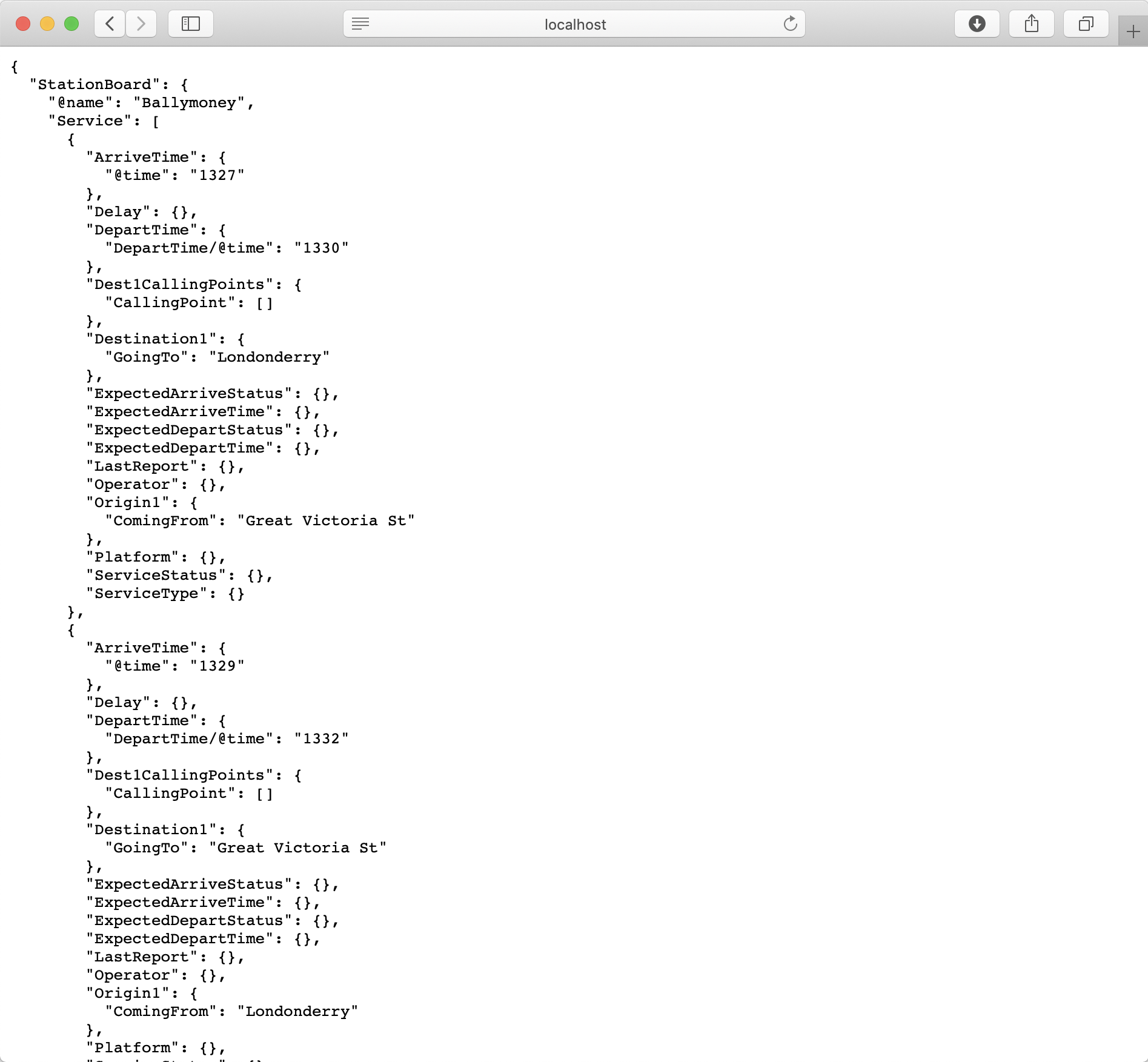
We can simplify the JSON returned by choosing the "Collapse JSON" option and re-clicking "Test API". This removes elements of the structure that do not contain data and collapses the result to its simplest form.
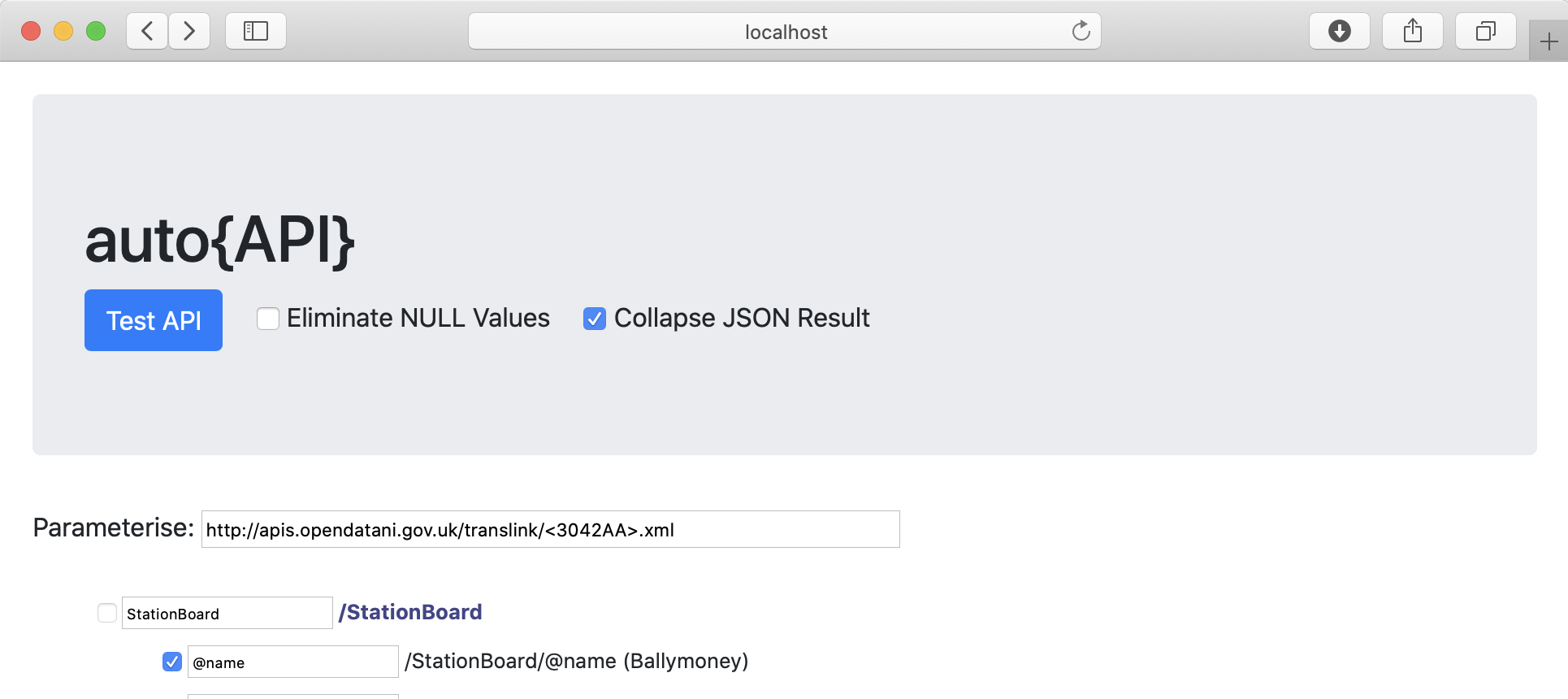
Where the URL contains a variable element that specifies the XML sourcec to be accessed, we can denote this by enclosing the variable part within < and > characters. Here we specify that "3042AA" is a variable element for which we will supply the actual value to be used. Click on the "Submit" button to record this in the database.
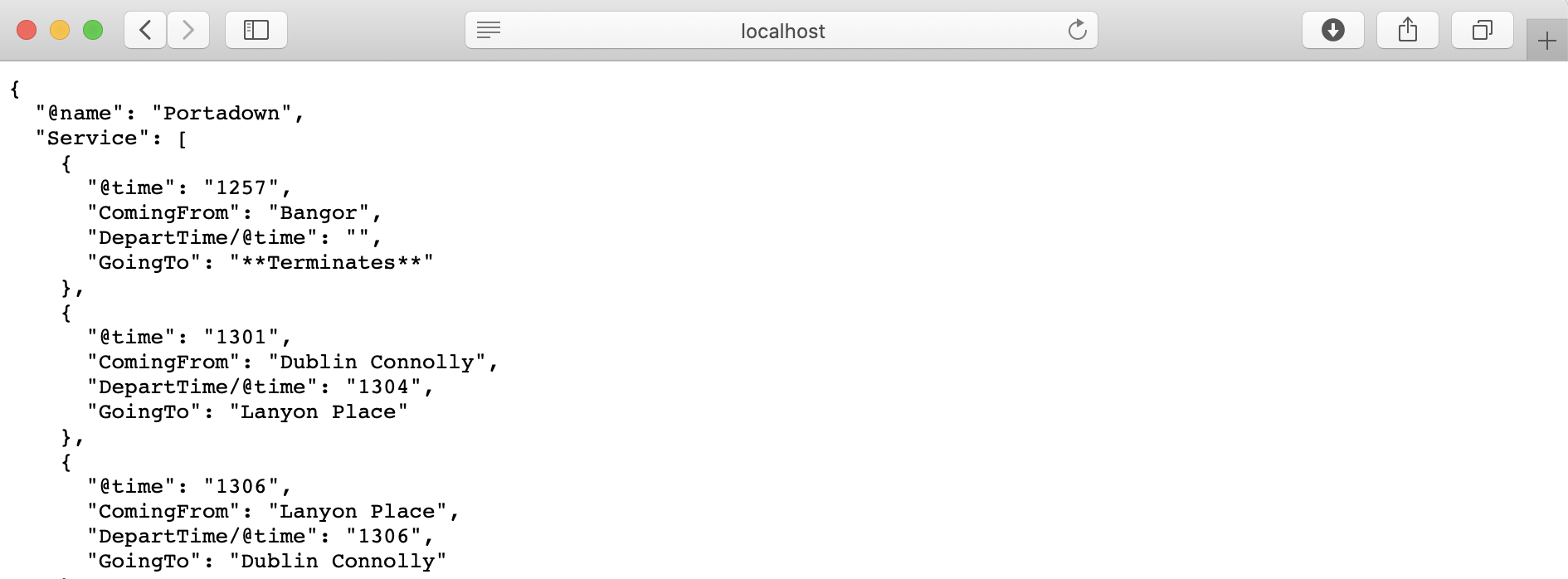
Now, an extra "Parameter" field is required, in which we provide the value to be substituted into the URL. We specify "3045CE" as the new station code for which data should be retrieved

Now the data returned is that for a different station.
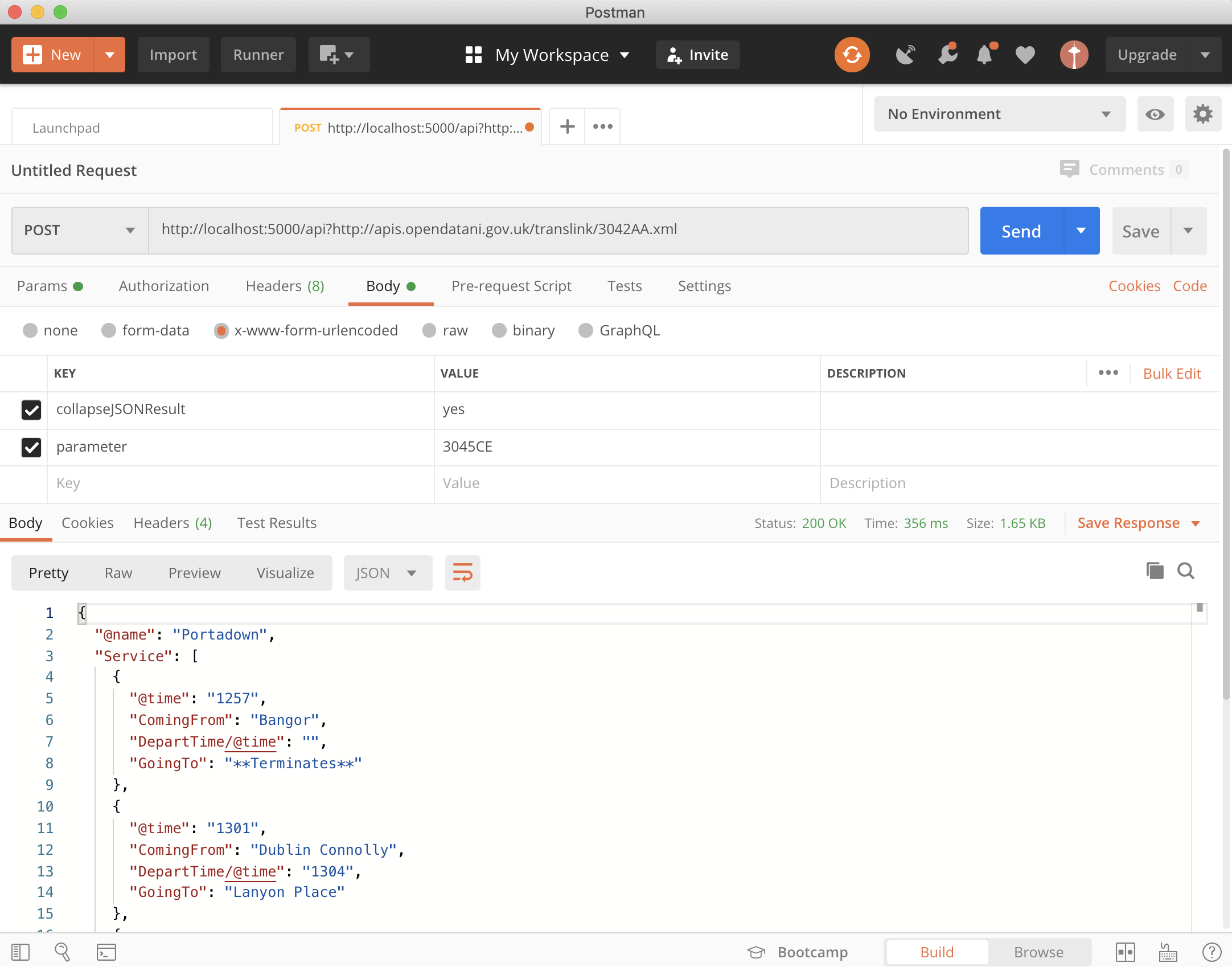
The API is used programmatically by submitting a POST request to http://localhost:5000/api/?url, where url is the address from where the XML is to be retrieved. POST variables for collapseJSONResult, eliminateNullValues and parameter are provided as required.
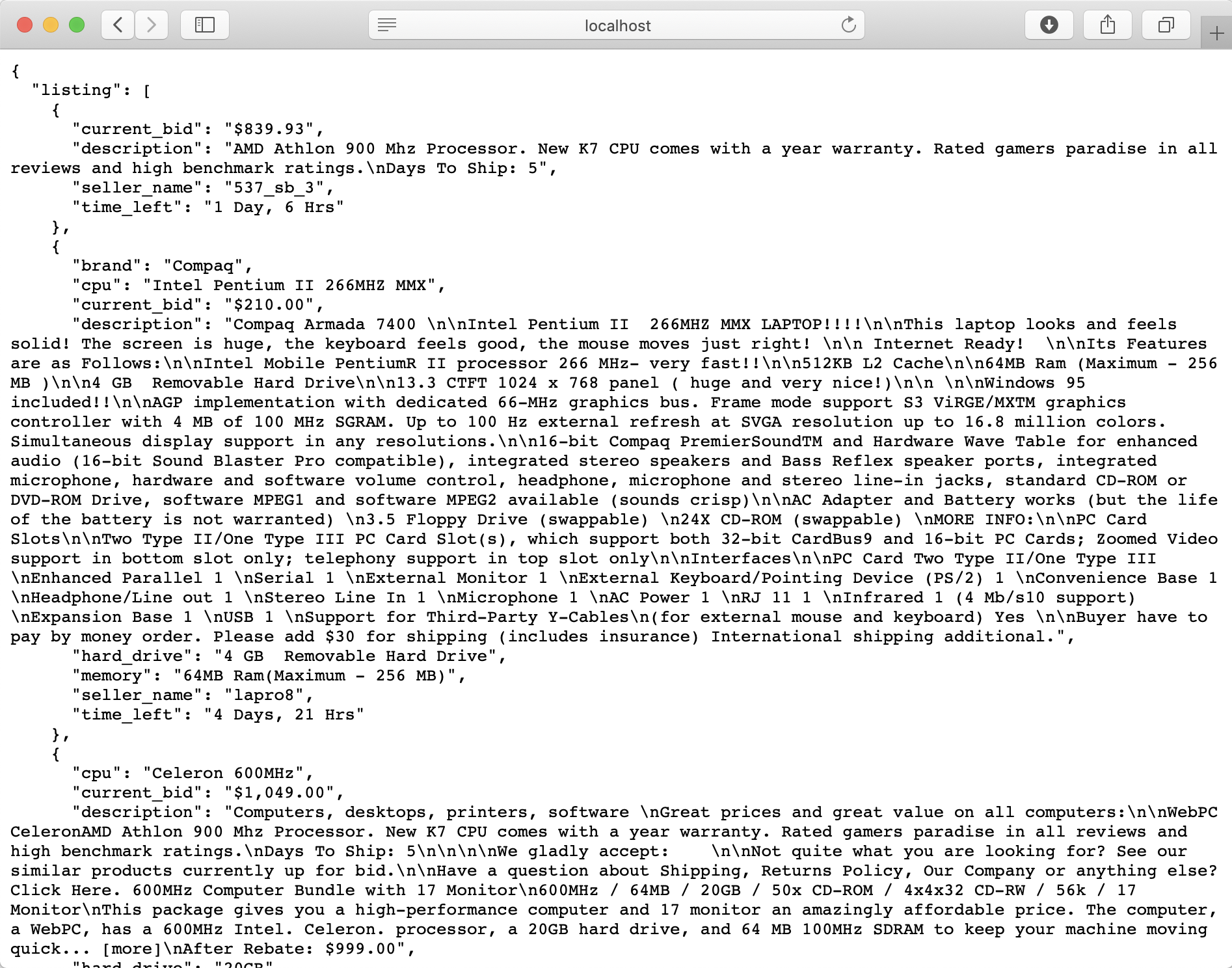
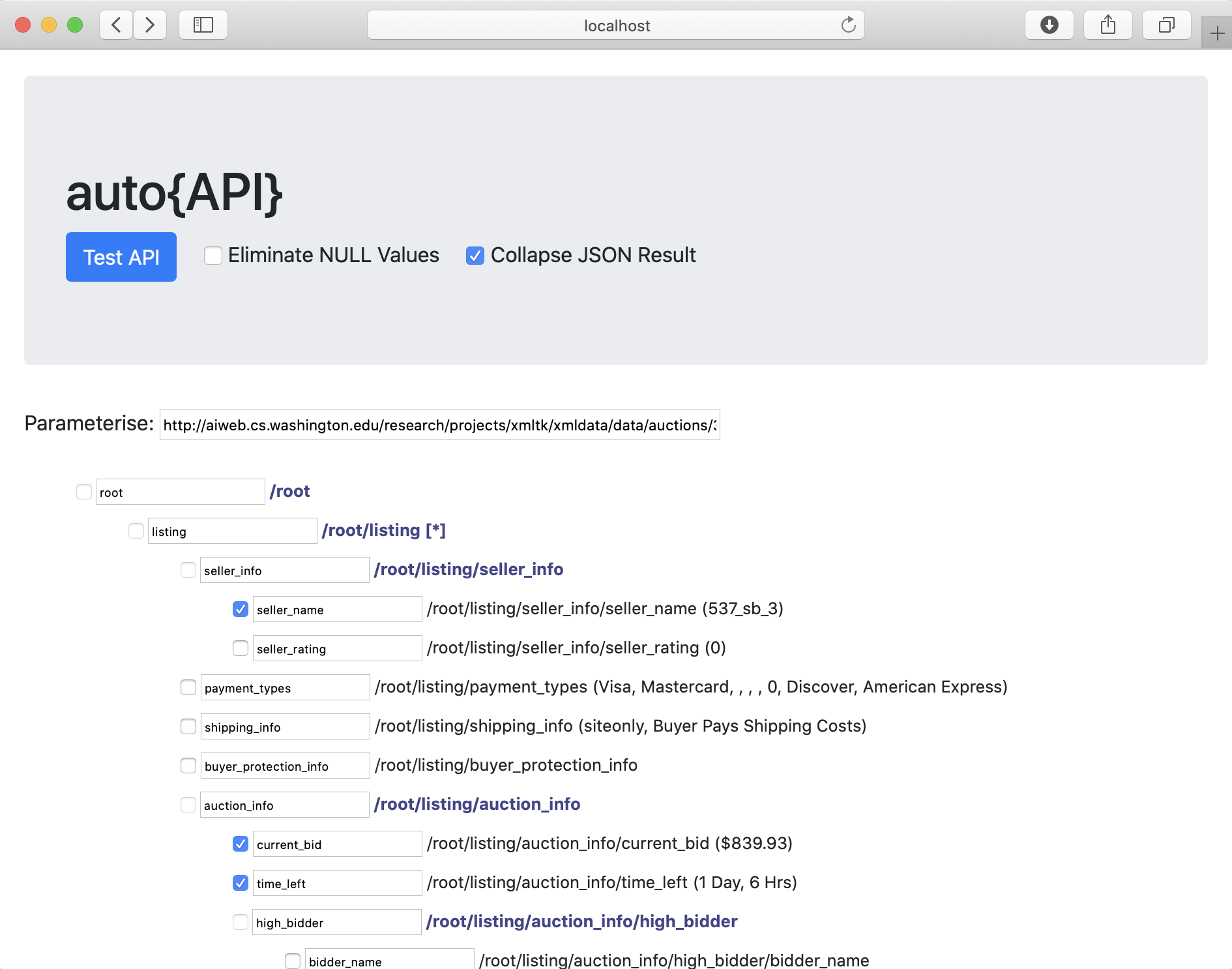
auto{API} can also remove null values from the resulting JSON data. Here, we specify that we want to retrieve auction data from the resource at http://aiweb.cs.washington.edu/research/projects/xmltk/xmldata/data/auctions/321gone.xml and specify the fields that we are interested in.

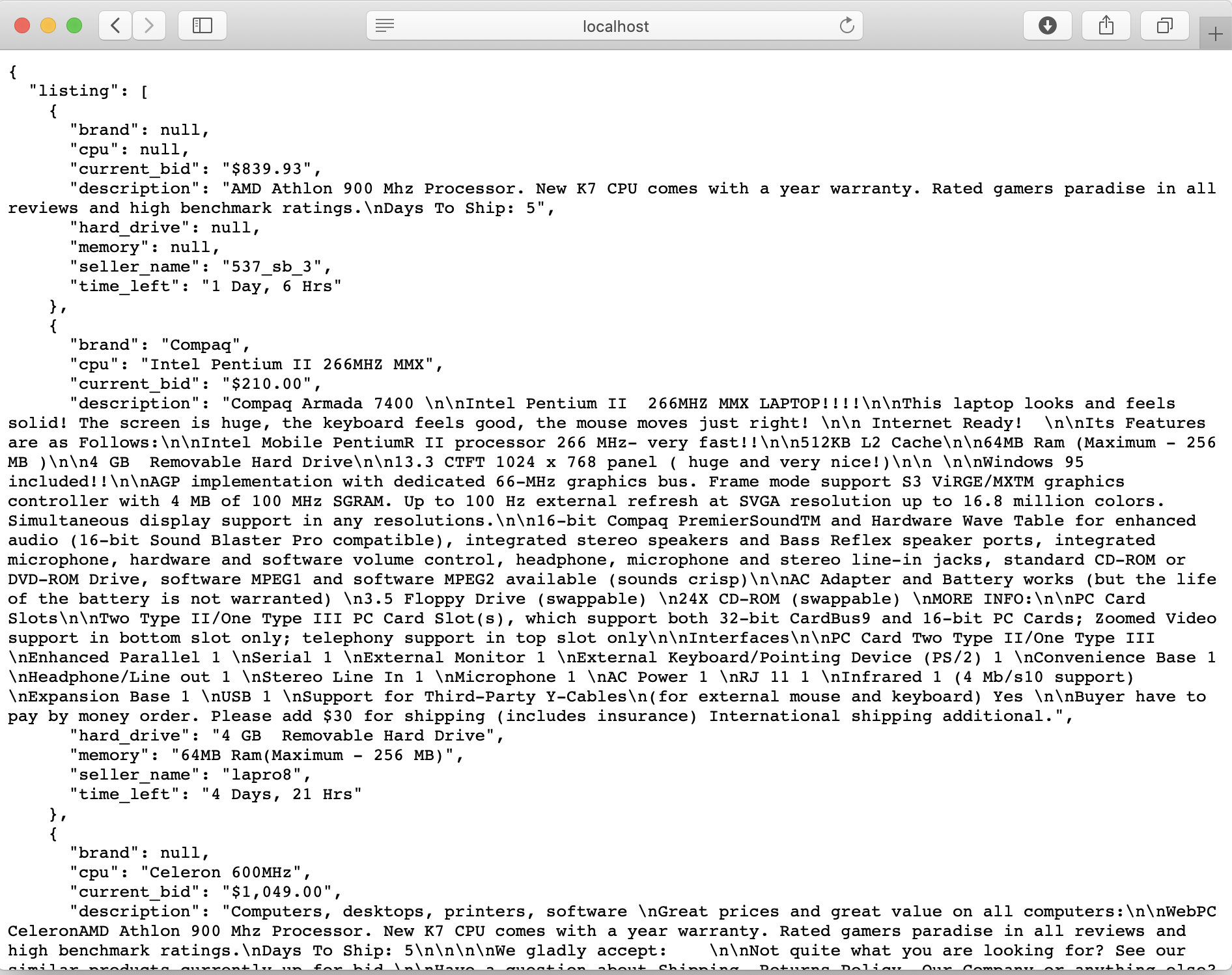
Now, when we save our selections and select "Test API", we see that some of the fields contain null values.
Selecting the "Eliminate NULL Values" flag and re-clicking "Test API"...
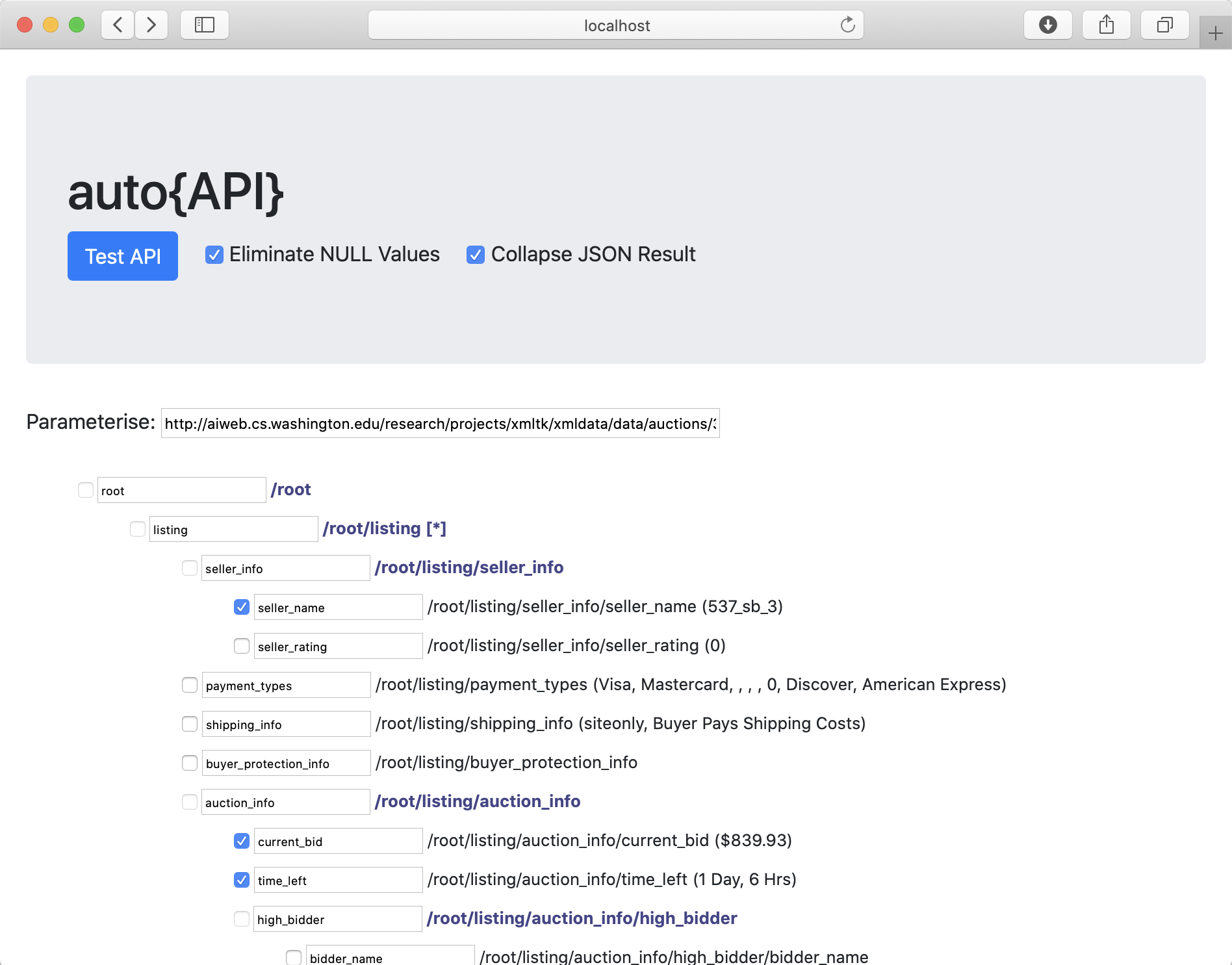
... removes those null values from the resulting data set.