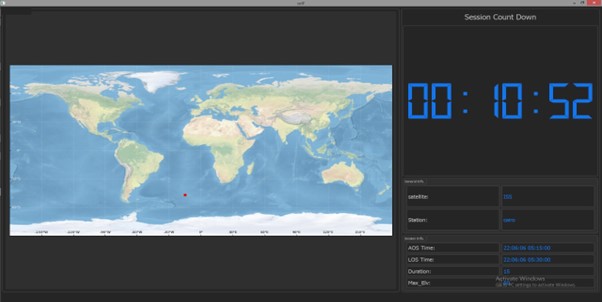
Orbit Determination manager (ODM): a full orbit calculation software package.
ODM provides the data needed for the ground station's Flight Control Center (FCC) which is the main control and satellite data provider system in the ground station.
The FCC Consists of many subsystems the most important is the "orbit subsystem" because it is the one responsible for providing the data about satellite position, tracking, possible contacts
As mentioned the orbit subsystem is responsible for satellite tracking so we could say it is the eye of the station in the sky and it is the one who:
- tells the ground station's antenna where to point and when.
- when the satellite is above a certain area or where it will be in x time.
- and more...
The application provides the following main functionality:
- Fined satellite position, velocity in the orbit at an exact moment
- Predict satellite orbit for a period: which is the satellite position in space relative to earth’s ITRS reference frame.
- Calculate and visualize the satellite Ground track: which is the satellite path projection on the earth, the surface considering the earth's rotation.
- Calculate and visualize satellite RVZ (radio visibility zones): in which satellite is available to connect with the ground station’s antenna.
- Real-Time satellite ground track tracking
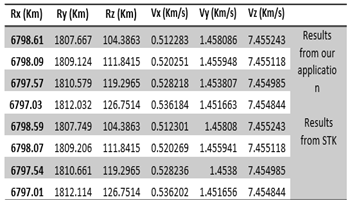
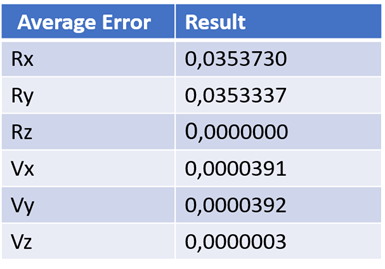
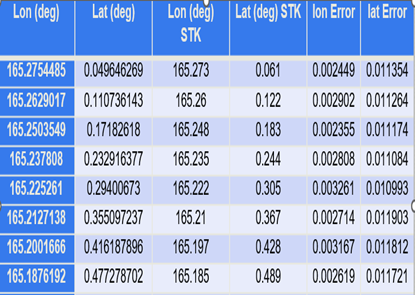
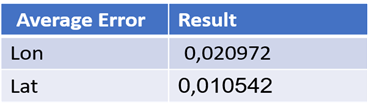
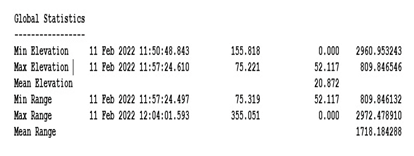
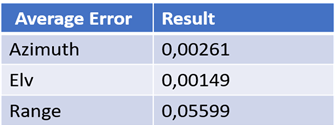
the accuracy of data provided with the application is 99.999% compared to real trusted standard data (provided from STK ). the following figures show data comparison of 360,000 rows for 4 days of data calculation between "ODM", "STK" :
Orbit Determenation Manager (Demo)
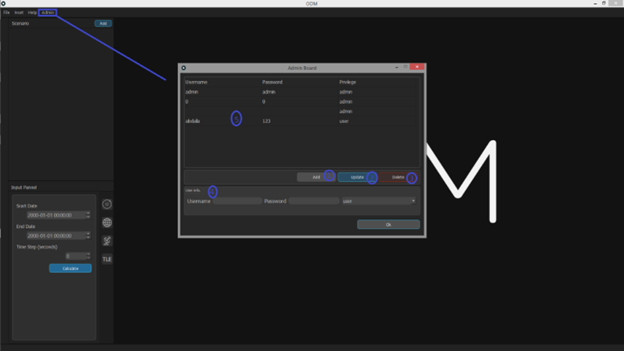
This page for admin to control all data in the system (Add, Update, delete users and to view all users)
in our case the user is an admin, so the admin menu is available for him In admin dashboard:
- Add button to add new user.
- Update button to update existing users.
- Delete button to delete users.
- User info panel to get data for new users or change data of existing users.
- Users table to view all users in database.
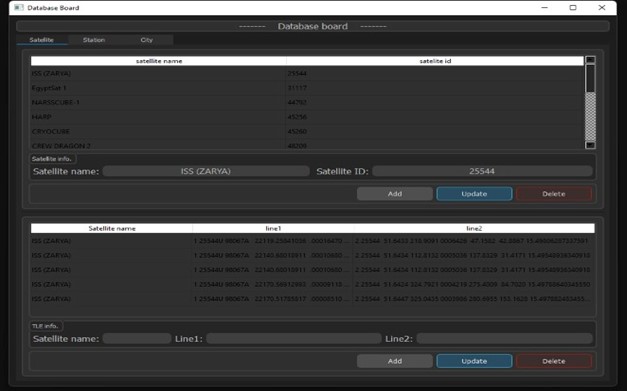
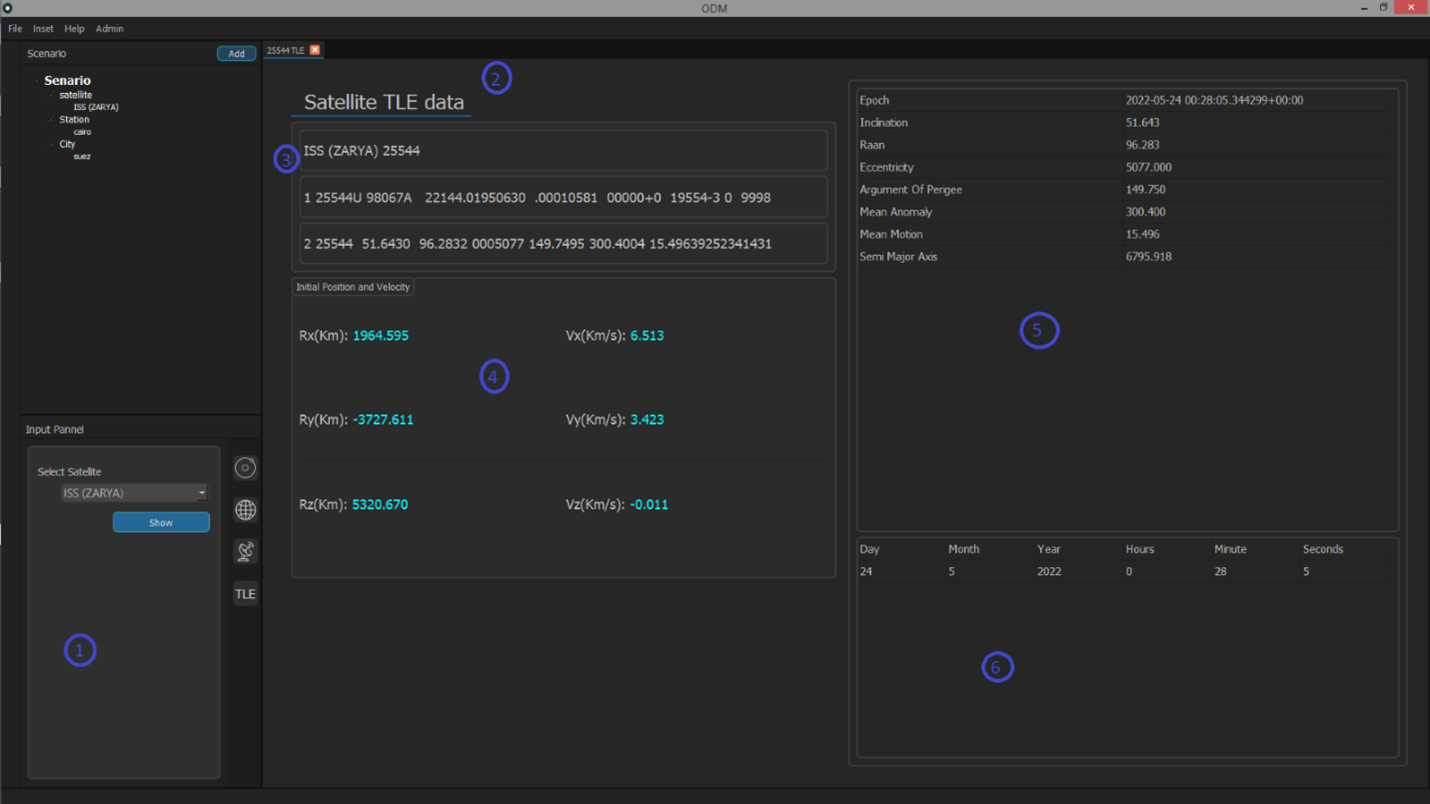
This page to show which TLE is selected from database giveing the following insights:
- Satellite selection input panel.
- TLE page.
- Active TLE three lines.
- Active TLE initial position and velocity.
- Active TLE details.
- Selected satellite available TLE sets.
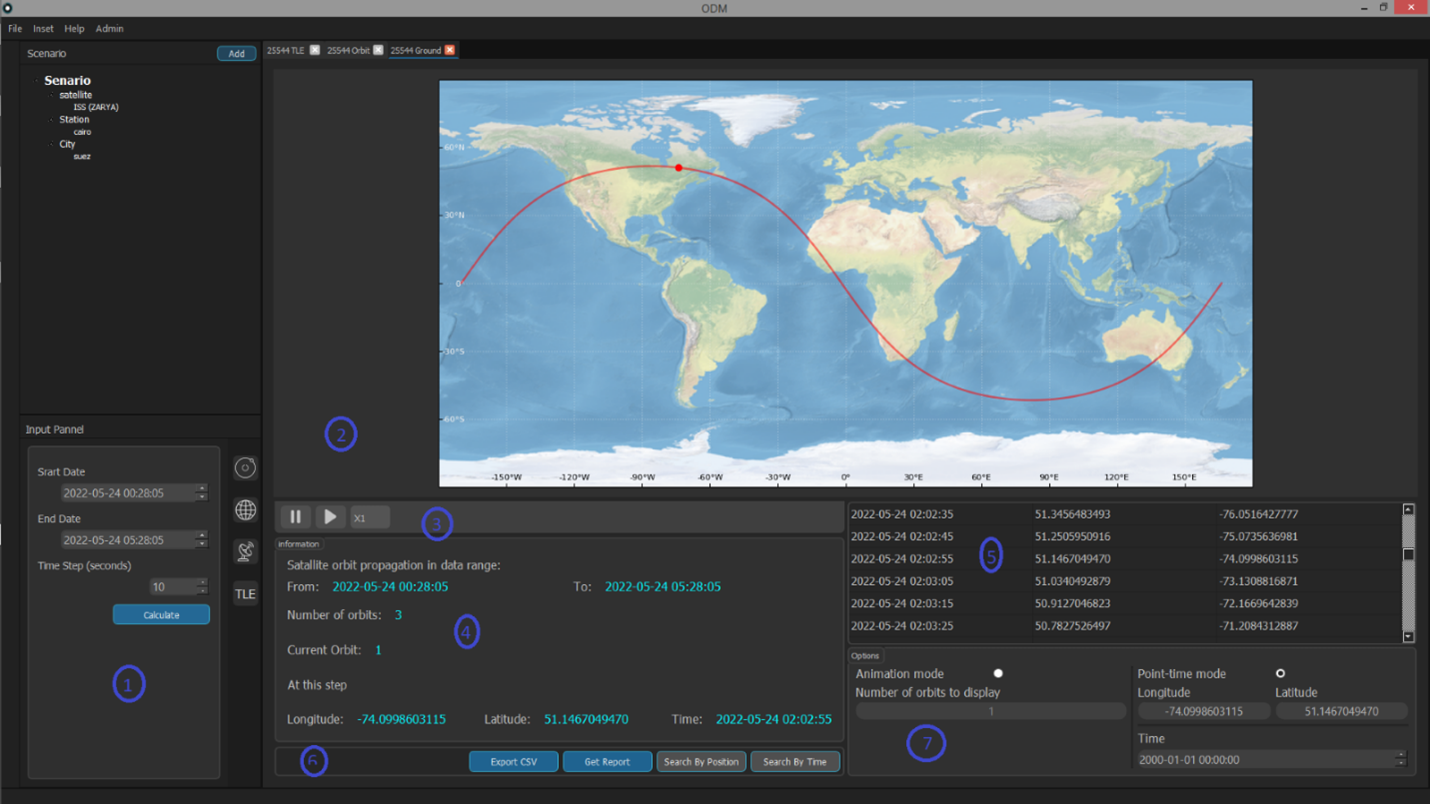
This page shows the map world, satellite position, satellite orbit, all information panels and all reports panels.
When doing Ground track for a satellite the Ground tab is opened and gives the following insights:
- Ground track input panel.
- Map of the world that show:
• Satellite position on the earth (denoted by red point).
• satellite orbit which the selected point is part of (denoted by red curve). - Animation control panel (timeline).
- information panel:
• ground track calculation starts and end time.
• Total number of orbit satellite do in this calculation period.
• Current orbit displayed on the map (of the selected point).
. • Longitude, latitude, time (of the currently selected point). - Ground track pointes table (time, longitude, latitude).
- Reports panel:
• Get report button to report a .word file.
• Export csv button to report a .csv file of the propagation.
• Search by position button.
• Search by time button. - Options panel that has two modes:
• Animation mode and you can optimize:
• number of orbits to display.
• Point-time mode in it you can search with:
• Position (search to know when satellite pass on a certain position).
• Position (search to know where satellite will be in a specific time).
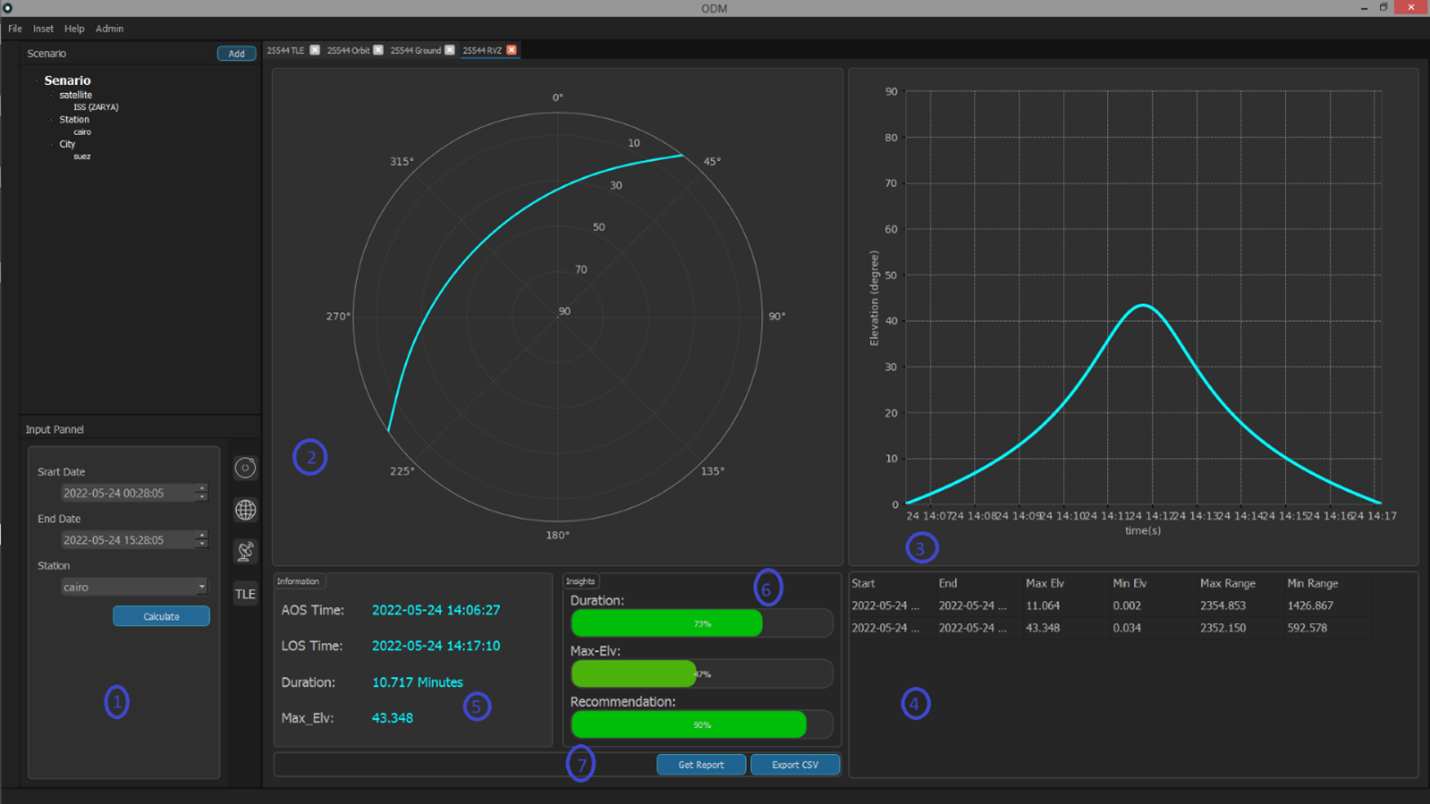
This page shows session visualization figure, session acquisition time (AOS), session lose time (LOS), session duration insights, reports panel
When doing RVZ for a satellite the RVZ tab is opened and gives the following insights:
- RVZ input panel.
- Session visualization figure.
- Elevation visualization figure.
- Available sessions table.
- Information panel:
• Session Acquisition time (AOS).
• Session Lose time (LOS).
• Session Duration.
• Session maximum Elevation angle (Max-Elv). - insights panel:
• session duration progress bar.
• maximum Elevation angle progress bar.
• how much this session is recommended to connect satellite at. - Reports panel:
• Get the report button to report a .word file.
• Export csv button to report a .csv file of the propagation
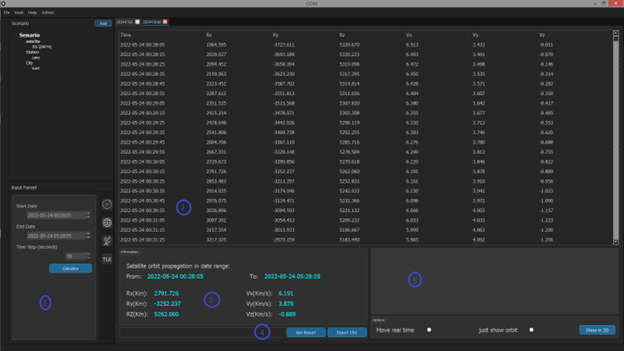
This page shows propagation pointes table and orbit propagation input panel.
When doing Orbit propagation for a satellite the Orbit tab is opened and give the following insights:
- Orbit propagation input panel.
- Propagation pointes table (time, position: x y z, velocity: x y z).
- Information panel show details of the selected point.
- Reports panel:
- Get the report button to report a .word file.
- Export csv button to report a .csv file of the propagation.
- Satellite orbit display area and its control panel (reserved for future work).