- Microsoft Azure (Virtual Machines/Compute)
- Remote Desktop
- Active Directory Domain Services
- PowerShell
- Windows Server 2022
- Windows 10 (21H2)
Create two Virtual Machines:
-
DC-1 (Windows Server 2022)
-
Client-1 (Windows 10 Pro)
(Note-Both of the Virtual Machines should be in the same resourse group and have the same Virtual network)


Set the DC-1 Private IP address to static
Go to Virtual Machines --> DC-1 | Networking --> Network Interface | IP Configurations

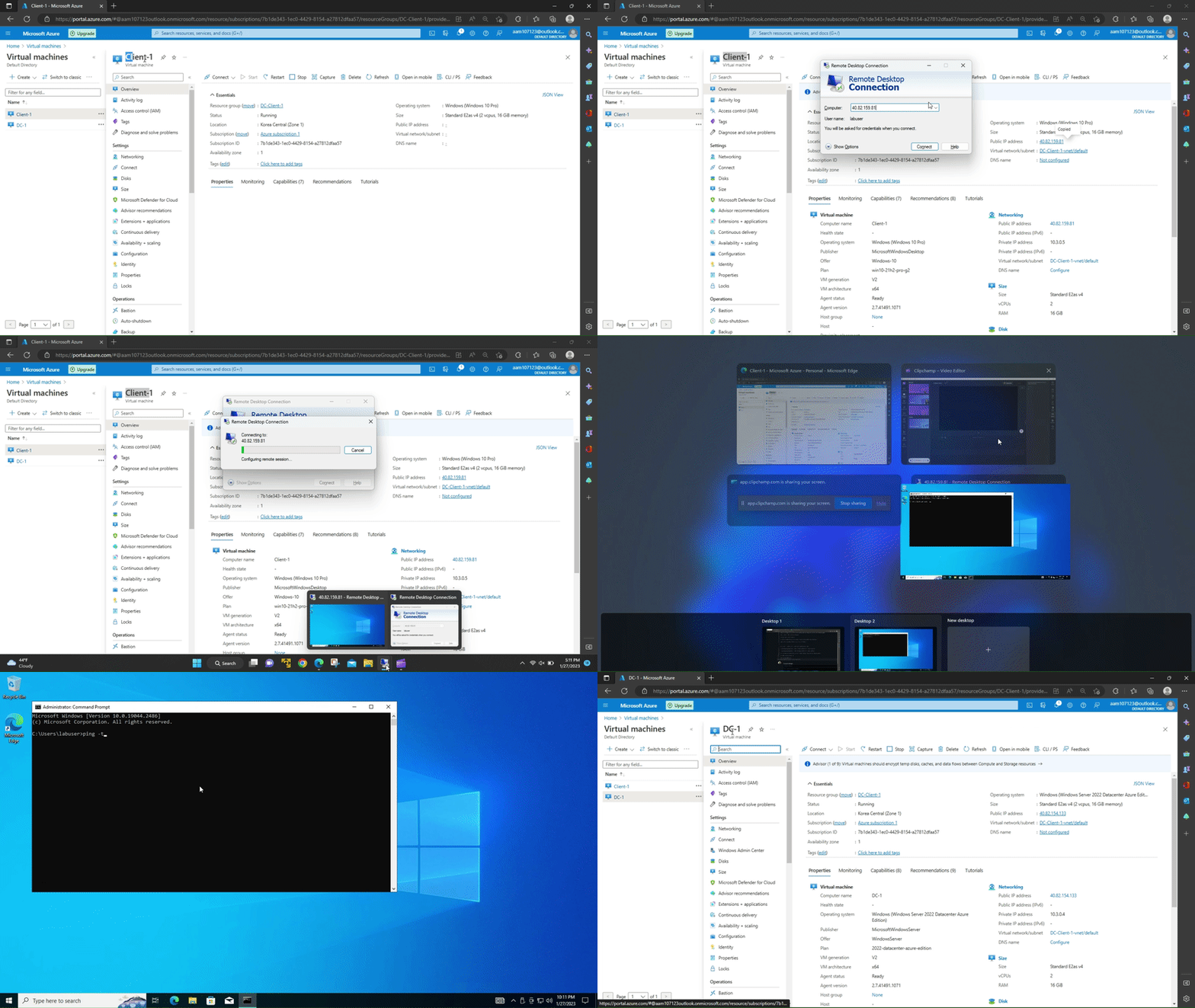
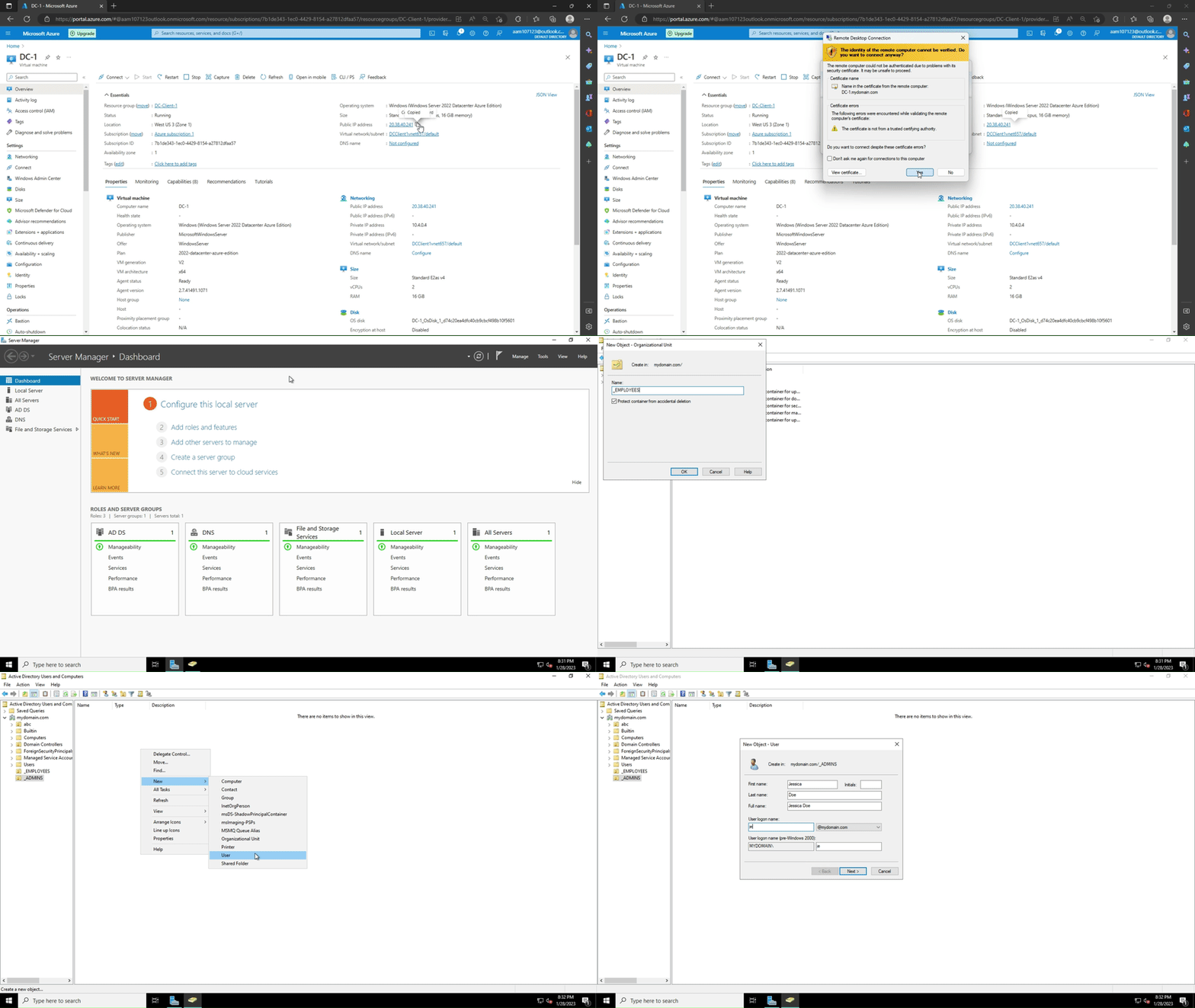
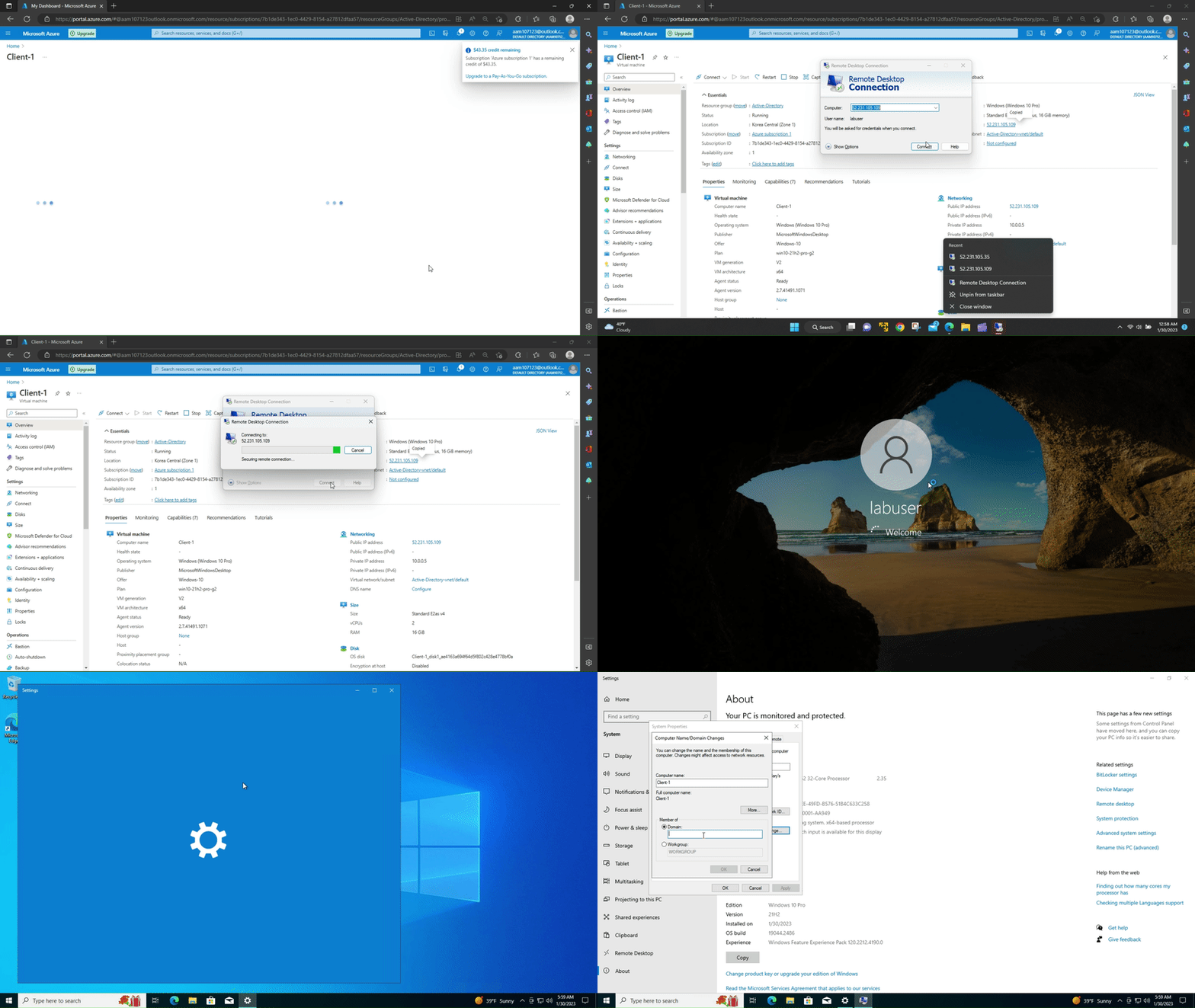
Login to Client-1 with remote desktop (Copy the public IP Address from the azure portal and paste it on the remote desktop connection)
Once you are logged in the Client-1 Virtual Machine, open the Command line and enter the following command
"ping -t 10.3.0.4 (DC-1 private IP Address)"
The ping request will be timed out
In order to succeed the ping we will need to open DC-1 VM and enable some inbound rules
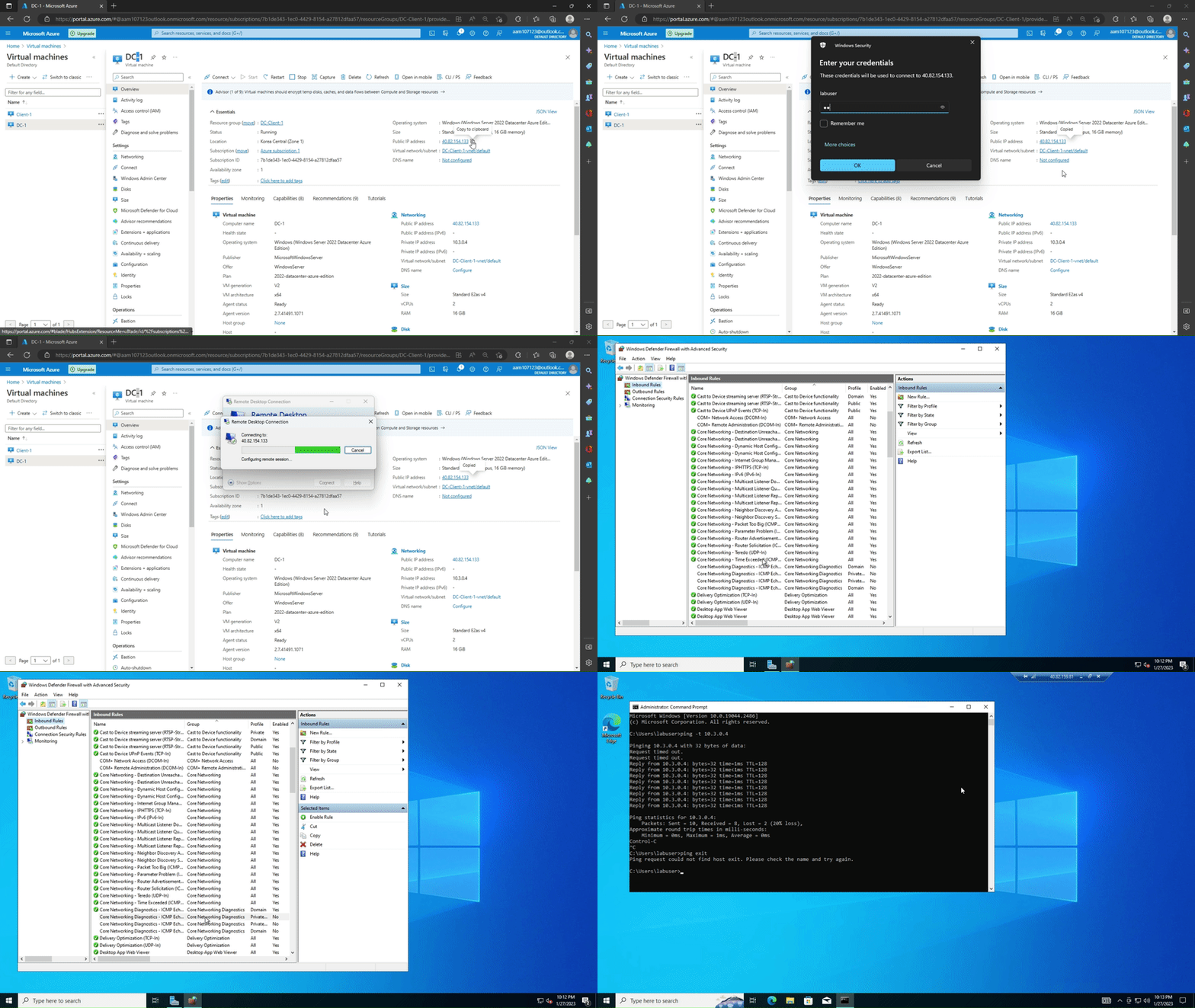
Login to DC-1 with remote desktop using its public IP address
Go to wf.msc -> Inbound rules -> Enable the following inbound rules
-
Core Networking Diagnostics - ICMP Echo Request (ICMPv4-In) - Private (Profile)
-
Core Networking Diagnostics - ICMP Echo Request (ICMPv4-In) - Domain (Profile)
Once you enable the inbound rules go back to Client-1 Virtual Machine and check the ping request
The ping request is now succeed
Stop the ping using ctrl+c
Go back to DC-1 and open Server Manager
In Server Manager click on "Add roles and features"
Add a new forest and name the domain as mydomain.com
Proceed to install Active Directory
After the installation of Active Directory, the DC-1 VM will be logged off and you will need to restart the VM
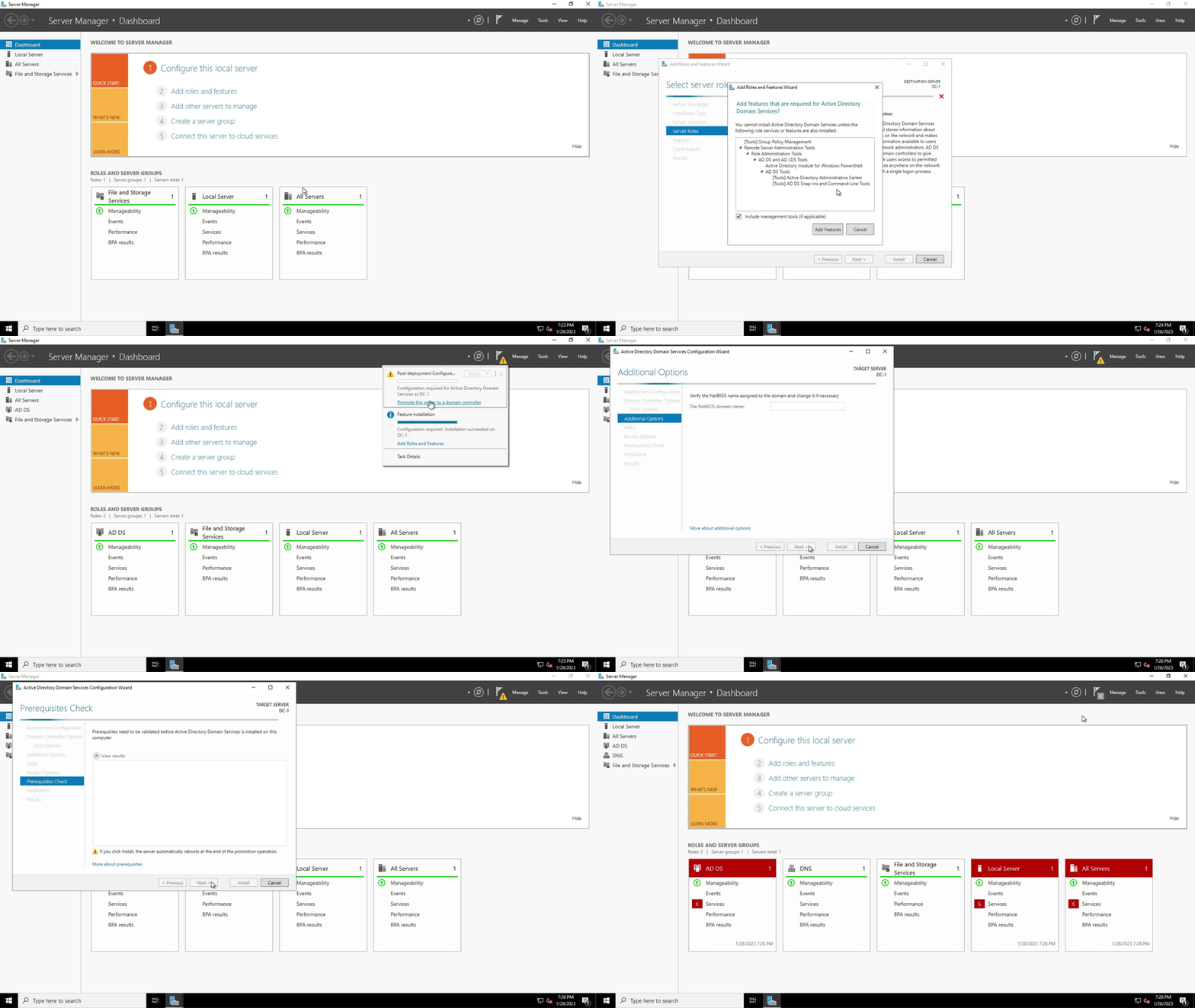
Log back in to the DC-1 with the context of the domain
Enter the username as mydomain.com\labuser and use the password as before you used to login to DC-1 VM
Once logged in, go to Server Manager --> Tools --> Active Directory Users and Computers --> mydomain.com
In the Active Directory Users and Computers create two Organizational Units
- _EMPLOYEES
- _ADMINS
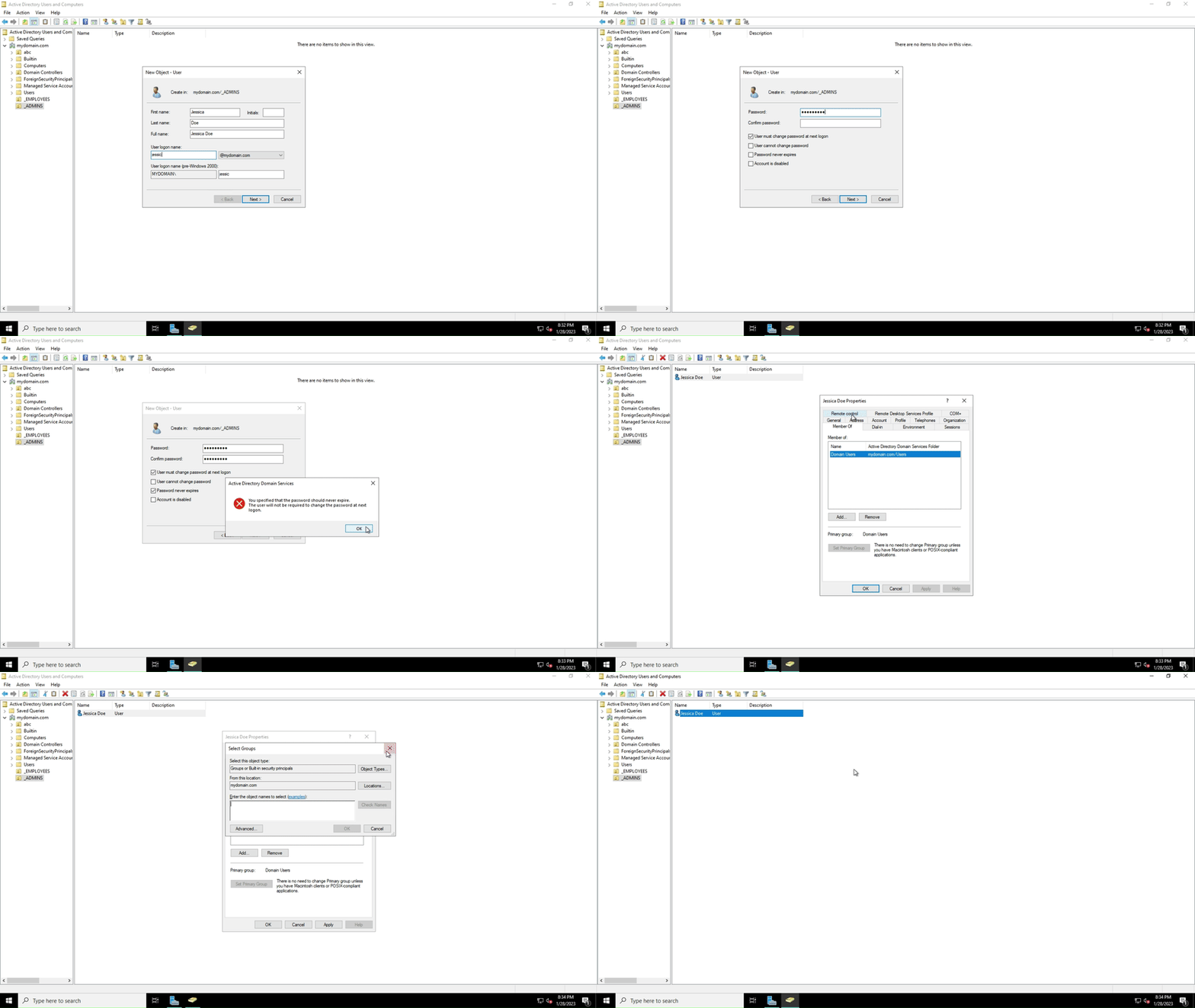
In the _ADMINS section create a new user named as "Jessica Doe" and create new credentials for the user
-Username- Jessica_admin
-Password- ********
Make Jessica Doe an administrator by going to properties and making her a member of Domain Admin group
We can now login to DC-1 Virtual Machine in the context of Jessica Doe
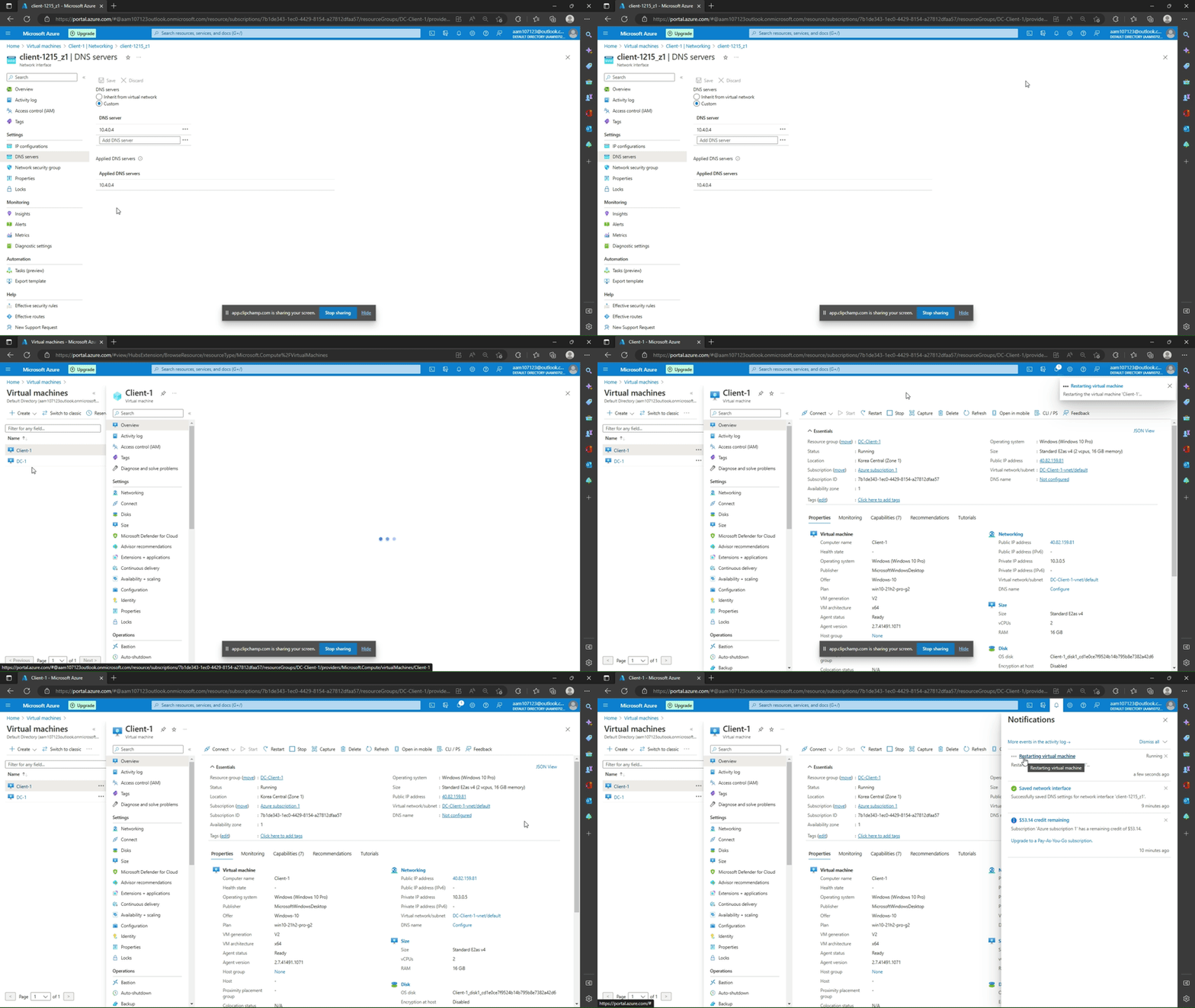
Make Client-1 a member of mydomain.com, to do so we will need to set the Client-1 DNS settings to DC-1 private IP Address
Set the Client-1 DNS settings to DC-1 private IP address
In Azure Portal go to DC-1 --> Networking --> Copy the NIC Private IP Address
Next go to Client-1 --> Networking --> Network Interface --> DNS Servers --> Click on Custom --> Paste the NIC Private IP address --> Save the changes
Restart the Client-1 Virtual Machine in Azure Portal

Login to Client-1 Virtual Machine and then go to start --> system --> Rename this Pc (Advnaced)
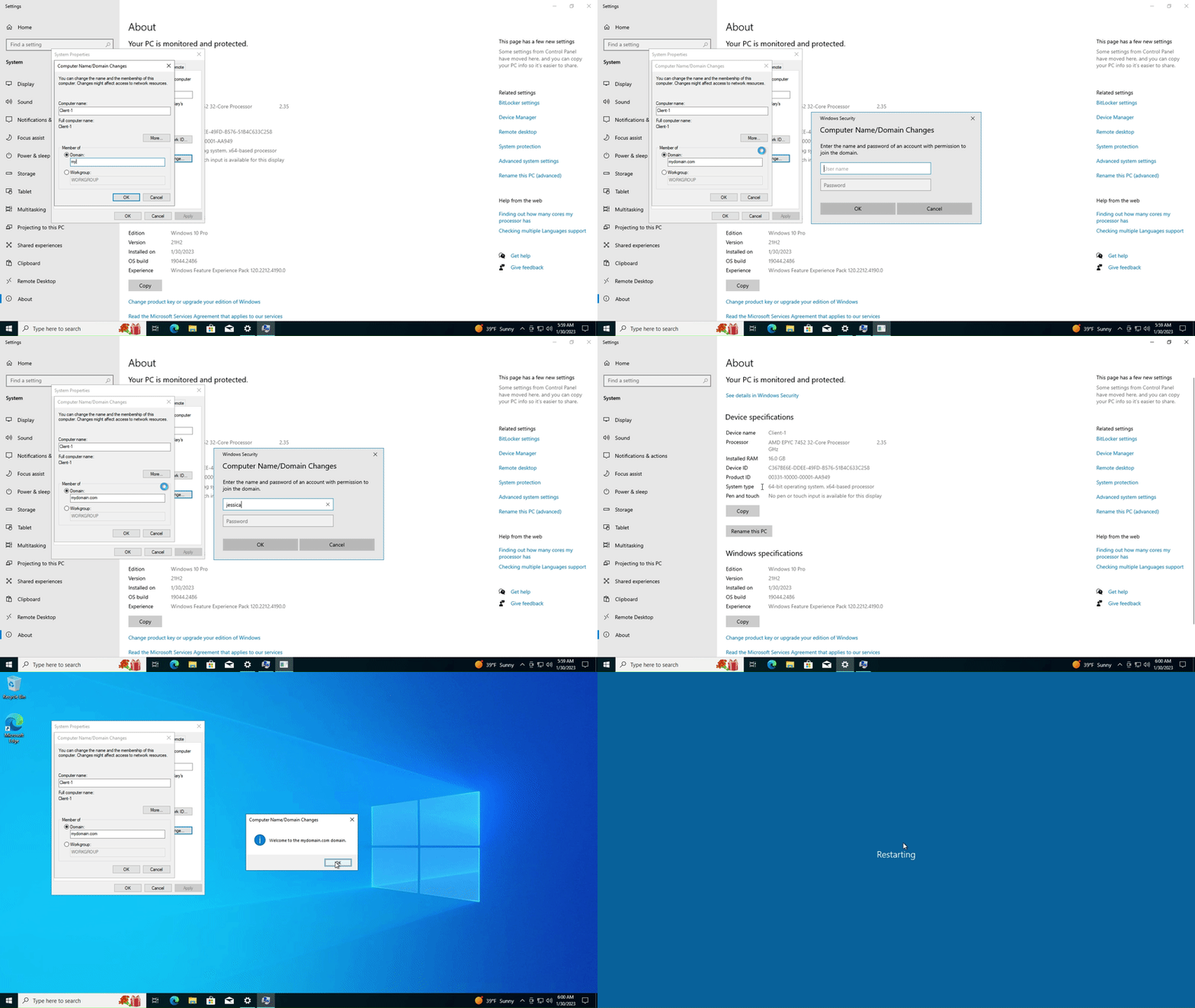
Click on change and make Client-1 a member of mydomain.com
(NOTE- the Client-1 is the member of domain admin it can be logged it thorugh any domain accounts)
Make all users accessible to Client-1 VM
Login to Client-1 as Jessica Doe
Once logged in go to Start --> System --> Remote Desktop --> Select users that can remotely access this PC --> Add --> Domain Users --> Check Names --> Save


Go back to DC-1 VM and open Windows PowerShell ISE as an adminstrator
Open the link below and copy the scrip and paste it in the PowerShell ISE
(https://github.com/joshmadakor1/AD_PS/blob/master/Generate-Names-Create-Users.ps1)
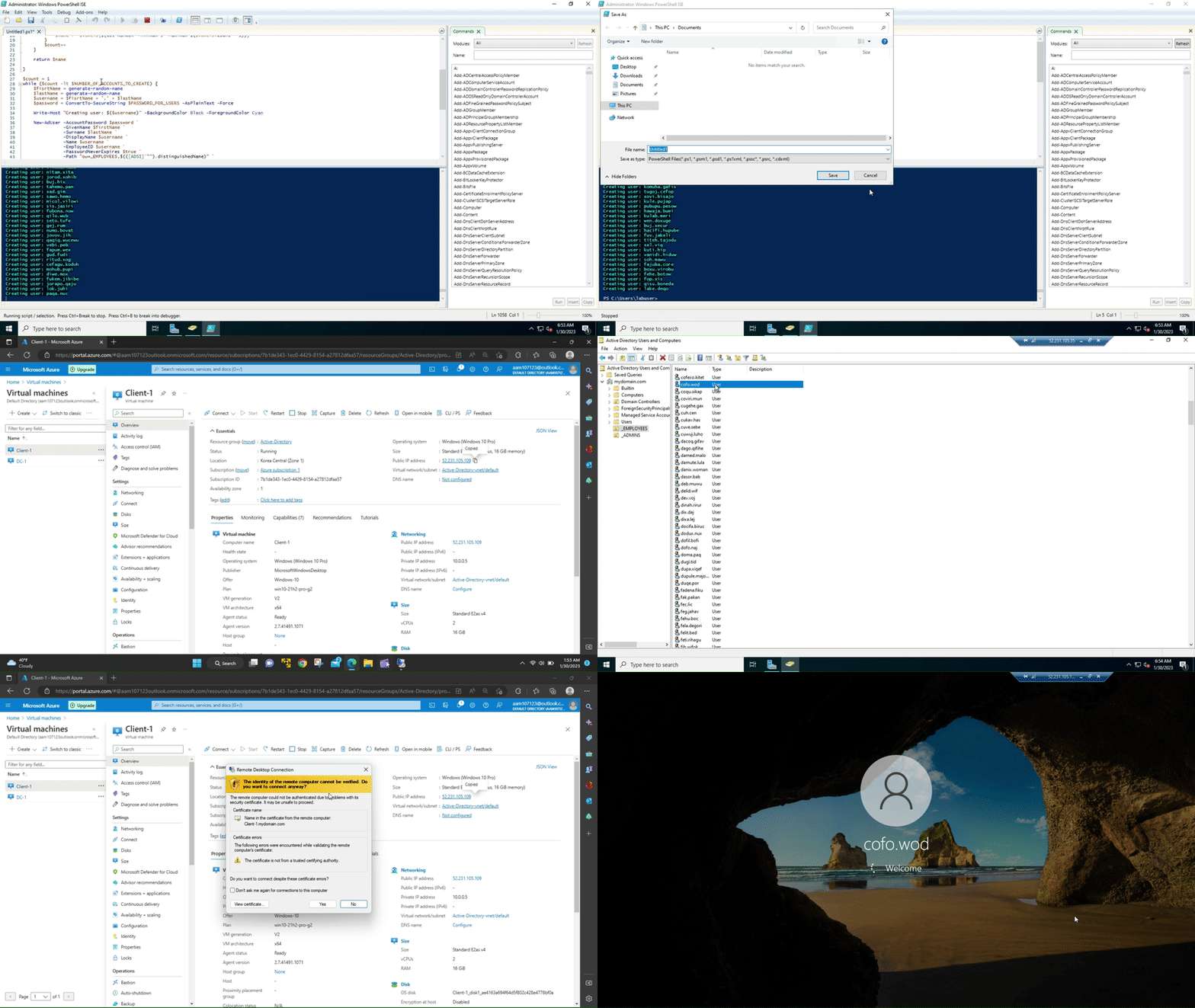
Run the scrip
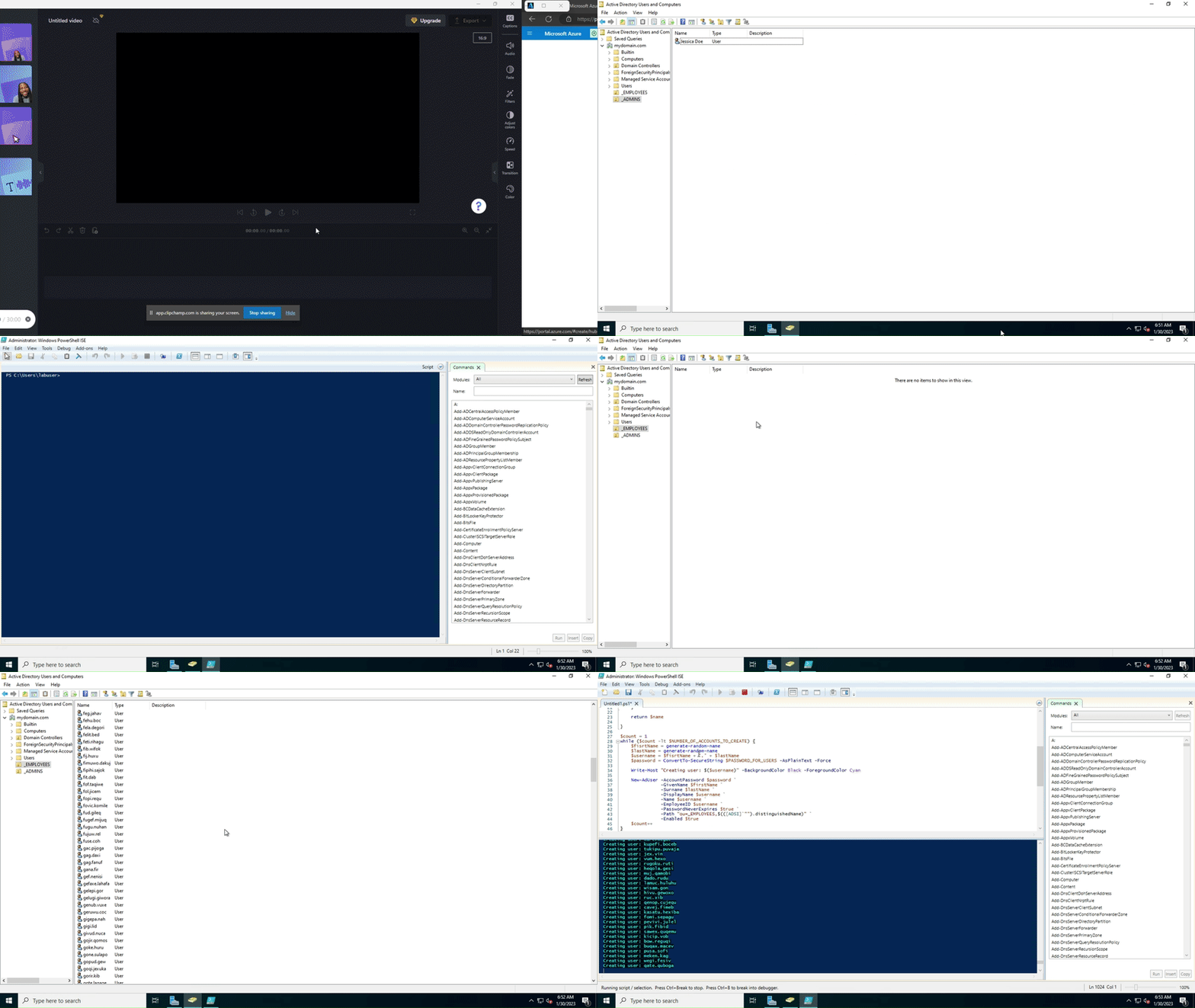
Accounts are being created in the _EMPLOYEES in the Active Directory
You can login to Client-1 with any of the user in the _EMPLOYEES Organizational Unit
For practice we will take a random user from the list and try to login using his credentials