Note
This article is based on information as of January 2021. Please take a look at the official website for the latest updates.
With GDPR compliance becoming mandatory, many people might wonder, "What exactly should I do?" It's challenging to determine when to stop tags like Google Analytics, Google Ads, or Facebook Ads from firing, and under what conditions it's acceptable for them to fire. Implementing everything from scratch can be quite daunting.
In this article, we'll simplify the process and introduce a method to handle the bare minimum requirements using Google Tag Manager and Cookiebot to obtain cookie consent and manage actions based on user responses.
Cookiebot is a service designed to comply with GDPR and CCPA regulations. It displays a popup to visitors, allowing them to control which cookies can be collected and automatically manages what can be captured based on their preferences.
The pricing varies based on the size of your site, starting with a free plan for up to 100 pages and €9/month for up to 500 pages (as of April 2021). Choose a plan that suits your website's needs.
First, register on the Cookiebot website and obtain a key. This key will be used later, so make sure to save it.
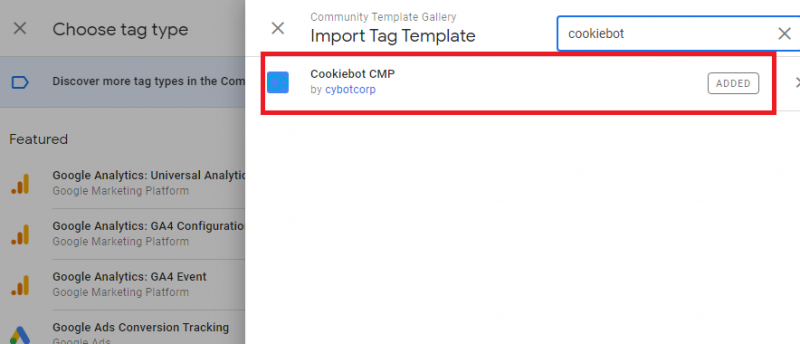
Next, we’ll set up the Cookie Consent popup tag, "Cookiebot CMP," in Google Tag Manager.
-
In Google Tag Manager, navigate to the Tags menu and select Create New.
-
Import the tag template and select "Cookiebot CMP."
-
Enter the key you obtained from Cookiebot into the "Cookiebot ID" field.
-
Set the trigger to "All Pages" and save the tag.

Now, let’s create a variable.
-
In Google Tag Manager, go to the Variables menu and select Create New.
-
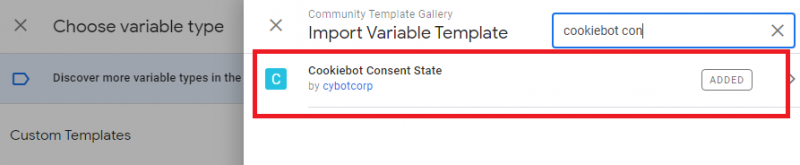
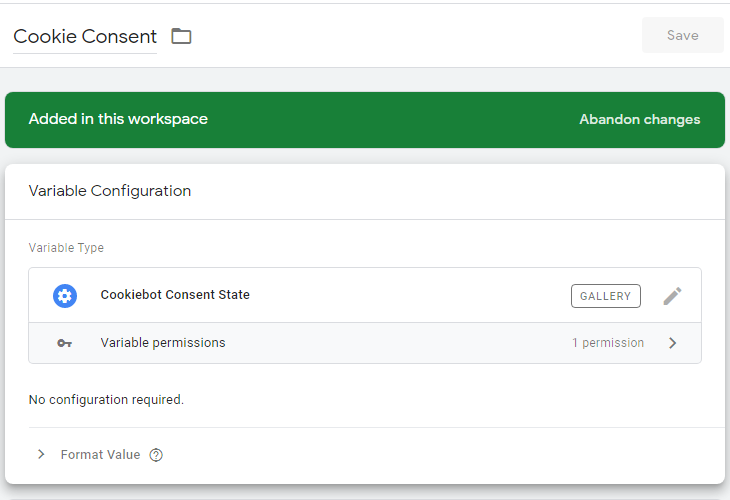
Import the "Cookiebot Consent State" template (be careful not to select similarly named templates).
-
Name the variable "Cookie Consent" and save it.
Next, triggers should be created to control whether marketing and analytics tags fire.
Create a trigger named "Cookie Consent Marketing – blocking":
-
Trigger Name: Cookie Consent Marketing – blocking
-
Trigger Type: Custom Event
-
Event Name:
.*(check "Use regex matching") -
Condition: Cookie Consent does not contain "marketing"

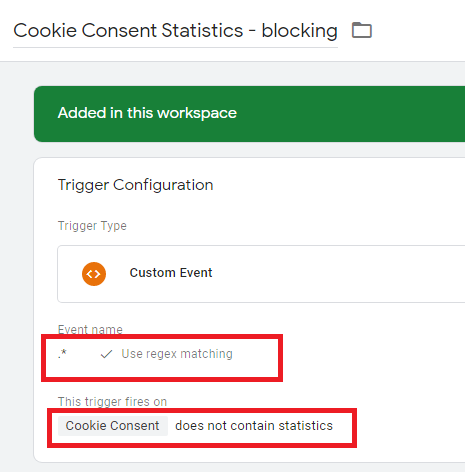
Create a trigger named "Cookie Consent Statistics – blocking":
-
Trigger Name: Cookie Consent Statistics – blocking
-
Trigger Type: Custom Event
-
Event Name:
.*(check "Use regex matching") -
Condition: Cookie Consent does not contain "statistics"
Modify the triggers for tags like Google Analytics, Google Ads, and Facebook Ads.
-
For all Google Analytics tags, add the "Cookie Consent Statistics – blocking" trigger under the Exception section.
-
Similarly, for Google Ads, Facebook Ads, and other marketing tags, add the "Cookie Consent Marketing – blocking" trigger as an exception.
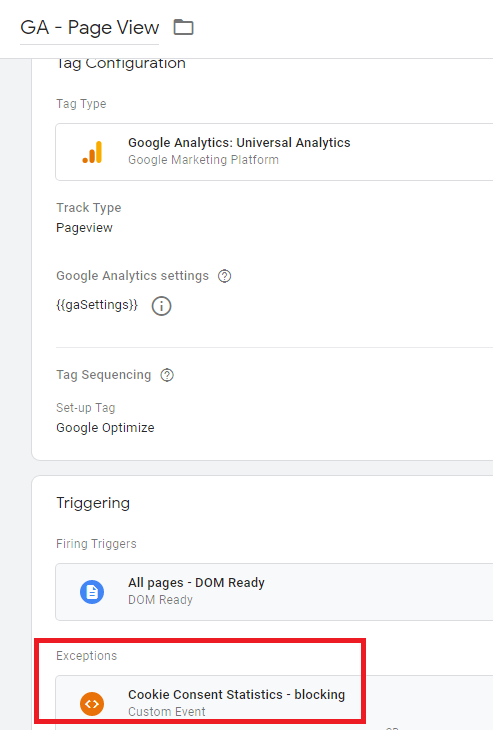
Finally, publish the workspace in Tag Manager.
When you visit the target site, a popup will appear, and tags will not fire based on the user's selections.
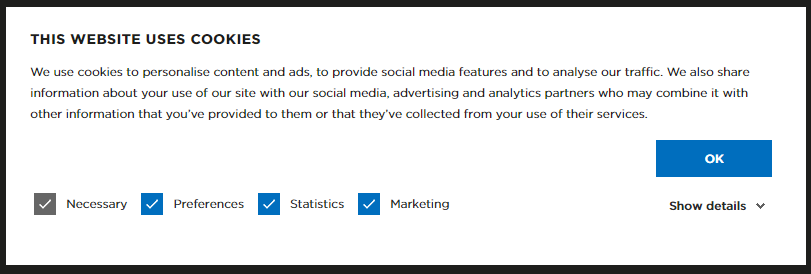
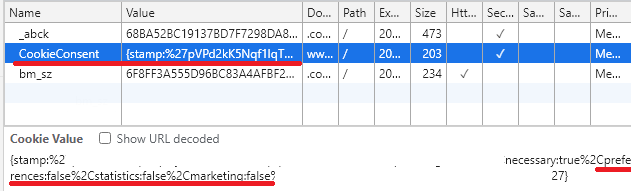
For instance, if you deselect all checkboxes except for "Necessary" and click OK, the "CookieConsent" value for cookies will reflect as false:
While it’s possible to develop or outsource a custom solution for GDPR and CCPA compliance, this can be expensive. Moreover, future changes in regulations might require additional updates. Using a service like Cookiebot is a practical way to mitigate risks effectively.