
The original visibility layer for coding agents on Windows - never hunt for the one that's waiting on you
Built on Electron + xterm.js. Inspired by cmux, with the agent-visibility model modelled on herdr.




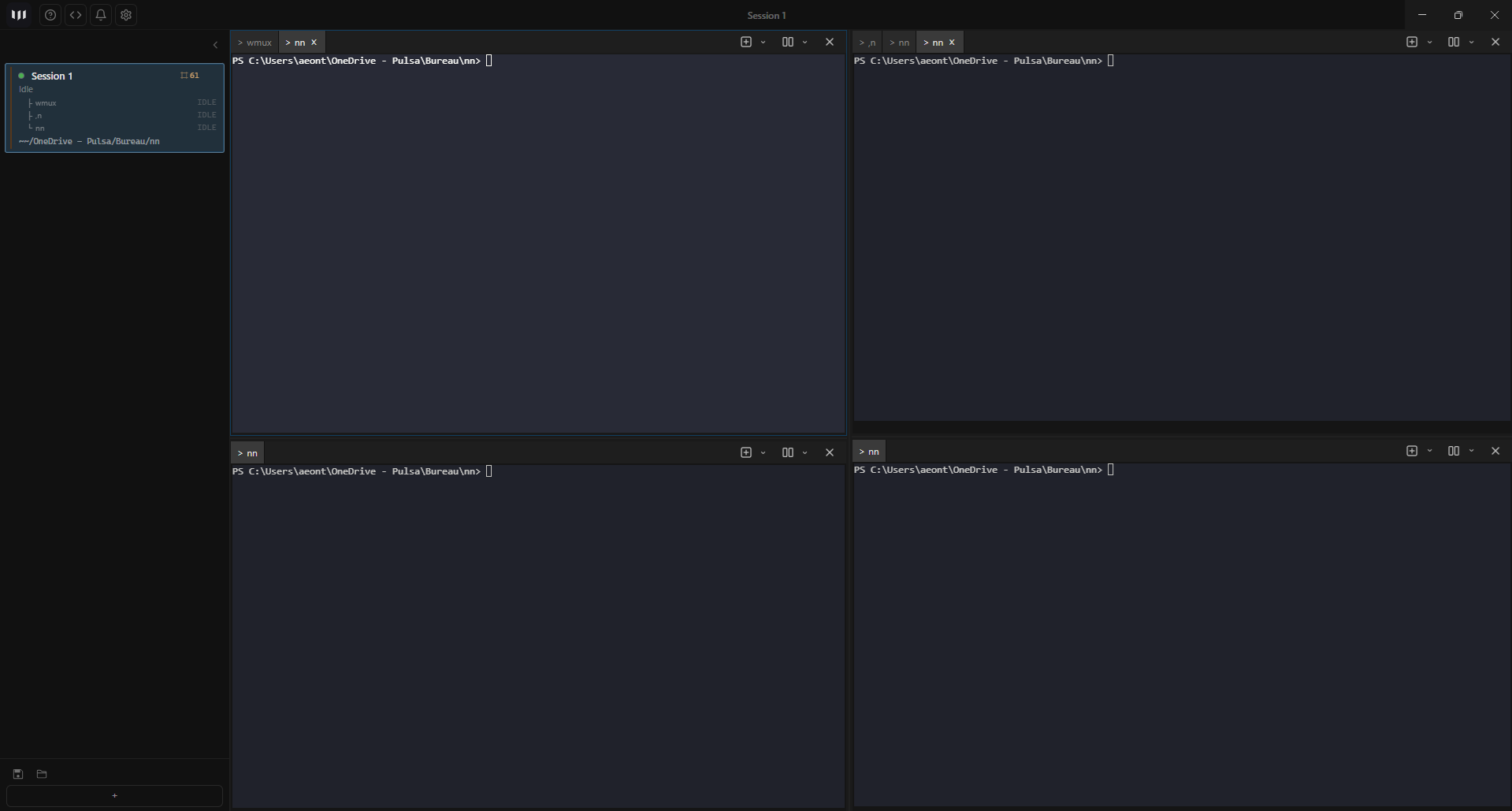
Ctrl+Shift+X docks a file tree on the right of the window, rooted at the focused pane's live working directory. Not the workspace's, and not the active tab's — the pane's terminal cwd, so a pane showing a markdown or browser tab still belongs to the folder its shell is in.
After an agent has been running for ten minutes, three questions follow in order. 2.6 and 2.7 answer all three without leaving wmux:
1. What's in here? The tree lists the folder, lazily, with full keyboard navigation (↑↓ to move, ←→ to collapse/expand, Enter to open, Esc back to the terminal). Single-click opens a file into a preview tab that the next single-click reuses in place, so browsing ten files doesn't leave ten tabs behind — start editing and it promotes to a real tab. Panel width and expansion state persist per root.
2. What changed? Every row carries a +55/-22 column, rolled up so a collapsed src/ shows the sum of everything beneath it — including folders you never expanded, because a rollup that could only count loaded rows would quietly report the part of the tree you happened to have open. In a git repo the numbers mean everything uncommitted; outside one, everything since the session started. The panel header says which — a column of numbers that silently means one or the other can't be acted on. Files an agent touched get a dot, read from the hook stream wmux already receives, so its edits are distinguishable from yours at a glance.
3. Can I just fix that line myself? Anything that isn't markdown opens in a code surface with a line-numbered gutter, beside the terminal it came from. Hit Edit, change the line, Ctrl+S.
Three things that are deliberately not clever about this:
- The tree is a jail, not a file browser. The renderer sends a pane id and a relative path, never an absolute one — main derives the root itself, so a folder above the pane's cwd isn't reachable even by a renderer that asks for it. Symlinks and junctions are resolved on every path segment, not just the last one.
- A save can only land on a file you opened in a pane, in this window, in this session — and it carries the timestamp the buffer was read at. If an agent rewrote the file while you were typing, the save is refused rather than quietly picking a winner. CRLF line endings and UTF-16/BOM encodings survive the round trip instead of being normalised into a whole-file rewrite in your next commit.
- With no hooks configured there are simply no agent dots, and every number still works. Same rule the prompt log follows: degrade to honest silence, never to a guess.
Until now wmux could only tell you what an agent was doing if that agent told it. That meant Claude Code (hooks), OpenCode (plugin) and Kiro. Codex, Gemini, Aider, Amp, Cursor and Copilot ran in panes wmux could display and could not read.
2.0 closes that with three layers, each of which only fills the gap the one above left:
1. One roster for every agent in the window. wmux already knew which panes were blocked — it just never said so above a single sidebar row. Now a banner over the workspace list answers "who needs me?" across every workspace at once, ranked by who has been waiting longest.
2. Ctrl+Shift+A — the agent navigator. Every agent in the window in one list, blocked first. Filter with a/b/w/i/u, ↑↓ to move, enter to jump straight to the pane — it selects the workspace and raises the tab, so an agent buried in a background tab is one keystroke away. Ctrl+Shift+B goes straight to whoever has waited longest, and cycles on repeat.
3. wmux now identifies and reads agents that report nothing. It works out which agent a pane is running from the command line you typed or the shell wmux launched, then matches the agent's own on-screen UI against bundled rules to tell blocked from working. All of it local — nothing is sent anywhere.
Three things that are deliberately not clever about this:
- A detected state never overrides a reported one. If an agent tells wmux it is working, that wins over anything the screen looks like. wmux's "needs you" never expires and answering it doesn't clear it, so a rule re-reading a repainted frame would leave you clicking a button that does nothing.
- When wmux can't parse a screen it says so. No rule matched means the pane reads silent, never idle — because "idle" is a claim, and nobody made it. A new prompt shape wmux hasn't learned yet shows as "we don't know", which is the honest answer and the one that doesn't hide a pane needing you.
- You can see exactly why.
wmux detect explainnames the rule that fired and the line that matched.wmux detect explain --file screen.txtreplays a captured screen offline, so you can debug or author a rule without the agent even installed.
Screen detection is on by default, skips every pane whose agent reports properly, and is one click off in Settings → Workspace. Rules live in %APPDATA%\wmux\agent-detection if you want to add or fix one.
Bundled rules currently cover Claude Code (blocked / working / idle), plus Codex and OpenCode (identity and idle). Anything else is identified but reads as silent until someone contributes rules —
wmux detect explain --fileis how you write them, and PRs are very welcome.
wmux observes Claude Code without changing how it works. Auto-configured hooks in ~/.claude/settings.json report agent and tool activity to the sidebar. A CDP proxy on localhost:9222 lets Claude Code's native chrome-devtools-mcp plugin control the wmux browser panel directly. Zero setup — everything is auto-injected on startup.
|

|
When Claude Code browses the web, every action appears in the wmux browser panel in real-time. Navigate, click, type, take screenshots — Claude Code uses its own tools, wmux just shows what's happening. CDP proxy on localhost:9222 bridges the connection transparently. Terminal and markdown links open in the panel too.
|

|
| Sidebar dots show what each agent session is doing at a glance. Violet pulsing = needs you. Orange pulsing = working. Green = done. Red = interrupted (Ctrl+C). A hollow dot means wmux read that state off the screen rather than being told it — the colour says what, the fill says how sure. Blocked and working also mark the tab, so an agent waiting in a background tab is visible without opening it. Git branch, dirty state, working directory, open ports, and PR status update in real-time from shell integration hooks. |
|
A banner above the workspace list answers "who needs me?" across every workspace at once, with the longest wait first — click it to jump straight there. Ctrl+Shift+A opens the full navigator: every agent in the window, blocked first, filterable by state with a single keystroke. Ctrl+Shift+B cycles through whoever is waiting. Both are bound by default, because a shortcut you have to discover in Settings is one you won't have when you need it.
|
|
Codex, Gemini, Aider, Amp, Cursor and Copilot don't tell any multiplexer what they're doing. wmux works out which agent a pane runs — from the command you typed, the shell it launched, or the process tree — then matches the agent's own UI against bundled rules to tell blocked from working. Entirely local. It never overrides what an agent actually reports, and when it can't parse a screen it says silent rather than guessing idle. wmux detect explain shows which rule fired.
|

|
Panes get a blue ring and tabs light up when agents finish or need attention. Supports OSC 9/99/777, wmux notify CLI, and idle detection. Click the bell icon to see all pending notifications — jump to any with one click. Windows toast notifications and taskbar flash on alerts.
|

|
| Terminal tabs display a shell-specific label — PowerShell, bash, zsh, or cmd — detected automatically from the spawned process. No configuration needed. Makes it easy to identify each pane at a glance when running multiple agents in different shells. |

|
450+ bundled Ghostty themes plus 17 curated wmux themes. Set a default color scheme in ~/.wmux/config.toml, override per pane with wmux split --color-scheme NAME, or define custom named schemes directly in settings. Drag-imported from Windows Terminal or Ghostty configs.
|

|
| A Claude Code plugin that decomposes complex tasks into parallel agents coordinated through dependency-aware waves, each in its own visible terminal pane. wmux no longer installs it — Claude Code orchestrates parallel agents natively now, and does it better. It lives on as a standalone plugin you can install yourself; wmux's sidebar still shows the run it reports. |
|
Split any pane right or down. Resize dividers by dragging. Zoom a pane to full screen with Ctrl+Shift+Enter. Each pane supports multiple tabs — all rendered simultaneously with visibility: hidden so PTY sessions stay alive when switching. Workspace state is persisted across restarts.
|
|
Ctrl+Shift+X docks a file tree on the right of the window, rooted at the focused pane's live working directory — the pane's terminal cwd, so a pane showing a markdown tab still belongs to the folder its shell is in. Single-click opens a file into a preview tab that the next click reuses in place; editing promotes it to a real tab. Markdown opens in the markdown surface. Full keyboard navigation, and panel width and expansion state persist per root.
|

|
The tree carries a +55/-22 column, rolled up so a collapsed src/ shows the sum of everything beneath it — including folders you never expanded. In a git repo the numbers are everything uncommitted; outside one, everything since the session started. The panel says which. Files an agent touched get a dot, read from Claude Code's hook stream, so you can tell its edits from your own at a glance. |
|
Anything that isn't markdown opens in a code surface with a line-numbered gutter, alongside the terminal it came from. Hit Edit, change a line, Ctrl+S. Saves are jailed to the pane's folder and only ever land on a file you opened in a pane — and they carry the timestamp the buffer was read at, so if an agent rewrote the file while you were typing the save is refused rather than quietly picking a winner. CRLF endings and UTF-16/BOM encodings survive the round trip.
|

|
Save your entire workspace layout (splits, working directories, browser URL, shell type) and restore it with one click. Click the save icon in the sidebar footer to name a session, the folder icon to load. On startup, wmux auto-loads your last session — no more manual cd and re-splitting every time.
|
|
Copy a screenshot (Win+Shift+S, Print Screen, Snipping Tool) and press Ctrl+V in a wmux terminal. The image is saved to a temp file and the path is injected into the terminal — or uploaded with SCP first when the pane is connected directly over SSH.
|

|
Interactive 7-step onboarding walks you through workspaces, splits, tabs, the browser panel, and notifications. Designed to get a new user productive in under 2 minutes. Reopen anytime from the ? button in the title bar.
|

|
- Release update badge — A badge in the title bar notifies you when a new GitHub release is available. Click to download and install in place (works for zip extracts and NSIS installs). Settings → Help has the same action next to the version number.
- Clickable links — URLs in terminal output and markdown panes open directly in the wmux browser panel. Prefer your own browser? Settings → Browser → Open links in the system browser flips the default, and Ctrl+click always does the opposite of whichever way it is set.
- Scriptable — Named pipe server (
\\.\pipe\wmux) with a JSON-RPC API. Create workspaces, split panes, send keystrokes, read terminal content, control the browser via CDP, and spawn sub-agent terminals programmatically. - Windows native — ConPTY for proper terminal emulation, Windows toast notifications, taskbar flash on alerts, native title bar overlay.
- Windows Terminal + Ghostty compatible — Import your themes, fonts, and colors from Windows Terminal
settings.jsonor~/.config/ghostty/config. Ships with 450+ bundled Ghostty themes. - GPU-accelerated — xterm.js with WebGL rendering for smooth terminal output at any speed.
Download wmux-0.7.10-win-x64.zip from GitHub Releases, extract anywhere, and run wmux.exe. No installer, no code signing, no admin required.
Note: After extracting, right-click the zip before extracting and select Unblock if Windows SmartScreen warns about the executable.
wmux checks GitHub Releases for updates. Clicking the titlebar badge or the Check for updates button in Settings → Help downloads and installs in place — including portable zip extracts (the recommended install). Unattended NSIS downloads are held in a quarantine window (3 days by default) before installing, and installs always require an explicit confirmation click — nothing is applied silently.
Release artifacts are not yet Authenticode-signed (SignPath OSS approval is pending; the CI signing pipeline is wired and activates automatically once the signing secrets are configured). Until signing lands, security-sensitive or air-gapped environments can control the updater with environment variables:
| Variable | Effect |
|---|---|
WMUX_DISABLE_UPDATER=1 |
Disable the auto-updater entirely (update manually from GitHub Releases) |
WMUX_MIN_RELEASE_AGE_DAYS=N |
Change the quarantine window (default 3 days) |
git clone https://github.com/amirlehmam/wmux.git
cd wmux
npm install
npm run build:main
npm run devI run a lot of Claude Code sessions in parallel. On macOS there is cmux, and it is exactly what I needed — vertical tabs with live metadata, notification rings when agents need attention, a scriptable browser, and a socket API for automation. But I work on Windows, and nothing like it existed.
Windows Terminal has tabs but no notification system. You have to manually check each tab to see if an agent finished or is waiting for input. tmux works in WSL but loses all Windows integration. Electron terminals exist but none focus on the AI agent workflow.
So I built wmux — a visibility layer for AI coding agents. It doesn't replace Claude Code or change how it works. It passively observes and shows you what's happening. A CDP proxy on localhost:9222 lets Claude Code's native browser tools control the wmux browser panel — you watch every page load, click, and form fill in real-time. Auto-configured hooks in settings.json report tool usage and agent activity to the sidebar. When a command finishes or is interrupted, the sidebar dot changes color and you get a notification.
The sidebar shows exactly what each agent is doing — the git branch it is on, the PR it opened, the ports it is listening on, and whether it needs your attention. Shell integration scripts inject themselves into PowerShell, CMD, and Bash sessions and report CWD changes, git branch switches, shell state, and PR status back to the sidebar via a named pipe in real time.
Since 2.0 that no longer depends on the agent cooperating. wmux identifies which agent a pane is running and, for the ones that report nothing of their own, reads their on-screen UI to tell blocked from working — so Codex and Aider sit in the same roster as Claude Code. The ranking is the point: with ten workspaces open, the question is never "what is agent #7 doing", it is "which one of these has stopped and is waiting on me", and that answer is one banner and one keystroke away.
On first launch wmux asks before it touches anything outside its own directory, and what it then writes is listed feature by feature in Settings → General: a marked block in ~/.claude/CLAUDE.md, hooks in ~/.claude/settings.json, a chrome-devtools MCP entry pointed at its own browser panel, and a CDP proxy on localhost:9222. No API keys needed — everything runs through the user's existing Claude Code session. Every one of those has an uninstall, and turning a feature off runs it.
Everything is automatable through the wmux CLI or the named pipe directly. The protocol matches cmux, so tools built for one work with the other.
wmux no longer installs a Claude Code plugin. Since 2.12.0 it removes the one
it used to install, and takes its entry out of ~/.claude/plugins/installed_plugins.json
on the way.
Two reasons. It never worked: wmux hand-wrote Claude Code's internal plugin registry in a shape that file does not use, so Claude Code never listed the plugin, never loaded its skills or commands, and marked the copied files orphaned — while wmux logged a successful install (issue #239, reported in full detail by @mkh63d). And it is no longer worth repairing: Claude Code now runs parallel agents natively, which is a better answer than a shell-script wave planner driving panes from the outside.
What is unaffected:
- The sidebar orchestration panel. It reads a run's
state.jsonand does not care who wrote it, so an orchestrator you install yourself still lights it up. wmux agent spawn/spawn-batch. Putting an agent in a visible pane was never the plugin's job — it is a CLI verb, and it stays.- The OpenCode plugin, which is a different file in a different place and installs correctly. It is still what the Settings → General Orchestrator plugin toggle controls.
The plugin itself remains available standalone, installable the supported way: plugin.wmux.org · github.com/amirlehmam/wmux-orchestrator
wmux automatically injects integration scripts into your shells:
- PowerShell — Overrides the
promptfunction. Reports CWD, git branch, dirty state, and shell state (working/done/interrupted) viaNamedPipeClientStream. Preexec hook via PSReadLine detects when commands start. Background job pollsgh pr viewevery 45 seconds. - CMD — Embeds OSC 9 escape sequences in the
PROMPTvariable for CWD reporting. - Bash/Zsh (WSL) —
PROMPT_COMMAND/precmd+preexechooks. Detects interrupts via exit code 130. Communicates via temp file bridge.
Environment variables available in all shells:
| Variable | Description |
|---|---|
WMUX |
Always 1 inside wmux |
WMUX_CLI |
Path to the wmux CLI script |
WMUX_NODE |
A JS runtime that can run WMUX_CLI — resolved by wmux, since node is not always on PATH |
WMUX_NODE_ELECTRON |
1 when WMUX_NODE is wmux's own binary and needs ELECTRON_RUN_AS_NODE=1 |
WMUX_SURFACE_ID |
Current surface (tab) ID |
WMUX_PIPE |
Named pipe path (\\.\pipe\wmux) |
All shortcuts are rebindable via Settings (Ctrl+,).
The two number-row families — "jump to workspace N" and "jump to surface N" —
are one dropdown each under Settings → Keyboard → Number-row shortcuts,
rather than eighteen separate rows. Pick the modifiers each answers to
(Ctrl, Alt, Ctrl+Alt, Ctrl+Shift, Alt+Shift) or switch either off so
the digits reach the terminal untouched. Assigning one family a combo the other
holds swaps them, so trading Ctrl+1–9 and Ctrl+Alt+1–9 is a single click.
| Shortcut | Action |
|---|---|
| Ctrl+N | New workspace |
| Ctrl+1–8 | Jump to workspace 1–8 |
| Ctrl+9 | Jump to last workspace |
| Ctrl+PageDown | Next workspace |
| Ctrl+PageUp | Previous workspace |
| Ctrl+Shift+W | Close workspace |
| Ctrl+Shift+F2 | Rename workspace |
| Ctrl+B | Toggle sidebar |
| Shortcut | Action |
|---|---|
| Ctrl+T | New surface |
| Ctrl+Shift+] | Next surface |
| Ctrl+Shift+[ | Previous surface |
| Ctrl+Alt+1–8 | Jump to surface 1–8 |
| Ctrl+Alt+9 | Jump to last surface |
| Ctrl+W | Close surface |
| Shortcut | Action |
|---|---|
| Ctrl+D | Split right |
| Ctrl+Shift+D | Split down |
| Ctrl+Alt+Arrow | Focus pane directionally |
| Ctrl+Shift+Enter | Toggle pane zoom |
| Ctrl+Shift+H | Flash focused panel |
| Shortcut | Action |
|---|---|
| Ctrl+Shift+X | Toggle the file explorer panel |
| Up / Down | Move through the tree |
| Left / Right | Collapse / expand a folder |
| Enter | Open the selected file, or expand/collapse a folder |
| Home / End | Jump to the first / last row |
| Esc | Return focus to the terminal |
| Shortcut | Action |
|---|---|
| Ctrl+S | Save the file |
| Tab | Insert a tab (does not leave the editor) |
| Esc | Discard the edit and go back to reading |
| Shortcut | Action |
|---|---|
| Ctrl+Shift+I | Toggle browser panel |
| Ctrl+Alt+I | Toggle Developer Tools |
| Ctrl+Alt+C | Show JavaScript Console |
| Shortcut | Action |
|---|---|
| Ctrl+Shift+A | Agent navigator — every agent, blocked first |
| Ctrl+Shift+B | Jump to the agent waiting longest (cycles on repeat) |
Inside the navigator: ↑/↓ move, enter jumps, esc closes, and a / b /
w / i / u filter to all / blocked / working / idle / silent.
| Shortcut | Action |
|---|---|
| Ctrl+Alt+N | Toggle notification panel |
| Ctrl+Shift+U | Jump to latest unread |
| Shortcut | Action |
|---|---|
| Ctrl+F | Find |
| Enter / Shift+Enter | Find next / previous |
| Escape | Close find bar |
| Shortcut | Action |
|---|---|
| Ctrl+Shift+C | Copy |
| Ctrl+Shift+V | Paste |
| Ctrl+V | Paste (text or screenshot image path) |
| Ctrl+C | Copy (with selection) / interrupt (without) |
| Ctrl+= / Ctrl+- | Increase / decrease font size |
| Ctrl+0 | Reset font size |
| Shortcut | Action |
|---|---|
| Ctrl+Shift+N | New window |
| Ctrl+, | Settings |
| Ctrl+Shift+P | Command palette |
The wmux CLI communicates with the running app over the named pipe.
wmux ping                          # Check if wmux is running
wmux notify "Build complete"       # Send a notification
wmux new-workspace --title "API"   # Create a workspace
wmux list-workspaces               # List all workspaces
wmux current-workspace             # The workspace THIS pane is in (alias: whoami)
wmux ssh user@host                 # Remote terminal (OpenSSH) in a new workspace
wmux ssh -p 2222 user@host --title "prod"  # Extra args are passed through to ssh
wmux new-window                    # Second wmux window (e.g. for another monitor)
wmux split --right                 # Split focused pane
wmux send "npm test"               # Send text to terminal
wmux send-key Enter --ctrl         # Send keystroke
wmux read-screen --lines 50        # Read terminal content

# Agents — who is running what, and who is waiting on you
wmux agent-state                   # every pane's state, the blocked list, and
                                   # every agent wmux identified but that reports nothing
wmux agent-state --surface <id>    # just this pane
wmux report-agent --blocked "Run the migration?" \
  --choices '[{"id":"y","label":"Yes","key":"1"}]'   # your own agent, parked on a human
wmux answer-agent --surface <id> --choice y          # answer another pane from yours

# Screen detection — why does a pane read the way it does?
wmux detect explain                          # the rule that decided this pane, and the line it matched
wmux detect explain --file screen.txt --agent codex   # replay a capture offline, no agent needed
wmux detect reload                           # re-read %APPDATA%\wmux\agent-detection

# Browser (CDP-powered)
wmux browser open http://localhost:3000
wmux browser snapshot              # Accessibility tree with eN refs
wmux browser click e5             # Click element by ref
wmux browser type e3 "hello"      # Type into input by ref
wmux browser fill e3 "value"      # Set input value directly
wmux browser screenshot            # Base64 PNG screenshot
wmux browser eval "document.title" # Run JavaScript

# Remote wmux management (SSH tunnel)
# On the remote machine — expose its wmux pipe on localhost TCP and get its token:
wmux bridge                        # 127.0.0.1:9787 ↔ \\.\pipe\wmux (pure relay, token still required)
wmux token                         # print the auth token, copy it

# On your machine — tunnel the port, then drive the remote wmux with any command:
# ssh -L 9787:127.0.0.1:9787 user@host
wmux --remote 127.0.0.1:9787 --token <TOKEN> list-workspaces
wmux --remote 127.0.0.1:9787 --token <TOKEN> new-workspace --title "api"
# Or set once: WMUX_REMOTE=127.0.0.1:9787 and WMUX_REMOTE_TOKEN=<TOKEN>

# From a devcontainer — same transport, no SSH tunnel. Run the bridge in WSL2
# (--wsl binds 0.0.0.0 there, reachable from the container, not from the LAN):
wmux bridge --wsl                  # relays to \\.\pipe\wmux via npiperelay.exe
# Then in the container: WMUX_REMOTE=host.docker.internal:9787 + WMUX_REMOTE_TOKEN
# Full setup: docs/DEVCONTAINER.md

# Agents
wmux agent spawn --cmd "claude --resume abc" --label "Research"
wmux agent spawn-batch --json '[{"cmd":"claude","label":"Agent 1"},{"cmd":"claude","label":"Agent 2"}]'
wmux agent list                    # List all agents
wmux agent status <agent-id>       # Check agent status
wmux agent kill <agent-id>         # Kill an agent

wmux tree # Workspace / pane / surface hierarchyWhen a pane was opened with wmux ssh, or its PowerShell/Bash integration sees
you run a direct ssh command, wmux keeps local file insertion useful on the
remote host:
Ctrl+VandCtrl+Shift+Vupload a clipboard screenshot or copied local file, then insert its remote path. Text paste is unchanged.- Dropping one or more files uploads them in order. Hold Shift while dropping to bypass upload for that drop.
- Uploads use Windows OpenSSH
scpwithBatchMode=yes, so authentication must already work non-interactively through a key orssh-agent; wmux never opens a password or passphrase prompt in the background. - Files are given unique names inside a private batch directory such as
/tmp/wmux-drop-<batch-id>/<file-id>.png. They remain on the remote host after a successful upload for the receiving program to use.
This applies to a direct SSH connection from Windows. A second ssh started
inside the remote shell is a nested connection that wmux cannot observe through
the Windows process tree. wmux may still see the outer connection, so disable
upload (or hold Shift for a drop) rather than relying on automatic upload while
you are on the inner host.
Paste and drop uploads default to on. Configure them independently in
~/.wmux/config.toml.
Connect to \\.\pipe\wmux for programmatic control. Two protocols supported:
V1 (text, used by shell integration):
report_pwd <surface_id> <path>
report_git_branch <surface_id> <branch> [dirty]
report_shell_state <surface_id> idle|running|interrupted
report_startup_command <surface_id> <command>   # how to restore this surface; must be cwd-independent
notify <surface_id> <text>
ping
wmux raw-v1 "<line>" sends any of these through the CLI's transport, which is
what lets a shell with no reachable pipe — inside a devcontainer — still report.
See docs/DEVCONTAINER.md.
V2 (JSON-RPC, used by CLI and automation):
{"method": "workspace.create", "params": {"title": "Agent 1"}}
{"method": "workspace.list", "params": {}}
{"method": "surface.send_text", "params": {"id": "surf-...", "text": "npm test\n"}}
{"method": "surface.read_text", "params": {"id": "surf-...", "lines": 50}}

// Browser control (CDP-powered)
{"method": "browser.navigate", "params": {"url": "http://localhost:3000"}}
{"method": "browser.snapshot", "params": {}}
{"method": "browser.click", "params": {"ref": "e5"}}
{"method": "browser.screenshot", "params": {"fullPage": true}}
{"method": "browser.eval", "params": {"js": "document.title"}}

// Agent spawning
{"method": "agent.spawn", "params": {"cmd": "claude --resume abc", "label": "Research"}}
{"method": "agent.spawn_batch", "params": {"agents": [...], "strategy": "distribute"}}
{"method": "agent.list", "params": {}}
{"method": "agent.kill", "params": {"agentId": "agent-..."}}

{"method": "system.tree", "params": {}}On relaunch, wmux restores:
- Window position and size
- Workspace layout (titles, colors, pin state)
- Split pane structure (directions and ratios)
- Working directory per terminal
- Default shell per terminal
- Browser panel URLs
- Active workspace and pane selection
wmux does not restore live process state — a running tmux or vim is gone after a restart, and shells are respawned fresh in the saved working directories.
Claude Code is the one exception, and it is opt-in. Turn on Settings → Workspace → Resume Claude Code sessions on restore and each terminal that was running Claude when the session was saved comes back with claude --resume <id> in the directory it was in. This resumes the conversation, not the process: wmux records which session each pane was on and asks Claude to pick it back up. A pane is skipped when Claude no longer has that conversation on disk, and a Claude you exited cleanly is not resumed. Off by default, because every such pane starts an agent the moment the window opens.
Control SCP upload for direct SSH panes in ~/.wmux/config.toml:
[remote]
upload-on-paste = true
upload-on-drop  = true
Both settings default to true and apply after wmux reload-config. See
Remote file upload for behavior and
limitations.
Set a global default color scheme in ~/.wmux/config.toml:
[terminal]
color_scheme = "Dracula"
Override per pane at split time or on the fly:
wmux split --color-scheme "Tokyo Night"
wmux set-color-scheme "Solarized Dark"
Define custom named schemes in Settings > Terminal > Custom Schemes.
Change what a key sends to the program running in a terminal — add a [keys]
section to ~/.wmux/config.toml:
[keys]
"ctrl+k"       = "<C-k><Delete>"   # kill to end of line, then pull the next line up
"ctrl+alt+r"   = "clear<CR>"       # text outside <> is typed literally
"ctrl+shift+q" = ""                # empty value swallows the key
Remaps apply inside terminal panes and take priority over wmux's own shortcuts
there. wmux reload-config applies edits without a restart. Full token list in
docs/config.md.
wmux reads configuration from:
- Windows Terminal —
%LOCALAPPDATA%\Packages\Microsoft.WindowsTerminal_...\LocalState\settings.json - Ghostty —
~/.config/ghostty/config
Import either via Settings > Terminal > Import. Extracts font family, font size, color scheme, and palette. Default theme is Dracula. 450+ Ghostty themes bundled.
Two-process Electron model. Main process manages PTY spawning (node-pty/ConPTY), named pipe server, CDP browser bridge, port scanning, git/PR polling, notifications, Claude Code context injection, session persistence, and multi-window lifecycle. Renderer process runs React/Zustand with xterm.js (WebGL), recursive split pane layout, and the sidebar.
src/
  main/               # Electron main process
  renderer/           # React app (sidebar, splits, terminals, browser)
  preload/            # contextBridge API
  cli/                # wmux CLI tool
  shared/             # Types shared between main and renderer
  shell-integration/  # PowerShell, CMD, WSL scripts

resources/
  wmux-orchestrator/  # Claude Code plugin, deprecated — no longer installed (#239)
  themes/             # Ghostty + wmux theme files
  sounds/             # Notification sounds
wmux is an independent, from-scratch Windows reimplementation inspired by cmux, the macOS terminal for multitasking. It shares cmux's design philosophy and is wire-compatible with its socket protocol — tools built for cmux's API work with wmux — but it does not reuse cmux's source code.
- GitHub Issues — bug reports and feature requests
- GitHub Discussions — questions and ideas
Run wmux crash-report and paste the output. Do not send a crash dump — a
Windows minidump carries your process environment block in cleartext, and wmux's
users are exactly the people who keep credentials there. See
docs/crash-reports.md.
Set WMUX_PLUGIN_DEBUG=1, reproduce, and attach the log it writes to your temp
directory. See docs/opencode-plugin.md.


wmux is open source under the MIT License. It is an independent reimplementation inspired by cmux and does not incorporate cmux's source code.