

Give your AI agent eyes and hands on your Flutter app.
fdb is a CLI that lets AI coding agents launch, hot reload, screenshot, inspect, and kill Flutter apps running on real devices and simulators -- all from the terminal, no IDE required.
Claude Code · OpenCode · Cursor · any agent that can run bash
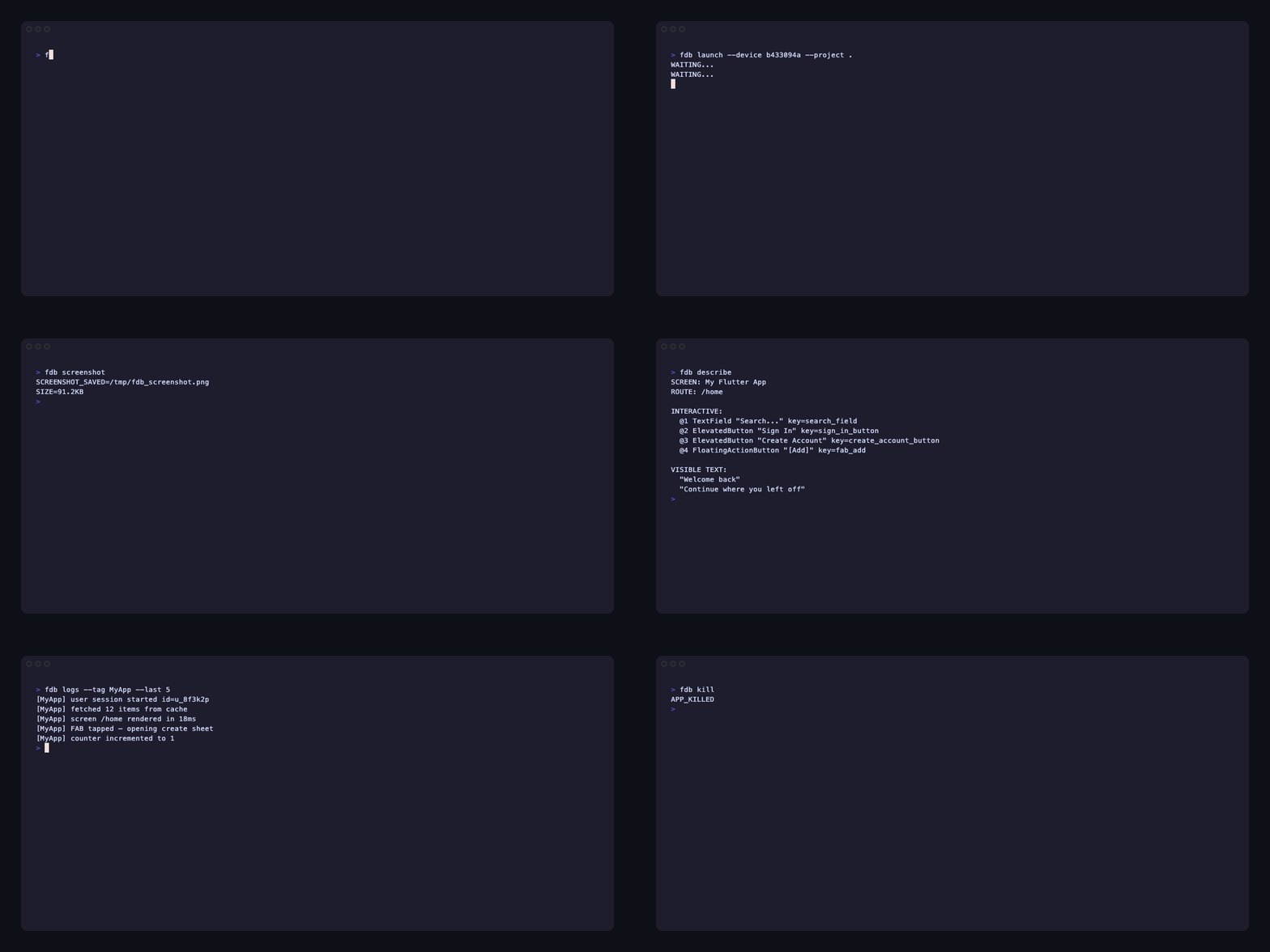
AI agents are great at writing Flutter code. But they can't see what the app looks like, read runtime logs, or inspect the widget tree.
fdb fixes that:
- Launch a Flutter app on any connected device or simulator
- Hot reload / restart after code changes
- Screenshot so the agent can see the UI
- Read logs filtered by tag
- Inspect the widget tree
- Select widgets by tapping on device
Zero dependencies. Pure Dart. Works on macOS and Linux.
The Dart & Flutter MCP server handles code analysis, pub.dev search, formatting, and can also introspect a running app via the Flutter inspector. fdb does something different: runs the app on a real device and lets the agent interact with it via a bash-native CLI — no MCP client required.
| fdb | Flutter MCP server | |
|---|---|---|
| Architecture | CLI -- plain bash commands | MCP protocol -- requires a compatible client |
| Context cost | Minimal. Agent runs a command, gets text output. | MCP tool schemas and responses are injected into context on every call, eating tokens even when unused. |
| Works with | Any agent that can run bash (Claude Code, OpenCode, Cursor, custom scripts, CI) | Only MCP-compatible clients |
| Progressive disclosure | Ships a skill file -- agent loads best practices on demand, not upfront | All tools exposed at once |
| Device interaction | Launch, hot reload, screenshot, logs, widget tree, tap, input, scroll, swipe, back, deeplink, SharedPreferences, clean | Widget tree inspection and runtime errors via Flutter inspector (read-only) |
| Setup | dart pub global activate -- done |
Per-client MCP config (JSON, YAML, or GUI depending on client) |
tl;dr: Use the Flutter MCP server for code analysis and package management. Use fdb when your agent needs to run the app, see it, and interact with it.
Using an AI agent? Just tell it:
Fetch and follow instructions from https://raw.githubusercontent.com/andrzejchm/fdb/main/doc/README.agents.md
Or install manually:
dart pub global activate fdbRequires Dart SDK >= 3.0.0. Make sure ~/.pub-cache/bin is in your PATH.
Or from git (latest main):
dart pub global activate --source git https://github.com/andrzejchm/fdb.git# Launch your app on a connected device
fdb launch --device <device_id> --project /path/to/your/flutter/app
# See what it looks like
fdb screenshot
# Make a code change, then hot reload
fdb reload
# Check the widget hierarchy
fdb tree --depth 5 --user-only
# Read filtered logs
fdb logs --tag "MyFeature" --last 30
# Done? Kill the app
fdb killDevice & app lifecycle
| Command | Description |
|---|---|
fdb devices |
List connected devices |
fdb launch --device <id> --project <path> |
Launch app, wait for start |
fdb reload |
Hot reload |
fdb restart |
Hot restart |
fdb status |
Check if app is running |
fdb kill |
Stop app, clean up |
Visual inspection
| Command | Description |
|---|---|
fdb screenshot [--output <path>] [--full] |
Screenshot (all platforms; --full skips downscaling) |
fdb logs --tag <tag> --last <n> |
Filtered logs |
fdb tree --depth <n> [--user-only] |
Widget tree |
fdb describe |
Compact screen snapshot: interactive elements + visible text (requires fdb_helper) |
fdb select on/off |
Widget selection mode |
fdb selected |
Get selected widget info |
Interaction (requires fdb_helper)
| Command | Description |
|---|---|
fdb tap --text/--key/--type <selector> or fdb tap @N |
Tap a widget or describe ref |
fdb longpress --text/--key/--type <selector> [--duration <ms>] |
Long-press a widget |
fdb input [--text/--key/--type <selector>] <text> |
Enter text into a field |
fdb scroll <direction> [--at x,y] [--distance px] |
Scroll in a direction |
fdb scroll --from x,y --to x,y |
Drag gesture between two points |
fdb swipe <direction> [--key/--text/--type <selector>] |
Swipe widget (PageView, Dismissible) |
fdb back |
Navigate back (Navigator.maybePop) |
fdb deeplink <url> |
Open a deep link |
Data & state (requires fdb_helper)
| Command | Description |
|---|---|
fdb shared-prefs get|get-all|set|remove|clear |
Read/write SharedPreferences |
fdb clean |
Clear app cache and data directories |
Utility
| Command | Description |
|---|---|
fdb skill |
Print the AI agent skill file (SKILL.md) |
fdb --version |
Print the fdb version |
Requires fdb_helper in your app:
# pubspec.yaml
dev_dependencies:
  fdb_helper: ^1.1.7
// main.dart
import 'package:fdb_helper/fdb_helper.dart';
import 'package:flutter/foundation.dart';
void main() {
if (!kReleaseMode) {
FdbBinding.ensureInitialized();
}
runApp(MyApp());
}fdb: command not found - Add ~/.pub-cache/bin to your PATH.
Launch hangs - Check the device ID (fdb devices) and the project path.
Screenshot fails - check the tool for your platform is on PATH: adb (Android), xcrun (iOS simulator), screencapture (macOS), xdotool + import (Linux X11). Physical iOS, Windows, and Linux Wayland use fdb_helper — add it to your app and call FdbBinding.ensureInitialized().
Empty widget tree - App may still be starting. Retry, or use fdb describe instead.
RUNNING=false right after launch - The process crashed. Check fdb logs --last 50.
Widget interaction fails - fdb_helper missing from pubspec.yaml, or FdbBinding.ensureInitialized() not called.
See AGENTS.md for coding conventions and the testing skill for running the test suite.
MIT