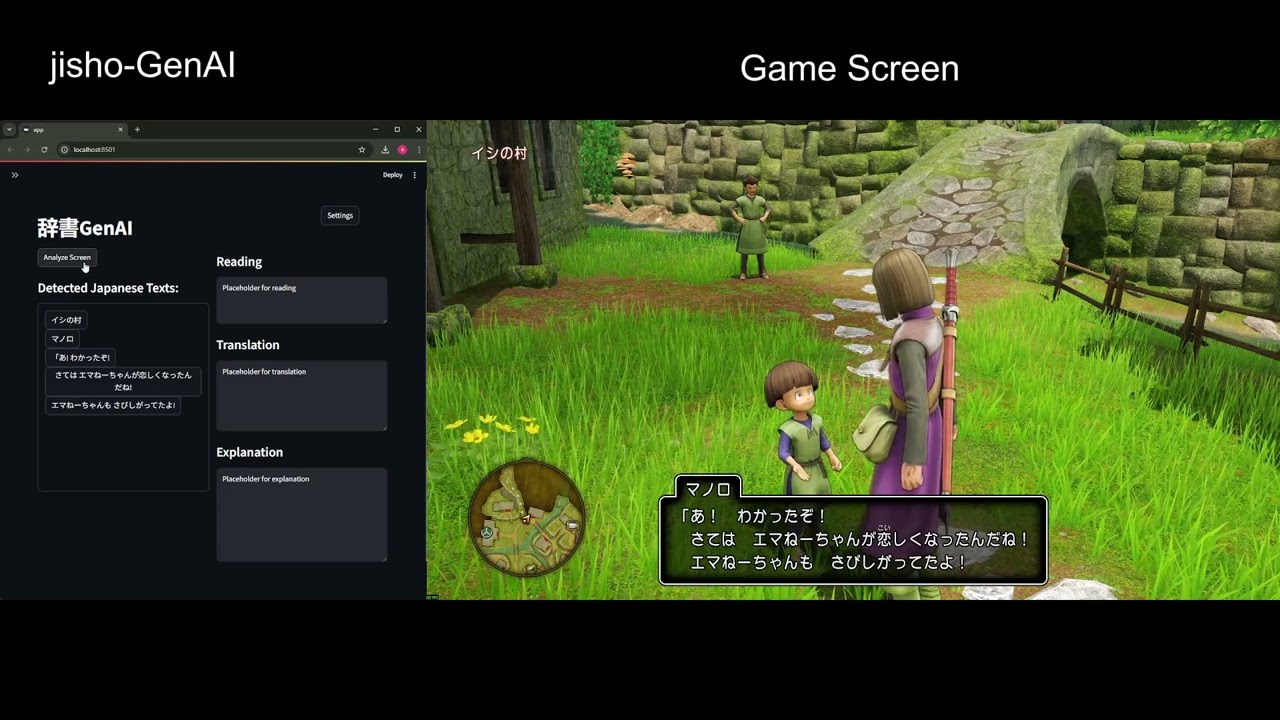
AI companion for English speakers learning Japanese by playing video games in Japanese text. Runs on Windows.
'JishoGenai' is a play on words - 辞書じゃない (jisho jyanai) means 'not a dictionary'. Because it is not simply a dictionary that looks up the direct translation of the in-game text, but uses AI to explain the meaning and usage in context.
- Make functionality to merge detected texts by bounding box or semantics
- Add output that shows the Japanese text with Furigana
- Add option to highlight substring for translation. NOTE: This seems difficult in native Streamlit
- On selection of detected text, tokenize it into words. Display these words below the detected text as additional options for translation.
- Add option to disable 'merged_texts'. Default to disabled.
- Add function to use Gemini for OCR
- Allow ordered multi-select of detected texts prior to translation. Or add a translate mode 'single/multi' option
- Add a separate modal/screen for settings and configurations
- In settings page, add preview of the screen being captured
- Add options to use screenshot as additional context to text merging, translation and explanation. Use GeminiLLM class and add the image to the contents during invoke().
- Make LLM invocations asynchronous
- Generate a nice logo.
- Add screenshots and sample footage to readme
- Add usage guide to readme
- Add more memory to Setsumei Sensei. Recall text from previous screens to gain more context.
- Allow user to highlight/select text to be explained if it is a substring of the detected text.
- Allow user to ask follow-up questions on the explanation of Setsumei Sensei.
- Option to automatically screenshot and analyze while gameplay is happening.
- Configurations for current learning level of user.
- Allow use of other LLM providers.
- Allow use of local LLM.
- Provide alternative OCR options.
- Fine tune a small model for OCR on Japanese game screenshots.
To get started with jishoGenAI, follow these steps:
git clone https://github.com/antonymously/jishoGenAI.git
cd jishoGenAIpython -m venv venv
# On Windows
.\venv\Scripts\activate
# On macOS/Linux
source venv/bin/activateInstall the required Python packages using pip:
pip install -r requirements.txtjishoGenAI uses the Gemini API for its language model. You'll need to obtain an API key from Google AI Studio.
-
Go to Google AI Studio.
-
Create a new API key.
-
Create a file named
.envin the root directory of the project (whereapp.pyandrequirements.txtare located). -
Add your Gemini API key to the
.envfile in the following format:GEMINI_API_KEY="YOUR_GEMINI_API_KEY_HERE"Replace
"YOUR_GEMINI_API_KEY_HERE"with the actual API key you obtained.
Once all dependencies are installed and your API key is set up, you can run the Streamlit application:
streamlit run app.pyYour browser should automatically open to the jishoGenAI application.