GUI Help
The GUI help menu is displayed at the top left corner. Pressing the key 'h' toggles between showing and hiding the help menu.
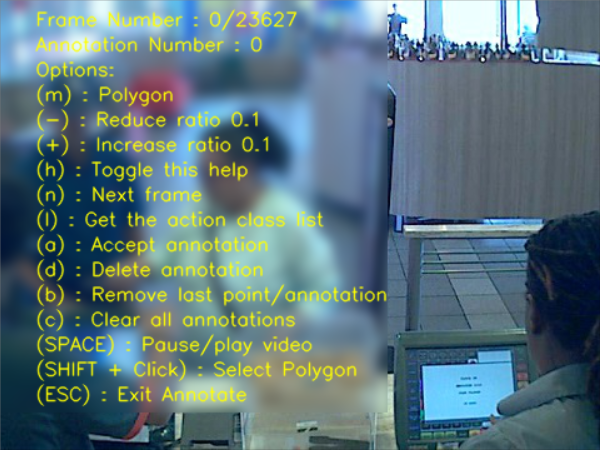
The following information explains the meaning of keywords shown on top of the help bar.
This keyword shows the current frame you are annotating and the total frame of the sequence (video or image list). (Remark: if the sequence is live sequence, the total frame number will be 0)
This keyword shows the number of annotation box in the current frame.
The following keyboard keys and mouse actions define an action while using the Annotate tool.
The m key switches between the three different annotation modes: axis align rectangle, rotated rectangle and polygon.
It's used to reduce by 0.1 the aspect ratio of rectangles while in axis align and rotated mode. The ratio is ignored when defining a free polygon. If your ratio cannot be defined by the 0.1 increments/decrements refer to the command line arguments options for more options.
The aspect radio defines the ratio between height/weight of the annotation.
When decreasing the ratio, it becomes 0, the ratio constraint is removed. You can see the currently selected ratio next to the name of the selected mode.
It's used to increment the aspect ratio by 0.1. Refer to '-' for more details
Hides and show the help menu
Advances to the next frame in the sequence.
Open the GUI action help menu
Accepts a new annotation, changing its status from drawing to added (i.e. red color to yellow color with numbering). This command is called automatically called in the modes: axis align rectangle and rotated rectangle.
In mode polygon, a new annotation needs to be accepted by inputting the key 'a'.
Deletes the currently selected annotation. It must be in drawing mode (i.e., red color).
It removes the last point in the current annotation. It acts as a 'back' button. Once there are no more points to remove from the current drawing, it will start deleting previous annotations.
Clear all annotations in the frame.
Pause/play video sequence.
Allows you the select any annotation. You could also drag the annotation for reposition.
Exits the Annotate tool
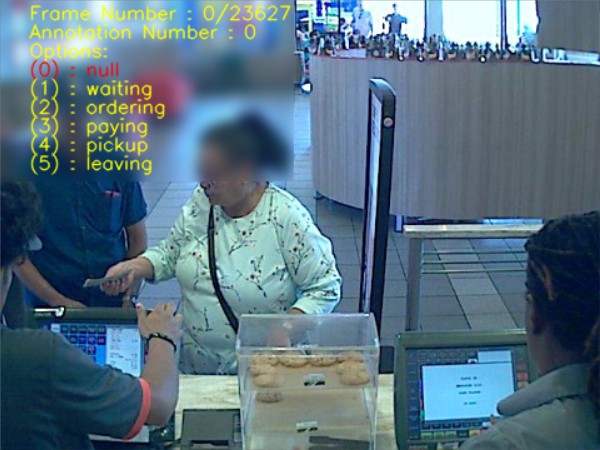
The following information explains the meaning of keywords shown on top of the help bar.
The following keyboard keys and mouse actions define an action while using the Annotate tool.
If you want to use the action annotation function, you need to import the actionType.txt file first.
Check the Command Line Options WIKI
page (the 'a' option).
In the actionType.txt file, you can define up to 10 actions for action annotation, each action keyword
is separated by a line break.
You can use number key to select the corresponding action. The default number key '0' which is the first line
in the actionType.txt file.