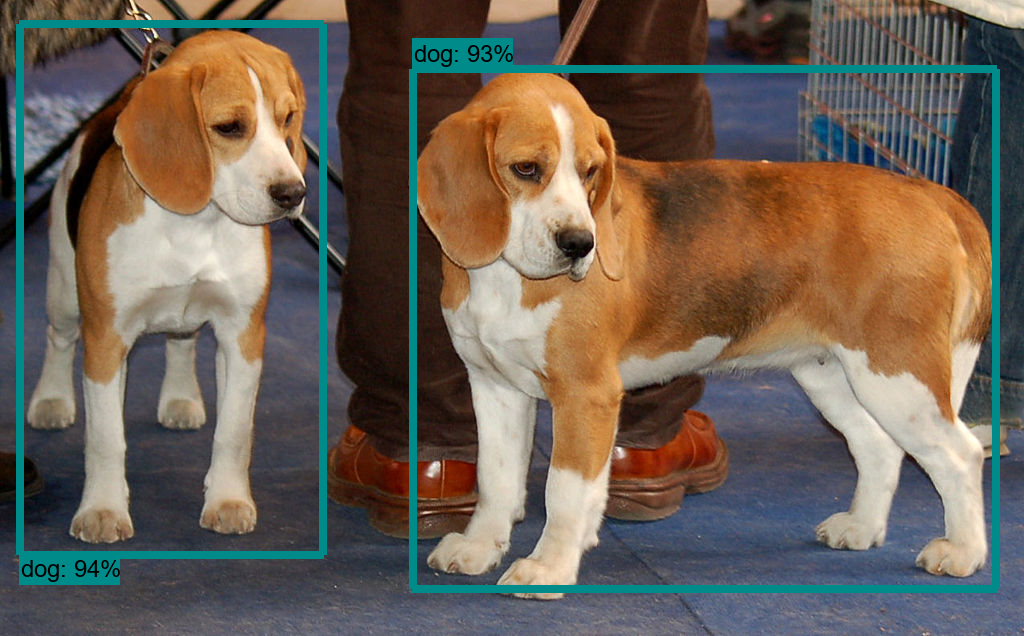
This repository lists all the steps to install Tensorflow-GPU and hence setup and utilize the Tensorflow Object Detection API on windows without Anaconda.
--------------------------------------------------------------------------------------------------------
--------------------------------------------------------------------------------------------------------
This Instalation will require the lastest version of Visual Studio Build Tools (C++) and Visual Studio Community at the least
Step 1: Install Nvidia CUDA Toolkit and CUDNN If Nvidia Geforce Experience is already installed then de select from CUDA toolkit setup Extract CUDNN files and place in respective folders in CUDA toolkit installation directory
Add directory path to PATH variable under Edit System Variables
1."(CUDA TOOLKIT INSTALLATION DIRECTORY)\CUDA(VERSION)\bin"
2."(CUDA TOOLKIT INSTALLATION DIRECTORY)\CUDA(VERSION)\libnvvp"
3."(CUDA TOOLKIT INSTALLATION DIRECTORY)\CUDA(VERSION)\extras\CUPTI\lib64"
4."(CUDA TOOLKIT INSTALLATION DIRECTORY)\CUDA(VERSION)\include"
Step 2: Create New Directory Tensorflow and Navigate to Directory
$ cd C:\Tensorflow
Step 3: Setup Python Virtual Enviornment named tf
$ python -m venv tf
Step 4: Activate Enviornment
$ tf\Scripts\activate.bat
Step 5: Verify CUDA installation
$ nvcc --version
Step 6: Install basic libraries
$ pip install numpy
$ pip install pandas
$ pip install matplotlib
List of Installed packages can be seen by
$ pip list
Step 7: Install Tensorflow GPU
$ pip install --upgrade tensorflow-gpu
Step 8: Install Kernel
$ ipython kernel install --user --name=(name of virutualenv)
Step 9: Install Jupyter Notebook
$ pip install jupyterlab
Step 10: Verify Installation
Launch Jupyter Notebook from within the enviornment. Under the new drop down menu select the name of the virtual enviornment.
In the untitled notebook type run the following command.If there are no errors the installation was successful.
$ import tensorflow as tf
--------------------------------------------------------------------------------------------------------
This allows the Unix Vim editor to be utilized from the windows command line. Select the GUI Option from the list.
https://www.vim.org/download.php#pc
This software should allow for easier cloning of github repositories and can be run from within the windows command line.
The Git Bash terminal can also be utilized for running shell scripts.
https://gitforwindows.org/
--------------------------------------------------------------------------------------------------------
Step 1: Navigate to the Tensorflow Directory
$ cd C:\Tensorflow
Step 2: Activate Virutal Enviornment
$ tf\Scripts\activate.bat
Step 3: Install the following Dependencies
$ pip install Cython
$ pip install contextlib2
$ pip install Pillow
$ pip install lxml
$ pip install pathlib
Step 4: Navigate into the tf directory
$ cd tf
Step 5: Create a new directory objdetect
$ mkdir objdetect
Step 6: Clone the tensoflow/models repository into /objdetect
https://github.com/tensorflow/models
$ git clone https://github.com/tensorflow/models.git
Step 7: Download the latest version of the protobuf compiler
https://github.com/protocolbuffers/protobuf/releases
Extract the zip file. Rename the folder to protoc and place it in C:\
The file that we need is protoc.exe present within the bin folder
Step 8: Navigate to /models/research and clone the COCOAPI
https://github.com/cocodataset/cocoapi
$ git clone https://github.com/cocodataset/cocoapi.git
Step 9: Execute protoc.exe from within /models/research
$ C:\protoc\bin\protoc object_detection/protos/*.proto --python_out=.
The first part of the command should contain the path to the protoc folder created in Step 7.
Only if the full path is specified will there be no errors
Step 10: Navigate into /models/research and execute the following.
This is done to avoid the error object_detection is not recognized
$ python setup.py install
Step 11: Navigate into /models/research/object_detection and run Jupyter Notebook
Step 12: Open the file object_detection_tutorial.ipynb
The following steps will detail the changes that need to be made to the specific file
Comment out the line that assigns the path to a variable.
Replace the first attribute in the create_category_index_from_labelmap() method with the complete path to the file mscoco_label_map.pbtxt.
It should look something like this:
category_index = label_map_util.create_category_index_from_labelmap('C:/Tensorflow/tf/objdetect/models/research/object_detection/data/mscoco_label_map.pbtxt', use_display_name=True)
This is the section just below the Load Label Map Section.
At the begining of the cell add
$ import pathlib
As in the previous step 'PATH_TO_TEST_IMAGES_DIR' should contain the full path to the test images directory
It should look something like this :
PATH_TO_TEST_IMAGES_DIR = pathlib.Path('C:/Tensorflow/tf/objdetect/models/research/object_detection/test_images')
-----------------------------------------------------------------------------------------------------------