Team Members:
- 40947021S 謝皓青
- 40947006S 郭浩雲
- NTU_B06608062 游竣量
-
Program Development:
- 游竣量: 80%
- 郭浩雲: 10%
- 謝皓青: 10%
-
Report Writing:
- 郭浩雲: 65%
- 謝皓青: 35%
- Format Converter
- Retrieve Information and Metadata of Audio Files
- Audio Trimming
- Audio Recomposition
We use JAVE2 (Java Audio Video Encoder 2) for our project. JAVE2 is open-sourced on GitHub. This library is essentially an FFmpeg wrapper for Java. JAVE2 provides both simple and advanced ways to manipulate FFmpeg, which we will demonstrate in the later sections.

FFmpeg is a free and open-source software project for handling video and audio. Its core is the FFmpeg program itself, designed for command-line-based processing of video and audio files. It is widely used for:
- Format Transcoding
- Basic Editing
- Video Scaling
- Video Post-Production Effects
- Standards Compliance
To use JAVE2 in our project, it provides two approaches: Maven and Gradle. We chose Maven. Maven is an automation building system for Java applications, backed by the Apache Foundation. Maven helps solve dependency problems and manage the directory structure. The Eclipse IDE includes Maven by default.
To create a Maven project in Eclipse:
- Navigate to
File→New→Projects.

- Select Maven Project.

- Keep the default configuration.

- Maven uses Archetypes to manage the project directory structure, acting as a blueprint. Here we use
maven-archetype-quickstartto create a simple Maven project with the minimal necessary files.

- Specify the project ID. The format resembles a reversed domain name.

Adding JAVE2 Dependency
Our newly created Maven project comes with a special file pom.xml. This is how Maven understands the dependencies. Ensure this file remains intact.
Following the official guide provided by JAVE2, we add the following information to the pom.xml:
<dependencies>
    <!-- Approach #1: All Dependencies Included -->
    <dependency>
        <groupId>ws.schild</groupId>
        <artifactId>jave-all-deps</artifactId>
        <version>3.1.1</version>
    </dependency>
    <!-- Approach #2: Core + Target Platform Package -->
    <dependency>
        <groupId>ws.schild</groupId>
        <artifactId>jave-core</artifactId>
        <version>3.1.1</version>
    </dependency>
    <dependency>
        <groupId>ws.schild</groupId>
        <artifactId>jave-nativebin-win64</artifactId>
        <version>3.1.1</version>
    </dependency>
</dependencies>
We also need to solve the slf4j dependency:
<dependencies>
    <!-- Handling Logging -->
    <dependency>
        <groupId>org.slf4j</groupId>
        <artifactId>slf4j-simple</artifactId>
        <version>1.7.25</version>
    </dependency>
</dependencies>
After configuring pom.xml, Maven will download the packages from the central repository and handle the rest for us.
/src/main/java/org/ntnu/MP3Editor/FormatConverter.java
Convert a .wav file to .mp3.
We specify codec attributes to convert the file, so we should understand some basic concepts first:
| Traditional Chinese (TW) | Simplified Chinese | |
|---|---|---|
| Term | 位元速率 | 码率 |
Formula: Sampling Rate × Bit Depth × Channels = Bitrate
Bitrate describes how many bits are used to store data in a single second. Higher bitrates are often preferred by audio enthusiasts as they are less compressed and more detailed. However, bitrate does not always guarantee sound quality.
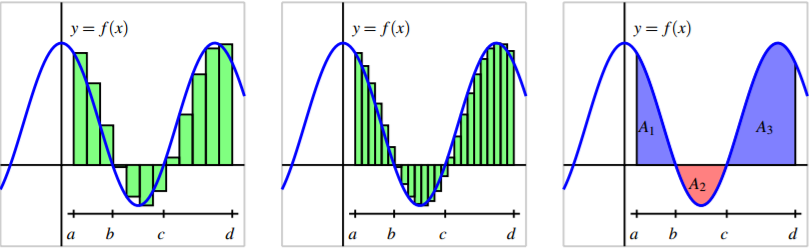

The concept of sampling frequency is similar to the Riemann Sum in Calculus. More frequent sampling results in more accurate approximations of the original signal.

"Stereo sound" provides a more realistic listening experience because the left and right channels contain different signals. When an audio file has a single signal track, it is referred to as "mono channel."
import ws.schild.jave.Encoder;
import ws.schild.jave.MultimediaObject;
import ws.schild.jave.encode.AudioAttributes;
import ws.schild.jave.encode.EncodingAttributes;
import java.io.File;AudioAttributes audio = new AudioAttributes();
audio.setCodec("libmp3lame"); // Set Codec
audio.setBitRate(128000);
audio.setChannels(2);
audio.setSamplingRate(44100);EncodingAttributes attrs = new EncodingAttributes();
attrs.setOutputFormat("mp3");
attrs.setAudioAttributes(audio);With the help of the Encoder class, we can now use the specified attributes, source file, and output file. JAVE2 handles the options and passes them to FFmpeg:
Encoder encoder = new Encoder();
encoder.encode(new MultimediaObject(source), target, attrs);