Manuscript Builder
The Manuscript Builder is Draft Bench's compile surface — a focused modal for editing a project's compile presets and running a compile.
It pairs with the Manuscript view (a dockable workspace pane), which is where day-to-day writing work happens. The Manuscript view shows your ordered scene list, status breakdown, and word-count progress; the Manuscript Builder is where you turn that material into a finished output (Markdown, ODT, PDF, or DOCX) when you're ready to share.
- Compile button in the Manuscript view's toolbar (most common — opens the modal scoped to the active project).
- Command palette: Draft Bench: Build manuscript.
- Right-click a project note in the file explorer -> Build manuscript.
If no compile preset exists yet for the active project, the modal opens with a + New preset button so you can create one in place.
The modal is a stack of collapsible sections. Each section's fields persist directly to the preset note's dbench-compile-* frontmatter — no separate save step.
Title, subtitle, author, and date format. Used by output renderers (PDF / ODT / DOCX) for cover pages and headers.
Which scenes to include. V1 uses an "auto" scene source: every scene in the project, in dbench-order. Chapter-aware projects walk two-level — chapters in dbench-order, then each chapter's scenes in their within-chapter dbench-order. Filters:
-
Statuses: include only scenes whose
dbench-statusis in this list. Empty = all statuses. -
Excludes: explicit list of scene or chapter basenames /
[[wikilinks]]to skip. Excluding a chapter drops the chapter heading, the chapter body's## Draftintro, and every child scene from the output (the dropped scenes still count toward the "filtered out N scenes" notice).
-
Format:
md(Markdown),odt,pdf, ordocx. -
Destination:
vault(writes into the project folder) ordisk(opens an OS save dialog). - Page size, cover, table of contents, chapter numbering, section breaks: format-specific knobs.
Vault Markdown lands at <project folder>/Compiled/<preset name>.md so subsequent compiles overwrite the same file. Disk outputs prompt with a save dialog every run.
Per-preset overrides for the five content-handling rules that have meaningful per-output trade-offs (heading scope, frontmatter, wikilinks, embeds, dinkuses). The other compile-time rules (footnote renumbering, callout stripping, etc.) are always-on.
Heading scope has three values:
-
scope: full— emits each scene's full body (planning sections plus## Draft). Scene title becomes an H1 above each body. -
scope: draft— emits only the## Draftcontent from each scene. Planning sections are stripped. Scene titles become H1s. Default for chapter-less projects. -
scope: chapter— chapter-aware compile. Emits one# <chapter title>per chapter, then the chapter body's## Draftcontent (chapter-introductory prose) when non-empty, then concatenated scene## Draftbodies with scene titles omitted. Produces continuous prose under each chapter heading — the typical novel-compile shape. Default for chapter-aware projects.
The default is auto-selected when the preset is created based on the project's shape; you can override later via the Compile tab. Existing presets are never silently changed when a project gains chapters.
A compile preset is itself a note in the vault. Its content-handling rules live in the note's frontmatter, editable from the Properties panel as well as from the Manuscript Builder modal:
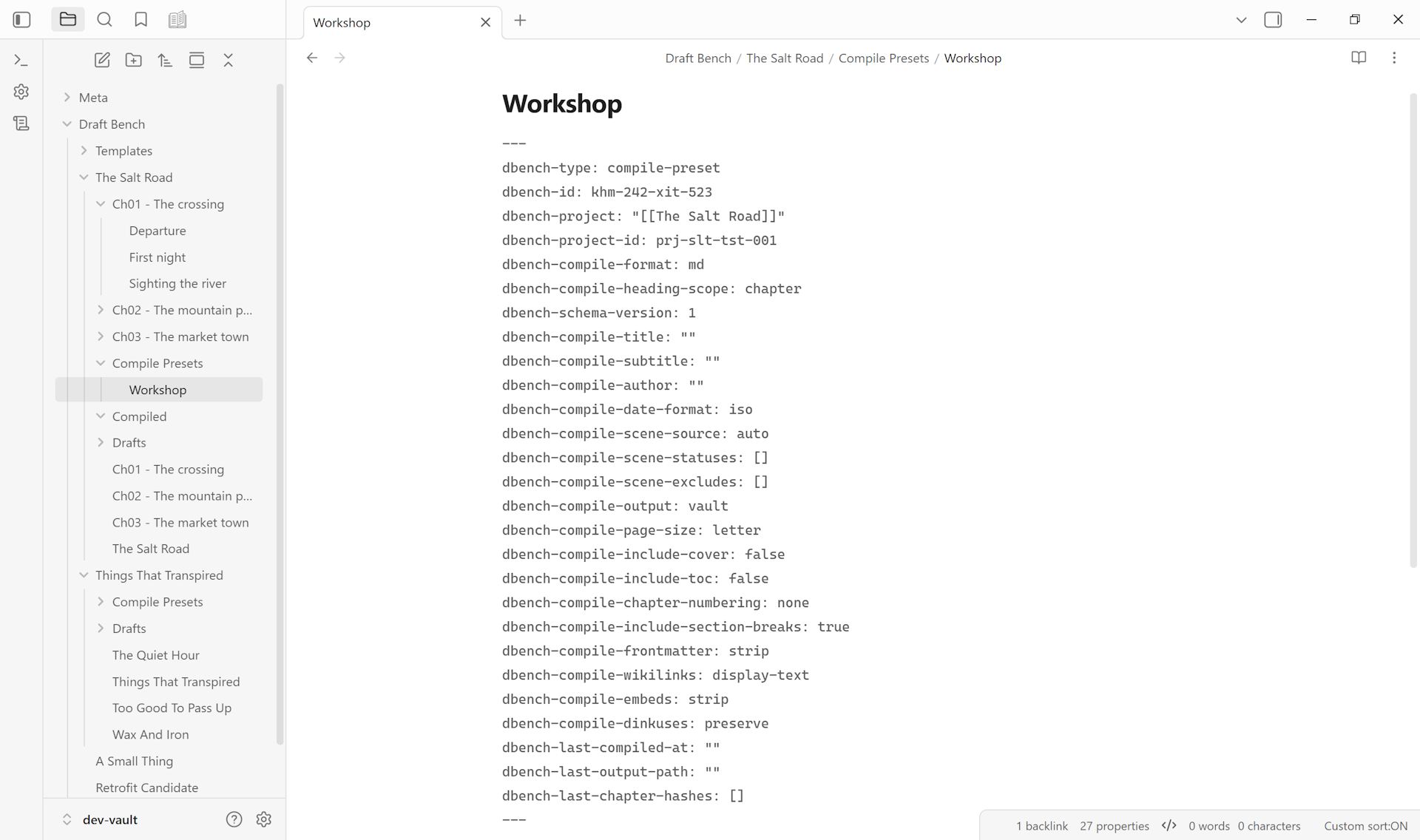
Read-only display of when the preset last compiled, where the output landed, and how many scenes have changed since (computed from per-scene content hashes).
Your browser doesn't support embedded video. Watch the loop on draftbench.io.
The Run compile button at the top of the modal runs the active preset end to end: walks scenes in order, applies content-handling rules, renders the chosen format, writes the output. A success notice surfaces the output path; if any embeds were stripped from the output (images, audio, video, base files, note embeds), a second notice line summarizes counts by category.
The same compile flow is reachable from:
- Draft Bench: Run compile (palette).
- Draft Bench: Compile current project (palette).
- Right-click a compile preset note -> Run compile.
- Right-click a scene or draft -> Compile current project (resolves to the scene's parent project).
The Manuscript view is the dockable companion to the Manuscript Builder. It opens in the right sidebar by default and shows:
- The active project + a picker for switching projects.
- A Project summary section: status, identifier, total word count, hero progress bar (when
dbench-target-wordsis set), per-status word/scene-and-chapter breakdown. - A Manuscript list section. The body shape depends on whether the active project has chapters:
-
Chapter-less projects show a flat ordered scene list (sorted by
dbench-order) with status chips, per-scene word counts, and draft counts. - Chapter-aware projects show stacked chapter cards. Each card has a clickable header (chevron + order capsule + chapter title link + status chip + chapter word-count rollup + a "New draft of this chapter" icon button on the right) and a body listing the chapter's scenes via the same scene-row primitive used by the flat list. Cards are individually collapsible — collapse state persists per chapter across reloads. Click the chapter title to open the chapter note; click anywhere else on the header to toggle.
-
Chapter-less projects show a flat ordered scene list (sorted by
- A toolbar with New scene, New draft, Reorder scenes, and a primary Compile button.
Open it via the ribbon icon, the Draft Bench: Show manuscript view palette command, or by right-clicking a project note.
Plugin configuration (folders, drafts placement, status vocabulary, scene template, Bases folder, bidirectional sync) lives in Obsidian's Settings -> Community plugins -> Draft Bench, not in the Manuscript Builder. See Settings and Configuration.
The earlier "Control Center" tabbed-modal hub was retired in favor of the focused Manuscript Builder + dockable Manuscript view. Detailed walkthroughs and screenshots will land once V1 ships.