Manuscript Builder
The Manuscript Builder is Draft Bench's compile surface for editing a project's compile presets and running a compile. It opens as a focused modal by default; you can also dock it as a workspace tab to keep Preview pinned next to a scene you're editing.
It pairs with the Manuscript view (a dockable workspace pane), which is where day-to-day writing work happens. The Manuscript view shows your ordered scene list, status breakdown, and word-count progress; the Manuscript Builder is where you turn that material into a finished output (Markdown, ODT, PDF, or DOCX) when you're ready to share.
As a modal (default):
- Compile button in the Manuscript view's toolbar (most common — opens the modal scoped to the active project).
- Command palette: Draft Bench: Build manuscript.
- Right-click a project note in the file explorer -> Build manuscript.
As a workspace leaf:
-
Dock button in the modal's sticky header (top-right, next to the close button — a small
panel-righticon). Closes the modal and reopens the same content as a workspace tab with the same project, preset, and tab state. - Command palette: Draft Bench: Show Manuscript Builder leaf. Opens the leaf directly. Useful for binding a hotkey if you prefer leaf form as your default.
If no compile preset exists yet for the active project, the Builder opens with a + New preset button so you can create one in place.
Same Build / Preview UI in both forms. The differences:
- The modal blocks the rest of the workspace. Open it, do your compile-tuning, run compile, close it. You can't edit a scene in another pane while the modal is up.
- The leaf doesn't block. Dock it in a side pane and you can edit a scene in the main pane while watching Preview update as you save (file-save reactivity, debounced ~400ms; only fires while the Preview tab is active and only for project member files).
- Single-leaf only. Opening the Builder when a leaf already exists focuses the existing one — you can't have two Builder leaves open at the same time.
- One-way docking. The leaf doesn't have a "convert back to modal" button. To return to modal form, close the leaf and reopen via the palette command or the Compile CTA in the Manuscript view.
Pick the modal for "tweak preset, run compile, done" — it's a tighter focused-task surface. Pick the leaf when you want Preview pinned during a longer editing session.
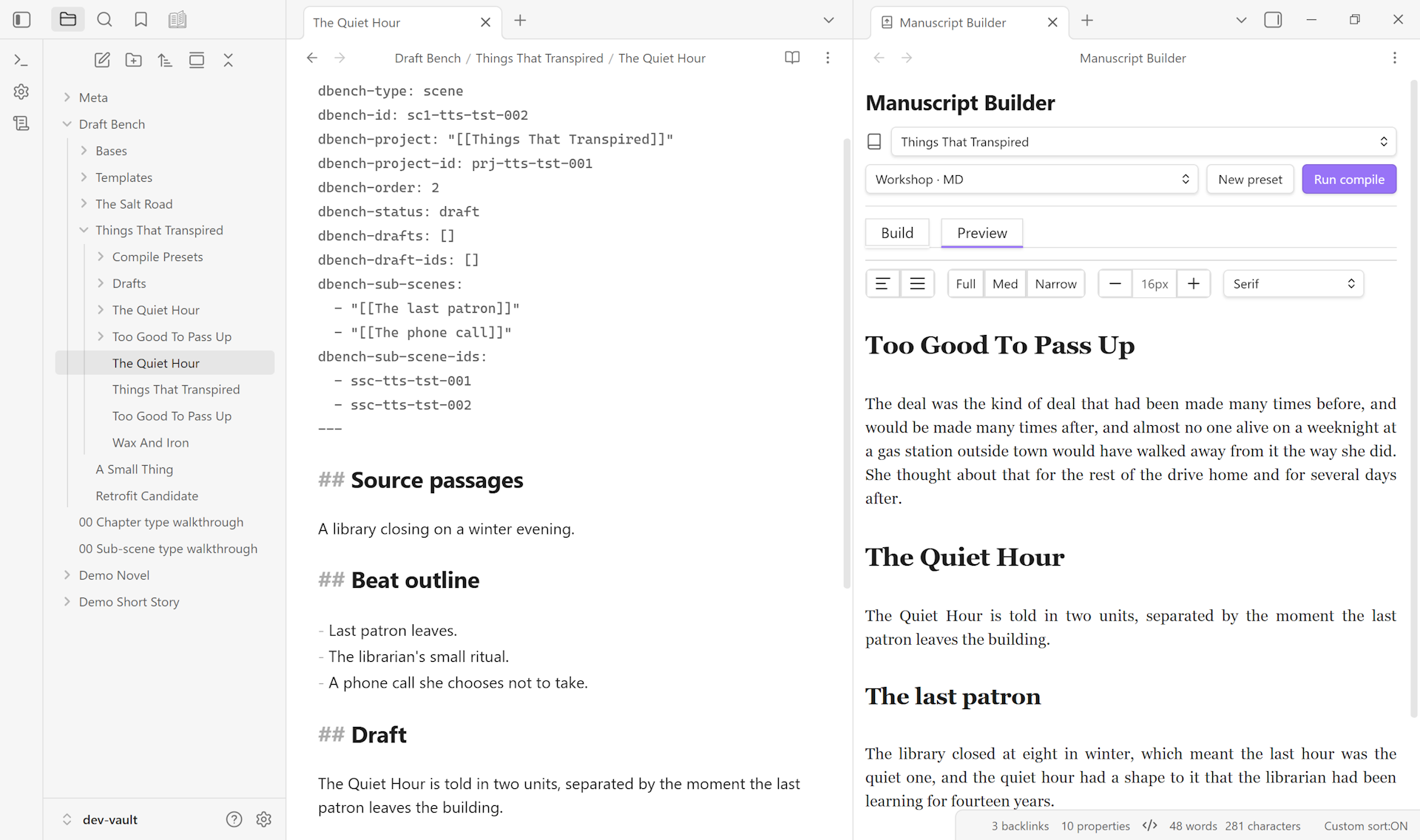
A sticky region at the top of the Builder (modal or leaf) that stays pinned to view as content below scrolls. Three pieces (plus the dock button on the modal):
- Project picker — a dropdown listing every project in the vault. Switching here updates the Builder in place (presets, selected preset, last-active tab) and routes through plugin selection so the Manuscript view re-renders to match.
- Preset picker + New preset — a dropdown listing the active project's compile presets, plus a button to create a new one inline. The selected preset persists per project across reload.
- Run compile — the Builder's primary verb. Runs the active preset end to end. Reachable from both the Build and Preview tabs since it lives in the sticky header.
Below the header, two tabs swap the body: Build (form fields) and Preview (rendered prose).
The Build tab is a stack of collapsible sections that edit the active preset's dbench-compile-* frontmatter. No separate save step — each field writes through immediately.
Title, subtitle, author, and date format. Used by output renderers (PDF / ODT / DOCX) for cover pages and headers.
Which scenes to include. V1 uses an "auto" scene source: every scene in the project, in dbench-order. Chapter-aware projects walk two-level — chapters in dbench-order, then each chapter's scenes in their within-chapter dbench-order. Filters:
-
Statuses: include only scenes whose
dbench-statusis in this list. Empty = all statuses. -
Excludes: explicit list of scene or chapter basenames /
[[wikilinks]]to skip. Excluding a chapter drops the chapter heading, the chapter body's## Draftintro, and every child scene from the output (the dropped scenes still count toward the "filtered out N scenes" notice).
-
Format:
md(Markdown),odt,pdf, ordocx. -
Destination:
vault(writes into the project folder) ordisk(opens an OS save dialog). - Page size, cover, table of contents, chapter numbering, section breaks: format-specific knobs.
Vault Markdown lands at <project folder>/Compiled/<preset name>.md so subsequent compiles overwrite the same file. Disk outputs prompt with a save dialog every run.
Per-preset overrides for the five content-handling rules that have meaningful per-output trade-offs (heading scope, frontmatter, wikilinks, embeds, dinkuses). The other compile-time rules (footnote renumbering, callout stripping, etc.) are always-on.
Heading scope has three values:
-
scope: full— emits each scene's full body (planning sections plus## Draft). Scene title becomes an H1 above each body. When a scene has sub-scenes, each sub-scene title becomes an H2 below the scene's H1. -
scope: draft— emits only the## Draftcontent from each scene. Planning sections are stripped. Scene titles become H1s; sub-scene titles (when present) become H2s. Default for chapter-less projects. -
scope: chapter— chapter-aware compile. Emits one# <chapter title>per chapter, then the chapter body's## Draftcontent (chapter-introductory prose) when non-empty, then scene content. Flat scenes emit their## Draftbody as continuous prose with the scene title omitted. Hierarchical scenes (with sub-scenes) emit## <scene title>(H2) followed by the scene's intro prose, followed by their sub-scenes as### <sub-scene title>(H3). Three-level cascade — chapter / scene / sub-scene = H1 / H2 / H3 — surfaces structure where it exists; flat scenes within the same chapter continue to render as continuous prose. Default for chapter-aware projects.
The default is auto-selected when the preset is created based on the project's shape; you can override later via the Build tab. Existing presets are never silently changed when a project gains chapters or scenes gain sub-scenes.
A compile preset is itself a note in the vault. Its content-handling rules live in the note's frontmatter, editable from the Properties panel as well as from the Manuscript Builder modal:
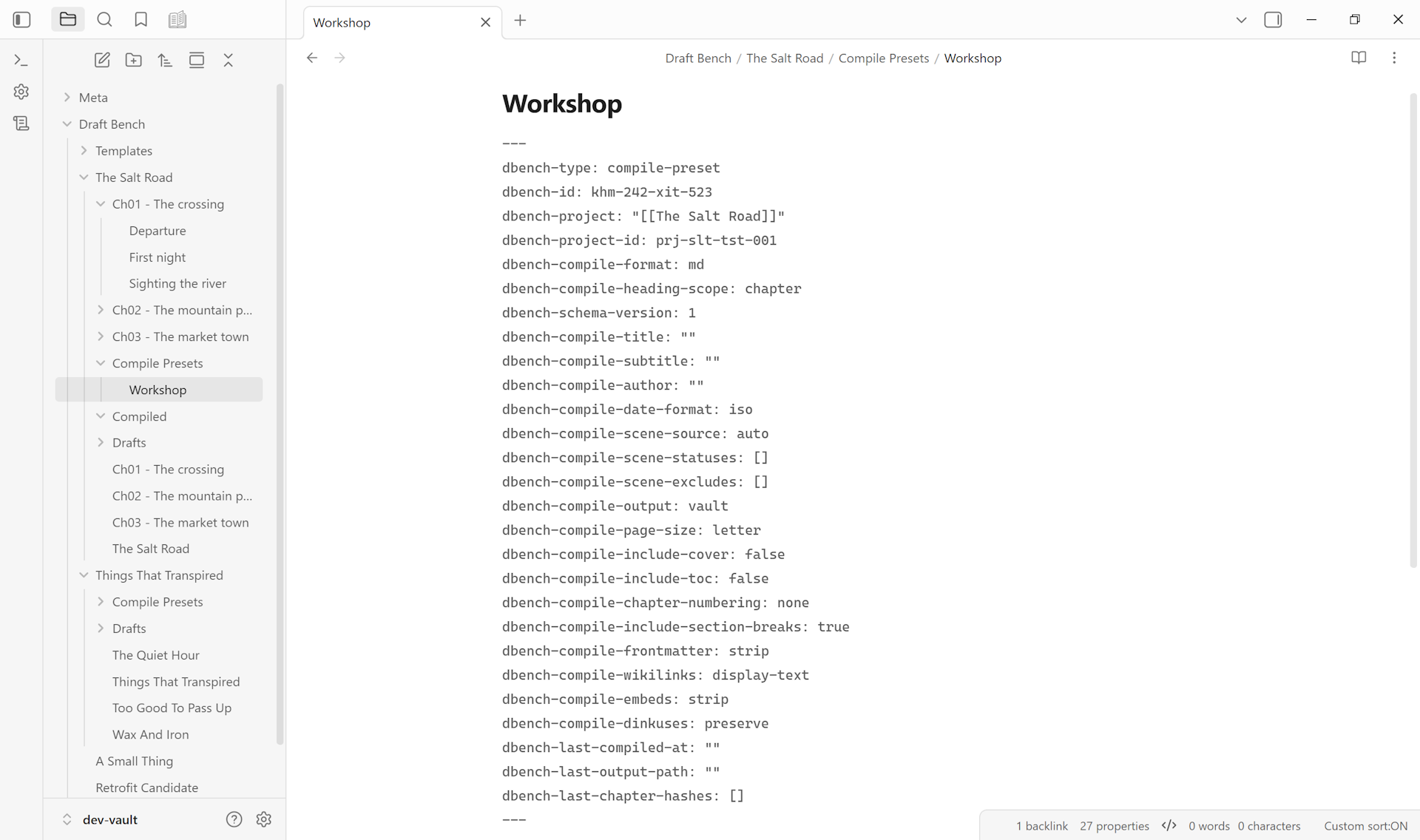
Read-only display of when the preset last compiled, where the output landed, and how many scenes have changed since (computed from per-scene content hashes).
The Preview tab renders the current preset's compile output as continuous read-only prose, in place. Tweak settings on Build, flip to Preview, see the impact, iterate — without writing a real output file each time.
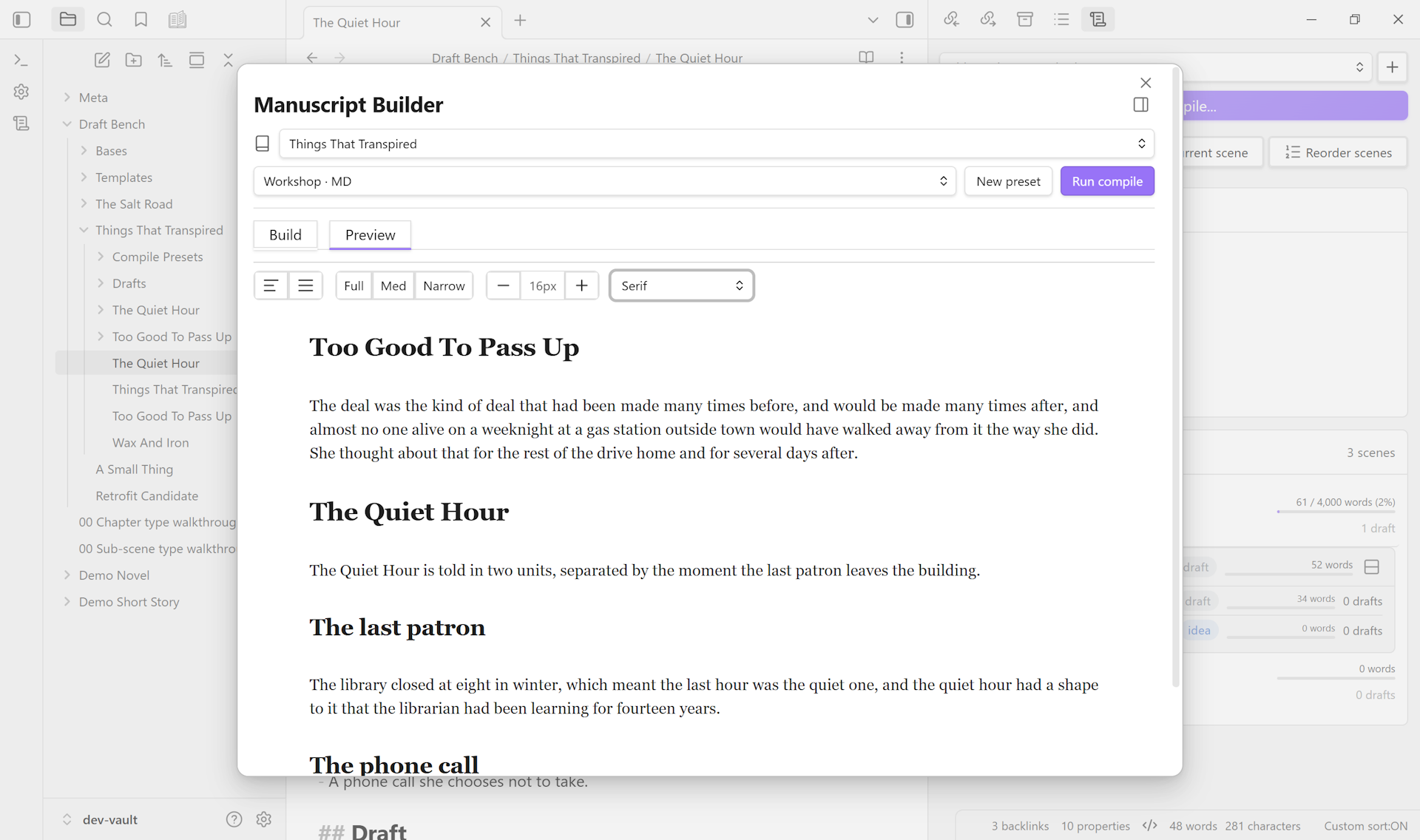
Preview re-renders on three triggers in both forms: tab activation, preset-selector change, and project-selector change.
In the leaf form (only), Preview also re-renders on file-save reactivity: when you save a project member file (project / chapter / scene / sub-scene with a matching dbench-project-id), Preview re-renders ~400ms after the last save event. The debounce batches rapid saves (autosaves, sync drops) into a single re-render. Drafts (archival snapshots) and compile presets (config) don't trigger. Scroll position is preserved across file-save re-renders so deep reading isn't reset to the top; tab / preset / project changes still land at the top (those are "fresh entry" re-renders).
The modal form doesn't auto-refresh on external edits, since Obsidian modals block interaction with the rest of the workspace anyway. Flip Build -> Preview to re-trigger if needed.
Preview is for in-Obsidian review, not WYSIWYG of the compiled file. The actual PDF / ODT / DOCX outputs run through different rendering pipelines (pdfmake / docx generators), so Preview's typography won't match exactly. Compile to disk and open the file to verify the final exported result.
Above the rendered prose, a toolbar lets the writer tune Preview's reading register without leaving the Builder. Choices persist globally (these are reading-register preferences, not project-specific).
- Text alignment — Left / Justify.
- Reading width — Full (Builder width), Med (~50em), Narrow (~40em).
-
Font size —
−and+buttons step the body font size between 12px and 24px. -
Font family — Theme default (matches Obsidian's
--font-text), Serif (Georgia stack), Sans-serif (system stack), Monospace (matches Obsidian's--font-monospace).
Power users wanting deeper control (custom font stacks, line-height, paragraph spacing, accent color) can override the underlying --dbench-preview-* and --dbench-tab-active-accent CSS variables via a snippet or the Style Settings community plugin — see Settings and Configuration.
Preview surfaces a brief actionable message when there's nothing to render:
- No compile presets yet — create one via the New preset button in the header.
- No scenes in this project yet — create scenes from the Manuscript view.
- No scenes match this preset's filters — adjust scene-statuses or scene-excludes on the Build tab.
- Preview render failed — the Build tab settings may be inconsistent; the inline error message names the cause, and the developer console (Ctrl-Shift-I) carries a stack trace for follow-up.
The current implementation renders the whole preset markdown in one pass, using Obsidian's MarkdownRenderer. No chunking, no virtualization. Tested clean on novel-sized projects (110k+ words across multiple chapters with hierarchical scenes); if you hit lag on a much larger project, open an issue so we can characterize the threshold.
▶ Click to watch the compile flow on draftbench.io
The Run compile button at the top of the modal runs the active preset end to end: walks scenes in order, applies content-handling rules, renders the chosen format, writes the output. A success notice surfaces the output path; if any embeds were stripped from the output (images, audio, video, base files, note embeds), a second notice line summarizes counts by category.
The same compile flow is reachable from:
- Draft Bench: Run compile (palette).
- Draft Bench: Compile current project (palette).
- Right-click a compile preset note -> Run compile.
- Right-click a scene or draft -> Compile current project (resolves to the scene's parent project).
The Manuscript view is the dockable companion to the Manuscript Builder. It opens in the right sidebar by default. Below the project picker sits a List / Continuous tab strip (added in 0.4.0); each tab presents a different read of the same project.
Open it via the ribbon icon, the Draft Bench: Show manuscript view palette command, or by right-clicking a project note.
The List tab is the navigation surface — the ordered scene list, progress chrome, and structural actions. It shows:
- The active project + a picker for switching projects.
- A Project summary section: status, identifier, total word count, hero progress bar (when
dbench-target-wordsis set), per-status word/scene-and-chapter breakdown. - A Manuscript list section. The body shape depends on whether the active project has chapters:
-
Chapter-less projects show a flat ordered scene list (sorted by
dbench-order) with status chips, per-scene word counts, and draft counts. - Chapter-aware projects show stacked chapter cards. Each card has a clickable header (chevron + order capsule + chapter title link + status chip + chapter word-count rollup + a "New draft of this chapter" icon button on the right) and a body listing the chapter's scenes via the same scene-row primitive used by the flat list. Cards are individually collapsible — collapse state persists per chapter across reloads. Click the chapter title to open the chapter note; click anywhere else on the header to toggle.
-
Chapter-less projects show a flat ordered scene list (sorted by
- A toolbar with New scene, New draft, Reorder scenes, and a primary Compile button.
The Continuous tab renders the entire manuscript top-to-bottom as one scrollable read-only document — chapters, scenes, sub-scenes, full bodies. Useful for revision passes (catch repetition, pacing problems, voice drift) where the List tab's per-scene affordances are noise.
- Always-everything scope. No status filters or scene exclusions — the full manuscript renders regardless of the active compile preset's settings. Filtering is a Builder concern; Continuous mode is for reading.
- Click any chapter / scene / sub-scene heading to jump to its source file. Plain click opens in the active leaf; cmd/ctrl-click = new tab; +shift = split; +alt = new window; right-click (or long-press on mobile) surfaces the same options via the standard context menu. Writer-authored H2/H3s inside scene bodies are inert — they're prose structure, not navigation.
- Live updates as you write. Editing any project file (project note, chapter, scene, sub-scene) re-renders the prose after a 400 ms debounce, with scroll position preserved across the re-render. Typing rapidly batches into a single re-render rather than thrashing.
- Typography toolbar. The same four controls from the Manuscript Builder Preview tab (text alignment, reading width, font size, font family) sit above the prose. Changes apply instantly and persist globally — flipping between the Builder Preview and Continuous mode shouldn't reset your reading preferences.
The active mode persists per project. A new project opens in List by default; flip to Continuous on a project and next time you open it, Continuous restores.
Embeds are stripped from the Continuous render in V1 (the underlying compile pipeline strips them); planning + footnote content renders inline. Heavy-embed projects may surface this as missing media; flag it in the FR thread for #31 if it bites your workflow.
Plugin configuration (folders, drafts placement, status vocabulary, scene template, Bases folder, bidirectional sync) lives in Obsidian's Settings -> Community plugins -> Draft Bench, not in the Manuscript Builder. See Settings and Configuration.