Settings And Configuration
Draft Bench's settings are organized into groups in Obsidian's Settings -> Draft Bench panel.
-
Default project shape:
folderorsingle. Applied when creating new projects; can be overridden per-project in the creation modal. -
Status vocabulary: configurable list of workflow statuses (default:
idea,draft,revision,final). Edit via Settings -> Statuses. The first entry is the default stamped onto new notes; renaming an in-use status migrates affected notes; removing an in-use status prompts a bulk-rename or remove-without-migrating choice.
Default locations where the plugin creates new notes. All support the {project} token.
-
projectsFolder: default:Draft Bench/{project}/. -
chaptersFolder: default: alongside the project note (empty string). Chapter notes are created at<project folder>/{chaptersFolder}/<title>.md. -
scenesFolder: default: alongside the project note (empty string). Scene notes are created at<project folder>/{scenesFolder}/<title>.md. -
draftsFolder: default:Drafts/inside each project. Three placement options: inside each project, per-scene/chapter subfolder, or vault-wide.
These settings are creation defaults only. Moving notes later never breaks the plugin's ability to find them — discovery is frontmatter-based.
-
Templates folder: path to the folder containing scene and chapter templates. Default:
Draft Bench/Templates/. Any markdown file in this folder withdbench-template-type: scene | chapterfrontmatter is auto-discovered and surfaces in the new-scene / new-chapter modal's template picker. See Templates § Named templates. -
Scene template: optional override path to a custom scene template file. Default:
<Templates folder>/scene-template.md(auto-seeded on first scene creation). This is the fallback default — the template applied when the modal's picker isn't shown or the writer leaves the default selected. -
Chapter template: optional override path to a custom chapter template file. Default:
<Templates folder>/chapter-template.md(auto-seeded on first chapter creation). Same fallback-default semantic as the scene template setting.
Draft Bench keeps relationships between notes consistent across renames, moves, and edits. See Essential Properties § Rename safety.
-
enableBidirectionalSync: master toggle for the live sync service. Default: on. -
syncOnFileModify: listen to live file-modify events. Default: on. Can be disabled for performance in very large vaults. - Repair project links: button invoking the batch repair command. Scans the current project and reconciles any inconsistencies; use after unusual events like a mass file move or sync conflict.
If the Style Settings plugin is installed, Draft Bench exposes variables for scene, draft, and Preview tab styling:
- Scene leaf: font family, font size, line height, max width, background, text color.
- Draft leaf (archival cue): background, text color, left border. Defaults to a visually distinct appearance signaling "this is an archived snapshot, not the live scene."
- Manuscript Builder Preview: tab active accent, plus Preview-tab typography (font family, size, line height, max width, paragraph spacing, text alignment). The in-modal Preview typography toolbar covers the most common knobs without needing Style Settings; the variables here are for power users wanting custom font stacks, line-height, paragraph spacing, or accent-color overrides.
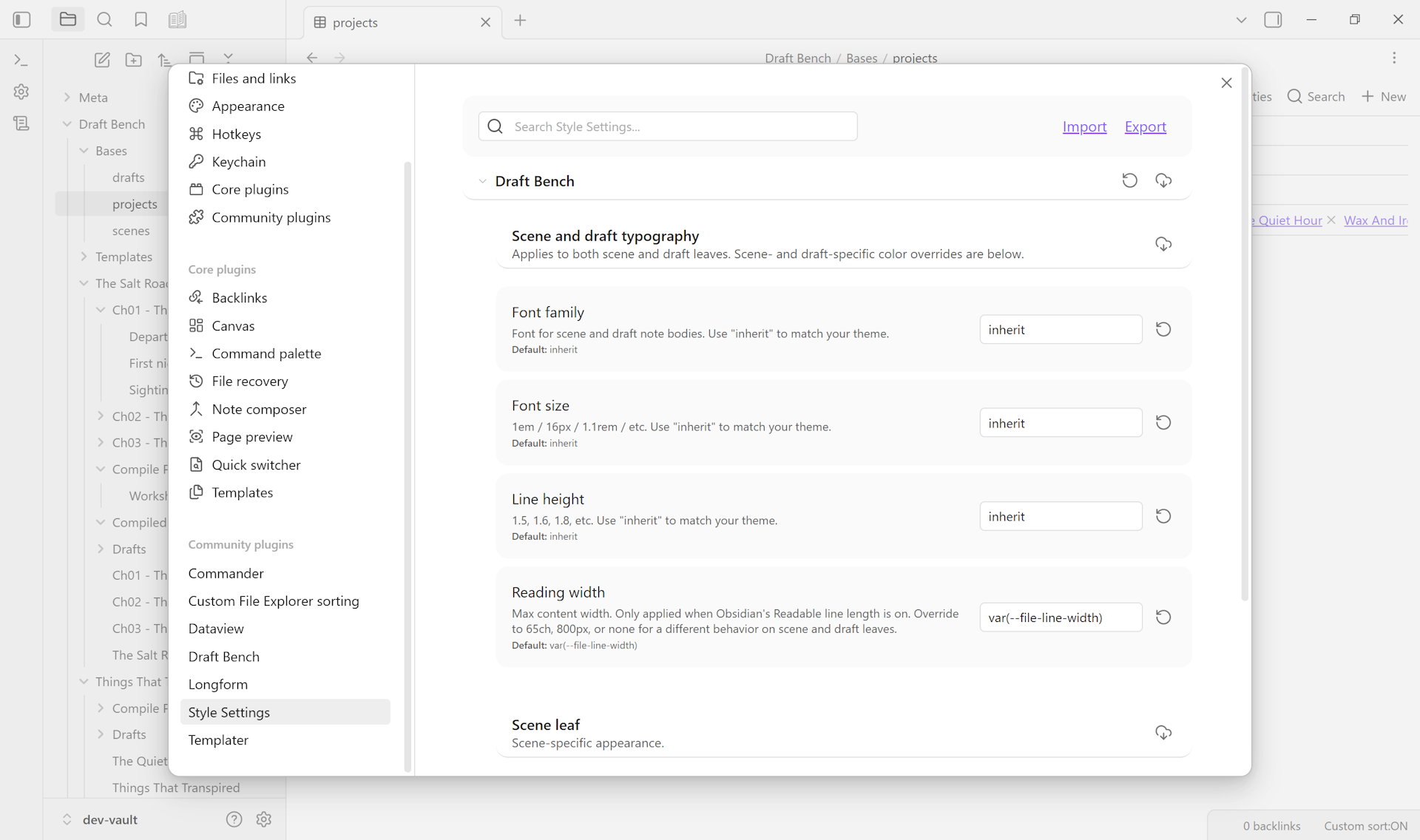
Without Style Settings, the CSS classes (.dbench-scene, .dbench-draft) are still applied; you can style them via your theme or a CSS snippet.
Version information, link to the specification, repair actions, debug info.