- Built a small browser engine in C++ to understand how browsers render HTML to the screen.
- Implemented core structures: HTML/CSS parsing, layout calculation, and rendering from scratch.
- This is a learning-focused project, not a production browser.
Hello, I'm a korean high school senior (Grade 12) planning to major in Computer Science.
I wanted to understand not just how to use technology, but how it works internally. I've built several websites with HTML, CSS, and JavaScript, but I never really understood how the browser executing this code actually works.
"How does a browser render HTML to the screen?"
To answer this question, I spent about 8 weeks building a browser engine from scratch.
C++ was entirely new to me, and I struggled with countless bugs, but I eventually completed a small browser that can parse HTML, apply CSS, and render images. While not perfect, it was sufficient to understand the core principles of how browsers work.
- Key Features
- Tech Stack
- Build & Run
- Architecture
- Project Structure
- Supported CSS Properties
- Challenges & Solutions
- What I Learned
This browser supports the following features:
- HTML Parsing: Tokenization, DOM tree construction, automatic error correction
- CSS Rendering: Selector matching, style inheritance, Cascade application
- Layout: Block/Inline layouts, Position property support
- Images: Local/network/Data URL support, asynchronous loading, caching
- Navigation: Link clicking, event bubbling, history (back/forward)


| Component | Details |
|---|---|
| Language | C++17 |
| GUI Framework | Qt6 (Core, Gui, Network) |
| Build System | CMake 3.16+ |
| Rendering | Qt Graphics View Framework |
- macOS, Linux, or Windows (MSVC support)
- CMake 3.16+
- Qt6 installed (development libraries)
- C++17-compatible compiler
Install Qt6 on macOS (using Homebrew):
brew install qt6Linux (Ubuntu/Debian):
sudo apt-get install qt6-base-dev cmake build-essential# 1. Navigate to project directory
cd /path/to/small_browser
# 2. Create and enter build directory
mkdir -p build && cd build
# 3. Configure with CMake
cmake ..
# 4. Build
make
# After build completes, executable: ./browser# From build directory
./browser
# Or with full path
./build/browserThe GUI window will appear. You can test rendering by opening HTML files from the test_html_files directory.
# From build directory
cd test
ctestReal browsers follow a 5-stage pipeline to render HTML to screen:
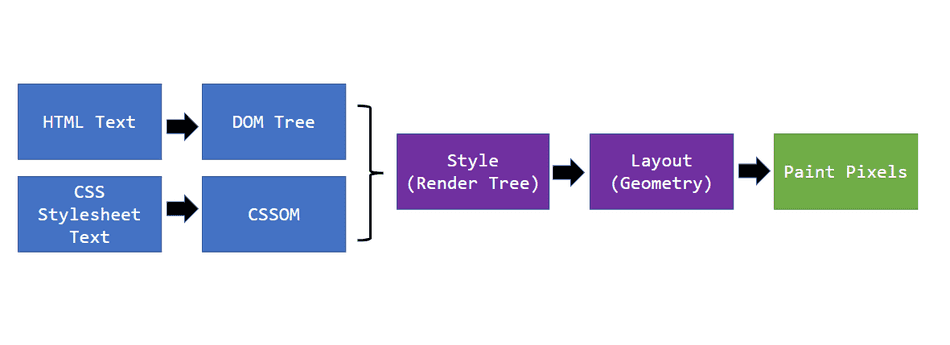
This project implements this pipeline as follows:
Goal: Convert HTML string into tokens
The first step breaks down HTML text into small units (tokens) that the parser can understand.
Core Struct:
TOKEN(include/html/token.h)TOKEN_TYPE: START_TAG, END_TAG, TEXTvalue: tag name or text contentattributes: tag attributes (key-value map)
Implementation:
HTML_TOKENIZER(include/html/html_tokenizer.h, src/html/html_tokenizer.cpp)- Role: Parse HTML string and convert to TOKEN vector
- Key method:
tokenize()
Example:
Input: <div class="container">Hello</div>
Output:
  - TOKEN{START_TAG, "div", {"class": "container"}}
  - TOKEN{TEXT, "Hello"}
  - TOKEN{END_TAG, "div"}
Goal: Create DOM tree from tokens
Organize tokens into a hierarchical tree structure (DOM Tree).
Core Classes:
-
NODE(include/html/node.h, src/html/node.cpp)NODE_TYPE: ELEMENT, TEXT- Properties:
m_tag_name: element's tag name (e.g., "div", "p")m_text: text node contentm_children: child nodesm_attributes: attribute map (id, class, src, etc.)m_parent: parent nodem_computed_style: calculated style information
-
HTML_PARSER(include/html/html_parser.h, src/html/html_parser.cpp)- Role: Parse token stream and build DOM tree
- Key method:
parse()
Memory Structure:
root NODE
├── NODE (tag: html)
│   ├── NODE (tag: head)
│   │   └── NODE (tag: title)
│   │       └── NODE (text: "My Page")
│   └── NODE (tag: body)
│       ├── NODE (tag: div, attributes: {class: "container"})
│       │   └── NODE (text: "Hello World")
│       └── NODE (tag: img, attributes: {src: "image.png"})
Goal: Parse CSS rules and apply styles to each node
Parse CSS file to extract style rules, then calculate final styles for each DOM node following CSS Cascade rules.
Core Structures/Classes:
-
CSS_RULE(include/css/css_rule.h)selector: CSS selector (e.g., ".container", "#redBtn")properties: style properties (color, font-size, width, etc.)
-
COMPUTED_STYLE(include/css/computed_style.h)- Final style applied to each node
- Property examples:
color: text colorfont_size: font sizefont_weight: font weightdisplay: BLOCK, INLINE, NONEmargin_top/bottom/left/right: margin valuespadding_top/bottom/left/right: padding valuesbackground_color: background colorposition: Static, Relative, Absolute, Fixed
-
CSS_PARSER(include/css/css_parser.h, src/css/css_parser.cpp)- CSS rule parsing
-
CSSOM(include/css/cssom.h, src/css/cssom.cpp)- CSS Object Model management
-
apply_style()(include/css/apply_style.h, src/css/apply_style.cpp)- Apply CSS rules to DOM nodes
Style Calculation Process:
1. Parse CSS rules → store as CSS_RULE
2. For each NODE:
   - Find matching selectors
   - Calculate specificity (I simplified this)
   - Apply Cascade rules
   - Create COMPUTED_STYLE
Goal: Calculate position and size of each element
Based on styled nodes, calculate each element's position (x, y) and dimensions (width, height) on screen.
Core Structs:
-
LAYOUT_BOX(include/css/layout_tree.h)node: corresponding DOM nodestyle: applied COMPUTED_STYLEx, y: positionwidth, height: dimensionschildren: child LAYOUT_BOX elements
-
LINE_STATE(include/css/layout_tree.h)- Track current state during inline layout calculation
current_x, current_y: current positionline_height: current line height
Helper Functions (include/css/layout_tree.h, src/css/layout_tree.cpp)
- Role: Generate LAYOUT_BOX tree from DOM nodes
- Key functions:
layout_block_element(): calculate block layoutlayout_inline_element(): calculate inline layoutlayout_text_element(): calculate text node sizelayout_image_element(): calculate image element layout
Layout Algorithm:
BLOCK elements:
  - Use full width
  - Children arranged vertically

INLINE elements:
  - Arranged horizontally
  - Flow like text

Margin/Padding handling:
  - total_width = margin_left + border + padding + content + padding + border + margin_right
Goal: Draw calculated layout on screen
Traverse LAYOUT_BOX tree and render each element graphically.
Core Classes:
Renderer(include/gui/renderer.h, src/gui/renderer.cpp)- Role: Draw layout boxes to Qt Graphics
- Key methods:
paint_layout(): render entire layout box treedraw_element_box(): draw element box (background, border)draw_text_node(): render text
- Uses Qt's
QPainterto draw on screen
Rendering Order:
1. Fill background color
2. Draw borders
3. Handle padding area
4. Render text
5. Render images (using cached images)
6. Traverse child elements
HTML String
    ↓
[HTML_TOKENIZER] - Tokenization
    ↓ TOKEN vector
[HTML_PARSER] - DOM Construction
    ↓ NODE tree
[CSS_PARSER + CSSOM + apply_style()] - Style Calculation
    ↓ NODE + COMPUTED_STYLE
[Helper Functions] - Layout
    ↓ LAYOUT_BOX tree
[RENDERER] - Painting
    ↓
Screen Output
-
IMAGE_CACHE_MANAGER (include/gui/image_cache_manager.h)
- Cache downloaded images to prevent duplicate loads
- Store QPixmap
-
MAIN_WINDOW (include/gui/main_window.h, src/gui/main_window.cpp)
- Qt main window
- Provide user interface
include/
  ├── html/           # HTML parsing (token.h, node.h, html_tokenizer.h, html_parser.h)
  ├── css/            # CSS parsing & layout (computed_style.h, css_parser.h, layout_tree.h, etc.)
  └── gui/            # Rendering & UI (renderer.h, main_window.h, etc.)

src/
  ├── html/           # HTML parsing implementation
  ├── css/            # CSS & layout implementation
  └── gui/            # Rendering implementation
This browser supports the following CSS properties. All property parsing is defined in the COMPUTED_STYLE struct in include/css/computed_style.h, with implementation in src/css/computed_style.cpp.
| Property | Description | Possible Values | Default |
|---|---|---|---|
color |
Text color | Color name, hex (#RRGGBB) | black |
font-size |
Font size | Number + px (e.g., 16px) | 16px |
font-weight |
Font weight | normal, bold, 100-900 | normal |
font-style |
Font style | normal, italic | normal |
font-family |
Font name | Font name | Arial |
line-height |
Line height | Number (multiplier) | font-size * 1.5 |
| Property | Description | Possible Values | Default |
|---|---|---|---|
background-color |
Background color | Color name, hex (#RRGGBB) | transparent |
| Property | Description | Possible Values | Default |
|---|---|---|---|
width |
Element width | Number + px, auto | auto (-1) |
height |
Element height | Number + px, auto | auto (-1) |
box-sizing |
Box sizing method | content-box, border-box | content-box |
| Property | Description | Possible Values | Default |
|---|---|---|---|
margin-top |
Top margin | Number + px | 0 |
margin-right |
Right margin | Number + px | 0 |
margin-bottom |
Bottom margin | Number + px | 0 |
margin-left |
Left margin | Number + px | 0 |
margin |
Margin shorthand | 1-4 values | 0 |
padding-top |
Top padding | Number + px | 0 |
padding-right |
Right padding | Number + px | 0 |
padding-bottom |
Bottom padding | Number + px | 0 |
padding-left |
Left padding | Number + px | 0 |
padding |
Padding shorthand | 1-4 values | 0 |
Shorthand Examples:
margin: 10px;→ 10px on all sidesmargin: 10px 20px;→ 10px top/bottom, 20px left/rightmargin: 10px 20px 30px;→ 10px top, 20px left/right, 30px bottommargin: 10px 20px 30px 40px;→ 10px top, 20px right, 30px bottom, 40px left
| Property | Description | Possible Values | Default |
|---|---|---|---|
border-width |
Border width | Number + px | 0 |
border-color |
Border color | Color name, hex (#RRGGBB) | black |
border-style |
Border style | solid, dashed, dotted, etc. | solid |
border |
Border shorthand | width color style | 0 black solid |
| Property | Description | Possible Values | Default |
|---|---|---|---|
display |
Display type | block, inline, none | inline |
position |
Position type | static, relative, absolute, fixed | static |
top |
Top position (relative, absolute, fixed) | Number + px | 0 |
right |
Right position (relative, absolute, fixed) | Number + px | 0 |
bottom |
Bottom position (relative, absolute, fixed) | Number + px | 0 |
left |
Left position (relative, absolute, fixed) | Number + px | 0 |
| Property | Description | Possible Values | Default |
|---|---|---|---|
text-align |
Text alignment | left, center, right, justify | left |
text-decoration |
Text decoration | none, underline, line-through, overline | none |
| Property | Description | Possible Values | Default |
|---|---|---|---|
opacity |
Opacity | 0 - 1 | 1 |
visibility |
Element visibility | visible, hidden (true/false) | visible |
Property Parsing & Setting (src/css/computed_style.cpp):
init_setters(): Register setter functions for all CSS propertiesparse_color(): Parse color values (hex, named colors)parse_font_size(): Parse font sizeparse_string_to_float(): Parse numeric valuesparse_display_type(): Parse display valuesparse_text_align(): Parse text-align valuesparse_box_sizing(): Parse box-sizing valuesparse_text_decoration(): Parse text-decoration valuesparse_position_type(): Parse position valuesparse_spacing_shorthand(): Parse margin/padding shorthand
Style Inheritance (src/css/computed_style.cpp):
inherit_color()inherit_font_size()inherit_font_weight()inherit_font_style()inherit_font_family()inherit_line_height()inherit_text_align()inherit_visibility()inherit_text_decoration()
I was new to C++, and unexpected problems and bugs appeared continuously from start to finish. While some issues remain unresolved, I'll share the 3 most difficult challenges and how I overcame them.
The Challenge:
Writing parsers required managing many different states. HTML parsing needed to handle start tags, end tags, text, comments—so many cases. I had no idea how to even start.
The Solution:
I read two key articles to understand parser fundamentals:
After understanding the basic principles, I wrote a few simple parsers myself. Once comfortable with how parsers work, I could independently write the complete CSS parsing logic.
The Challenge:
Rendering required managing even more states than parsing. LINE_STATE, LAYOUT_BOX—complex state tracking. I had to implement recursion, which I wasn't familiar with. Plus, I needed to handle different element types (boxes, inline, text) separately.
The Solution:
I used Claude AI extensively to understand rendering logic and reviewed the generated code carefully. Rather than using AI code directly, I reviewed it thoroughly and asked questions to understand the underlying principles. After becoming comfortable with rendering logic, I could modify the codebase and fix bugs, which proved I truly understood it.
The Challenge:
Fetching HTTP/HTTPS images from external servers was the most complex part. I couldn't stop layout calculation while downloading images, so I needed to understand asynchronous processing. While I theoretically understood image caching and reflowing, implementation required considering so many details.
The Solution:
I invested 3-5 hours designing a solid, robust image caching/reflowing system. With proper architecture in place, implementation became much easier. Through this process, I clearly understood the difference between multithreading async and non-blocking I/O async.
Overcoming these three challenges taught me more than just technical skills—it taught me how to approach problems and the importance of design. While not perfect, this is the project's greatest value.
Through this project, I gained hands-on understanding of how real browsers work. Beyond the concept of "browsers render HTML," I now understand how tokenization, layout calculation, and final rendering stages interact. This will help me predict browser behavior and optimize performance in future web development.
But the most valuable lessons transcended this specific project:
1. Systematic Debugging
When facing endless bugs, I learned not to randomly fix code but to form hypotheses and test them. Through proper logging, I tracked program state and systematically identified where problems occurred. This debugging discipline will serve me across all programming languages.
2. Persistence & Grit
Many times I wanted to give up when problems remained unsolved for days. But by breaking problems into pieces and accumulating small progress, I eventually overcame them. I realized this persistence is essential for success in any field.
3. The Value of Pragmatism
Perfect software doesn't exist. This browser still lacks support for many CSS properties and HTML elements, and has various bugs. But I learned that shipping imperfect but working software beats chasing ideal perfection. This pragmatism is crucial in the real software industry.
4. The Power of "Why?"
When receiving code from AI or tutorials, I didn't just check if it worked. I constantly asked "Why does this work?", "Is this part really necessary?", "Are there alternative approaches?" This curiosity and deep exploration led to understanding principles, not just surface-level learning.
The greatest achievement of this project isn't the completed browser.
It's developing problem-solving ability.
Systematic debugging, persistent effort, "completion over perfection" pragmatism, and the habit of always asking "Why?"
These will help me tackle every problem I face ahead.
Honestly, experienced developers might complete this more elegantly,
but to a student new to C++, it seemed nearly impossible.
Yet I still took on the challenge. Why?
It was simple:
- I was curious
- It looked fun
- I thought I could do it
So I created a folder, opened an editor, and started coding.
mkdir mini_browser
cd mini_browser
# Let's go
There were many difficulties. 5-hour debugging sessions. 3-day unsolved bugs.
But 8 weeks later, I have a working browser.
Are you facing something that seems impossible right now?
Just start.
Imperfect is okay. Slow is okay. Stuck is okay.
Without starting, it stays impossible forever. With starting, it becomes possible.
Thank you for reading this long journey. 🚀
🎉 100+ Stars! Thank you so much for the incredible support from the global developer community!