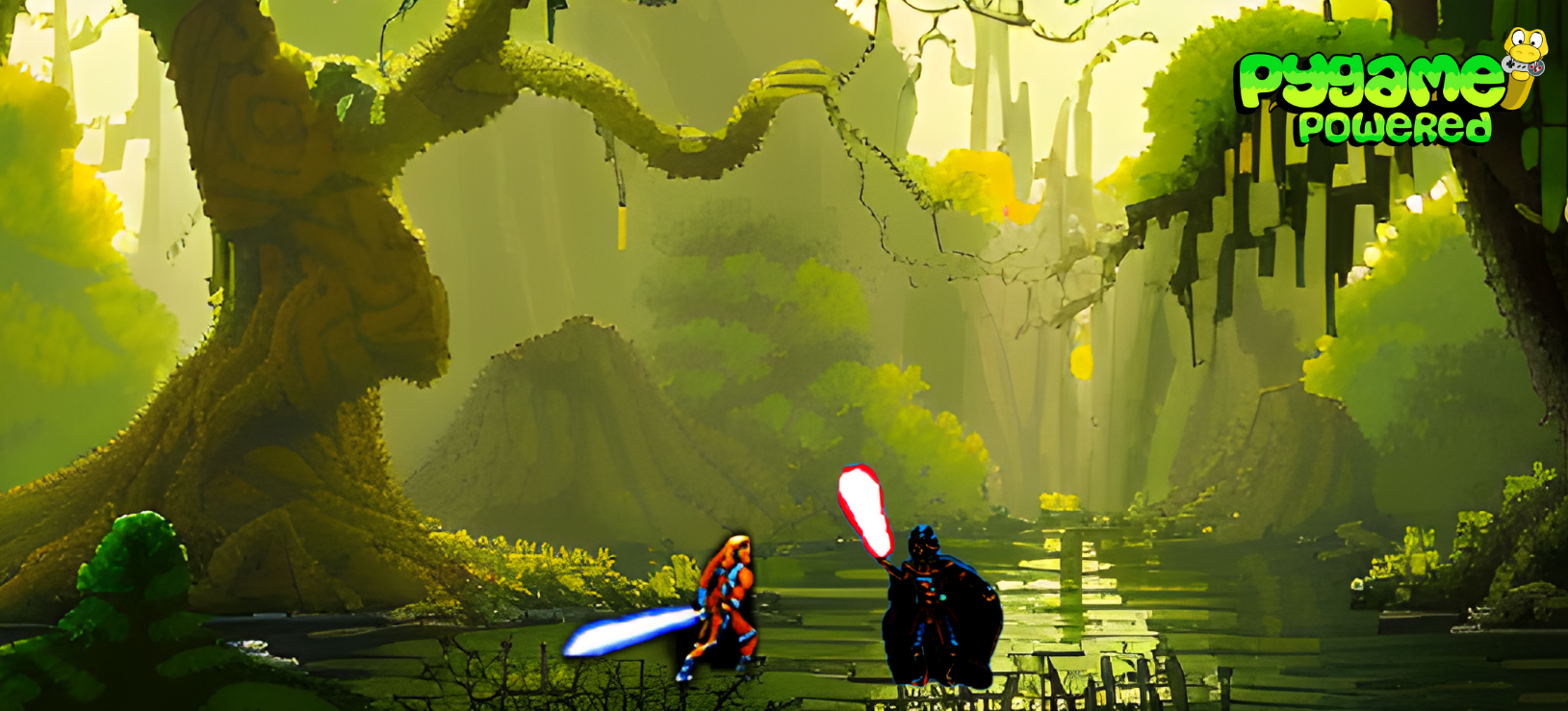
Get ready for an electrifying battle in the heart of the swamp world of Dagobah in LightSaber Battles, the thrilling Python/Pygame-based game inspired by the legendary Street Fighter series! Immerse yourself in the iconic Star Wars universe and experience the ultimate showdown between the galaxy's greatest heroes and villains. Take control of legendary characters like the heroic Luke Skywalker and the infamous Darth Vader, engage in intense, heart-pumping battles that will keep you on the edge of your seat! With LightSaber Battles, you'll feel the adrenaline rush as you unleash your inner warrior and fight for glory in the most epic battles of all time. Don't miss your chance to join the action and become the ultimate LightSaber Battle champion!
The game offers an MVP (Minimum Viable Product) version, featuring captivating fights and thrilling combat mechanics. Players will experience the excitement of intense one-on-one duels, showcasing the iconic lightsaber battles from the Star Wars saga.
LightSaber Battles is designed for players aged 15 and above. It captures the essence of the Star Wars universe while acknowledging that the game may contain violent content. Please exercise discretion when sharing with younger audiences.
Blocking: The player can block attacks by holding down a key/button. While the key/button is pressed, the player will block all incoming attacks. However, the player will not be able to move or take any other actions while blocking.
Attack Type 1: These attacks can always be blocked by the player and have a 1-second cooldown between uses.
Attack Type 2: These attacks cannot be blocked by the player. If the opponent is blocking when hit with an Attack Type 2, the attack will deal double damage. Using an Attack Type 2 requires the player to expend "force".
Force: Force is a resource that replenishes automatically every 15 seconds. The player's current force level is displayed as a blue circle under their health bar. Using an Attack Type 2 consumes the player's force.
LightSaber Battles offers a streamlined control scheme that is easy to learn and master. With just six keys, you can take full control of your favorite Star Wars characters and unleash their devastating moves on your opponents.

| PAUSE |
|---|
| P |
| LEFT | RIGHT | JUMP | ATTACK | BLOCK | FORCE |
|---|---|---|---|---|---|
| A | D | W | R | F | T |
| LEFT | RIGHT | JUMP | ATTACK | BLOCK | FORCE |
|---|---|---|---|---|---|
| Arrow Left | Arrow Right | Arrow Up | Keypad 1 | Keypad 0 | Keypad 2 |
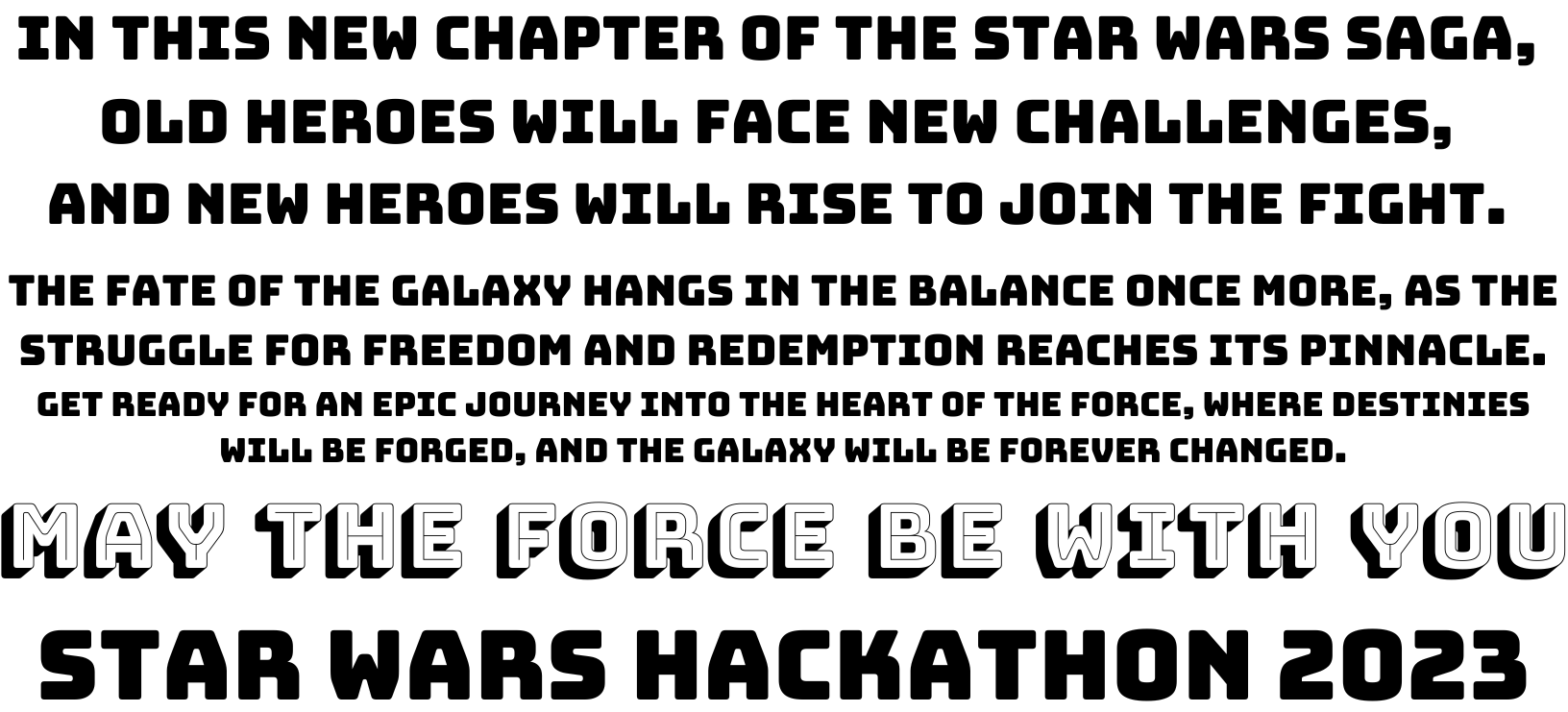
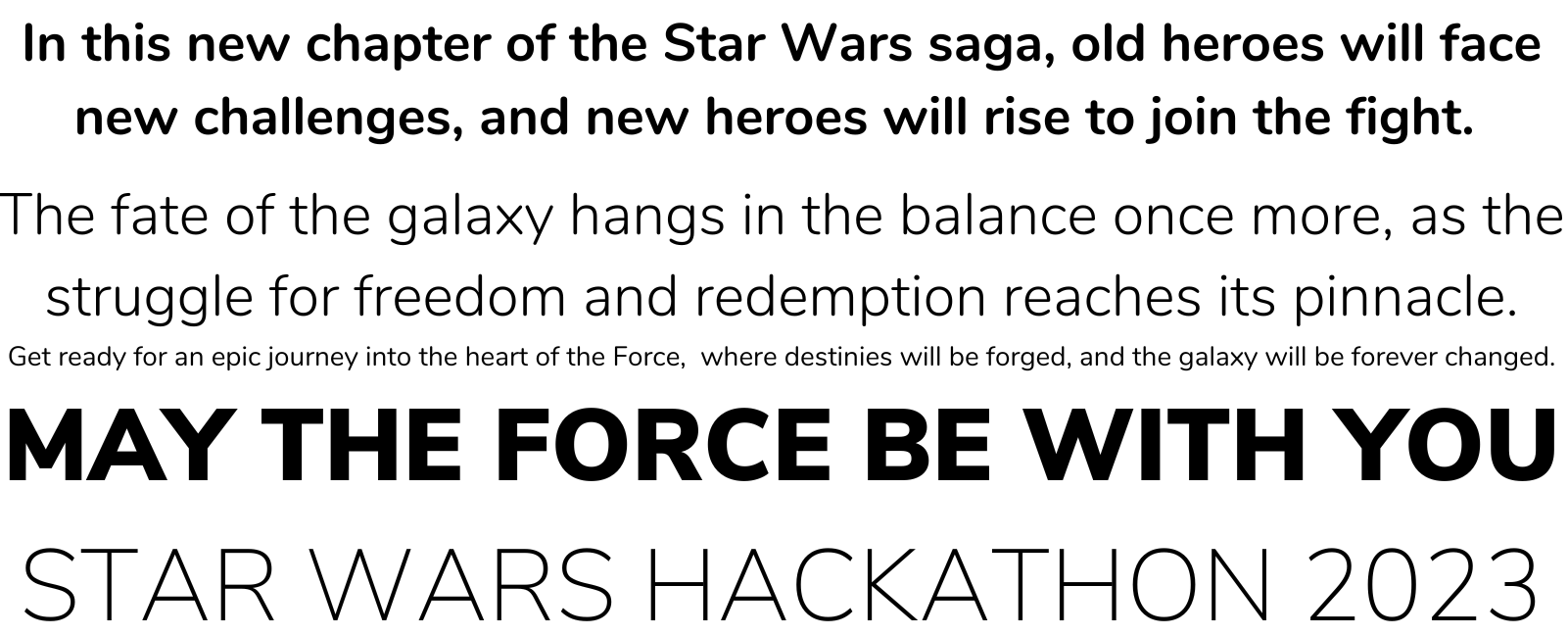
The game development for the this project utilized the Bungee and Nunito font.
| Bungee | Nunito |
|---|---|
 |
 |
Level 1 - Location: Swamp
Level 2 (Future feature) - Location: Desert
| Mockup Options | Mockup Game Start | Mockup Countdown 3 |
|---|---|---|
 |
 |
 |
| Mockup Countdown 2 | Mockup Countdown 1 | Mockup Countdown Fight |
|---|---|---|
 |
 |
 |
| Wireframe Game Over |
|---|
 |
|
| Design Options | Design Game Start |
|---|---|
 |
 |
| Design Options v2 | Design Game Start v2 |
|---|---|
 |
 |
| Design Countdown 3 | Design Countdown 2 | Design Countdown 1 |
|---|---|---|
 |
 |
 |
| Design Countdown Fight | Design Ingame Fight |
|---|---|
 |
 |
| You Won! | You Lost! |
|---|---|
 |
 |
| Design Game Over | Design Game Over v2 |
|---|---|
 |
 |
Flow: Start Game

Flow: Start Fight

Flow: Attack

Flow: Health

Flow: Skills GUI

Flow: Sound FX

Flow: Health Block

Flow: Start Fight Block

- One Player Mode
- Score System
- More Advanced Combat Mechanics
- More Advanced Movement Mechanics
- More Advanced Game Over Functionality
We are 100% bugg free! ;)
Flickering of Game Over Screen
- Code inspiration from Coding With Russ(YouTube)
-
Rik Cross - Python and Pygame Platform Game Part 19 - Scenes
-
Rik Cross - Python and Pygame Platform Game Part 20 - Scene Transitions
- Darth Vader main spritesheet borrowed from The Spriters Resource
- Darth Vader falling spritesheet borrowed from Hyacinthcrown45 at Deviant Art
- Luke Skywalker spritesheet borrowed from Nicepng
- Sound FX created in Arturia Pigments
- Background music from Darth Vader(YouTube)
- Background music from Luke Skywalker(YouTube)
Installation and Setup for Windows OS
-
Open a command prompt on your Windows computer. You can do this by pressing the Windows key, typing "Command Prompt", and selecting the Command Prompt application.
-
Ensure that you have pip installed. Enter the following command in the command prompt:
python -m ensurepip --upgrade -
Install Pygame using pip. Enter the following command in the command prompt:
pip install pygameNote: If you have both Python 2 and Python 3 installed on your system, use
pip3instead ofpipin the above command. -
Wait for the installation to complete. Pygame and its dependencies will be downloaded and installed.
-
To verify that Pygame is installed correctly, you can run a sample Pygame program. Create a new Python file, for example, "test.py", and add the following code:
import pygame

pygame.init()

# Add your Pygame code here

pygame.quit()
-
Save the file and run it by entering the following command in the command prompt:
python test.pyIf Pygame is installed properly, the Pygame window should open without any errors.
-
Install VS Code: Download and install Visual Studio Code (VS Code) from the official website.
-
Clone the repository: Open Command Prompt or PowerShell and execute the following command to clone the hackathon repository:
git clone https://github.com/bezebee/star-wars-hackathon.git- Open the repository in VS Code: Change to the cloned repository's directory by running the following command:
cd star-wars-hackathon
code .- Install the virtual environment: In VS Code, open a new terminal. Then, execute the following command to install the virtual environment:
python -m venv work_env- Activate the virtual environment: Activate the virtual environment by running the following command:
.\work_env\Scripts\activate- Confirm the Python version: Ensure that Python 3 is from the virtual environment by executing the following command:
where python- Install packages and run the game: Install the required packages by running the following command:
python -m pip install -r requirements.txtAfter installing the packages, you can run the game using the following command:
python assets/scripts/game.pyInstallation and Setup for Mac OS
-
Open a terminal on your Mac. You can do this by going to "Applications" -> "Utilities" -> "Terminal".
-
Ensure that you have pip installed. Enter the following command in the terminal:
python3 -m ensurepip --upgrade -
Install the dependencies required for Pygame. Enter the following command in the terminal:
brew install sdl2 sdl2_gfx sdl2_image sdl2_mixer sdl2_net sdl2_ttfNote: If you don't have Homebrew installed, you can install it by following the instructions at https://brew.sh.
-
Install Pygame using pip. Enter the following command in the terminal:
pip3 install pygame -
Wait for the installation to complete. Pygame and its dependencies will be downloaded and installed.
-
To verify that Pygame is installed correctly, you can run a sample Pygame program. Create a new Python file, for example, "test.py", and add the following code:
import pygame

pygame.init()

# Add your Pygame code here

pygame.quit()
-
Save the file and run it by entering the following command in the terminal:
python3 test.pyIf Pygame is installed properly, the Pygame window should open without any errors.
-
Install VS Code: Download and install Visual Studio Code (VS Code) from the official website.
-
Clone the repository: Open the terminal and execute the following command to clone the hackathon repository:
git clone https://github.com/bezebee/star-wars-hackathon.git
- Open the repository in VS Code: Change to the cloned repository's directory by running the following command:
cd star-wars-hackathon && code .
- Install the virtual environment: In VS Code, open a new terminal. Then, execute the following command to install the virtual environment:
python3 -m venv work_env
-
Select the virtual environment: When prompted, select "Yes" to choose the virtual Python as the interpreter.
-
Confirm the Python version: Ensure that Python 3 is from the virtual environment by executing the following command:
which python3
- Install packages and run the game: Install the required packages by running the following command:
python3 -m pip install -r requirements.txt
After installing the packages, you can run the game using the following command:
python3 assets/scripts/game.py
Good luck and may the Force be with you!
 |
 |
 |
 |
 |
|---|---|---|---|---|
| Alexa | Nils | Enda | Marcello | Axel |
 |
 |
 |
|---|---|---|
| Stefanie (Lead Designer) | Birger (Lead Audio) | Kasia (Scrum Master) |