Home
.NET CLI dotnet add package WpfExtendedDataGrid --version 4.8.3
Pacakage Manager NuGet\Install-Package WpfExtendedDataGrid -Version 4.8.3
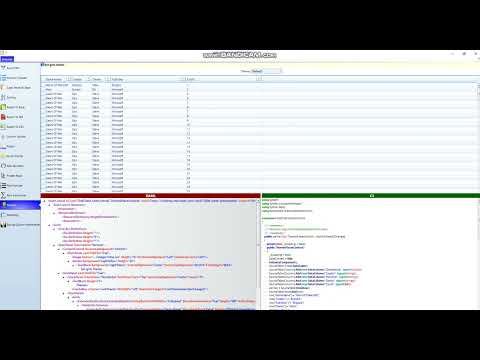
- Grouping By Drag and Drop
- Column Choosers
- AutoFilter Control (Now supports ICollectionView and DataTable as datasource)
- Export To Excel Feature
- Copy Paste To Excel and Copy Paste From Excel To DataGrid
- Three State Sorting
- Displaying Sort Order If Multiple Sort is done
- Export To PDF with formatting
- Export To CSV
- Column Splitter (Fixed Column)
- Row Footer
- Scroll ToolTip
- Row Reorder (Supports DataTable as datasource)
- Frozen Rows
- Row Number
- Row Summaries (Supports DataTable as datasource)
- Themes
- Saving and Restoring Column Information
You can drag and drop to group by columns you desire.
Clicking on the cross button will remove the columns from the group.
One master cross button is available in the right corner to clear all grouping.
<ExtendedGridControl:ExtendedDataGrid ShowRowSummaries="False" Height="500" VerticalAlignment="Top" x:Name="grid" ItemsSource="{Binding SourceTable}" RowHeaderWidth="17"  AutoGenerateColumns="False" HideColumnChooser="False"
                                  IsSynchronizedWithCurrentItem="True"  SelectionMode="Extended" SelectionUnit="CellOrRowHeader" CanUserAddRows="False">

    <DataGrid.Columns>
        <ExtendedColumn:ExtendedDataGridTextColumn Header="Game Name" AllowAutoFilter="False"
                               Binding="{Binding GameName}" />
        <ExtendedColumn:ExtendedDataGridTextColumn Header="Creator" AllowAutoFilter="False"
                               Binding="{Binding Creator}" />
        <ExtendedColumn:ExtendedDataGridTextColumn Header="Owner"
                               Binding="{Binding Owner}" AllowAutoFilter="False"/>
        <ExtendedColumn:ExtendedDataGridTextColumn Header="Publisher"
                               Binding="{Binding Publisher}" AllowAutoFilter="False"
                               CanUserSort="False" Width="*"/>
        <ExtendedColumn:ExtendedDataGridTextColumn Header="Count"
                               Binding="{Binding Count}" AllowAutoFilter="False"
                               CanUserSort="False" Width="*">
            <ExtendedColumn:ExtendedDataGridTextColumn.SummaryColumnSettings>
                <Classes:SummaryColumnSettings>
                    <Classes:SummaryColumnSettings.SummaryOperands>
                        <Classes:SumSummaryOperands/>
                        <Classes:CountSummaryOperands/>
                    </Classes:SummaryColumnSettings.SummaryOperands>
                </Classes:SummaryColumnSettings>
            </ExtendedColumn:ExtendedDataGridTextColumn.SummaryColumnSettings>
        </ExtendedColumn:ExtendedDataGridTextColumn>


    </DataGrid.Columns>
    <ExtendedGridControl:ExtendedDataGrid.FooterDataTemplate>
        <DataTemplate>
            <StackPanel Orientation="Horizontal">
                <TextBlock Text="RowsCount:" FontWeight="Bold"/>
                <TextBlock Margin="3,0,0,0" Foreground="DarkGreen"  Text="{Binding ElementName=grid,Path=Items.Count}"></TextBlock>
            </StackPanel>
        </DataTemplate>
    </ExtendedGridControl:ExtendedDataGrid.FooterDataTemplate>
</ExtendedGridControl:ExtendedDataGrid>In this, you can do the following things:
- Column chooser with checkbox to make columns visible and invisible.
- Select All checkbox is added.
- You can drag and drop a row from the column chooser to move columns in the main grid.
- By double-clicking on any cell of the column chooser, you can edit the column header values.
<ExtendedGridControl:ExtendedDataGrid x:Name="grid" ItemsSource="{Binding SourceTable}" AutoGenerateColumns="False" HideColumnChooser="False" HeadersVisibility="All"
               VerticalAlignment="Top" CanUserAddRows="False" CanUserDeleteRows="False" GroupByControlVisibility="Collapsed">
    <DataGrid.Columns>
        <ExtendedColumn:ExtendedDataGridTextColumn Header="Game Name" AllowAutoFilter="False"
                               Binding="{Binding GameName}" IsReadOnly="True"/>
        <ExtendedColumn:ExtendedDataGridTextColumn Header="Creator" AllowAutoFilter="False"
                               Binding="{Binding Creator}" />
        <ExtendedColumn:ExtendedDataGridTextColumn Header="Owner"
                               Binding="{Binding Owner}" AllowAutoFilter="False"/>
        <ExtendedColumn:ExtendedDataGridTextColumn Header="Publisher"
                               Binding="{Binding Publisher}" AllowAutoFilter="False"
                               CanUserSort="False" Width="*"/>
    </DataGrid.Columns>
</ExtendedGridControl:ExtendedDataGrid>In this, you can do the following things:
- Auto Filter gives the user the ability to filter according to values by checking and unchecking checkboxes.
- Select All checkbox is added.
- The user can click on the clear filter button to clear all filters.
-
ClearFiltermethod is given in the grid to clear the filter of a specific column programmatically. -
AlowAutoFilterin extended column gives the ability to show or hide the auto filter. - Detailed glyph is shown to the user to indicate if any filters are applied on that column.
- Search feature added to filter out the auto filter records.
<ExtendedGridControl:ExtendedDataGrid  x:Name="grid" ItemsSource="{Binding SourceTable}" AutoGenerateColumns="False" HideColumnChooser="True"
              CanUserAddRows="False" OnlyTwoWaySorting="True" SearchAutoFilterVisibility="Visible" AutoFilterFontSize="12" GroupByControlVisibility="Collapsed">
    <DataGrid.Columns>
        <ExtendedColumn:ExtendedDataGridTextColumn Header="Game Name" AllowAutoFilter="True" Width="100"
                               Binding="{Binding GameName}" />
        <ExtendedColumn:ExtendedDataGridTextColumn Header="Creator" AllowAutoFilter="True" Width="100"
                               Binding="{Binding Creator}" />
        <ExtendedColumn:ExtendedDataGridTextColumn Header="Owner" Width="100"
                               Binding="{Binding Owner}" AllowAutoFilter="True"/>
        <ExtendedColumn:ExtendedDataGridTextColumn Header="Publisher" Binding="{Binding Publisher}"
                                AllowAutoFilter="False"
                               CanUserSort="False" Width="*"/>
    </DataGrid.Columns>
</ExtendedGridControl:ExtendedDataGrid>In this, you can do the following things:
- User can select multiple cells and copy DataGrid contents to Excel by pasting it in Excel.
- User can copy multiple cell contents from Excel to DataGrid.
<ExtendedGridControl:ExtendedDataGrid x:Name="grid" GroupByControlVisibility="Collapsed" ItemsSource="{Binding SourceTable}" AutoGenerateColumns="False" HideColumnChooser="False" AllowUserToCopy="True"
                                  IsSynchronizedWithCurrentItem="True"  SelectionMode="Extended" SelectionUnit="CellOrRowHeader" CanUserAddRows="False">
    <DataGrid.Columns>
        <ExtendedColumn:ExtendedDataGridTextColumn Header="Game Name" AllowAutoFilter="False"
                               Binding="{Binding GameName}" />
        <ExtendedColumn:ExtendedDataGridTextColumn Header="Creator" AllowAutoFilter="False"
                               Binding="{Binding Creator}" />
        <ExtendedColumn:ExtendedDataGridTextColumn Header="Owner"
                               Binding="{Binding Owner}" AllowAutoFilter="False"/>
        <ExtendedColumn:ExtendedDataGridTextColumn Header="Publisher"
                               Binding="{Binding Publisher}" AllowAutoFilter="False"
                               CanUserSort="False" Width="*"/>

    </DataGrid.Columns>
</ExtendedGridControl:ExtendedDataGrid>In the original grid, when clicking on a column header it will change sorting of the column starting from ascending to descending. Unfortunately, you cannot get back to the original state (which is no sorting) without adding your own custom logic for it. To get back to the original state you have to set the column.SortDirection back to null and clear out the SortDescriptions that were added when you click on the column header. Here, when you use extended DataGrid, you don't have to write any code for it.
<ExtendedGridControl:ExtendedDataGrid GroupByControlVisibility="Collapsed" HorizontalAlignment="Stretch" VerticalAlignment="Stretch" x:Name="grid" ItemsSource="{Binding SourceTable}" AutoGenerateColumns="False" HideColumnChooser="True"  ShowSortOrder="True"
           CanUserAddRows="False" >
    <DataGrid.Columns>
        <ExtendedColumn:ExtendedDataGridTextColumn Header="Game Name" AllowAutoFilter="False"
                           Binding="{Binding GameName}" />
        <ExtendedColumn:ExtendedDataGridTextColumn Header="Creator" AllowAutoFilter="False"
                           Binding="{Binding Creator}" />
        <ExtendedColumn:ExtendedDataGridTextColumn Header="Owner"
                           Binding="{Binding Owner}" AllowAutoFilter="False"/>
        <ExtendedColumn:ExtendedDataGridTextColumn Header="Publisher"
                           Binding="{Binding Publisher}" AllowAutoFilter="False"
                           CanUserSort="False" Width="*"/>

    </DataGrid.Columns>
</ExtendedGridControl:ExtendedDataGrid>When the user performs multiple column sorts, the original grid used to show only the sort indicator up or down, which indicates ascending or descending. Here, the sort order is displayed.
If you don't want to show the sort order, just set the ShowSortOrder to False.
You can export to Excel in 2003 and 2007 format. You can even apply Excel's built-in themes for the table (which you can find in Office 2007).
You can export to PDF format. You can even apply Excel's built-in themes for the table (which you can find in Office 2007).
You can even export grid content in CSV format.
Columns that are fixed would appear on the left-hand side, and the user has the option of moving the splitter.
 <ExtendedGridControl:ExtendedDataGrid RowHeaderWidth="17" FrozenColumnCount="1" ColumnWidth="200" x:Name="grid" ItemsSource="{Binding SourceTable}"  HideColumnChooser="False" ShowColumnSplitter="True"
                               CanUserAddRows="False" GroupByControlVisibility="Collapsed" >
     <DataGrid.Columns>
         <ExtendedColumn:ExtendedDataGridTextColumn Header="Game Name" AllowAutoFilter="False"
                            Binding="{Binding GameName}" />
         <ExtendedColumn:ExtendedDataGridTextColumn Header="Creator" AllowAutoFilter="False"
                            Binding="{Binding Creator}" />
         <ExtendedColumn:ExtendedDataGridTextColumn Header="Owner"
                            Binding="{Binding Owner}" AllowAutoFilter="False"/>
         <ExtendedColumn:ExtendedDataGridTextColumn Header="Publisher"
                            Binding="{Binding Publisher}" AllowAutoFilter="False"
                            CanUserSort="False" Width="*"/>

     </DataGrid.Columns>
     <ExtendedGridControl:ExtendedDataGrid.FooterDataTemplate>
         <DataTemplate>
             <StackPanel Orientation="Horizontal">
                 <TextBlock Text="RowsCount:" FontWeight="Bold"/>
                 <TextBlock Margin="3,0,0,0" Foreground="DarkGreen"  Text="{Binding ElementName=grid,Path=Items.Count}"></TextBlock>
             </StackPanel>
         </DataTemplate>
     </ExtendedGridControl:ExtendedDataGrid.FooterDataTemplate>
</ExtendedGridControl:ExtendedDataGrid>You can add a row footer at the bottom of the grid.
<ExtendedGridControl:ExtendedDataGrid.FooterDataTemplate>
  <DataTemplate>
    <StackPanel Orientation="Horizontal">
      <TextBlock Text="RowsCount:" FontWeight="Bold"/>
      <TextBlock Margin="3,0,0,0" Foreground="DarkGreen" Text="{Binding ElementName=grid,Path=Items.Count}"></TextBlock>
    </StackPanel>
  </DataTemplate>
</ExtendedGridControl:ExtendedDataGrid.FooterDataTemplate>