
一款为 .NET 控制台应用程序设计的强大、高度可定制且线程安全的进度条库。它支持单任务以及多任务并行的进度追踪,并内置了丰富的字符样式和动态信息展示。
- 底部悬浮渲染 (Floating Rendering):进度条会始终像悬浮窗一样吸附在控制台最底部。当你使用内置的
WriteLine方法安全地输出日志时,历史日志会向上滚动,而进度条永远保持在最下方,完全不会破坏 UI。 - 多任务并行支持:通过
MultiProgressBar,轻松同时跟踪多个异步任务的进度。 - 丰富的视觉样式:内置多种现代感十足的样式(例如:盲文风格、Ascii、方块渐变等)。
- Unicode自动降级:如果目标控制台不支持 Unicode,会自动回退到安全的 Ascii 样式。
- 详尽的数据指标:内置计算已用时间、ETA(预计剩余时间)以及处理速度。
- 高度定制化:可自定义颜色、宽度以及用来渲染进度条的具体字符。
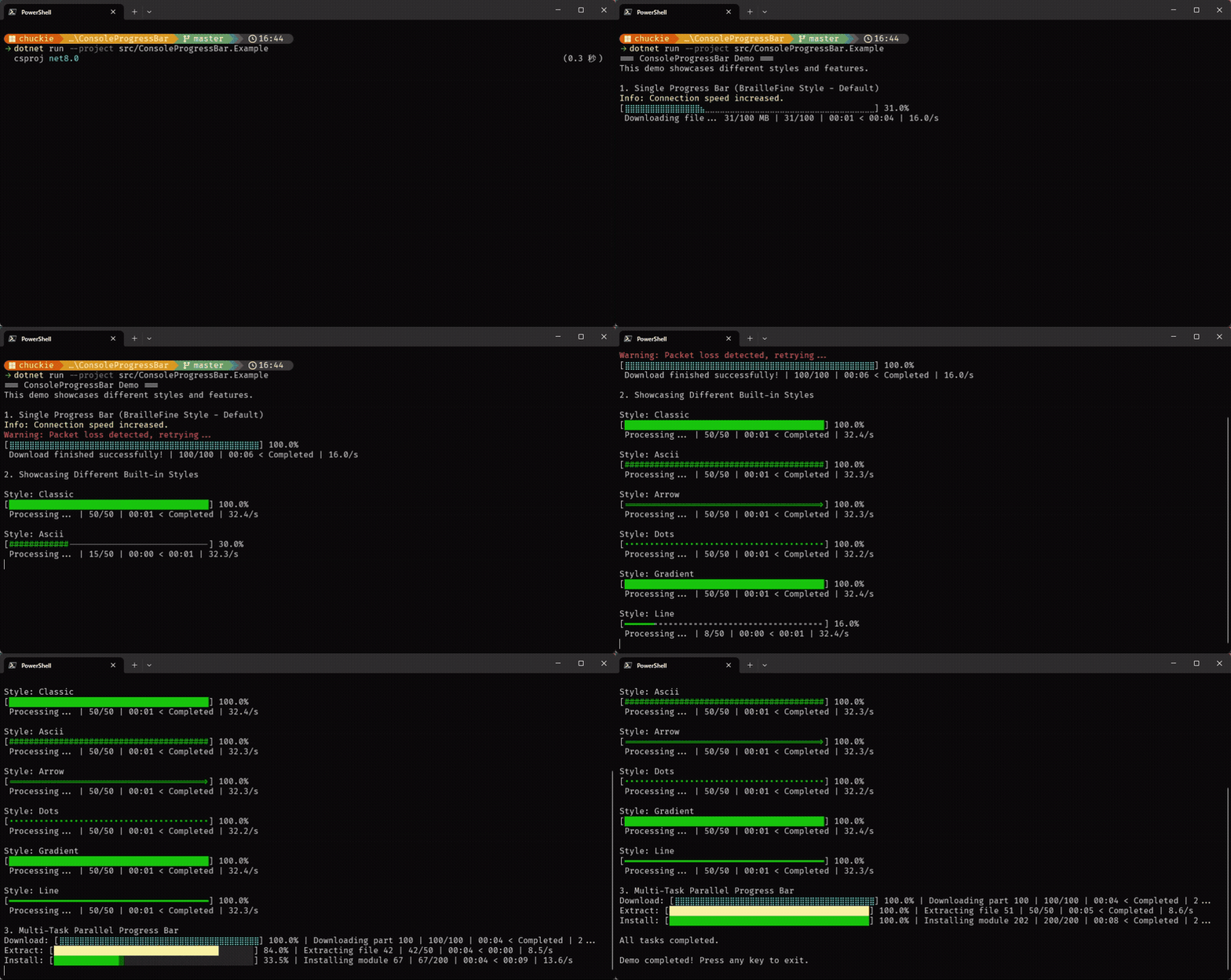
| 样式名称 | 示例输出 |
|---|---|
| BrailleFine (默认) | [⣿⣿⣿⣿⣿⣿⣀⣀⣀] 50.0% |
| Classic | [█████░░░░░] 50.0% |
| Ascii (安全回退) | [#####-----] 50.0% |
| Arrow | [====>-----] 50.0% |
| Gradient | [█▓▒░░░░░░░] 30.0% |
进度条会自动在下方显示详尽的数据指标:
1,024/2,048 | 00:05 < 00:05 | 204.8/s
你可以通过 NuGet 命令行或者包管理器安装 ConsoleProgressBar:
dotnet add package Chuckie.ConsoleProgressBarusing Chuckie.ConsoleProgressBar;
// 可选:启用 Unicode 支持以获得最佳视觉体验
ProgressBarChars.EnableUnicodeSupport();
int total = 100;
using (var progressBar = new ConsoleProgressBar(
total,
"正在处理文件...",
50,
ProgressBarStyle.BrailleFine,
ConsoleColor.Cyan))
{
for (int i = 0; i <= total; i++)
{
progressBar.Update(i, $"已处理 {i}.txt");
// 安全地输出日志:日志会在进度条上方滚动,而进度条始终吸附在最底部
if (i == 50)
{
progressBar.WriteLine("进度已经过半!", ConsoleColor.Yellow);
}
Thread.Sleep(50);
}
progressBar.Complete("处理成功结束!");
}using Chuckie.ConsoleProgressBar;
using (var multiBar = new MultiProgressBar(40))
{
// 添加多个并行任务
int task1 = multiBar.AddProgressBar("下载", 100, ConsoleColor.Cyan, ProgressBarStyle.BrailleFine);
int task2 = multiBar.AddProgressBar("解压", 50, ConsoleColor.Yellow, ProgressBarStyle.Classic);
// 并发更新它们的状态
multiBar.Update(task1, 25, "正在下载分块 1");
multiBar.Update(task2, 10, "正在解压文件 A");
}如果内置样式不符合你的需求,你可以轻松定义自己的字符:
var customChars = new ProgressBarChars
{
    FilledChar = '+',
    EmptyChar = '-'
};

var pb = new ConsoleProgressBar(100, "自定义", 50, customChars);本项目基于 MIT 协议开源。
A powerful, customizable, and thread-safe progress bar library for .NET Console Applications. It supports both single task and multi-task parallel progress tracking with rich built-in styles and dynamic information display.
- Floating Bottom Rendering: The progress bar acts like a floating widget at the bottom of your console. When you use the built-in
WriteLinemethod to output logs, historical logs will scroll upwards while the progress bar safely remains at the bottom, ensuring the UI is never broken. - Multi-Task Support: Easily track multiple asynchronous tasks with parallel progress bars (
MultiProgressBar). - Rich Visual Styles: Includes several modern built-in styles (e.g., Braille, Docker-style, Ascii, Blocks, Gradients).
- Auto-Unicode Detection: Automatically falls back to Ascii if the target console doesn't support Unicode.
- Detailed Metrics: Built-in calculation for elapsed time, ETA (Estimated Time of Arrival), and processing speed.
- Customizable: Change colors, characters, and widths to fit your exact needs.
| Style Name | Example Output |
|---|---|
| BrailleFine (Default) | [⣿⣿⣿⣿⣿⣿⣀⣀⣀] 50.0% |
| Classic | [█████░░░░░] 50.0% |
| Ascii (Safe fallback) | [#####-----] 50.0% |
| Arrow | [====>-----] 50.0% |
| Gradient | [█▓▒░░░░░░░] 30.0% |
The progress bar automatically displays detailed metrics below the bar:
1,024/2,048 | 00:05 < 00:05 | 204.8/s
You can install ConsoleProgressBar via the NuGet CLI or Package Manager:
dotnet add package Chuckie.ConsoleProgressBarusing Chuckie.ConsoleProgressBar;
// Optional: Enable Unicode support for best visual quality
ProgressBarChars.EnableUnicodeSupport();
int total = 100;
using (var progressBar = new ConsoleProgressBar(
total,
"Processing files...",
50,
ProgressBarStyle.BrailleFine,
ConsoleColor.Cyan))
{
for (int i = 0; i <= total; i++)
{
progressBar.Update(i, $"Processed file {i}.txt");
// Output logs safely: logs will scroll above while the progress bar stays at the bottom
if (i == 50)
{
progressBar.WriteLine("Halfway there!", ConsoleColor.Yellow);
}
Thread.Sleep(50);
}
progressBar.Complete("Finished successfully!");
}using Chuckie.ConsoleProgressBar;
using (var multiBar = new MultiProgressBar(40))
{
// Add multiple parallel tasks
int task1 = multiBar.AddProgressBar("Download", 100, ConsoleColor.Cyan, ProgressBarStyle.BrailleFine);
int task2 = multiBar.AddProgressBar("Extract", 50, ConsoleColor.Yellow, ProgressBarStyle.Classic);
// Update them concurrently
multiBar.Update(task1, 25, "Downloading part 1");
multiBar.Update(task2, 10, "Extracting file A");
}You can easily define your own characters if none of the built-in styles match your needs:
var customChars = new ProgressBarChars
{
    FilledChar = '+',
    EmptyChar = '-'
};

var pb = new ConsoleProgressBar(100, "Custom", 50, customChars);This project is open-sourced under the MIT License.