Utilities
A collection of powerups and commands incorporated into Incremental Everything (originally from the standalone Hide in Queue plugin), plus two new powerups — Remove Parent and Remove Grandparent — that improve how parent/ancestor Rems are rendered during queue review.
The 5 powerups originally from the Hide in Queue plugin (Hide in Queue, Remove from Queue, No Hierarchy, Hide Parent, Hide Grandparent) are gated by the Enable Hide-in-Queue powerups and commands setting in Plugin Settings.
⚠️ Important. Only enable this setting if you do NOT have the standalone Hide in Queue plugin installed. The powerup codes are identical, and RemNote throws a fatalDuplicated poweruperror if both plugins try to register the same code — Incremental Everything will fail to load. If you currently use the standalone plugin, uninstall it first, then enable the setting and reload RemNote.
The two new powerups — Remove Parent and Remove Grandparent — are always registered regardless of the setting, because the Cloze and Extract creators apply Remove Parent automatically to newly-created Rems.
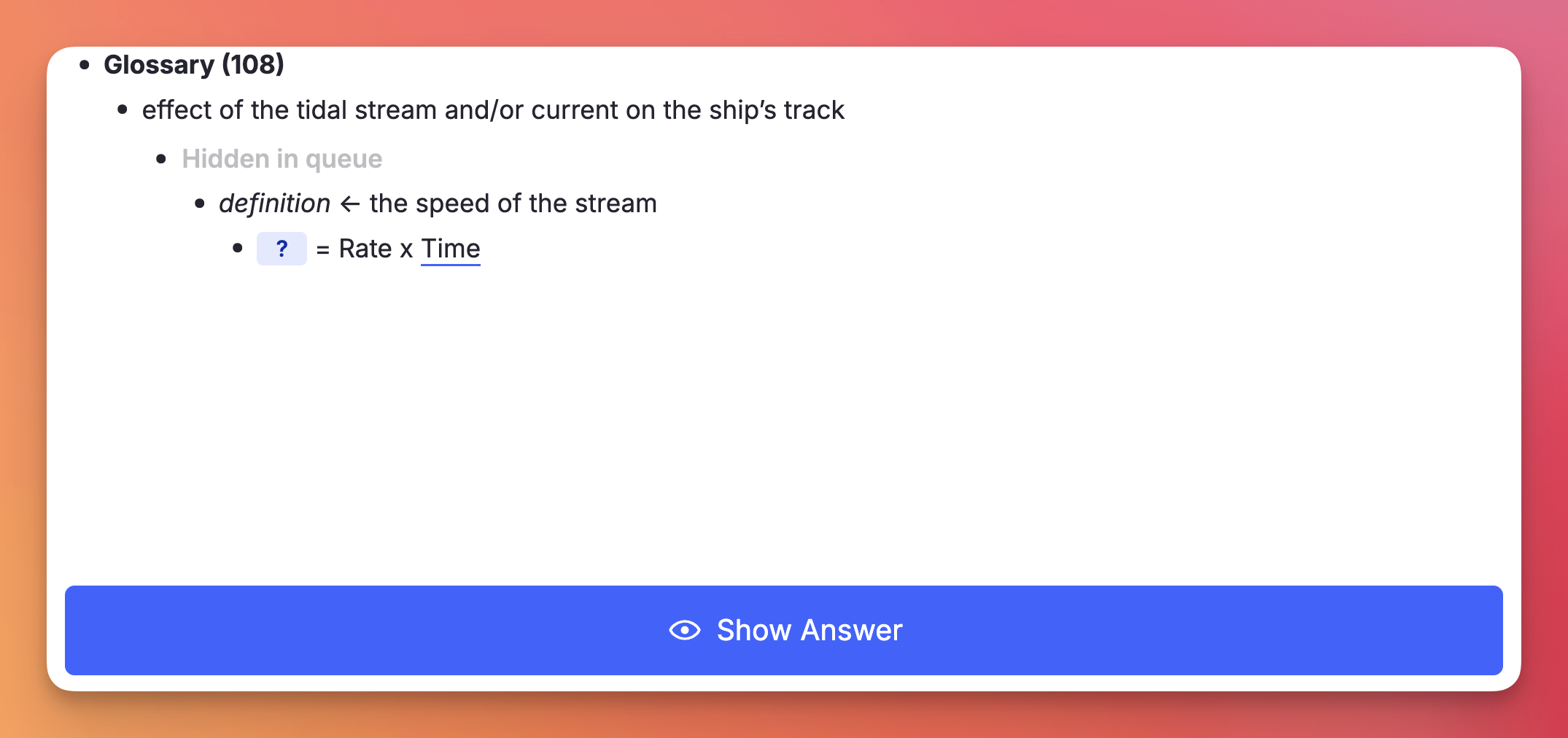
Tag any Rem with Hide in Queue (using the command). Its content will be replaced on the front of descendant flashcards with "Hidden in queue":
- The content of the tagged Rem is hidden, but the bullet point itself remains visible.
- Instead of the text, a ghosted/faded label saying "Hidden in queue" appears next to the bullet.
- Visual result: The user still sees the structural indentation and knows that something is there, but the actual information is obscured during the question phase. Good for hiding hints, spoilers, or context that would make retrieving the answer trivial.
Editor:

Queue:

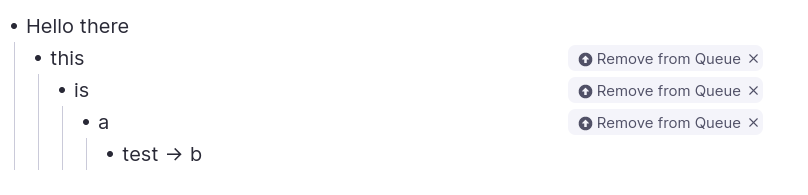
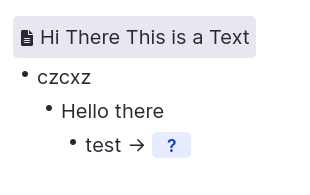
Tag any Rem with Remove from Queue (using the command). Its content will be completely removed from the flashcard's visual hierarchy of its descendants.
- Not only is the text gone, but any child Rems underneath it are pulled to the left, essentially collapsing the space.
- Visual result: It looks exactly as if that intermediate Rem never existed in your document hierarchy at all.
Editor:
Queue:
-
Hide in Queue (
hiq): content is hidden, but the bullet point structure remains visible with a "Hidden in queue" ghosted label. Use when you want to acknowledge the structural presence of a parent but obscure its text. -
Remove from Queue (
rfq): the Rem is completely removed from the visual hierarchy (display: none), and any children are shifted left to fill its space. Use to erase an intermediate parent level entirely as if it never existed.
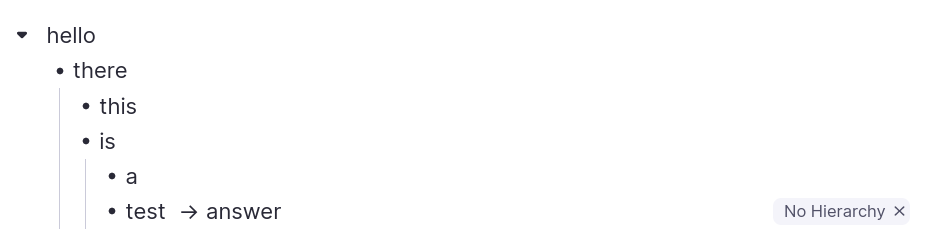
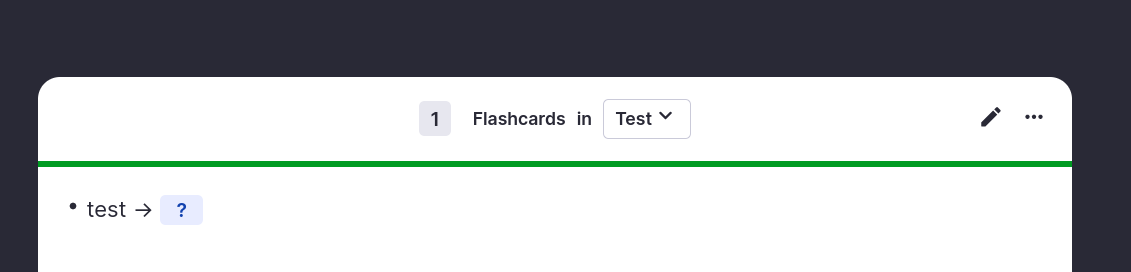
Tag any Rem with No Hierarchy (using the command). Any ancestors will be hidden on the front and back of the flashcard.
Editor:
Queue:
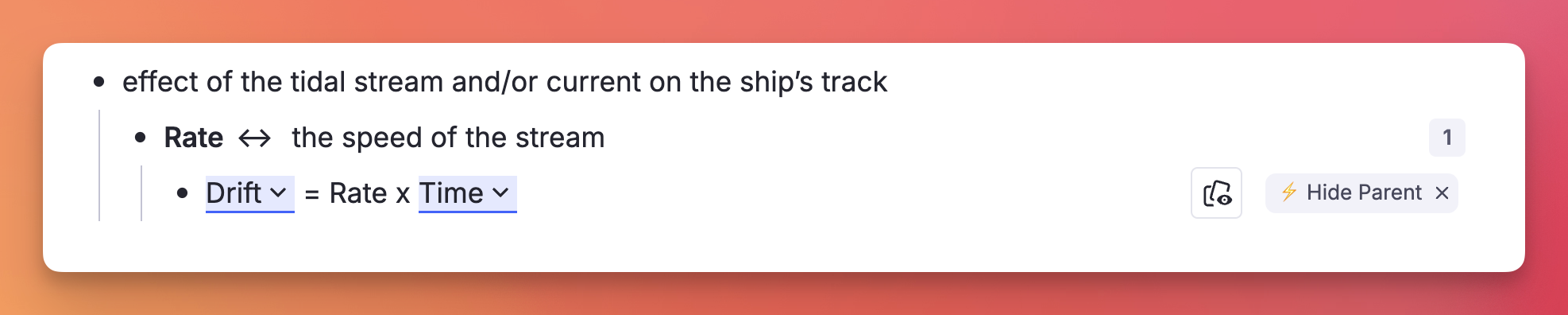
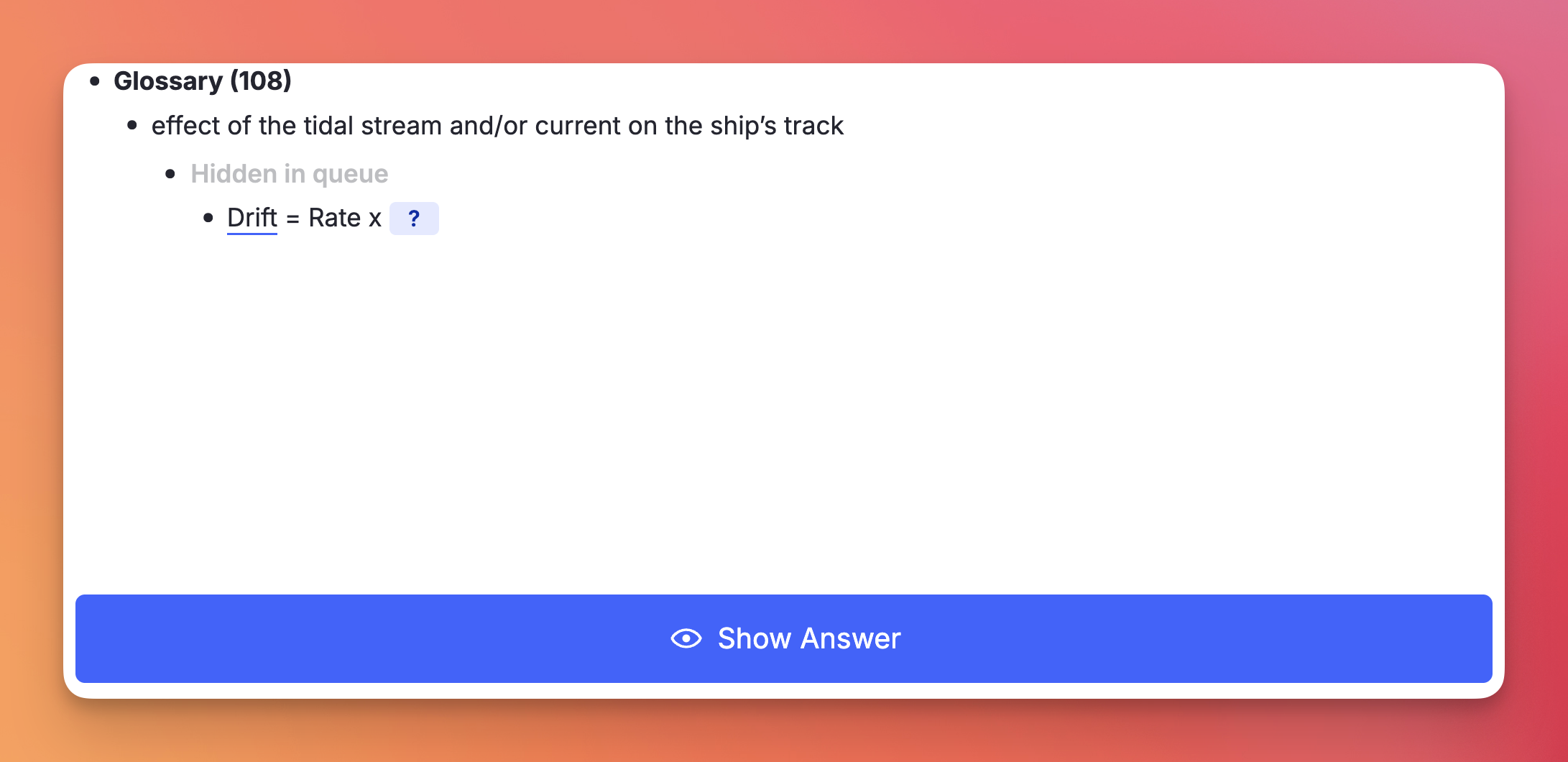
Tag any Rem with Hide Parent (using the command Hide Parent or /hp). Its immediate parent will be hidden on the front of the flashcard, but revealed on the back.
Similar to Hide in Queue, but instead of tagging the parent Rem, the user tags the specific flashcard Rem — so other flashcard descendants of the same parent Rem are not affected.
Editor:
Queue:
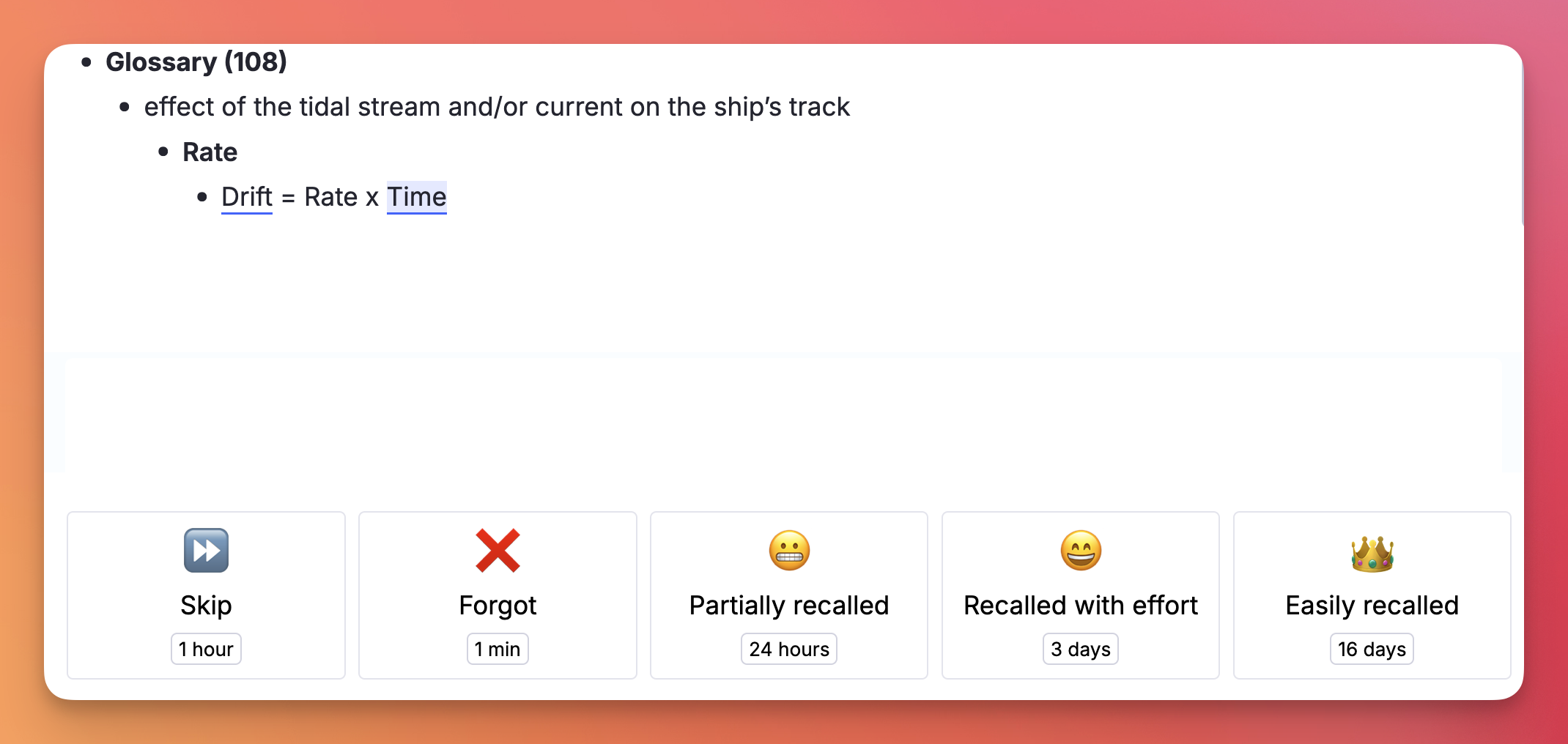
Tag any Rem with Hide Grandparent (using the command Hide Grandparent or /hgp). Its grandparent will be hidden on the front of the flashcard, but revealed on the back.
Editor:
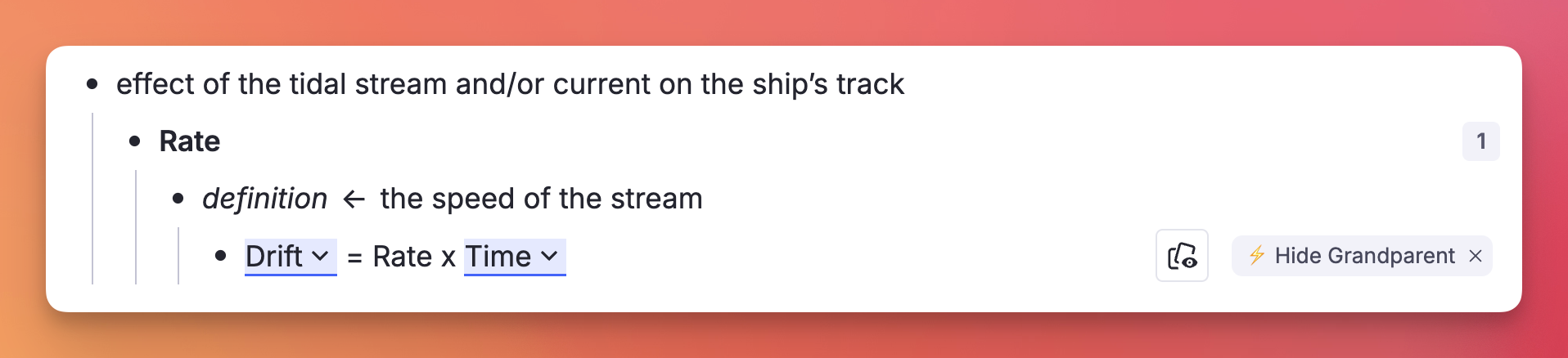
Queue:
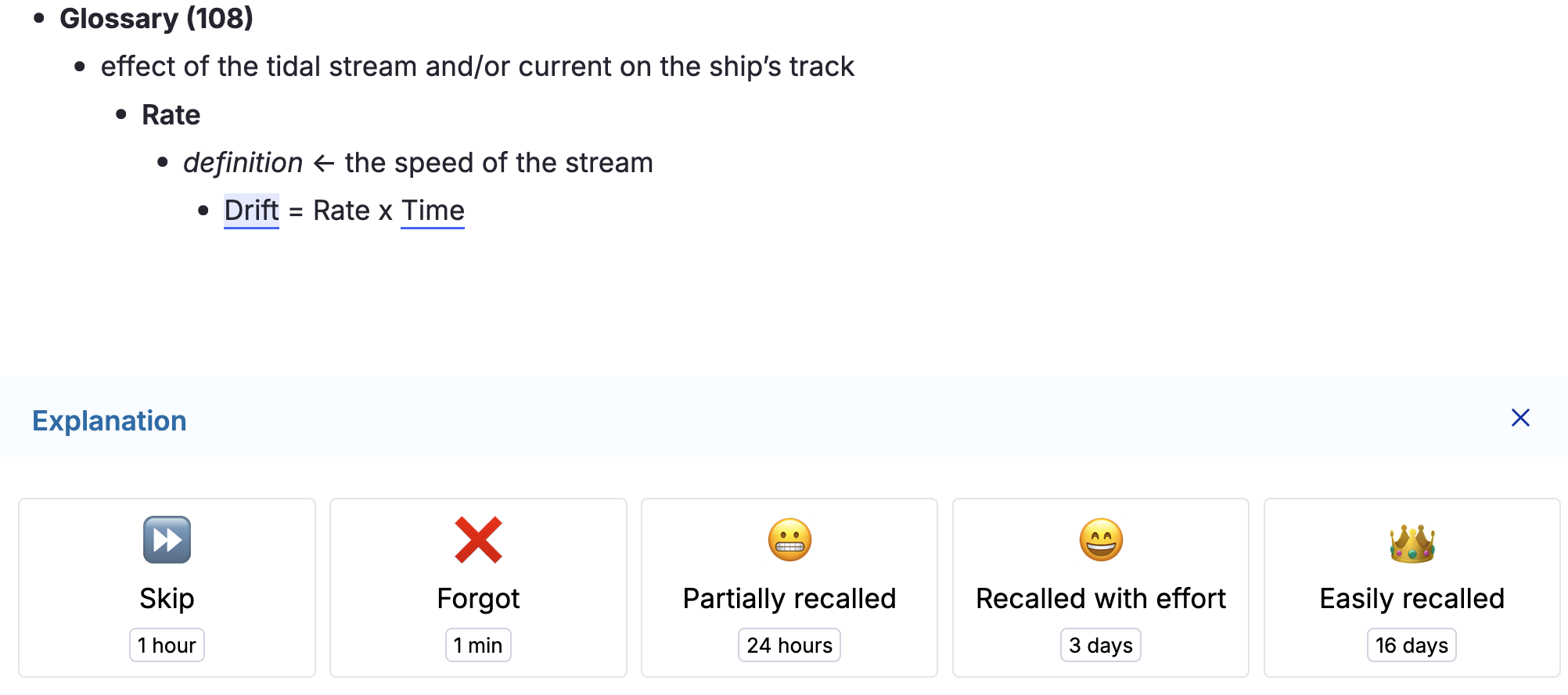
Like Hide Parent, but more aggressive: the immediate parent is completely removed from the queue display on both the front and back of the card — no "Hidden in queue" placeholder, no indented blank space.
The cloze creator (Alt+Z) applies this powerup automatically to the newly-created cloze Rem, so the source Rem isn't shown redundantly during review without also affecting other descendant flashcards (e.g. Descriptor children) that need the parent visible for context.
The extract creator (Alt+Shift+X) uses Remove Parent only as a fallback, when the Remove from Queue powerup isn't available. See Create Extract behavior below for the full rule.
You can also apply Remove Parent manually to any flashcard via the Remove Parent command or /rp.
Same as Remove Parent, but one level higher: the grandparent is fully removed from the queue display on both front and back of the card.
Apply via the Remove Grandparent command or /rgp.
When you create an Extract (Alt+Shift+X), the source Rem is automatically tagged so it doesn't show up redundantly during review of the extract. The plugin picks one of two strategies depending on what's available:
- Preferred path — Remove from Queue on the source. If the Remove from Queue powerup is registered (either via the Enable Hide-in-Queue powerups and commands setting above or via the standalone Hide in Queue plugin), it's applied directly to the source Rem. This survives extract relocation cleanly: if you later delete the source and let extracts stand on their own, the powerup goes with the source.
- Fallback path — Remove Parent on the extract. If Remove from Queue isn't registered (neither integration enabled nor standalone plugin installed), Remove Parent is applied to the extract instead. This works for normal review, but has a caveat: if you later move the extract under a different parent, that new parent will also be hidden. To recover, remove the powerup manually from the extract — or enable the Hide-in-Queue integration so future extracts land in the preferred path.
The cloze creator (Alt+Z) does not branch like this — it always applies Remove Parent to the newly-created cloze Rem, because clozes are tightly bound to their source via the pinned reference and aren't typically relocated independently.
All commands above can be triggered directly while reviewing a flashcard in the Queue, without needing to switch to the editor:
- No Hierarchy, Hide Parent, Hide Grandparent, Remove Parent, Remove Grandparent: automatically apply the powerup directly to the current card.
- Hide in Queue and Remove from Queue: since these are designed to be applied to parent/ancestor Rems rather than the flashcard itself (applying them to the current card would make the card vanish), triggering them in the queue opens a confirmation prompt offering to apply the powerup to the card's parent instead.
This incorportated utility cycles selected text through three case styles with a single shortcut — just like Shift+F3 in Microsoft Word.

Press Shift+F3 with text selected to cycle through:
| Step | Style | Example |
|---|---|---|
| 1st press | Title Case | Cyclone in Tropical Latitudes |
| 2nd press | UPPERCASE | CYCLONE IN TROPICAL LATITUDES |
| 3rd press | lowercase | cyclone in tropical latitudes |
The plugin auto-detects the current case of the selection and always advances to the next stage, so you never have to think about where you are in the cycle.
Title Case follows Chicago/APA style:
-
Always capitalised / Sempre maiúsculas:
- The first and last word of the selection.
- All nouns, verbs, adjectives and adverbs.
-
Kept lowercase / Mantidas em minúsculas (unless first or last word):
- Articles / Artigos: a, an, the · o, a, os, as, um, uma…
- Prepositions / Preposições: at, by, in, of, on, to, up, as, via · de, em, por, para, com, sem, sob, sobre…
- Conjunctions / Conjunções: and, or, nor, but, for, yet, so · e, ou, mas, nem, que, se, como, pois, logo…
- Portuguese contractions / Contrações portuguesas: do, da, dos, das, no, na, nos, nas, ao, aos, pelo, pela, pelos, pelas…
cyclone in tropical or subtropical latitudes→ Cyclone in Tropical or Subtropical Latitudes
princípios das radiocomunicações marítimas→ Princípios das Radiocomunicações Marítimas
- Formatting preserved / Formatação preservada: bold, italic, highlight and all other rich-text styles are kept intact through every transformation.
- Cross-element word boundaries / Palavras com formatação mista: words split across formatting runs (e.g. a bold first letter) are handled correctly — only the true first letter of each word is capitalised.
-
Multi-rem selections / Seleção de múltiplos rems: select one or more whole rems in the outline (instead of a text range) and
Shift+F3will cycle the case of each rem's text — and the back text of concept/descriptor rems — in a single shot. The current cycle stage is detected from the combined text of the batch so all rems advance together (Title → UPPER → lower), while Title Case is still computed per rem so each one's first/last-word rule is respected.
Re-nests a flat or mis-pasted document so that paragraphs and lower-level headings sit under their preceding higher-level heading. Built for the common case of pasting structured web content (with H1/H2/H3 headers) into RemNote, which often arrives either as a flat list of siblings or with mis-indented nesting (e.g. an H2 ending up under a paragraph instead of under its H1).
Run Restructure Outline by Headings (quick code roh) with one of the following selections:
- Single rem selected → operates on all descendants of that rem. The selected rem stays in place as the container root.
- Multiple rems selected (Shift+click in the outline) → operates on the selected rems plus all their descendants. The restructured subtree slots back into the selection's original position, preserving unselected sibling rems above and below it.
- No selection / cursor inside a rem → falls back to the focused rem and operates on its descendants (same as single-rem case).
The command is also fully Omnibar-friendly: press Cmd+/ → search roh → Enter, and the selection you had before opening the palette is preserved (see Omnibar Selection Recovery below).
A side-by-side popup opens before any change is applied:
- Left panel (Before): the current state of the selected subtree, exactly as it appears in RemNote.
- Right panel (After): the proposed restructured tree. Each row that would move is marked with an amber left-border and tinted background so you can scan at a glance what's changing.
Each rem row is labelled with a colored heading badge (H1 through H6) or a ¶ paragraph marker. The status bar at the top reports counts: "N headings · M paragraphs · K would move".
Non-heading rems that already have children (lists, sub-paragraphs, etc.) get an inline button in the After panel:
- ⏷ Preserve (default) — the rem keeps its existing children as an opaque subtree; they move with it when re-nested under a heading. Use this for legitimate nested content (e.g. bullet-list items that belong together).
- ⏵ Flatten — the rem's children are pulled into the candidate flow as independent items and get re-organized by the heading rules along with everything else. Use this for mis-pasted nesting where children ended up under a non-heading rem by accident.
Toggling this button re-runs the algorithm and re-renders the After tree in place, so you can experiment before committing.
- Apply (bottom-right): runs the reparenting and captures an undo snapshot.
- Cancel (or close the popup): no changes are made.
The restructure walks the candidate list in document order and tracks a heading stack:
- The smallest heading level present (e.g.
H2if there is noH1) becomes the implicit "top" — selections that don't start atH1are not broken. - Each heading
Hnpops the stack until the top has a strictly lower level, then becomes a child of that heading (or the container root if the stack is empty), and is pushed onto the stack. - Each paragraph attaches to whatever heading is currently on top of the stack (or the container root if no heading has been seen yet — "orphan paragraphs" before the first heading remain at the top level).
-
Heading level skips are handled: an
H1 → H3jump (noH2between) nests theH3directly under theH1.
All six RemNote heading levels are recognized: H1, H2, H3, H4, H5, H6.
After applying, an Outline Restructured notification appears in the sidebar (left side, in the SidebarEnd region) with the affected scope name, the count of moved rems, and a red Undo Restructure button.
- The Undo button restores every moved rem to its exact prior parent and position.
- The notification stays visible until you click Undo or dismiss it with
✕. - A second invocation is available as a command:
Revert Last Outline Restructure(quick coderolr) — identical effect, same single snapshot slot.
The snapshot is session-scoped and single-slot: starting a new restructure overwrites the previous undo. (Multi-step undo isn't supported; for that, rely on RemNote's native history.)
- No headings in the scope → the command shows the popup with an explanatory message ("no changes — no headings to anchor on") and disables the Apply button.
-
Powerup property rems (e.g. the auto-created
Sizerem RemNote attaches to every heading) are filtered out from both the walk and the preview, so they don't clutter the tree and aren't accidentally moved. - Portals, references, queries are treated as opaque paragraph candidates: they never get restructured internally and never get flattened.
Internally, the plugin runs a small editor-selection cache so that commands invoked via the Cmd+/ Omnibar can still access the multi-rem selection you had before opening the palette. (Without this, RemNote blurs the editor when the Omnibar opens, and a plugin command's getSelection() call comes back empty — Add Tag-style internal commands sidestep this by capturing the selection synchronously when the palette opens, but plugins have no equivalent hook.)
Commands that benefit from this recovery:
-
Make Incremental (Extract) / Extract with Priority — multi-rem
Make Incrementalworks fromCmd+/. -
Dismiss Incremental Rem — multi-rem dismissal works from
Cmd+/. -
Paste Rem Sources — pasting onto multiple target rems works from
Cmd+/. -
Text Case Converter — multi-rem case cycling works from
Cmd+/. -
Restructure Outline by Headings — multi-rem restructure works from
Cmd+/.
The cache has a 30-second TTL and is only written on positive selection events, so opening the Omnibar (which fires a clear-selection event) doesn't wipe what you just selected.