Game Specification
When the game begins, there are enemy (red), player (blue), and neutral (gray) cities of various types. These types may include the standard type, which sends out normal troops, the strong type, which sends out troops that have an additional health point, or the fast type, which sends out faster troops. The enemy cities and the player cities both produce troops, but the neutral cities do not. The troops continue to be produced until the city hits the maximum population limit of 30. The number of cities and each city's location is dependent on the level. On each city, the number of troops they currently hold is displayed. To play, the player left clicks on one of his own cities, uses a slider to select how many troops he wants to send, and then right clicks on an enemy city to send the specified number of troops to the specified city. Troops then march out in a staggered pattern towards the destination city. As troops near a city, the city will launch projectiles at the troops, killing them. When the troops reach a city, they will decrement the population of neutral or enemy city and add to the population of player cities. When a neutral or enemy city's population becomes negative one, the city becomes a player city with a population of 1 and vice versa for the enemy. The player may also choose to send troops to a point on the map, in which case he will left click on a point on the map. The troops will then go form a circle on that given position. If a troop collides with an enemy troop both troops will die. The player may also use a drag box to select troops on the map, and can then send them to a new destination. Random types of weather will appear on the edge of the screen on a given interval. The weather can affect troops within its radius of influence. For instance, lightning storms will kill random troops, rainstorms will kill all the troops, and blizzards will slow troops. Upon clicking the title on the main screen the game will transition to easter egg mode, in which each of the levels will be affected by changing the pictures of the cities, troops, and weather. There are three different levels of difficulty with the easy computer making minimal troop movements, and scaling to the hard computer, which makes faster, intelligent strategical choices. Depending on which level the user chooses, the background and music will change accordingly.
The player wins when they control all of the cities on the map. The player loses if they no longer have any cities on the map, or if their score reaches zero. Upon completing the game, the game will freeze and a pop-up will ask for the users name. Upon entering a name and exiting said window, the user is taken back to the level selection menu, except for in the case of the campaign. When playing the campaign, the user will play 4 consecutive levels, each one leading to the next without navigating back to level selection menu.
Using the mouse, the players will left click to select a city. They will then use a slider to select how many troops they want to send, with the default being half the troops in the city. They will then right click on the city they wish to attack, the city where they wish to send their troops to, or the place on the map they wish their troops to defend.
When troops are on the map, they will be able to be clicked on and then sent to another location. There will be a drag selection feature where the user can click on the map and drag the cursor to make a box surrounding the troops they wish to send, then click the city or location on the map where they wish to send it, and all troops will be sent at once.
The starting point of the score is dependent on the level because it is calculated from the number of cities. The formula used for calculating the starting score is:
Each city has a point value of 1. Easy difficulty level has a point value of 1. Medium difficulty level has a point value of 2. Hard difficulty level has a point value of 3.
The game will have 3 difficulty levels: easy, medium, and hard:
- Easy - the enemy fights back in a sluggish manner.
- Medium - the enemy fights back faster, with more troop movements.
- Hard - the enemy fights back with in a intelligent manner, meaning that it will focus on taking player cities as soon as possible by sending troop attacks as soon as they will be able to successfully take player cities.
At the main game screen, the player can choose to play in campaign mode or choose a season level to play. There are four season levels that have differing weather that changes troop movements. When a player finishes a season level game, the application goes back to the level screen. In campaign mode, there are four maps, each map layout getting progressively harder. When playing in campaign mode, the application goes to the next level in the campaign.
This game will operate on Windows 10 or 11 and will have a GUI interface. The game will load onto a title screen with options to display a help screen with information on how to play the game, display an about screen, display a high score leaderboard, and start the game.
The level designer will allow players to choose the amount, type, and locations of cities. The player will be able to save these designs and use them to play the game. The player will be able to click on a button respective to the type of city they wish to place, and it will place the city on the map. The player will then be able to drag the city to their desired location. The level designer will require the player to place at least one player city and at least one enemy city. The starting score will be determined by a fixed equation based on the amount of player cities, enemy cities, and total cities.
Castle images for the player, enemy and neutral cities. (https://commons.wikimedia.org/wiki/File:BSicon_Castle.svg)
Normal Castles:
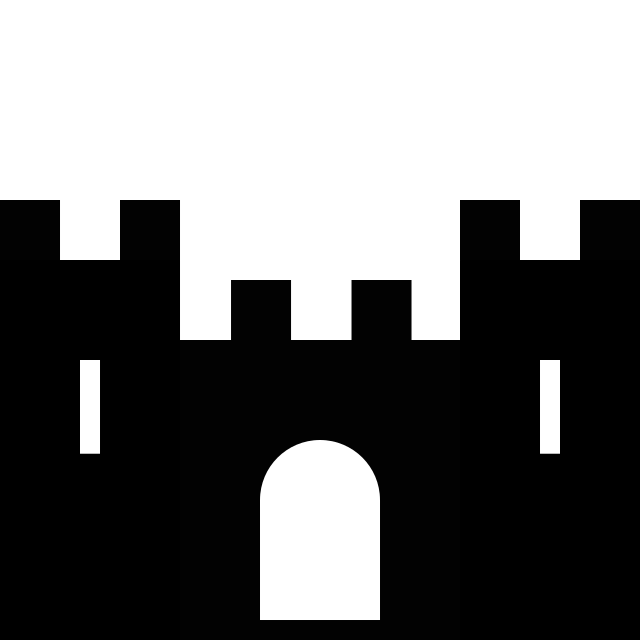

Fast Castles: (https://www.pinclipart.com/downpngs/iomhRJ_silhouette-clipart-castle-black-and-white-castle-clipart/)
Strong Castles: (https://www.pngfind.com/download/xJJxwo_castle-vector-castle-vector-png-transparent-png/)
They will be surrounded with a blue, red, or gray circle to show the team they are on.
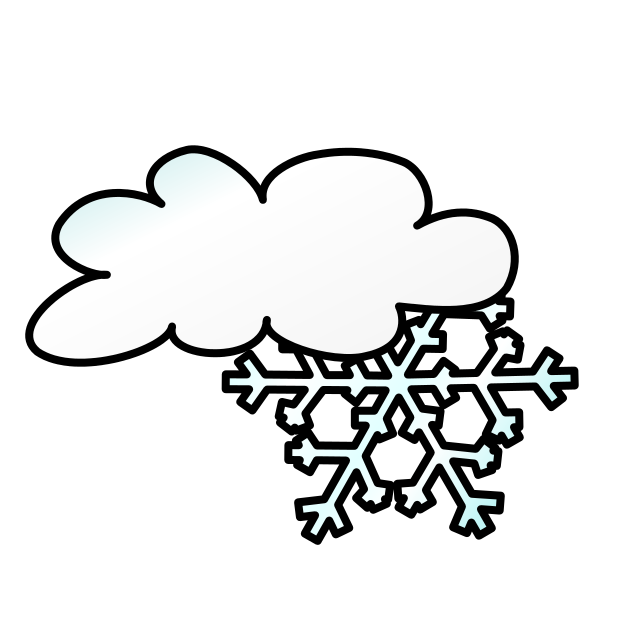
Blizzard icon for when the blizzard randomly hits (only when you are on the winter level): (https://commons.wikimedia.org/wiki/File:Snowstorm.svg)

Lightning icon for when lightning strikes (only when you are on the fall level): (https://commons.wikimedia.org/wiki/File:Icons8_flat_flash_on.svg)


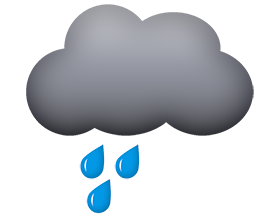
Flood icon for when there is a flood (only when you are on the spring level): (https://commons.wikimedia.org/wiki/File:Light_Rain_Cloud_by_Sara.png)

- Snow Storm: https://assets.mixkit.co/sfx/download/mixkit-winter-wind-loop-1175.wav
- Flood: https://assets.mixkit.co/sfx/download/mixkit-forest-and-waterfall-1229.wav
- Storm: https://assets.mixkit.co/sfx/download/mixkit-cinematic-thunder-hit-1280.wav
- Castle Taken: https://www.fesliyanstudios.com/play-mp3/6202
Vivaldi's Four Seasons
- https://archive.org/details/ETitleA.Vivaldi-TheFourSeasons/1.+Spring+1(allegro).mp3
- https://archive.org/details/ETitleA.Vivaldi-TheFourSeasons/1.+Spring+3+(allegro).mp3
- https://archive.org/details/ETitleA.Vivaldi-TheFourSeasons/2.+Summer+1+(presto).mp3
- https://archive.org/details/ETitleA.Vivaldi-TheFourSeasons/2.+Summer+2+(allegro).mp3
- https://archive.org/details/ETitleA.Vivaldi-TheFourSeasons/3.+Autumn+1+(allegro).mp3
- https://archive.org/details/ETitleA.Vivaldi-TheFourSeasons/3.+Autumn+3+(allegro).mp3
- https://archive.org/details/ETitleA.Vivaldi-TheFourSeasons/4.+Winter+1+(allegro+non+molto).mp3
- https://archive.org/details/ETitleA.Vivaldi-TheFourSeasons/4.+Winter+3+(allegro).mp3