Generate flashcard-style videos from YAML Q&A files with offline neural TTS narration. Designed for interview preparation — provide your questions and answers, get a YouTube-ready MP4.
- Parse YAML file with questions and answers
- Synthesize speech for each Q&A using Kokoro TTS (offline, neural, 82M params)
- Render styled slides as 1920x1080 PNGs using Skia canvas
- Assemble video with FFmpeg — H.264 High Profile, AAC audio, YouTube-optimized
Each card shows the question (with voiceover), pauses, then shows the answer (with voiceover), then moves to the next card.
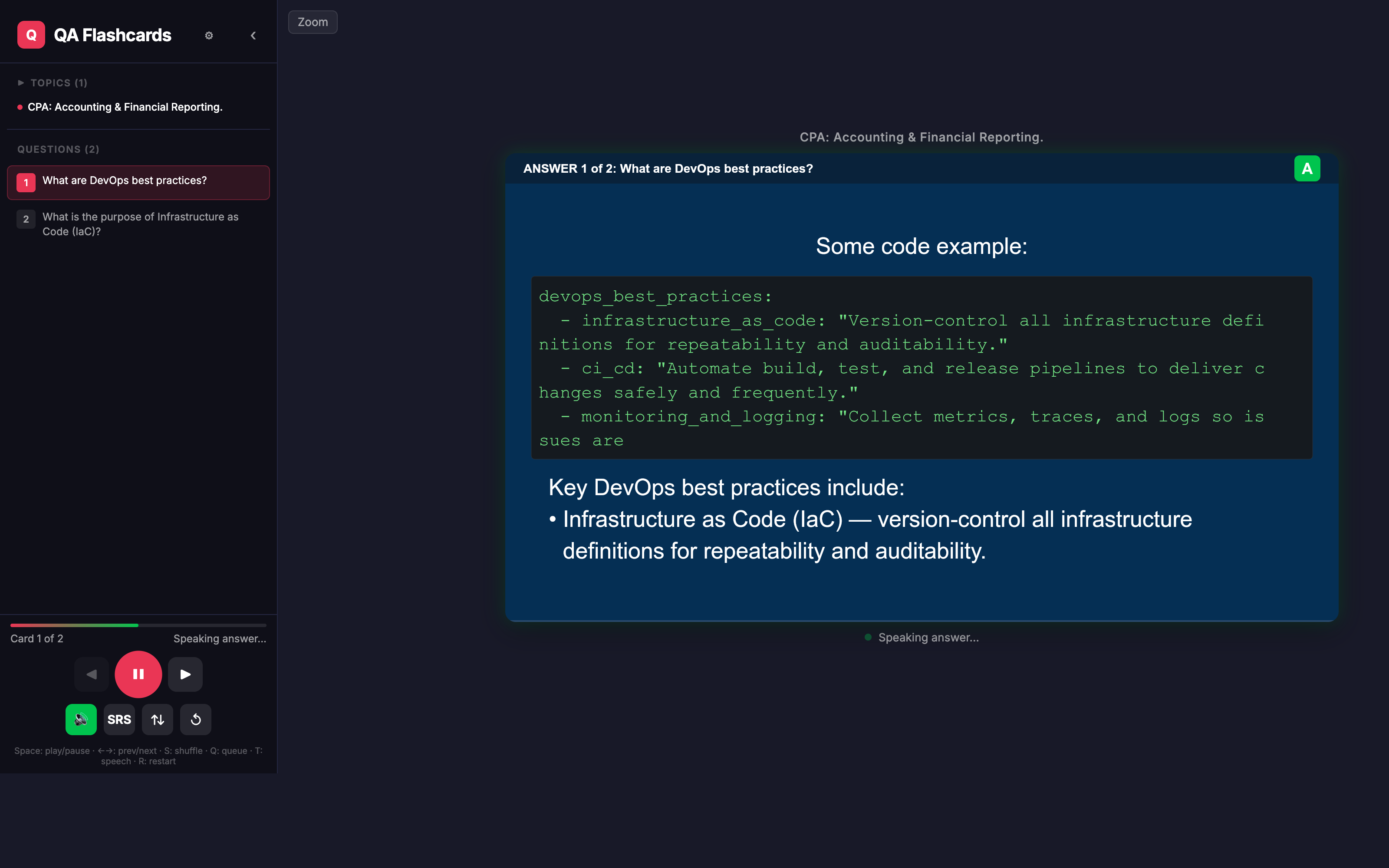
Interactive browser player with topic navigation, question list, playback controls, and on-demand TTS/slide generation.
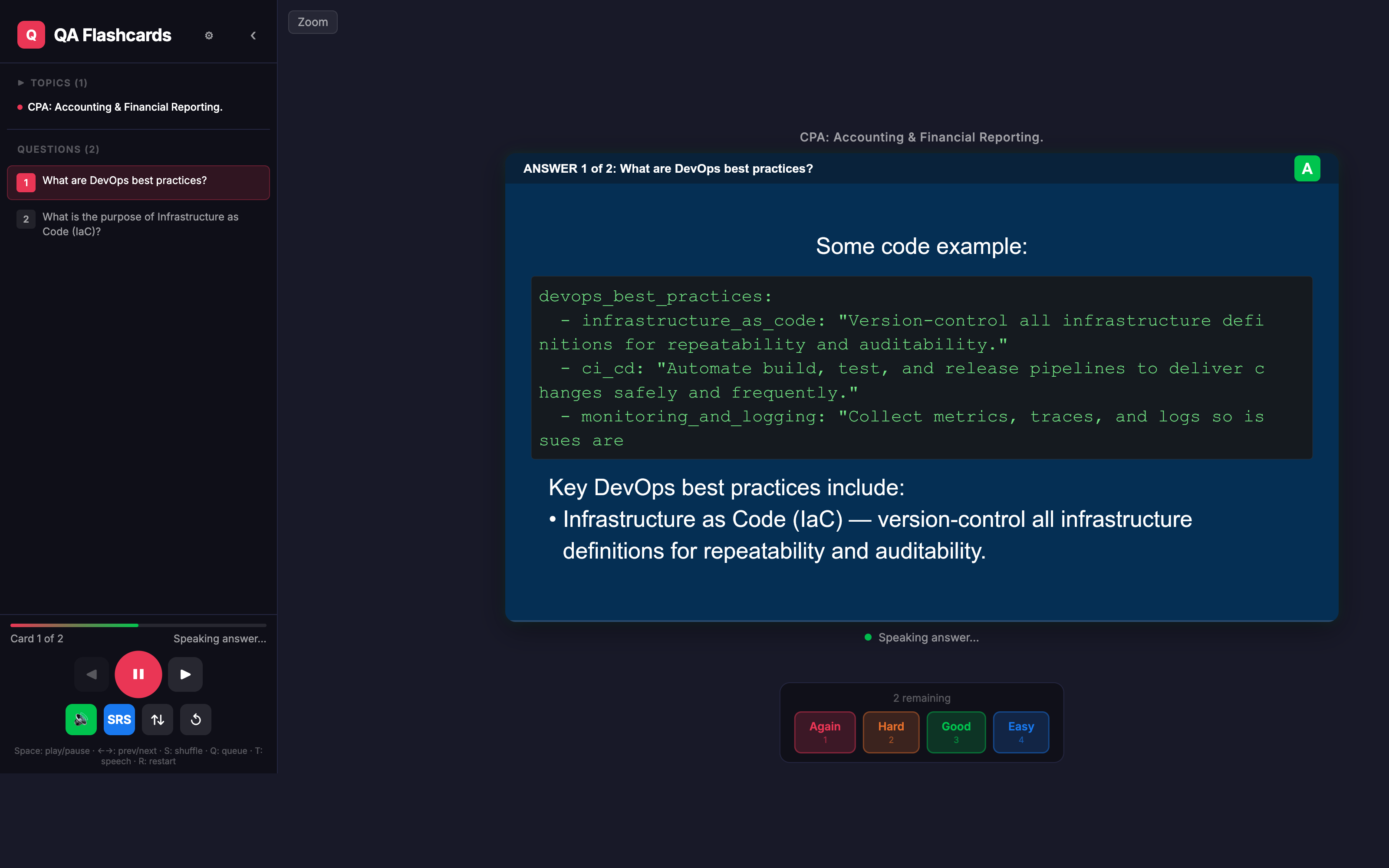
Queue-based review mode inside the web player. Rate each revealed card with 1–4 to requeue it sooner, later, or remove it from the session.
- Node.js 18+
- pnpm (or npm/yarn)
- FFmpeg —
brew install ffmpeg - espeak-ng —
brew install espeak-ng(required by Kokoro TTS phonemizer)
Global install (recommended):
npm install -g qa-videoOr run without installing:
npx -y qa-video generate -i qa/core-concepts.yamlFrom source:
pnpm install
pnpm build# Single file
qa-video generate -i qa/core-concepts.yaml
# All files in a directory
qa-video batch -d qa/Convert flashcard exports from popular apps into YAML, then generate videos from them.
qa-video import -i deck.apkg                      # Anki (auto-detect by extension)
qa-video import -i cards.csv --from brainscape     # Brainscape CSV
qa-video import -i notes.md --from remnote         # RemNote Markdown
qa-video import -i flashcards.tsv --from knowt     # Knowt / Quizlet TSV
qa-video import -i export.csv --from gizmo         # Gizmo CSV
qa-video import -i deck.mochi                      # Mochi Cards (auto-detect)

# Then generate the video
qa-video generate -i qa/deck.yaml| App | --from |
Aliases | File ext | Format |
|---|---|---|---|---|
| Anki / AnkiDroid | apkg |
anki |
.apkg |
ZIP archive containing SQLite database |
| Brainscape | brainscape |
csv |
.csv |
CSV with question, answer columns (no header) |
| RemNote | remnote |
md, rem |
.md .rem |
Markdown with >> :: ;; separators |
| Knowt / Quizlet | knowt |
tsv, quizlet |
.tsv |
Tab-separated term + definition |
| Gizmo | gizmo |
— | .csv |
CSV with header auto-detection (front/back, question/answer) |
| Mochi Cards | mochi |
— | .mochi |
ZIP archive containing EDN or JSON data |
The --from flag is optional when the file extension uniquely identifies the format (e.g. .apkg, .mochi, .tsv). For ambiguous extensions like .csv, use --from to specify the driver.
| Option | Default | Description |
|---|---|---|
-i, --input <path> |
required | Path to source file |
-o, --output <path> |
qa/<name>.yaml |
Output YAML path |
--from <driver> |
auto-detect | Source format (see table above) |
--question-delay <sec> |
2 |
questionDelay in output config |
--answer-delay <sec> |
3 |
answerDelay in output config |
# One-time auth setup
qa-video auth

# Upload a single video (any of these work)
qa-video upload -i .qa/core-concepts.mp4
qa-video upload -i .qa/core-concepts       # auto-detects .mp4
qa-video upload -i qa/core-concepts.yaml   # resolves to .qa/core-concepts.mp4

# Upload all videos in a directory
qa-video upload -i .qa/

# Upload all videos in .qa/ (default when no -i)
qa-video upload

# Customize metadata
qa-video upload -i .qa/core-concepts.mp4 --privacy public --tags "devops,interview"

# Preview without uploading
qa-video upload --dry-run

# Skip interactive editing/confirmation prompts
qa-video upload --no-confirm

# Force re-upload
qa-video upload --force
Before each upload you are prompted to edit the title and description inline (pre-filled with auto-generated values), then confirm. Use --no-confirm to skip all prompts, or --dry-run to preview.
| Option | Default | Description |
|---|---|---|
-i, --input <path> |
.qa/ |
Video file, YAML file, or directory |
-v, --video <path> |
auto | Explicit path to video file |
--title <text> |
auto from YAML | Video title |
--description <text> |
auto from YAML | Video description |
--privacy <level> |
unlisted |
public, unlisted, or private |
--category <id> |
27 |
YouTube category ID |
--tags <csv> |
interview,qa,flashcards |
Comma-separated tags |
--credentials <path> |
~/.qa-video/client_secret.json |
Path to OAuth credentials |
--no-confirm |
— | Skip interactive editing and confirmation |
--force |
— | Force re-upload even if already uploaded |
--dry-run |
false |
Preview metadata without uploading |
serve starts two processes together:
- the QA Video API for loading decks and generating slides/audio on demand
- the web UI for browsing topics and studying cards in the browser
Use it when you want to study interactively instead of exporting an MP4.
# Serve all files in qa/ (default)
qa-video serve

# Serve a directory of YAML / Slidev decks
qa-video serve -d path/to/cards/

# Serve one specific YAML file
qa-video serve -i qa/core-concepts.yaml- Loads decks from
qa/by default, or from-d/--dir - If you pass
-i/--input, the UI is filtered to that single deck - Starts the API first, then launches the Vite web app automatically
- Reuses cached slides and TTS audio in
.qa/(or--output-dir) so repeated study sessions are faster - If the requested API port is already busy, it automatically tries the next available port
| Option | Default | Description |
|---|---|---|
-i, --input <path> |
— | Serve a single YAML file |
-d, --dir <path> |
qa/ |
Directory containing YAML files |
-p, --port <number> |
3001 |
Preferred API port; auto-increments if busy |
--web-port <number> |
5173 |
Web UI port |
--output-dir <path> |
auto-resolved .qa/ |
Output directory for TTS/slide cache |
The web player includes an SRS (Spaced Repetition System) mode for active recall practice. When enabled, cards are queued and reshuffled based on your self-rating after each answer.
Toggle: Click the SRS button in playback controls, or press Q.
SRS mode is available inside qa-video serve and is designed for study sessions rather than video export.
Rate each card (keys 1–4):
| Key | Rating | Effect |
|---|---|---|
1 |
Again | Re-queue near the front (~10% into remaining) |
2 |
Hard | Re-queue early (~25% into remaining) |
3 |
Good | Re-queue later (~60% into remaining) |
4 |
Easy | Remove from queue (mastered) |
The session ends when all cards are rated Easy or the queue is empty.
Againputs the card back near the front of the remaining queueHardbrings it back fairly soonGoodpushes it later in the same sessionEasyremoves it from the queue immediately
You can combine SRS with:
- speech mode on for guided playback with narration
- speech mode off for manual active-recall practice
- shuffle to randomize the initial order before queueing begins
qa-video clear                        # clear all caches
qa-video clear -i qa/test.yaml        # clear cache for one file
qa-video clear -d qa/ # clear caches for all files in dir| Option | Default | Description |
|---|---|---|
-o, --output <path> |
auto-resolved | Output video file path |
--output-dir <path> |
auto-resolved .qa/ |
Output directory (overridden by -o) |
--voice <name> |
af_heart |
Kokoro TTS voice |
--question-delay <sec> |
2 |
Silence after question speech |
--answer-delay <sec> |
3 |
Silence after answer speech |
--card-gap <sec> |
1 |
Gap between cards |
--font-size <px> |
52 |
Slide text font size |
--force |
false |
Regenerate all artifacts, ignore cache |
Each YAML file has two top-level keys: config (optional) and questions (required).
| Field | Type | Default | Description |
|---|---|---|---|
name |
string | filename | Video title (used for YouTube upload) |
description |
string | — | Video description (used for YouTube upload) |
questionDelay |
number | 2 |
Seconds of silence after question voiceover |
answerDelay |
number | 3 |
Seconds of silence after answer voiceover |
cardGap |
number | 1 |
Seconds of silence between cards |
voice |
string | af_heart |
Kokoro TTS voice for answer prose |
questionVoice |
string | am_adam |
Kokoro TTS voice for questions |
codeVoice |
string | am_echo |
Kokoro TTS voice for code blocks |
fontSize |
number | 52 |
Slide text font size (px) |
backgroundColor |
string | #1a1a2e |
Gap slide background color |
questionColor |
string | #16213e |
Question slide background color |
answerColor |
string | #0f3460 |
Answer slide background color |
textColor |
string | #ffffff |
Slide text color |
Config values in the YAML override defaults, but CLI flags take priority.
The youtube block is auto-populated after a successful upload — do not edit it manually.
Each entry has a question and an answer field. Both support Markdown formatting including bold, italic, inline code, fenced code blocks, and bullet/numbered lists.
Minimal — just questions and answers:
questions:
- question: What is DevOps?
  answer: DevOps is a set of practices that combine software development and IT operations.
- question: What is Docker?
  answer: Docker is a platform for containerizing applications.
With config and Markdown formatting:
config:
  name: "DevOps Interview Questions: Core Concepts"
  description: Covers fundamental DevOps concepts including CI/CD and containerization.
  questionDelay: 1
  answerDelay: 1

questions:
- question: What is DevOps?
  answer: |
    DevOps is a **cultural and technical movement** that unifies software development (Dev) and IT operations (Ops).

    **Core principles:**
    - **Collaboration** — breaking down silos between Dev, Ops, and QA
    - **Automation** — automating builds, tests, deployments, and infrastructure
    - **Continuous Improvement** — using metrics and feedback loops to iterate

- question: What is the difference between `CMD` and `ENTRYPOINT` in Docker?
  answer: |
    - `CMD` sets **default arguments** that can be overridden at `docker run`
    - `ENTRYPOINT` sets the **main executable** that always runs

    Example Dockerfile:
    ```
    FROM node:20-alpine
    ENTRYPOINT ["node"]
    CMD ["app.js"]
    ```
Multi-line answers with YAML block scalars:
questions:
- question: What is a Kubernetes Pod?
  answer: |
    A Pod is the smallest deployable unit in Kubernetes. It wraps one or more
    containers that share networking and storage.

- question: What are AWS Availability Zones?
  answer: >-
    Availability Zones are isolated data centers within a Region,
    each with redundant power and networking.
    They enable high availability when applications span multiple AZs.
Tip: Use
|(literal block) to preserve newlines (best for lists and code). Use>-(folded block) for long paragraphs that should be joined into one line.
Artifacts (WAV audio, PNG slides, MP4 clips) are cached in .qa/.tmp/ with SHA-based filenames. If the pipeline is interrupted, re-running reuses all previously generated artifacts. Only changed questions get regenerated. Use --force to bypass the cache or clear command to remove it.
- Format: MP4 (H.264 High Profile + AAC)
- Resolution: 1920x1080 @ 30fps
- Audio: 384kbps stereo, 48kHz
- Optimized:
-movflags +faststart,-tune stillimage
Videos are saved to .qa/<filename>.mp4.
The .qa output folder is placed automatically:
| Scenario | Output location |
|---|---|
| Inside a git repository | <git-root>/.qa/ |
-d <dir> (no git repo) |
sibling of the directory passed — <dir>/../.qa/ |
-i <file> (no git repo) |
sibling of the file's directory — <dirname>/../.qa/ |
You can always override with -o <path> (single file) or --output-dir <path> (batch/update).
src/
├── index.ts           # CLI entry point (commander)
├── types.ts           # Shared types & defaults
├── parser.ts          # YAML parser
├── tts.ts             # Kokoro TTS synthesis
├── tts-preprocess.ts  # Text preprocessing for TTS
├── renderer.ts        # Slide rendering (@napi-rs/canvas)
├── assembler.ts       # FFmpeg video assembly
├── pipeline.ts        # 4-stage orchestration
├── cache.ts           # SHA-based artifact caching
├── metadata.ts        # YouTube metadata generation
├── youtube-auth.ts    # OAuth2 authentication
├── uploader.ts        # YouTube upload
└── importers/         # Flashcard import drivers
    ├── types.ts       # ImportDriver interface
    ├── index.ts       # Driver registry
    ├── apkg.ts        # Anki / AnkiDroid (.apkg)
    ├── brainscape.ts  # Brainscape (.csv)
    ├── remnote.ts     # RemNote (.md)
    ├── knowt.ts       # Knowt / Quizlet (.tsv)
    ├── gizmo.ts       # Gizmo (.csv)
    └── mochi.ts       # Mochi Cards (.mochi)
Create a file in src/importers/ implementing the ImportDriver interface:
import { ImportDriver, ImportResult } from './types.js';

export const myDriver: ImportDriver = {
  name: 'myapp',
  extensions: ['.myext'],
  description: 'MyApp flashcard export',
  async extract(filePath: string): Promise<ImportResult> {
    // parse the file and return { config, questions }
  },
};
Then register it in src/importers/index.ts:
import { myDriver } from './mydriver.js';
register(myDriver, 'alias1', 'alias2');- TTS: kokoro-js — offline neural TTS, Apache 2.0
- Canvas: @napi-rs/canvas — Skia-based, zero system deps
- Video: fluent-ffmpeg + system FFmpeg
- CLI: commander
- Import: better-sqlite3 (Anki), adm-zip (Anki/Mochi)
MIT