Repository navigation
Devices and riding
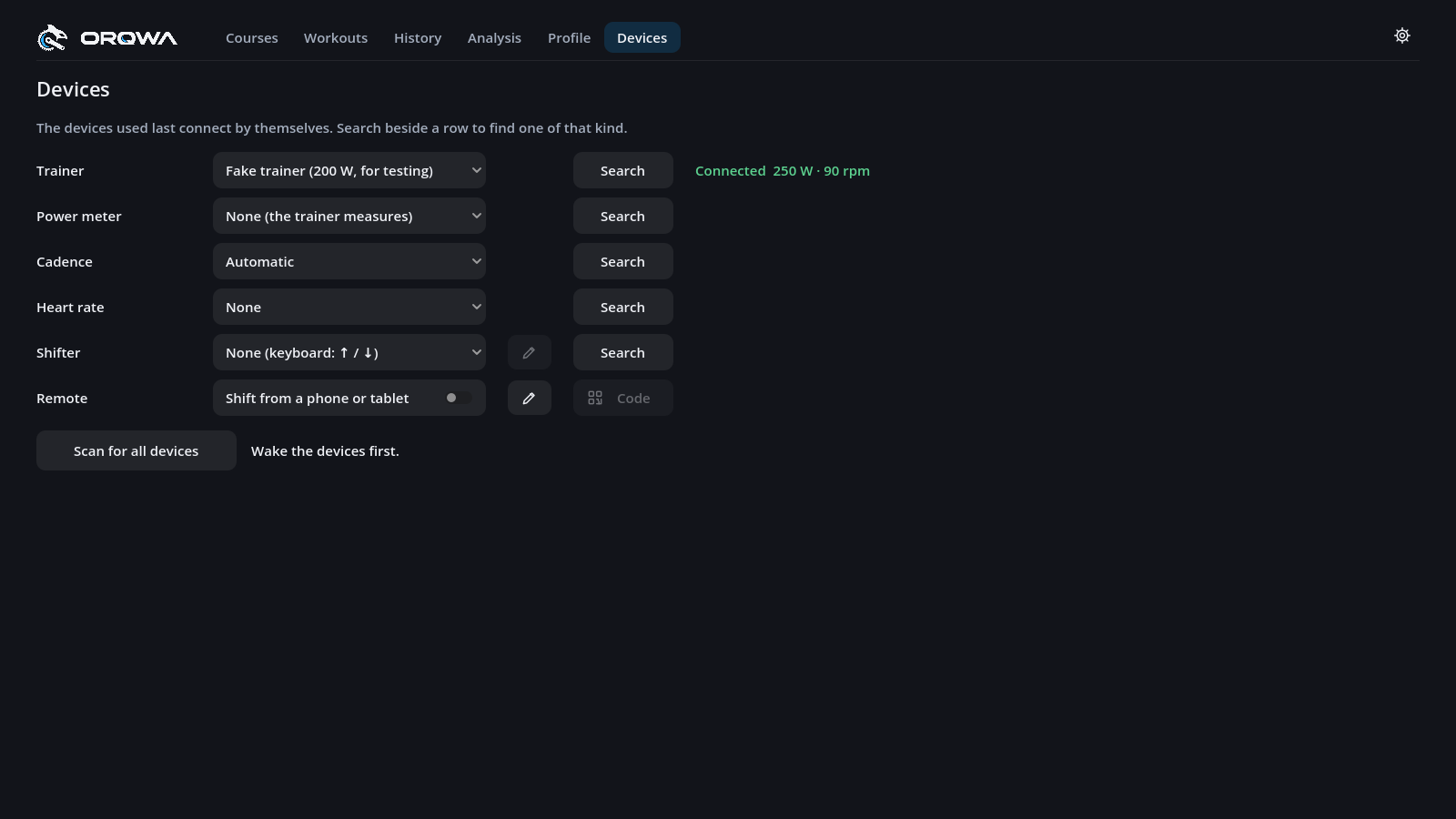
- Wake your trainer by pedaling and put on your heart-rate strap, if you use one.
- Open Devices and press Search beside the trainer, sensor or shifter you want to connect.
- Check for green Connected and live readings before starting a ride.
Choose None to disconnect a device. ORQWA remembers devices per rider and reconnects them automatically, including after a dropout. Battery levels appear where supported.
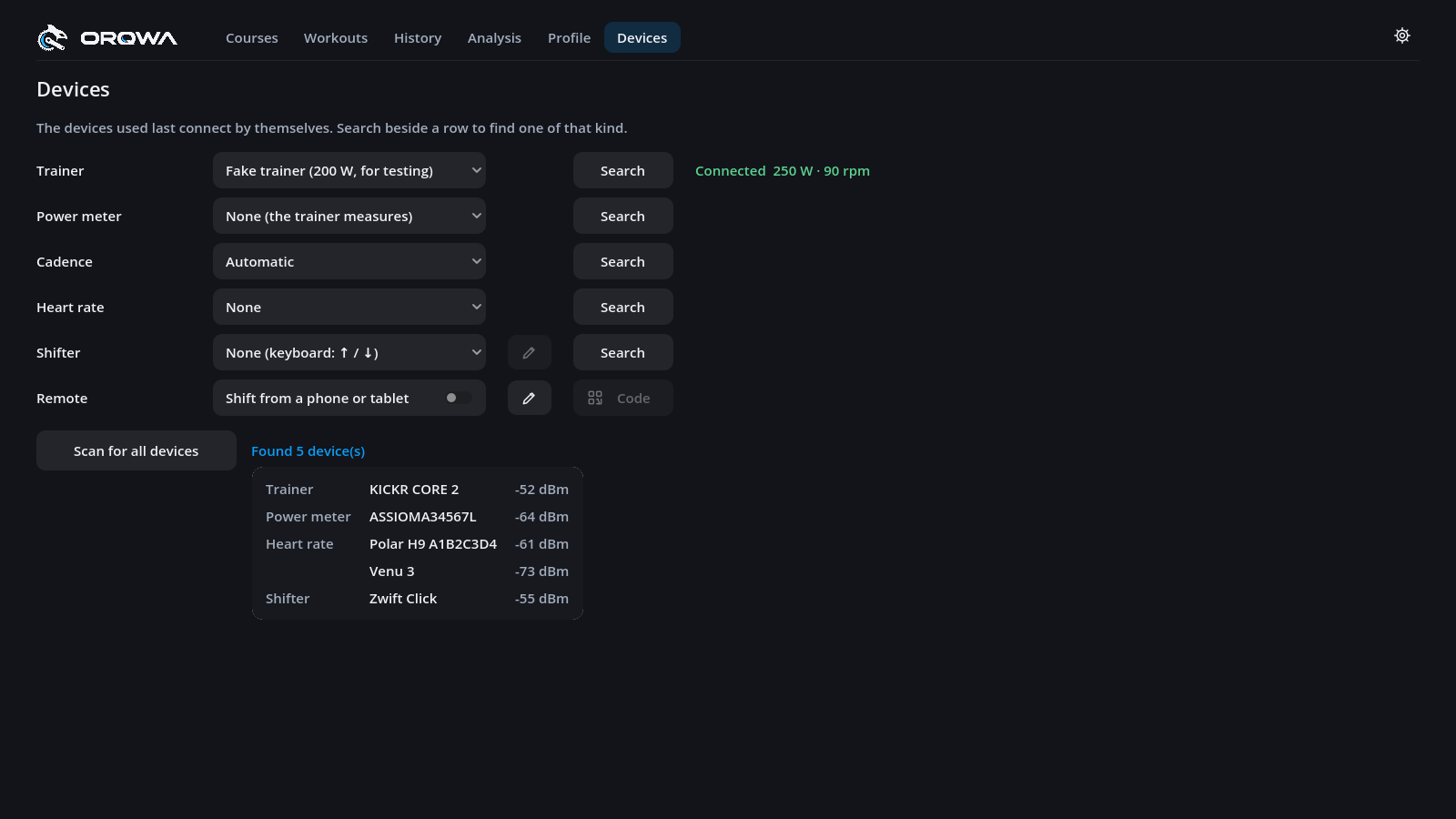
If a device is Not found or Failed, wake it and close other apps connected to it, then search again. The row shows the reason for a failed connection. Scan for all devices searches every kind at once; click Found … device(s) to inspect the results. Fake trainer lets you try ORQWA without hardware.
The last row, Remote, turns a phone or tablet into a remote for shifting and the ride's controls.
These devices have been tried with ORQWA:
| Device | Used for |
|---|---|
| Wahoo KICKR CORE 2 | Trainer control, power and cadence |
| Tacx NEO 2 Smart | Trainer control, power and cadence |
| Elite Direto X | Trainer control, power and cadence |
| Zwift Click (original) | Virtual shifting |
| Zwift Click v2 | Virtual shifting and button controls with both pods |
The list is not exhaustive: other devices using compatible Bluetooth services may work too. Connect trainers over Bluetooth FTMS or Tacx FE-C over Bluetooth, using the Trainer row. No ANT+ dongle is needed.
Connect Bluetooth power pedals, a crank or a spider power meter alongside the trainer. Its power is used for speed, the HUD, recording and analysis. If it disconnects, the trainer's power is used until it returns.
Choose a new power meter or heart-rate strap explicitly after scanning. In ERG workouts, the trainer controls power using its own measurement, so the meter may show a slightly different value.
Cadence chooses where your cadence comes from:
| Choice | Cadence from |
|---|---|
| Automatic | a cadence sensor if one is connected, else the power meter, else the trainer |
| Trainer | the trainer |
| Power meter | the power meter |
| a sensor's name | a Bluetooth cadence sensor, such as Wahoo RPM or a Garmin cadence sensor |
While the chosen device sends no cadence, the others stand in. Choosing anything other than a sensor lets go of the sensor chosen before.
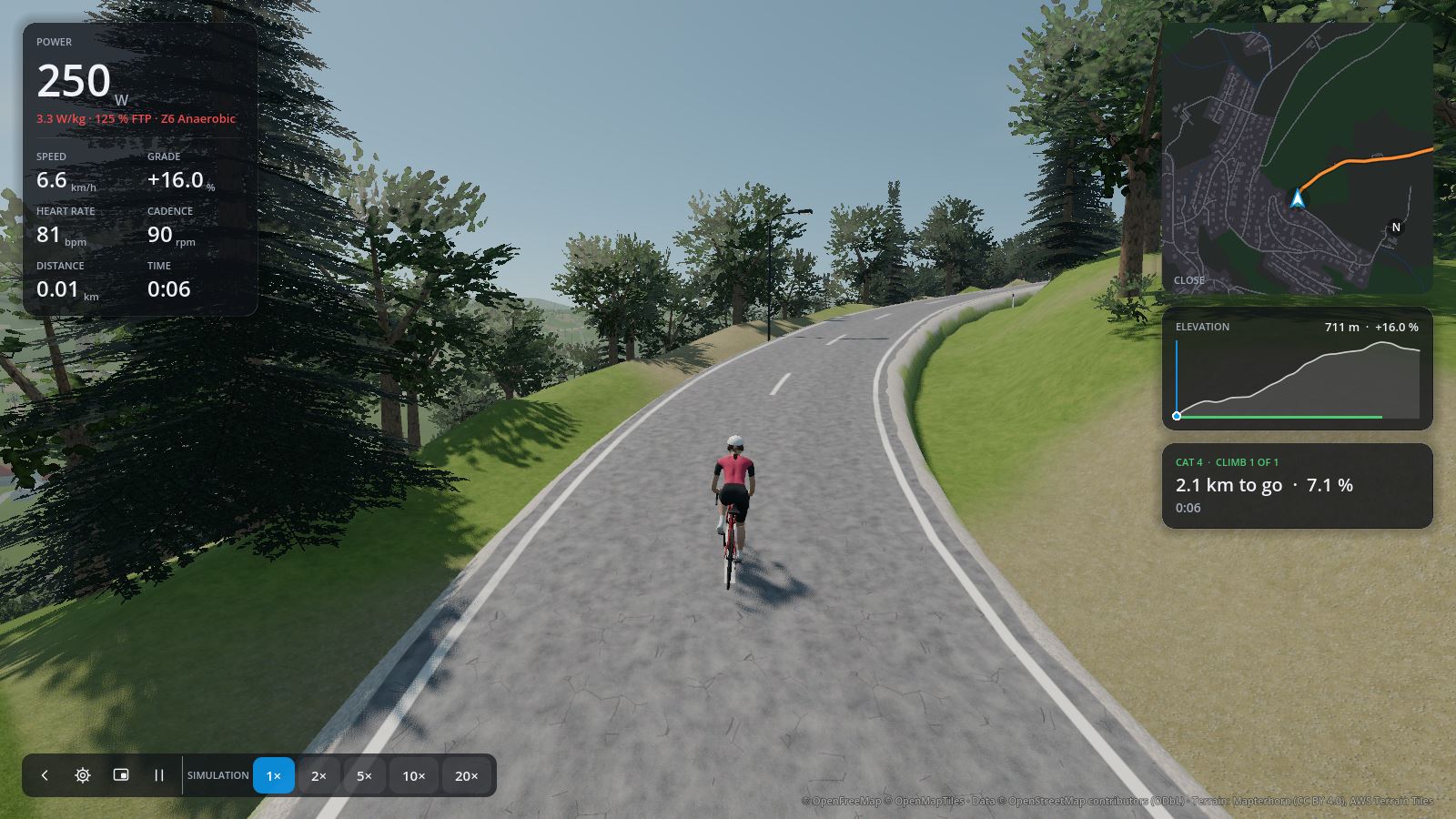
Your figures are on the left; map, elevation profile, climbs and ghosts on the right; controls at the bottom left.
Click or tap the Full screen icon beside Overlay in the control bar to fill the screen; click it again to return to a window. The icon changes to show how to leave full screen. The chevron folds the controls away and opens them again; keyboard shortcuts work either way.
The map shows the land around the whole route, also on video courses and offline. Close follows you, heading up, with the roads and buildings along the route; click it for the whole Route, north up. Each rider draws it colored or dark (see Riders).
| Key | Action |
|---|---|
| P or space | Pause and resume (the trainer lets go; paused time is not recorded). Pausing opens the ride settings; going on closes them |
| C | Switch camera: chase, first person, drone |
| S | Ride settings |
| O | Overlay on top of other windows |
| ↑ / ↓ | Shift virtual gears |
| H / E | Trainer difficulty 10 % harder / easier |
| I / L | Workout intensity 5 % more / less |
| N | Next step of a structured workout |
| M / . / , | Music: play/pause, next, previous |
| F11 or Alt + Enter | Full screen |
Settings changes the ride while it keeps going: camera, trainer difficulty, descents, time of day, weather, the workout and your HUD. Profile changes your profile during the ride, for example a forgotten drivetrain, your weight or your FTP. Devices shows whether your trainer, strap and shifter are connected; Reconnect devices looks for those that are not, for example a strap that was not found at start. Finish & save ends and saves the ride, then opens its quick summary; Abort without saving discards it. Pausing the ride opens the settings, and going on closes them again.
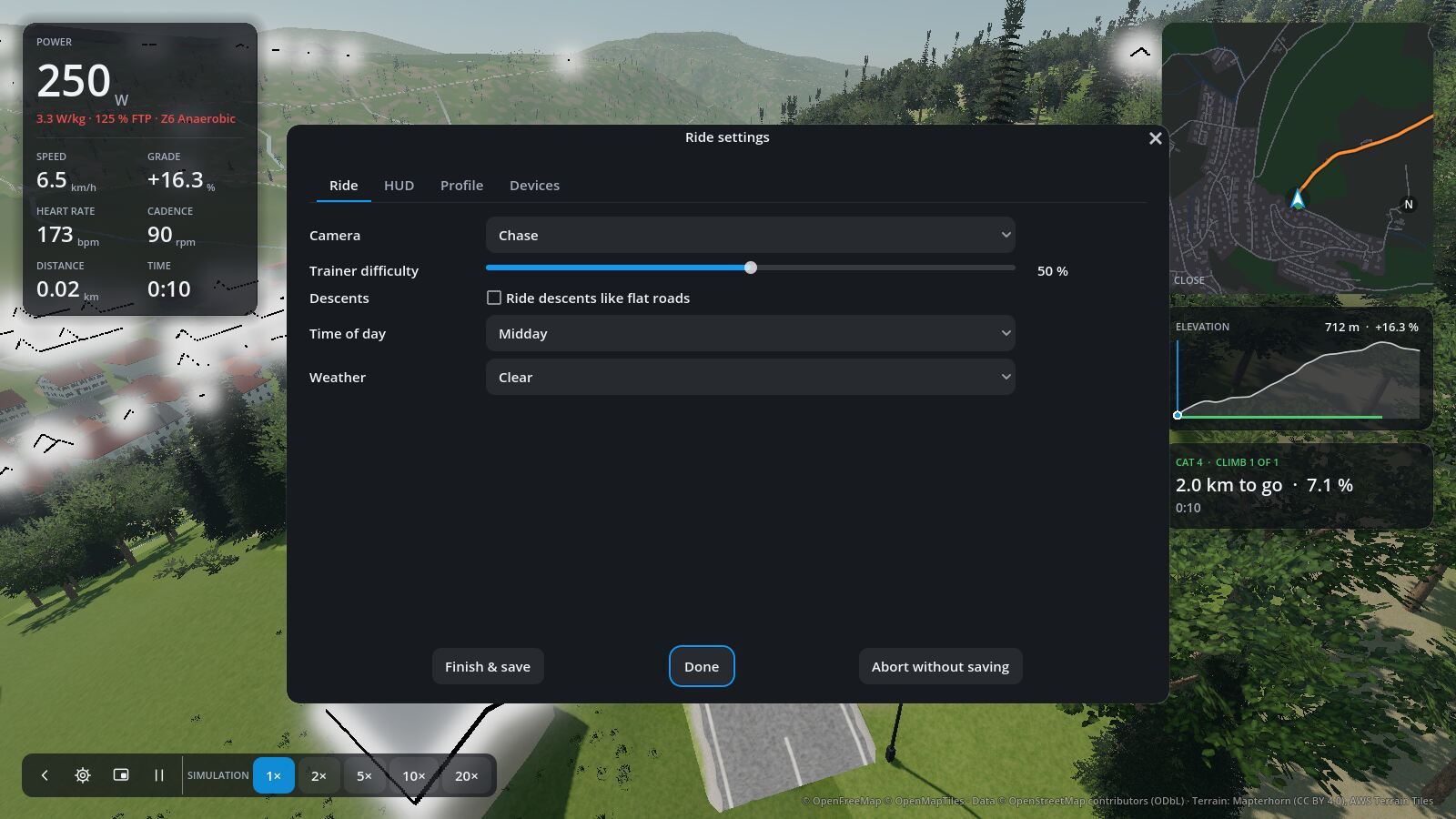
Trainer difficulty is the share of the road's gradient you feel (50 % by default, set per rider). Speed always uses the real gradient.
For 3D rides, adjust Wind sound and Bicycle sound in the course's ride options or during a ride under S → Ride. Set either to 0% to mute it. Video rides use the video's own sound; workouts without a course have no riding sound.
ORQWA tells you when something happens on the ride. A card slides in at the top for a few seconds with a short burst of color and a chime (see Settings), its figure large and a line below:
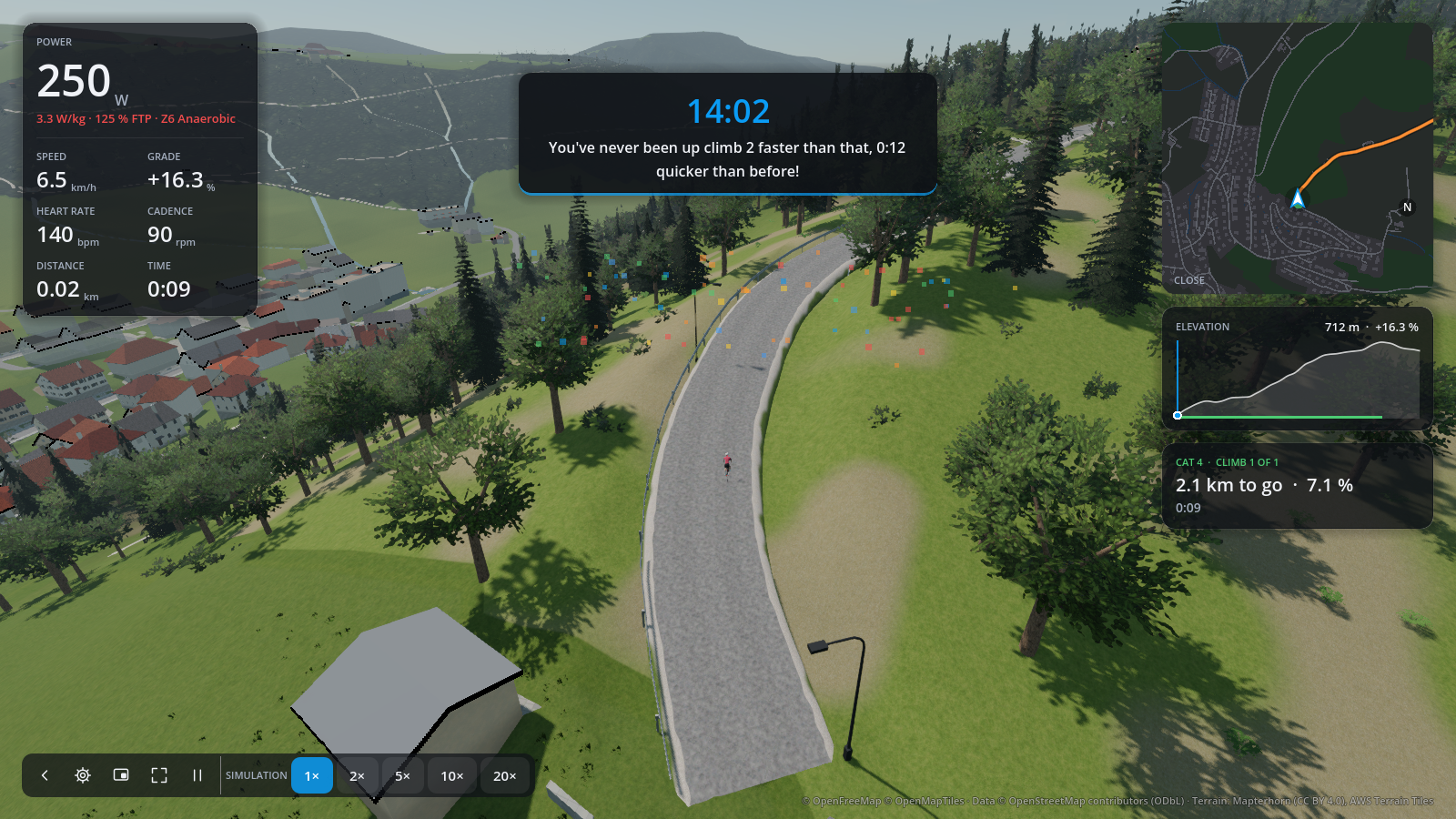
| Moment | For example |
|---|---|
| A climb topped | Climb 2 is done and it averaged 8.0 %. Well climbed! |
| A climb faster than ever | 14:02 on climb 2 is your best time up there yet! |
| Your best power over 5 s, 1, 5, 20 or 60 minutes | 412 W for 5 s is a new best for you! |
| A hard workout step held on target | You held that step right on target, nicely done! |
| Halfway | You're halfway there and going really well! |
| 1 km to go | Just 1 km to go, give it everything you have left! |
| Every 25 km | 50 km done and you're still going strong! |
| Your first ride on a course | Your first ride on Gurten, so enjoy the new roads! |
In miles, the milestones come every 25 miles and with 1 mile to go. The voice in your profile chooses how they are told: casual and cheering (the default, with a few lines to vary), plain facts ("Climb 2 topped, 8.0 % average.") or off. Rides sped up or jumped with the fake trainer set no records. A power record is told once the effort tops out, and only once you have earlier rides to beat. A workout step counts as held from a minute at 75 % of your FTP or more, ridden to its end with your average power within 5 % of its target. The finish is told by the ride's summary.
M, . and , control the music app you listen to:
- macOS: open Spotify or Apple Music first. Spotify takes priority when both are running; Apple Music works on its own without Spotify installed. Allow ORQWA to control the player when macOS asks. If you denied permission, enable the player under System Settings → Privacy & Security → Automation → ORQWA.
- Windows: the player that handles your keyboard's media keys, such as Spotify or a browser tab with media controls. Start playback there first; a tab that does not respond to your keyboard's media keys will not respond to ORQWA's music controls either.
-
Linux: any MPRIS player, with
playerctlinstalled through your distribution's package manager.
Keep ORQWA focused while pressing these keys. If no player responds, check that it is open and inspect Technical details for a missing helper or denied permission. On Windows a key can be sent successfully even when no player handles it. Music control is not supported on Android; use the player's own controls there.
Install playerctl once through your distribution's package manager:
| Distribution | Command |
|---|---|
| Ubuntu, Debian, Mint | sudo apt install playerctl |
| Fedora | sudo dnf install playerctl |
| Arch, Manjaro | sudo pacman -S playerctl |
Open a player such as Spotify or VLC in the same Linux desktop session as ORQWA, load a track and start playback. For next and previous, use a playlist with at least two tracks. Then switch back to ORQWA and use M, . and ,.
If control fails, run playerctl --list-all in a terminal in that desktop session, as your
normal user. It lists the players available to control. The errors mean different things:
-
No such file or directory mentioning
playerctl: the helper is missing; install it with the command above. - No players found: no compatible player is visible in this Linux session. Open the player there and start playback; a player running on the host outside a Linux VM or container is in a different session.
- No player could handle this command: the player may have no media loaded or may not support that action. An empty VLC window needs a track loaded first; next and previous also need tracks to move between.
On a single-cog drivetrain (such as the Zwift Cog), ORQWA gives you 24 virtual gears, shifted with ↑ and ↓. New riders start on virtual gears with a 50-tooth chainring over a 14-tooth cog; set your own teeth under Riders. If you ride a cassette and shift on the bike, choose it there instead: then there are no virtual gears, and a shifter's presses do not shift. Both can also be changed during a ride, on the ride settings' Profile tab: the ride takes the new drivetrain at once, and your profile keeps it. Switching to virtual gears starts in the gear closest to your real one; other teeth keep the gear you are in.
With Shimano Di2, the hood buttons can shift too:
- In E-TUBE, assign the buttons to D-Fly channels.
- Choose the shifter under Devices.
- Press the pen (✎) beside the shifter's row and choose what each channel does when pressed, held or double-pressed: shift, change camera, overlay or music, pause and resume the ride, make the trainer difficulty 10 % harder or easier, or, in a workout, make it 5 % harder or easier or skip to its next step.
With a Zwift Click (the original single unit with + and −, sold with the Zwift Cog), switch it on, scan and choose it under Devices; no Zwift account or app is needed, and nothing has to be unlocked. Out of the box + shifts up and − down. As with a Di2, a press and a hold of each button can be given any of the actions above, behind the pen beside the shifter's row; the Click has no double press, so a tap shifts the moment you let go. ORQWA talks to the unit directly, so close Zwift and the Zwift Companion app first: the Click takes one connection at a time.
With a Zwift Click v2 (the two pods: a right one with +, Y, Z, A and B, a left one with − and four arrows), press a button on each pod to wake them, scan and choose Zwift Click v2: ORQWA connects both pods as one shifter. + shifts up and − down out of the box; each of the ten buttons can be given an action for a press and a hold.
If − and the left arrows do nothing, the left pod may be locked to Zwift. Connect the Click in Zwift (a free account works), wait a few seconds, then close Zwift fully and retry in ORQWA. Alternatively, assign Shift down to B on the right pod to ride without Zwift.
The Zwift Play and the Zwift Ride are not supported.
Each kind of shifter keeps its own buttons: what you give a Di2's channels leaves a Click's + and − as they were, and the other way round, so you can switch between them without setting them up again.
Workouts in ERG mode hold their power in any gear.
No Di2 or Click? A phone or tablet can shift, in its browser, with nothing to install:
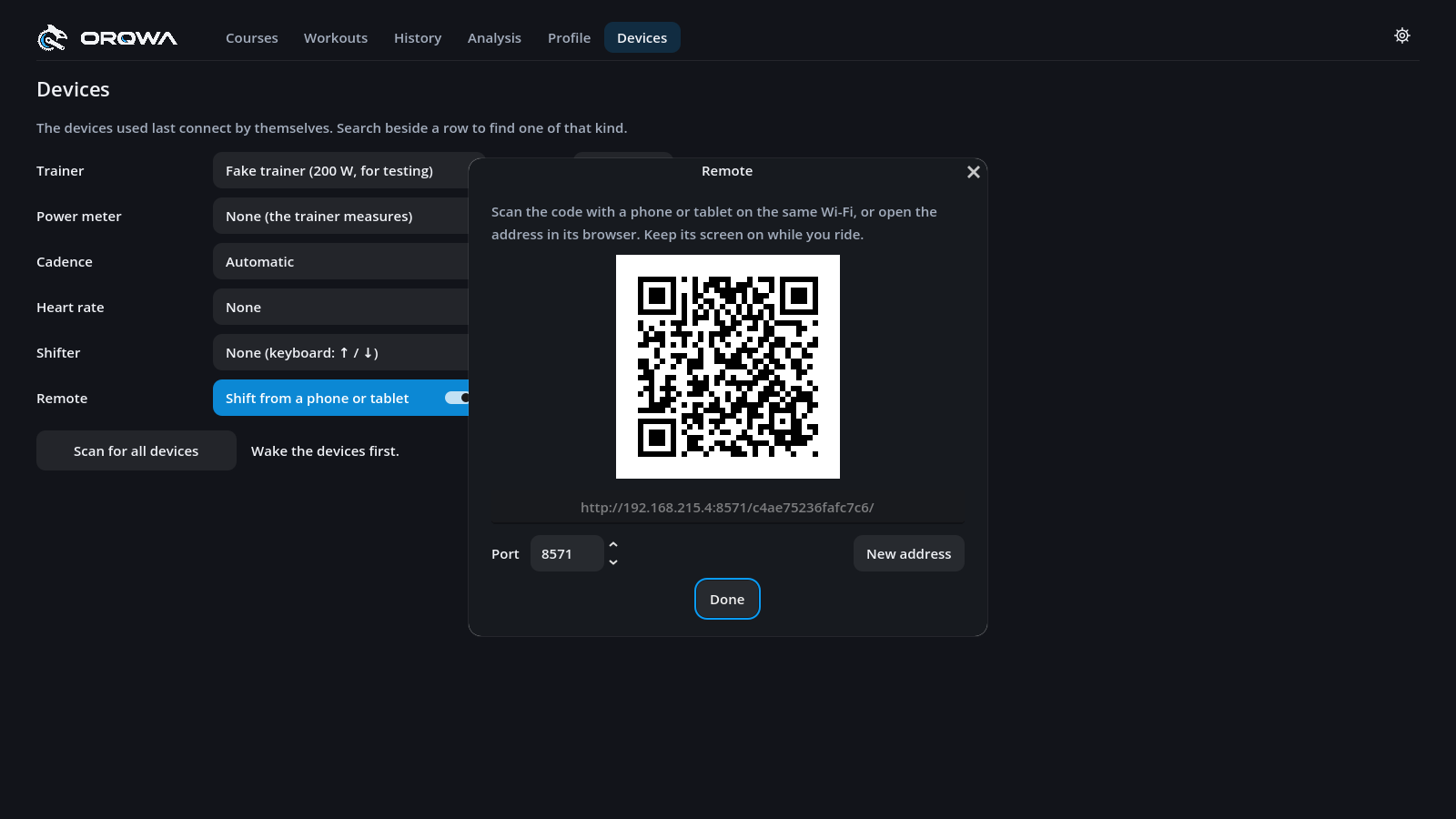
- Under Devices, turn on Shift from a phone or tablet in the Remote row. ORQWA shows a QR code and an address.
- On a phone or tablet on the same Wi-Fi as the computer, scan the code with the camera, or type the address into the browser. Bookmark the page or add it to the home screen, and it keeps working: the address stays the same.
- The first time, macOS or Windows asks whether ORQWA may accept incoming connections: allow it, or the phone or tablet cannot reach it.
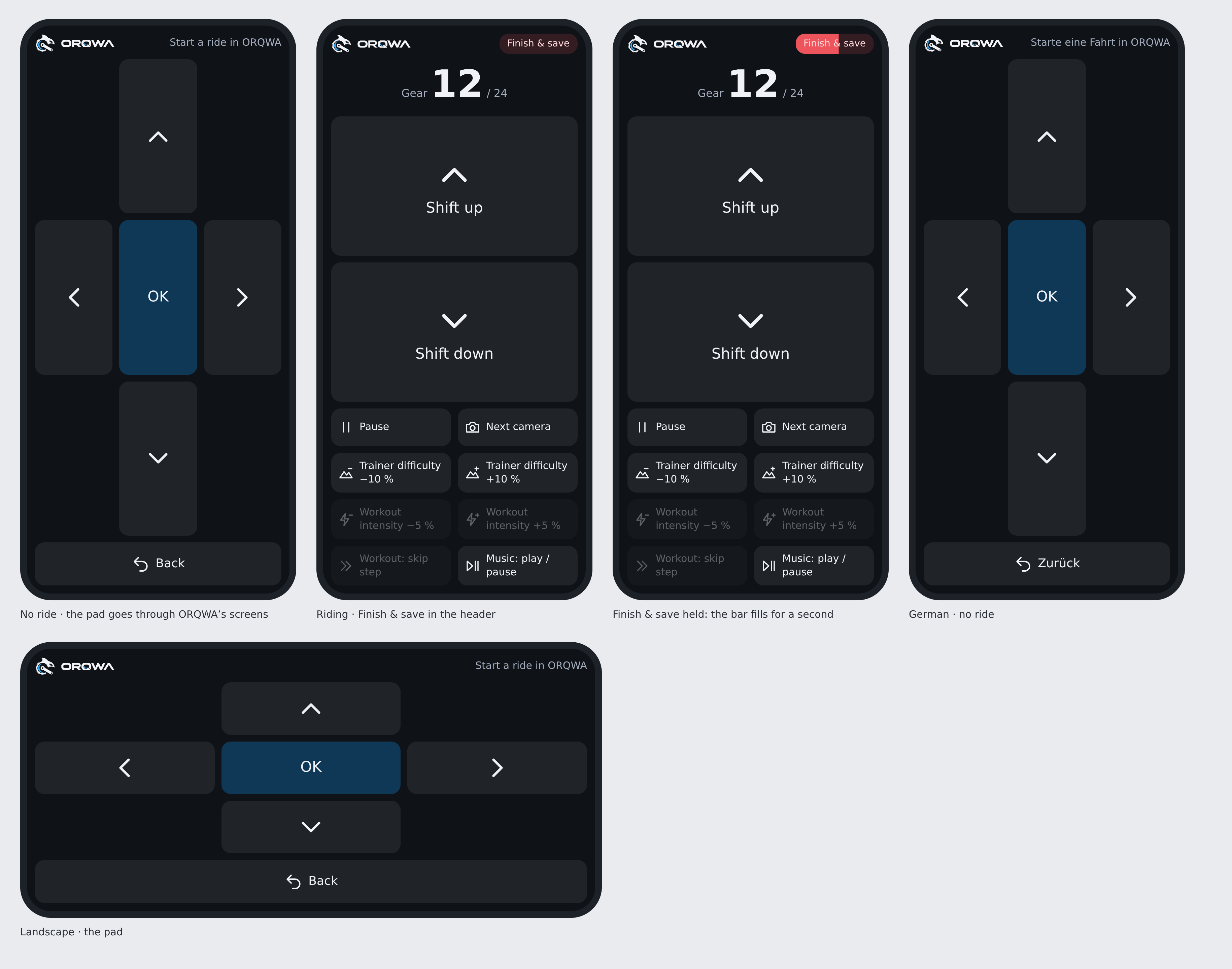
During a ride, use the remote to shift, pause, change camera, adjust difficulty or workout intensity, skip a workout step and control music. Unavailable actions are dimmed.
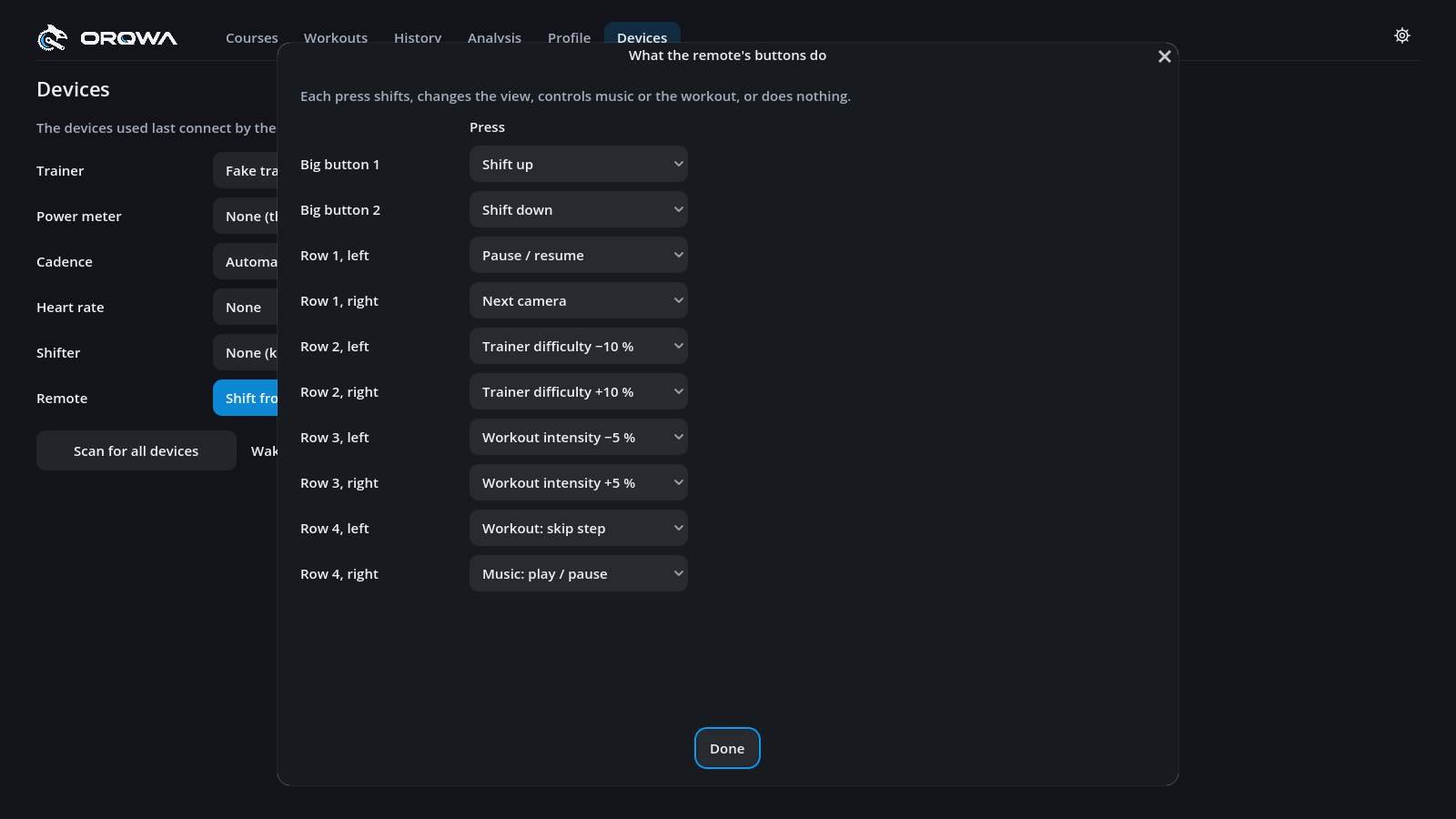
Press the pen (✎) beside Remote to assign actions to its buttons or hide unused ones. Assignments are saved per rider. Remote buttons support presses only.
Between rides, use the arrows, OK and Back to navigate ORQWA and start a course or workout. A blue ring on ORQWA's screen marks the selected control.
During a ride, Finish & save stands at the top right of the page: hold it for a second, until its red bar is full, to end and save the ride, as the ride settings' Finish & save does. A tap only tells you to hold it, so a stray touch never ends your ride. You can also give Finish & save to a Di2's or a Click's button, say a hold.
The Remote row shows Waiting for a phone or tablet… while none has the page open, and Connected once one has. During a ride you see when it connects or drops.
The remote keeps the screen awake while open. On iPhone or iPad, touch the page once to enable this. If the screen still locks, disable auto-lock for the ride. Unlocking the screen reconnects the remote automatically.
The Code button beside the row shows the code and address again. There you can also:
- New address: phones and tablets with the old address can no longer control the ride, and their page says so. Scan the new code on those you still want to use.
- Port: 8571 unless you change it. Change it if ORQWA says another program uses the port.
The remote is off by default. Its address and settings stay with this computer. Use it on a trusted local network: the address grants control and travels over unencrypted HTTP. Choose New address to revoke access from anyone with the old link.
A phone or tablet cannot reach the computer on a guest network that keeps devices apart, or while it is on mobile data.
With the Fake trainer, a ride is a simulation:
- Speed it up 1× to 20× in the bottom bar, or with + / −.
- Jump by clicking the map or elevation profile.
- Free camera: press C past the drone view.
Sped-up or jumped rides are saved but never count as records. The simulated rider has a heart rate too, so heart-rate workouts can be tried without a strap.
Free camera controls
| Keys or mouse | Action |
|---|---|
| ↑ / ↓ / ← / → | Move |
| Shift + ← / → | Turn |
| Shift + ↑ / ↓ | Tilt |
| R / F | Rise and sink |
| Shift + mouse, or right-drag | Look around |
| Mouse wheel | Fly slower or faster |