
26Flow is a visual workflow extension for creating images and videos with your signed-in Muse.ai session. Build workflows by connecting nodes on a canvas, generate media, and arrange video clips on a timeline.
Quick install: Download MuseFlow-extension.zip · No npm install or build step required.
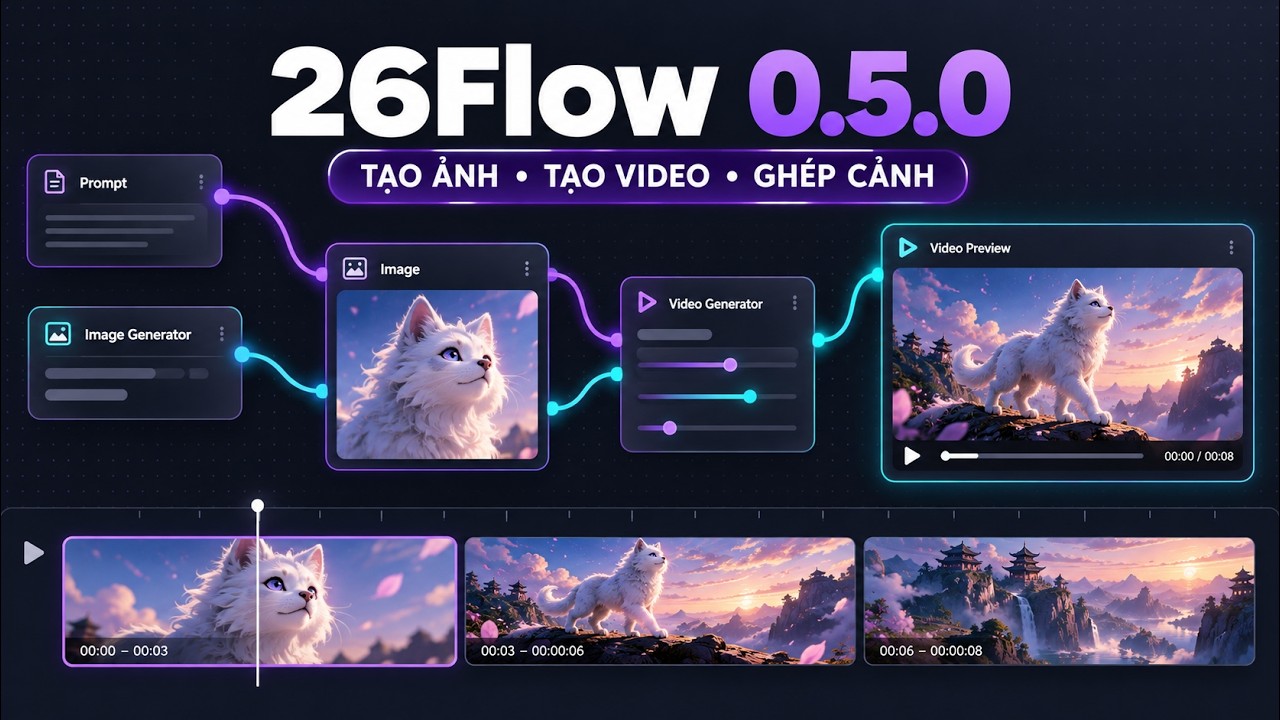
▶ Watch on YouTube · Download the MP4 demo

▶ Watch the MuseFlow tutorial on YouTube


- Visual node canvas: add, move, connect, multi-select, and arrange workflow nodes. Hold Alt while dragging to copy a node or selection with its incoming connections; press Ctrl+Z to undo the last canvas or workflow edit. Press G and drag on the canvas to draw a group region; press T to add a freeform text note directly to the canvas. Notes can be edited, moved, and saved with the workflow. Group regions are saved with the workflow. Pan and zoom the canvas, and use the context menu for node actions.
- Prompt tools: create prompts, negative prompts, append or merge text; Text Merge accepts multiple text sources on one input and joins them in connection order with a configurable separator.
- Image workflows: provide image inputs and references, generate images, resize outputs, and preview connected media.
- Video workflows: generate video clips, optionally use the preceding timeline clip's end frame as a continuity reference, and preview connected video.
- Timeline: add and reorder clips, set clip durations, preview the sequence, export WebM, or assemble the full timeline as MP4 (H.264) with the bundled local FFmpeg engine. MP4 processing stays on your device.
- Script to nodes: turn a scene-based script into connected image/video nodes and an ordered timeline. Download the strict fill-in/AI template from the script importer; it preserves the required headings, field names, and scene layout. The parser accepts both
CẢNH 1 (...)andScene 1 (...)headings and expands shared prompt locks. - Selective workflow runs: review generation order, drag to reorder, and check only the image/video nodes you want to run. MuseFlow warns when a selected node needs a source output that is not available.
- Workflow files: use Save workflow to download a reusable JSON file and Import workflow to restore it later. Generated and input media are embedded when available; inaccessible remote media remains linked to its original URL.
- Local workflow saving: Save and autosave keep the current workflow in the extension's browser storage.
- A Chromium-based browser with Manifest V3 extension support.
- An active, signed-in Muse.ai session. Keep the Muse.ai chat page open while generating media.
- Muse.ai account and page features that support the requested generation. Aspect ratio, audio, and video availability depend on Muse.ai.
26Flow communicates with Muse.ai through the extension's page bridge. It does not use muse2api, a separate generation backend, API keys, Docker, or an npm build step. Prompts and selected reference images are submitted to Muse.ai when you run a generation. Timeline MP4 export uses the FFmpeg WebAssembly engine packaged with the extension and processes video locally.
- Download MuseFlow-extension.zip and extract it to a permanent folder. Alternatively, download the repository ZIP.
- Open your browser's extensions page (for Chrome,
chrome://extensions). - Enable Developer mode.
- Select Load unpacked and choose the folder containing
manifest.json. - Open Muse.ai, sign in, and open its chat page.
- Open 26Flow and check the Muse session status.
There is no npm install or build step. The downloaded ZIP contains the extension source and bundled local FFmpeg files. Choose the extracted repository folder that directly contains manifest.json when using Load unpacked.
The packaged ZIP contains the extension, bundled FFmpeg files, and their required license notices. Extract it first, then select the folder containing manifest.json in Load unpacked. Do not select the ZIP file itself.
Starting with version 0.5.1, MuseFlow checks for a newer version when the app opens. If one is available, a small status-bar notice links to the ZIP download; users can dismiss it or update whenever they choose. After replacing the files, select Reload on the browser extensions page and reload the Muse.ai tab.
Versions older than 0.5.1 do not include the update checker. Users must manually install 0.5.1 once to receive notices for later releases.
For a clearer view while you work, keep the Muse.ai chat and the MuseFlow canvas visible at the same time:
- Open the Muse.ai chat in one browser window.
- Click the MuseFlow extension icon to open its canvas in a tab. Move that tab into a separate window by dragging it out of the tab strip.
- In Windows, select the MuseFlow window and press Windows key + Left Arrow. Select the Muse.ai window and press Windows key + Right Arrow. You can also drag each window to the left or right edge of the screen.
- Keep both pages open during generation so you can follow the active workflow node in MuseFlow and the generation response in Muse.ai.
- Add a Prompt node and enter your prompt.
- Add a Generate Image or Generate Video node.
- Drag the prompt node's output to the generator's prompt input. Connect any reference image or other inputs you need.
- Choose the output settings and click Run Image or Run Video on that node, or run the workflow from the toolbar.
- Connect generated media to a Preview node. For video, add clips to the Timeline, arrange their order, and preview or export the sequence.
To build a workflow from a script, choose Script → Nodes, download the strict template, then fill it in yourself or give it to an AI with your story brief. Keep the headings and field order unchanged. MuseFlow recognizes both CẢNH 1 (0:00–0:05): Title and Scene 1 (0:00–0:05): Title, opening and ending frames, timed action beats, opening image prompts, video prompts, and audio directions. Shared prompt locks are expanded into the scene prompts. Each scene becomes connected image/video nodes; video clips are ordered on the Timeline and continuity is enabled for following scenes.
Workflows and locally stored media are kept in browser extension storage on your device. When you run a workflow, 26Flow submits the relevant prompt and reference media to Muse.ai through your signed-in session. The extension requests browser storage and tab access to save workflows and communicate with Muse.ai; it does not configure a separate 26Flow account or generation server.
- Muse session is unavailable: sign in to Muse.ai, keep its chat page open, then reload 26Flow and the Muse.ai tab.
- Generation does not start or media is missing: check the Muse.ai page and session, then retry. Muse.ai may change its interface or generation behavior, which can require an extension update.
- Muse declines a scene: 26Flow detects refusal messages, including Vietnamese replies that say a scene cannot be created or offer to make an equivalent, and retries that scene once with a close, safer alternative prompt. It does not wait for confirmation. The retry keeps the scene's narrative role and settings; Muse.ai still determines whether the result can be generated.
- Timeline export fails: reload the extension and try again. MP4 uses the bundled FFmpeg engine; WebM uses browser
MediaRecorderand canvas capture. - Output differs from requested settings: Muse.ai controls the generated media; the requested aspect ratio, audio, and video options may not always be honored by the service.
MuseFlow is licensed under the GNU General Public License v2.0 or later (GPL-2.0-or-later), matching the bundled FFmpeg core. The FFmpeg JavaScript wrapper remains MIT-licensed. See third-party notices and the included license texts.