software setup
- see the
How_Todoc, we assume we can importgdalas done in mojadata - ensure
psqlis available at the command prompt (path topsql.exeis included in yourPATHenvironment variable, this should be taken care of by the PostgreSQL installer)
To install PostGIS on Windows, use the PostgreSQL Application Stack Builder, available when installing PostgreSQL (and after, under PostgreSQL in the Applications menu). Check the box of the PostGIS version you wish to use in the Spatial Extensions then say No to the following three raster related questions, we do not wish to support raster processing in the database.
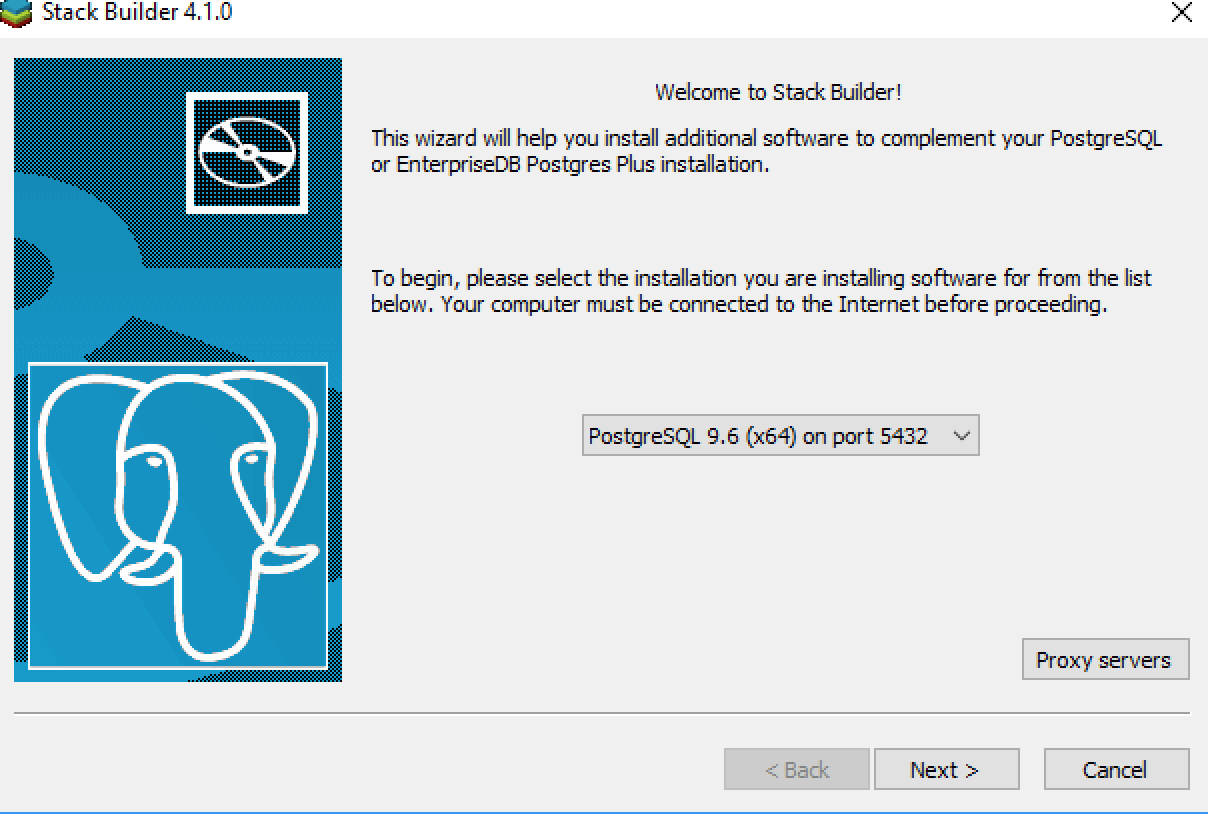
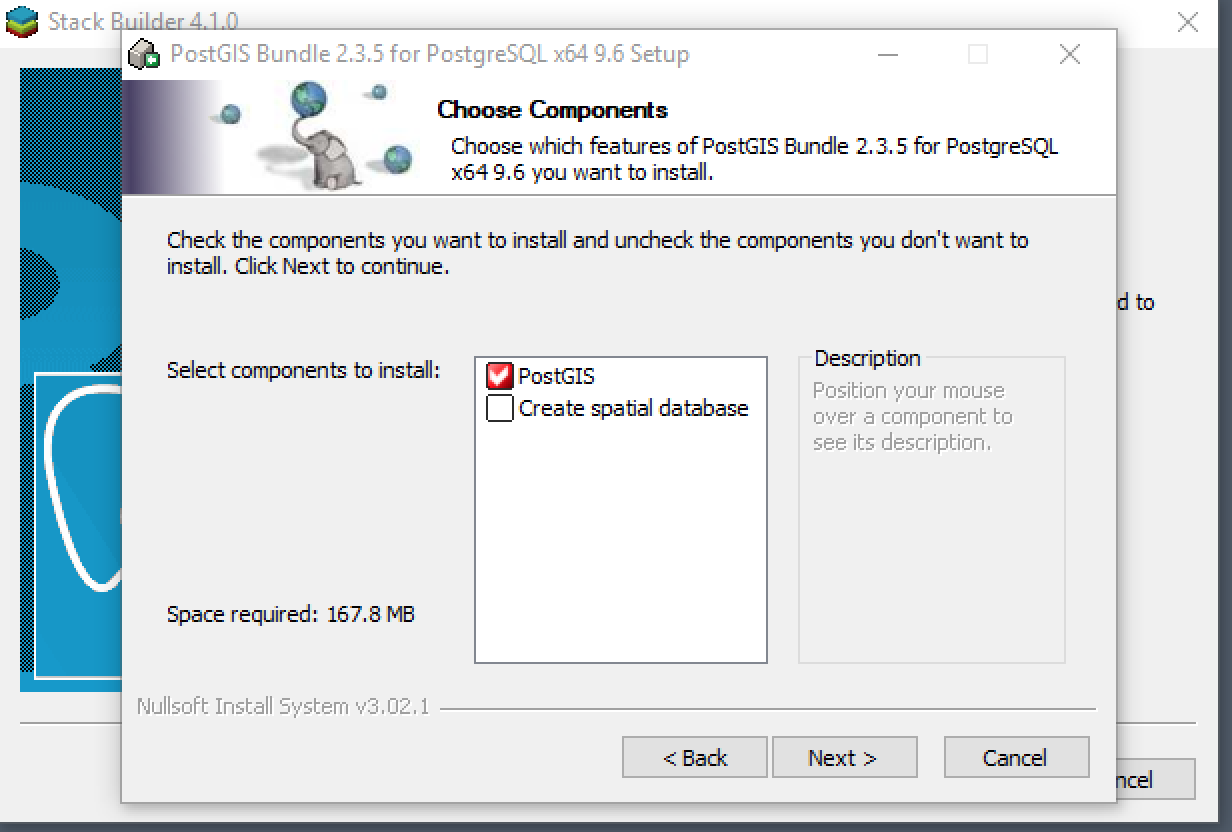
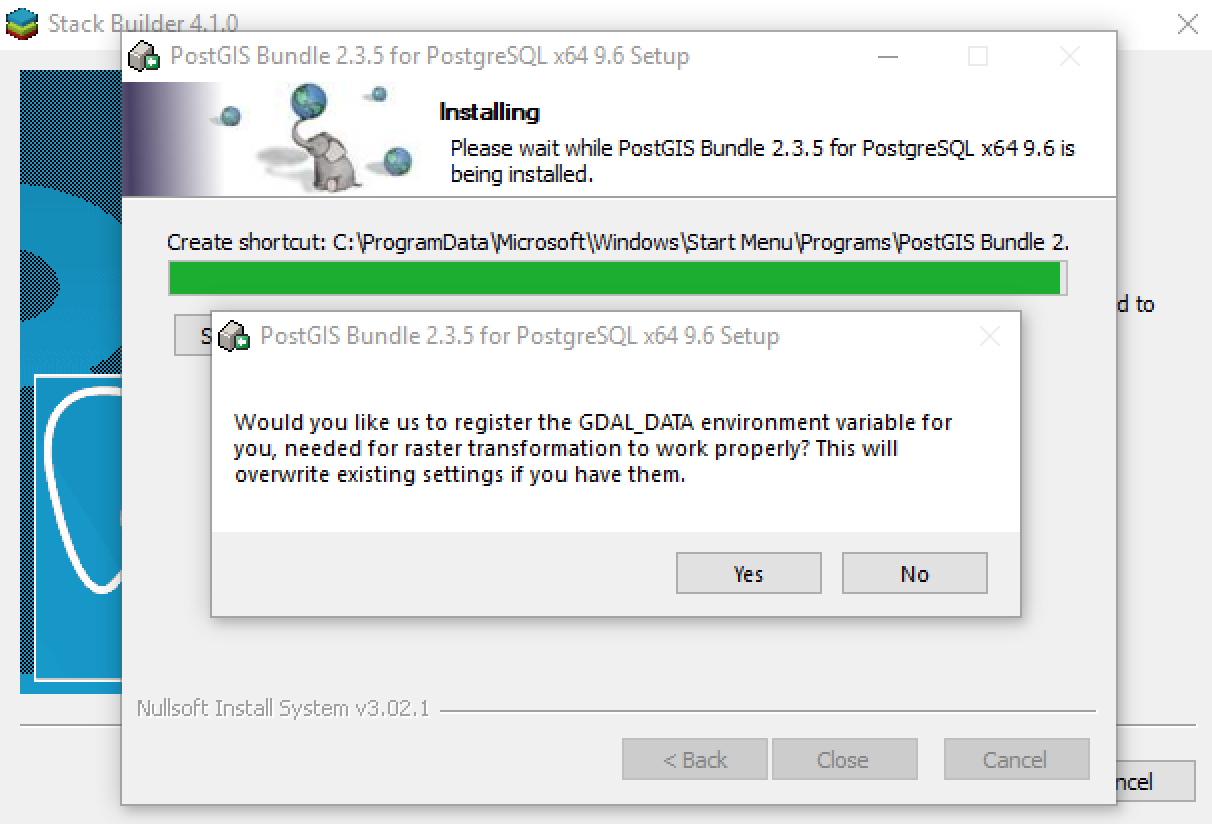
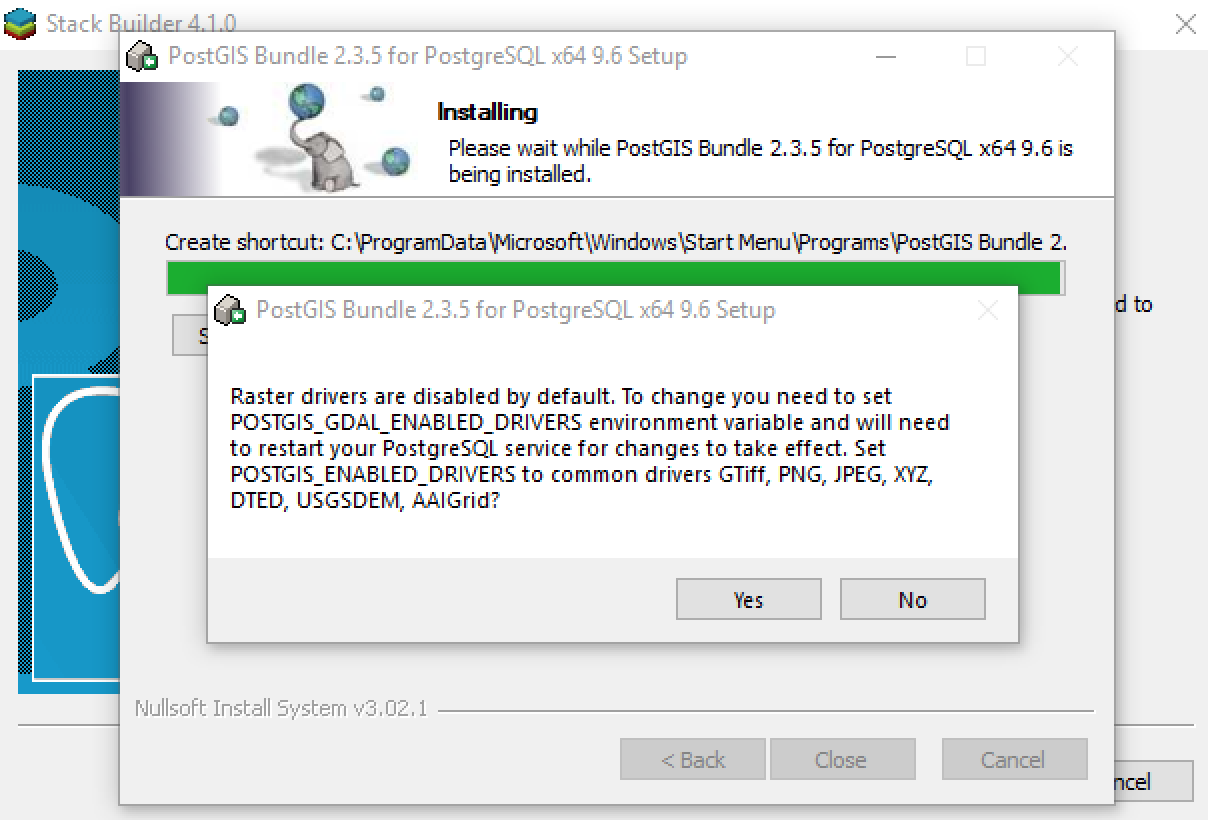
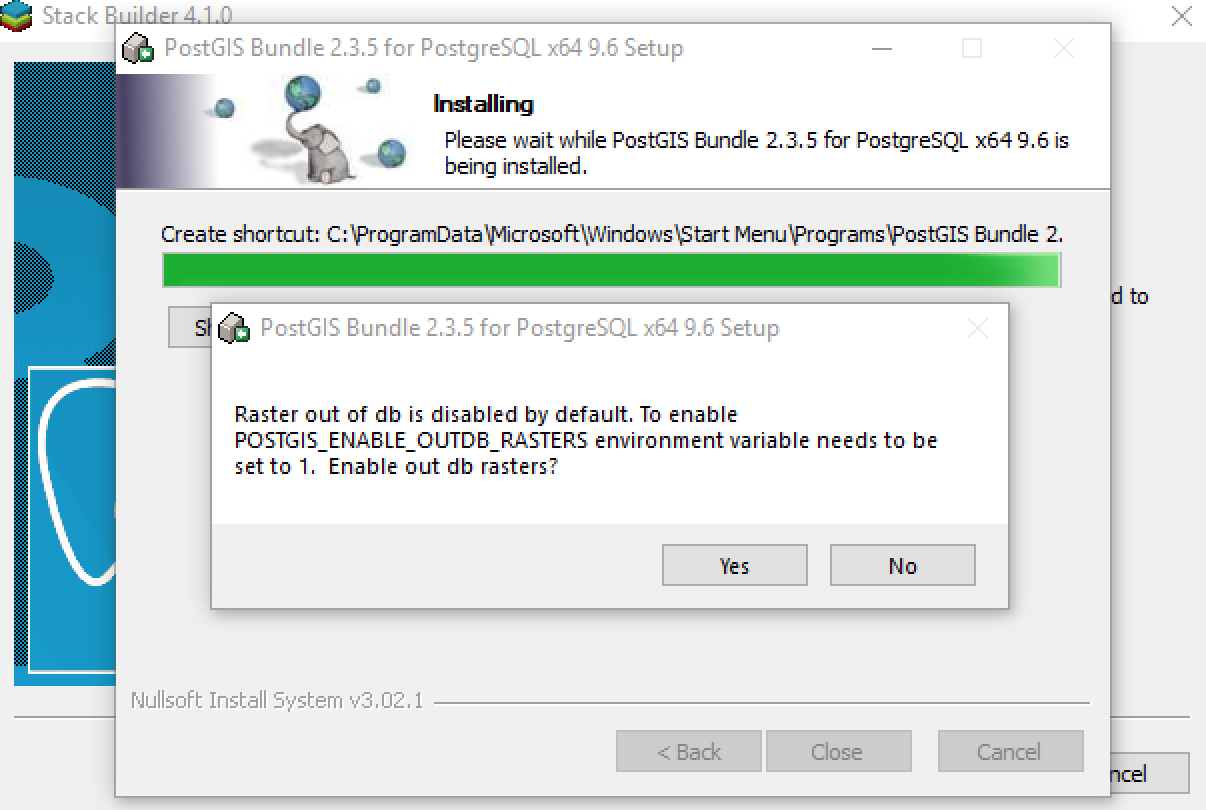
Take care to make sure that the gdal bundled with PostGIS does not get added to your PATH, we want to use the already installed GDAL/OGR. This should not be an issue if selecting No to the raster related questions above but confirming can avoid trouble:
> where ogr2ogr
C:\Users\snorris\AppData\Roaming\Python\Lib\site-packages\osgeo\ogr2ogr.exe
> ogr2ogr --version
GDAL 2.2.4, released 2018/03/19
All preprocessing is done in:
    database:  postgresql://postgres:postgres@localhost:5432/BC_GCBM_runs
    schema:    preprocessing
Once the BC_GCBM_runs database has been created, we need to
- enable PostGIS within that db
- create the schema
- point to this default database
This batch script will do this for you:
preprocess_tools\preprocessing_setup.bat
These scripts use my Python module pgdata to interface with the database. This module is a wrapper around sqlalchemy/psycopg2. The module is pip installable from pypi, this will install all required dependencies:
pip install pgdata
If necessary, it should be fairly straightforward to remove this requirement and use some other interface to the database. Changes and improvements to pgdata would also be welcome.
- checkout branch
dearcingcbm_preprocessing - modify configs and run various .bat files in
/integrationas required