
Move Anything is a framework that lets you write your own code for the Ableton Move. It gives you access to:
- The pads (note number, velocity, and polyphonic aftertouch values)
- The 9 endless encoders with relative and absolute values available
- Capacitive touch messages.
- All buttons.
- Setting the colors of everything that can have a color set.
- Display as a 128x64 1 bit framebuffer (it's just black and white);
- Audio from the line-in and mic
- Audio out through the speakers and line out
- MIDI in/out via the USB-A port. You can also connect multiple USB-MIDI devices to the USB-A port using a hub and receive and send MIDI to all of them.
- Move Anything is non-destructive and lives alongside the regular Move software. You can quickly launch Move Anything using a key combination from the regular Move software, and quickly return to the regular Move software when you're done.
@talktogreg, @impbox, @deets, @bobbyd, @chaolue
Join us on Discord: https://discord.gg/Zn33eRvTyK
-
Back up all your sets. I haven't lost any data, but I also make no guarantees that you won't!
-
Set up SSH on your move by adding an SSH key to http://move.local/development/ssh.
-
Turn on your Move and make sure it's connected to the same network as the device you're using to install.
-
The installer is currently a bash script. On macos (and probably Linux) you can just paste this into a terminal:
curl -L https://raw.githubusercontent.com/chaolue/move-anything/main/installer/install.sh | shAnd it'll download the latest build and install it on your Move.
- The installer will ask you if you want to install "pages of sets" which is an optional bonus feature that gives you unlimited pages of sets on the move by holding shift(...) and pressing the left or right buttons. The default is to not install. You can install later by running the installer again. In the current build, it will rearrange your sets and change their colors! You have been warned! (I will try and fix this though)
Note that when you change pages your live session is killed and restarted with the new page
- To change pages hold shift(...) and press the left or right arrow.
- If a page doesn't exist, it will be created.
- Samples, Track presets, Recordings and Effects presets are shared between all pages.
- http://move.local will show the Sets from the current page.
If you're on Windows, you can get bash by installing Git Bash, can you get that by installing Git for Windows: https://git-scm.com/downloads/win. Once you have that, launch Bash and then run the install script as above!
After an update to a new Move build, you will need to re-run the install script.
If it's not working, you can get help in our Discord server: https://discord.gg/gePd9annTJ. If you have previously installed Move Anything (control_surface_move) you can try uninstall.
To remove Move Anything and restore the original state, run the below bash script:
curl -L https://raw.githubusercontent.com/chaolue/move-anything/main/uninstall.sh | sh-
Scripts are written in modern Javascript (es2023). This makes it super fast and safe to try out new ideas and get things working quickly!
-
The underlying core is written in C and can be reused for your own projects.
-
Here's the default script: https://github.com/bobbydigitales/move-anything/blob/main/src/move_default.js
-
Run with
./control_surface_move move_default.js -
TODO: Example Hello World script showing how to use all the features.
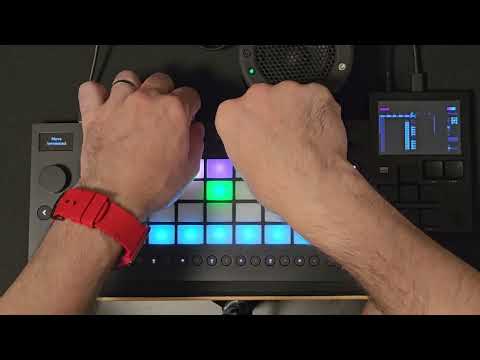
An emulation of the Launch Pad Pro on the Ableton Move to be used with the Dirtywave M8. The Move is a USB host for the M8 and can charge it. All 9 knobs are mappable on the M8 while in LPP mode. Poly aftertouch is sent as CC1 and is also mappabe on M8.

-
Once installed, to launch the m8 integration, hold shift(...) then touch the volume knob and the jog wheel. Toggle Launch Pad Pro control surface mode on the M8 and the Move should come show you the session mode.
-
To see the bottom half of the Launch Pad Pro, click the wheel, the mode button you're on will flash to show you'e on the bottom half.
-
To launch Beat Repeat mode, hold shift(...), press session (the arrow pointing left on the left of the move), then click the wheel to show the bottom half of the Move.
-
All 9 knobs send MIDI CC's on channel 4. Poly aftertouch is mapped to CC1 on channel 4.
-
To exit M8 control surface mode and go back to Move, hold shift(...) and click the jog wheel in.
An attempt (by @chaolue) to create a menu for switching between Move Anything scripts easily. It currently only has 3 items that can be selected. These 3 items can be directly edited in the file.
-
To access the menu, hold shift(...) then touch the volume knob and knob 8.
-
Rotate the jog wheel to move up or down and press the jog wheel to open the selected (<) script.
-
The menu will close and open the selected script. MoveLauncher restarts along side the new script which may cause issues.
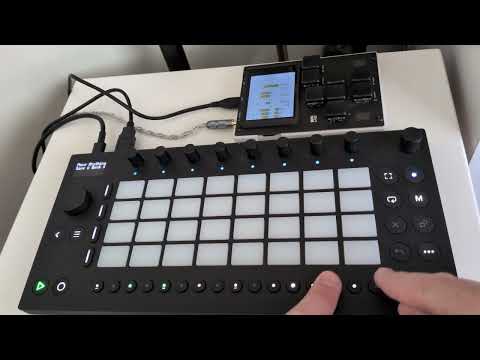
A modification (by @chaolue) of move_m8_vlpp.js to include working display, 8 additional knob banks (originally added by @damian-), knob naming, persistent (8) save slots and audio pass-through.
-
Access this via the menu - hold shift(...) then touch the volume knob and knob 8.
-
The knobs work the same as the original (move_m8_vlpp.js) but an addition 8 banks (9 total) are available. When started you are using the last (9th) 'master' knob bank. To change knob banks press the alternate step buttons. The step button will light up to show that it is selected. It will also show the current knob bank on the display. To get in and out of the 'master' knob bank toggle the current knob bank step button.
-
Knob naming is possible on each of the 9 knobs in each of the 9 knob banks. To change a knob name, hold shift(...) and turn the knob until you find an appropriate name. On releasing shift(...) the name will be applied to the knob.
-
When started the first save slot is selected. To change save slots, hold shift(...) and press the alternate step buttons. The save slot will flash red to indicate it is selected. The active save slot will show on the display. The current status of all save slots are saved to disk when changing save slots. Each save slot includes the value of each of the 9 knobs in each of the 9 knob banks.
-
To enable audio pass through, hold shift(...) then press play button. Warning, if line in or line out aren't plugged in this will produce feedback. Audio out will work over the USB-C port as well.
-
To exit M8 control surface mode and go back to Move, hold shift(...) and click the jog wheel in.
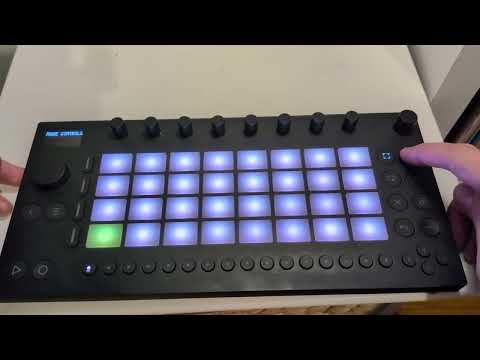


An attempt (by @chaolue) to create a custom editable MIDI controller. Plug it into a USB Host via USB-C or act as a USB Host and plug in a slave device via USB-A. It has 16 banks to save alternate configurations. You can customise and use all knobs, pads and buttons except the row and step buttons and the Rec button (under the main volume).
-
Access this via the menu - hold shift(...) then touch the volume knob and knob 8.
-
Each knob, pad or button when pressed will show the current MIDI configuration on the display. To change banks press one of the 16 step buttons. The first bank is selected on start.
-
To edit press the Rec button (blue led), and it will change to edit mode (red flashing). In edit mode select a knob, pad or button and it will flash. Press the row buttons to edit different parameters - row 4 (bottom) edits MIDI CC or Note, row 3 edits colour, row 2 edits the name. To select a change you need to press the main job wheel. Currently, MIDI CC (buttons and knobs) can only have their names changed.
-
To exit edit mode press Rec button. This will save the changes to disk.
-
To prevent possible slow downs, toggle off updating the display by pressing the menu button.
-
To exit M8 control surface mode and go back to Move, hold shift(...) and click the jog wheel in.
A demo of audio produced by pressing the pads. This is accessible via the menu. To exit and go back to Move, hold shift(...) and click the jog wheel in.