

30 Common Actions For eDirectory Accounts
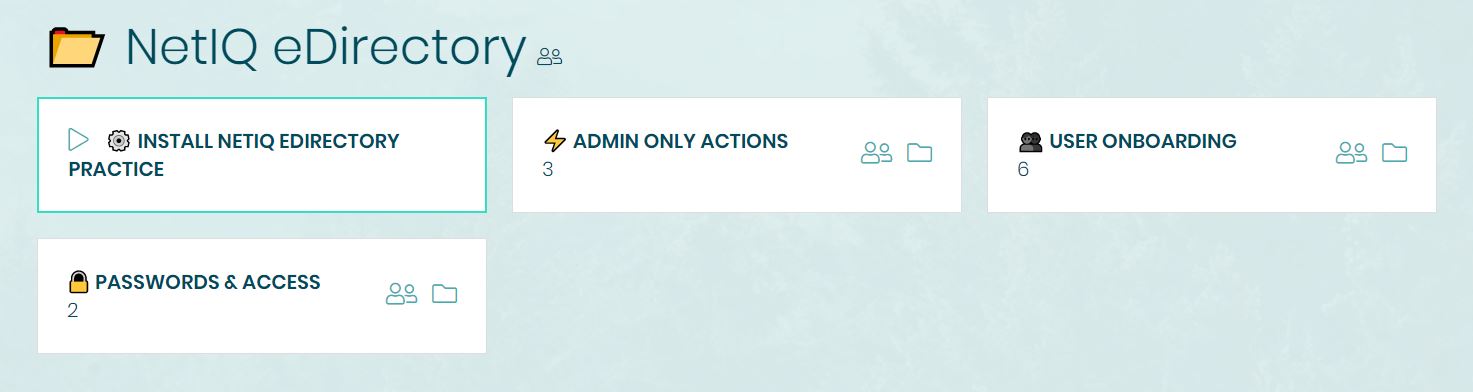
Cimitra's eDirectory Practice is one Bash script which allows for dozens of modifications you can make to eDirectory User accounts. For example, you can create a user in eDirectory, and set several of their attributes at the time of the user creation event.
Or you can modify only one or some attributes of an existing eDirectory User account.
-
Identify a Linux host that has access to LDAP Tools. This will most likely be a SUSE variant of Linux.
-
Deploy the Cimitra Agent for Linux on the Linux host
-
In a terminal on the Linux host sudo in to get sufficient rights for the installation
-
Install Cimitra's eDirectory Practice Bash script with the command below:
curl -fsSL https://git.io/Jc5Yj | sh
- Go to the directory /var/opt/cimitra/scripts/edir
cd /var/opt/cimitra/scripts/edir
- Run the script: cimitra_edir.sh
./cimitra_edir.sh
Edit the settings_edir.cfg file with the settings needed to authenticate to your eDirectory tree via LDAP
NOTE: If you don't want to use an already established Admin Level eDirectory account read the section below titled:
CREATING A CIMITRA EDIRECTORY ADMIN ACCOUNT
Modify the settings file, make sure that you at least modify these lines:
EDIR_AUTH_STRING
EDIR_LDAP_SERVICE_SIMPLE_AUTHENTICATION_ADDRESS_ONE
EDIR_LDAP_SERVICE_SIMPLE_AUTHENTICATION_PORT_ONE
EDIR_USER
[Example Settings File]
   EDIR_AUTH_STRING="YouLetC1m1tra1n"
   EDIR_LDAP_SERVICE_SIMPLE_AUTHENTICATION_ADDRESS_ONE="192.168.1.53"
   EDIR_LDAP_SERVICE_SIMPLE_AUTHENTICATION_PORT_ONE="389"
   EDIR_LDAP_SERVICE_SIMPLE_AUTHENTICATION_ADDRESS_TWO="192.168.1.54"
   EDIR_LDAP_SERVICE_SIMPLE_AUTHENTICATION_PORT_TWO="389"
   EDIR_LDAP_SERVICE_SIMPLE_AUTHENTICATION_ADDRESS_THREE="192.168.1.54"
   EDIR_LDAP_SERVICE_SIMPLE_AUTHENTICATION_PORT_THREE="389"
   EDIR_USER="cn=cimitra_admin,o=edir_o"
   EDIR_EXCLUDE_GROUP=""
TEST YOUR SETTINGS
To do a test to see if everything is configured correctly, run the Cimitra eDirectory Practice script as follows:
./cimitra_edir.sh -Action "ListAllUsersInTree"
NOTE: THERE IS NO NEED TO PROCEED UNTIL THE TEST WORKS
NOTE: THIS SECTION IS OPTIONAL
NOTE: Follow this section if you intend to make a "Cimitra Admin" account rather than using an already established Admin-level eDirectory account
-
Create a new user in eDirectory specific to cimitra, Example: cimitra_admin.edir_o
-
Give the cimitra_admin user the following rights:
(a.) eDirectory Trustee rights within contexts to be administered within Cimitra
iManager | Roles and Tasks | Rights | Modify Trustees | Object Name
- Choose a Context for users that will be administered within Cimitra
- Add Trustee
- Choose the Cimitra Admin, Example: cimitra_admin.edir_o
- Choose Assigned Rights
- Select Supervisor for both [All Attributes Rights] & [Entry Rights]
- Select Done | Apply
Repeat step (a.) for each context with users that will be administered within Cimitra
(b.) eDirectory Trustee rights to Root organization of the tree (don't worry, no admin rights needed here)
iManager | Roles and Tasks | Rights | Modify Trustees | Object Name
- Choose a Root context of the tree
- Add Trustee
- Choose the Cimitra Admin, Example: cimitra_admin.edir_o
- Choose Assigned Rights
- Select Read and Inherit for [All Attributes Rights]
- Select Done | Apply
Edit the Cimitra eDirectory Practice Settings File:
/var/opt/cimitra/scritps/edir/settings_edir.cfg
Update the following two settings:
EDIR_USER
and
EDIR_AUTH_STRING
Example
EDIR_USER="cn=cimitra_admin,o=edir_o"
EDIR_AUTH_STRING="YouLetC1m1tra1n"
DOWNLOAD, READ AND FOLLOW THIS DOCUMENT - IMPORTING CIMITRA PREMADE ACTIONS
NOTE: Make sure to DOWNLOAD the docx file so you can use the Copy and Paste feature. On Windows, you can view this document in WordPad.
IMPORT DEMONSTRATION (Looping Animated GIF)

The Cimitra eDirectory Practice allows for an "Exclude Group". The purpose of the Exclude Group is to define users that cannot be seen or modified via the Actions in the Cimitra eDirectory Practice. This way if a user exists in an eDirectory context you have allowed to administered with Cimitra, you can still effectively hide eDirectory users who you do not want anyone modifying via Cimitra. These are the steps to defining an "Exclude Group" for Cimtra.
- Create a Group object in eDirectory, in our case we will create a group by the name of cimitra_exclude
- Add users who you want hidden from the Cimitra eDirectory Practice to that Group
- Add fully distinguished name for the group, into the /var/opt/cimitra/scritps/edir/settings_edir.cfg file
- Modify the line that reads: EDIR_EXCLUDE_GROUP
Example: EDIR_EXCLUDE_GROUP="cn=cimitra_exclude,o=edir_o"
[Example Settings File]
   EDIR_AUTH_STRING="YouLetC1m1tra1n"
   EDIR_LDAP_SERVICE_SIMPLE_AUTHENTICATION_ADDRESS_ONE="192.168.1.53"
   EDIR_LDAP_SERVICE_SIMPLE_AUTHENTICATION_PORT_ONE="389"
   EDIR_LDAP_SERVICE_SIMPLE_AUTHENTICATION_ADDRESS_TWO="192.168.1.54"
   EDIR_LDAP_SERVICE_SIMPLE_AUTHENTICATION_PORT_TWO="389"
   EDIR_LDAP_SERVICE_SIMPLE_AUTHENTICATION_ADDRESS_THREE="192.168.1.54"
   EDIR_LDAP_SERVICE_SIMPLE_AUTHENTICATION_PORT_THREE="389"
   EDIR_USER="cn=cimitra_admin,o=edir_o"
   EDIR_EXCLUDE_GROUP="cn=cimitra_exclude,o=edir_o"
When the Exclude Group feature is working correctly, if you list the users in an eDirectory context via a Cimitra Action that contains a user in the Exclude Group, the user will not show up on the list of users. If someone actually tries to view the details, or modify a user who is in the Exclude Group, they will get an error "ERROR: Insufficent Rights to Administer User".

[ WHAT THIS SCRIPT CAN DO ]
Here are the actions you can take with this script.
- Add User to eDirectory
- Rename eDirectory User's SamAccountName
- Change eDirectory User's First Name
- Change eDirectory User's Last Name
- Modify eDirectory User's Mobile Phone Number
- Modify eDirectory User's Office Phone Number
- Modify eDirectory User's Title
- Modify eDirectory User's Description
- Modify eDirectory User's Manager
- Modify eDirectory User's Department
- Add an eDirectory User to an eDirectory Group
- Add an expiration date to an eDirectory User account
- Remove the expiration date from an eDirectory User account
- Enable an eDirectory User account
- Disable an eDirectory User account
- Lock an eDirectory User account
- Unlock an eDirectory User account
- Change the Password on an eDirectory User account
- Get a report of several attributes on an eDirectory User account
- Find all information about an eDirectory Group
- List all users in an eDirectory tree
- List all Users in a certain context in an eDirectory tree
- Remove an eDirectory User from an eDirectory Group
- Search for a user object, choosing attributes of the user, for example, their phone number with the full phone number specified: 801-555-1212
- Wildcard Search for a user object, choosing partial attributes of the user, for example, search for their their phone number with: 801-555
- Create an eDirectory Group
- Report on eDirectory Groups in an OU
- List eDirectory Group Membership
- Add users to an eDirectory Group
- Bulk add users to an eDirectory Group