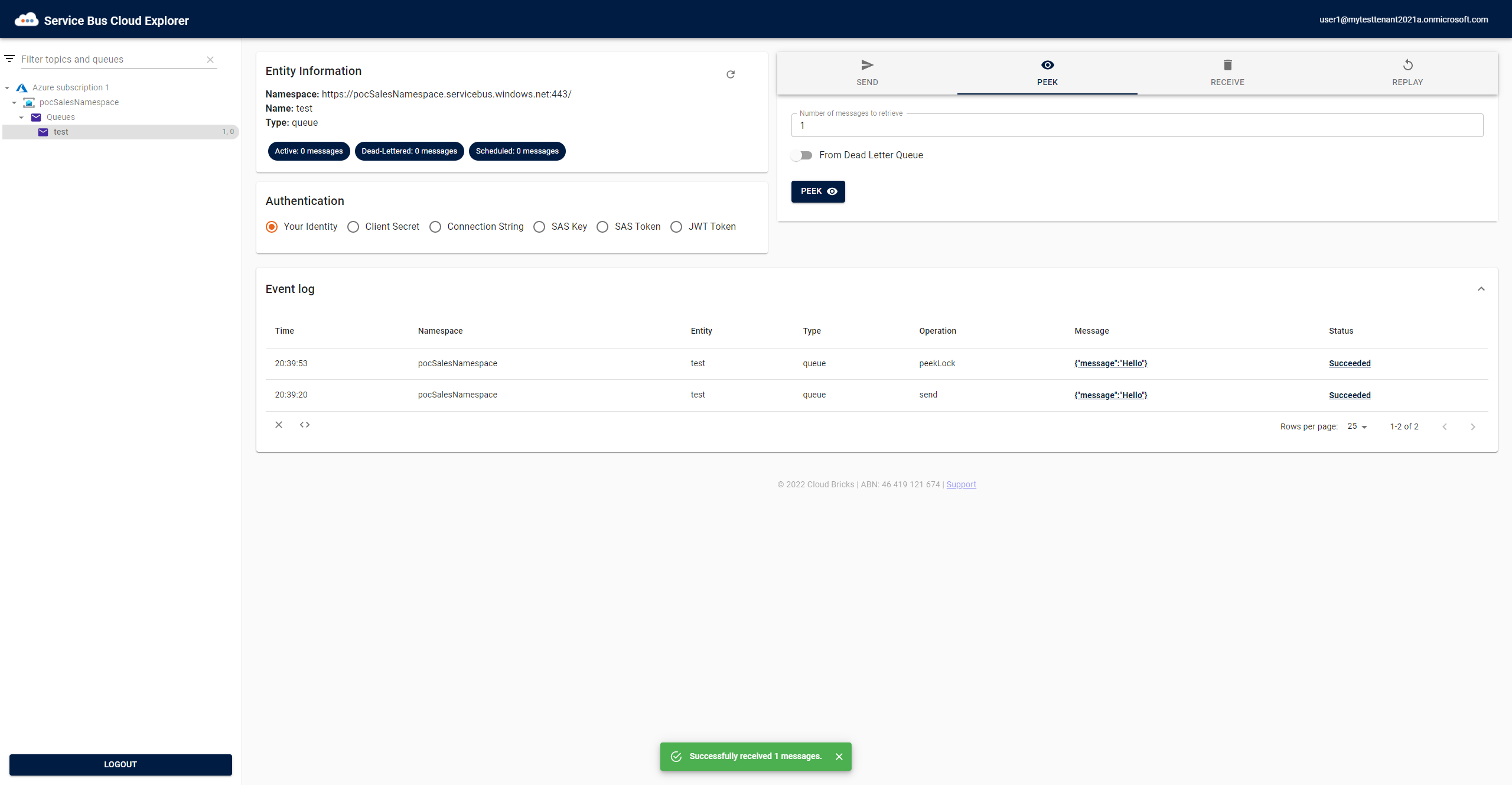
User guide
To setup Service Bus Cloud Explorer to be used for your tenant; create a Service Bus Cloud Explorer resource in Azure Portal or from Azure Marketplace. For more details on setup process; please visit: Setup in your tenant page.
To start Service Bus Cloud Explorer; navigate to servicebus.cloudbricks.io and login with your organization account.
The default method to authenticate to Service Bus entities is via user's Azure AD identity.

A basic read access over Service Bus namespaces is enough to populate all entities in left sidebar. In addition to that; the following permissions might be needed:
- To send messages via user identity; users need
Azure Service Bus Data Senderpermission. - To peek or receive messages via user identity; users need
Azure Service Bus Data Receiverpermission.
The following screenshot is showing the permissions applied on a Resource Group level:

During the first time any user logs in to the app, a consent screen will show up (if your organization administrator didn't consent on behalf of all users). Users have to consent on the following:
- Access Azure Service Management As you. This is required as the app users Azure Service Management APIs to load all namespaces, topics, queues and other information like active message counts and dead letter queue counts.
- Have full access to Azure Service Bus service This is required to be able to perform service bus operation on behalf of logged in user like peeking a message off a queue or sending a message to a topic. (Please note that App access is limited to the access of the user despite what appears in the title.)
- View your basic profile. This is required to log in users and get access to basic information like user email.
- Maintain access to data you have give it access to. This is required to be able to use refresh tokens to avoid having to log in users every time they use the app.

- Navigate to https://servicebus.cloudbricks.io/
- Log in via your organization account if needed.
- On the left-hand side, you should see all Service Bus resources you have access to.
- Select any required entity: topics, topic subscriptions, queues
- On the right-hand side, you should see the actions that can be performed on the entity i.e. send, peek, receive, and replay.