Repository navigation
Importing
The amble-home box needs two things from your amaran setup: the mesh keys that let it speak on your lights' mesh, and the fixture list (each light's hardware address, mesh address, name and model). Both live with the amaran app. The Edit page gets them in one of two ways, called doors; a third is planned.
Open the Edit page from the box's Home page (http://amble-home.local/, then Edit). The page works from any browser on your network, phones included.
Sign in with the email, password and region of the amaran account your lights are registered to. This is the only path for people who use the amaran app on a phone or tablet.
What happens, exactly:
- Your email and password go from the page to the box, over your home network. The box makes amaran's sign-in call (a browser cannot: amaran requires request headers that browsers are forbidden to send across sites) and hands the page back a one-time token.
- The page then fetches your mesh from amaran with that token and shows your fixtures.
- The password is used for that one sign-in and not stored, unless you check Remember this sign-in on the box. Then the box keeps it in plain storage, next to your Wi-Fi password, and the door shows Refresh from amaran and Forget. Refresh fetches your mesh again with the saved sign-in; Forget deletes it.
- The box never signs in on its own. Every check of your account is you, on the Edit page, pressing a button.
This door needs the box on a network with internet (the setup network it makes for itself has none, and the door says so) and your browser able to reach both the box and amaran.
If you use the amaran desktop app (macOS or Windows) signed in to your account, its database holds everything the box needs. Under The app's database, choose the file.
Where it is:
-
macOS: inside the app's sandbox, which the file dialog hides. In the dialog press ⌘⇧G, paste
~/Library/Containers/com.sidus.amaran-desktop/Data/Library/Application Support/amaran Desktop/and press Return. Open the folder whose name ends in_secure_idand pickamaran.db. The Edit page has a Copy path button for this. -
Windows: in the file dialog's address bar type
%APPDATA%\amaran Desktopand press Enter. Open the folder whose name ends in_secure_idand pickamaran.db.
Quit the amaran app first if the file will not open. Never move or delete it: the page reads a copy.
The file is read in your browser by code the box itself served; it is never uploaded anywhere. Only the fixtures you check and the mesh keys they need are sent to the box, on your network.
The phone app's data cannot be used: its database is sealed inside the phone. Use door 1.
For fixtures with neither an account nor a database: the box would pair the lights into a mesh of its own, and the amaran app would lose them. It is shown grayed out on the Edit page and does nothing yet. It is deliberately a last resort and will stay one.
Whichever door you used, the page lists your fixtures by the name the amaran app gives them. Check the ones this box should control. Each row says what changed since the last Save: new, renamed (with the old name) or gone. Press Save: the box stores the keys and your selection and reboots. Within about half a minute the Home page shows the fixtures and Home Assistant has the lights.
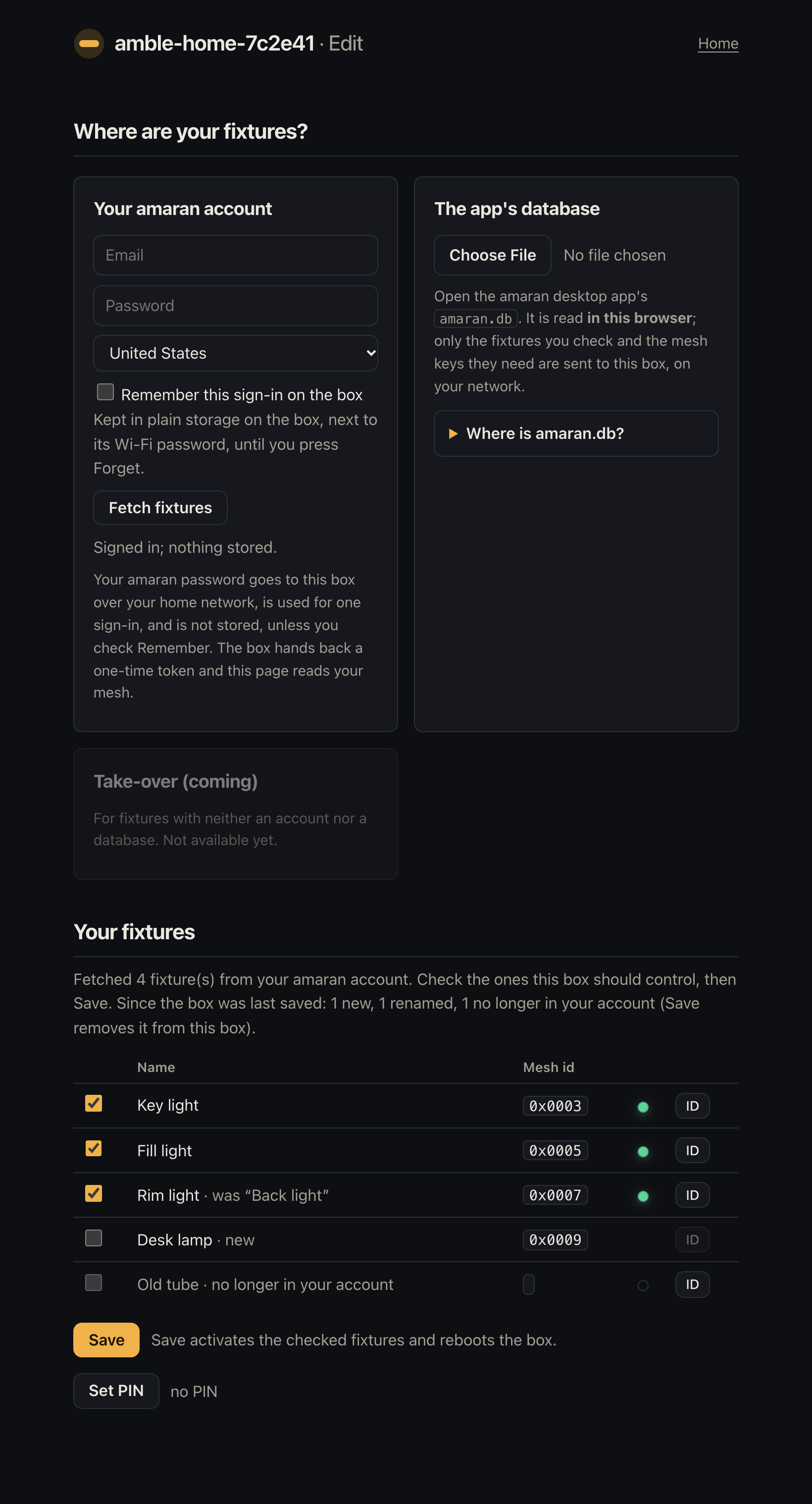
The Edit page after fetching from an account, on a box that already had fixtures saved: one was renamed in the app, one is new, one is gone.
- ID flashes a fixture the box already holds, so you can tell which is which. The Edit page opens with those fixtures listed and ID live on each, before any fetch; a fetch replaces the list with your account's or the database's, and ID keeps working on the rows the box has. A fixture that is new in the list cannot be flashed until it is saved: Save first, then identify.
-
Set PIN locks Save, ID and the sign-in behind a 4 to 8 digit PIN. The Home page stays open. Enter
0000to remove the PIN. Five wrong tries lock it for 30 seconds. This is a casual lock for a shared household network, over plain HTTP, not a security boundary.
Added a light, removed one, renamed one, or re-paired your mesh? The amaran app is the source of truth, so come back to the Edit page, fetch again (door 1: Refresh from amaran or sign in again; door 2: open the newer database), and Save. Renamed lights keep their Home Assistant entities (Home Assistant).
Two fixtures that the app lists on the same mesh address are a sign of a re-pair in the app: the newer record is kept and the older one skipped as a duplicate.
The mesh network key, the application key, and for each checked fixture its hardware address, mesh address, name and capability flags. They sit in the box's flash storage (NVS) in plain form, like the Wi-Fi password ESPHome keeps there. Nothing about your mesh is ever sent off the box except in the mesh messages to your own lights, and nothing identifies a fixture in the box's logs beyond "fixture 3".