Module 1
System requirements:
- Windows 10 operating system
- 8.35 GB of storage available
- Microsoft Edge (recommended) or Google Chrome browser
- A good internet connection
Download and install the following:
-
Visual Studio Community 2022 (or later version)
- Make sure ASP.NET and web development option is selected during the installation process.
- SQL Server Management Studio (SSMS)
Note: Please make sure your computer meets the system requirements and have installed the software before continuing.
Step 1: Create a web app project
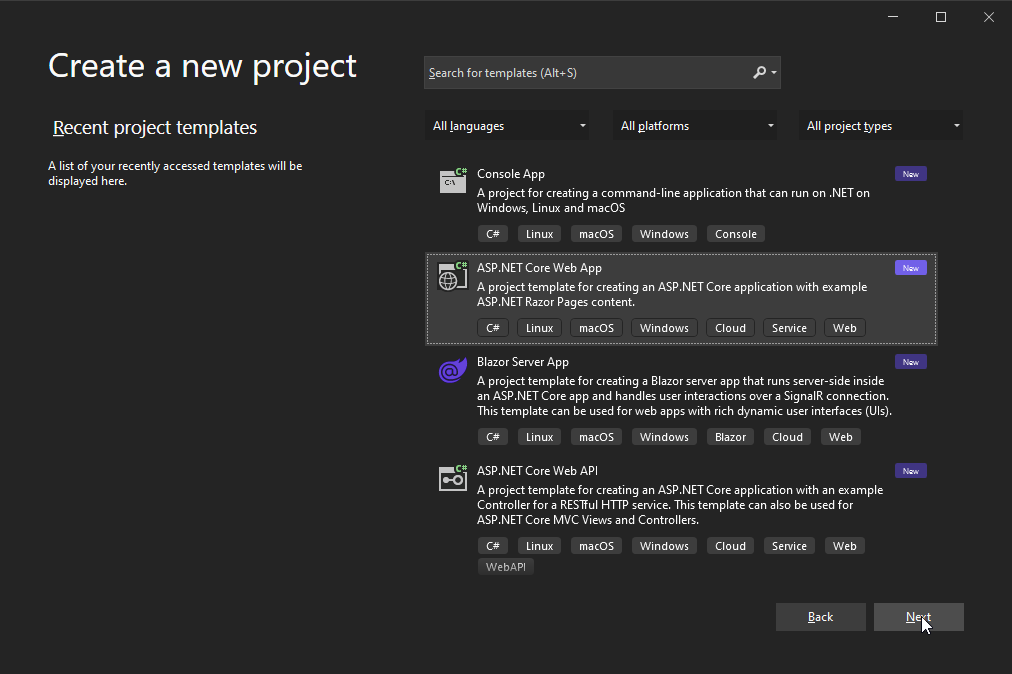
- Open visual studio. Create a new project, select ASP.NET Core Web App template, then click Next.
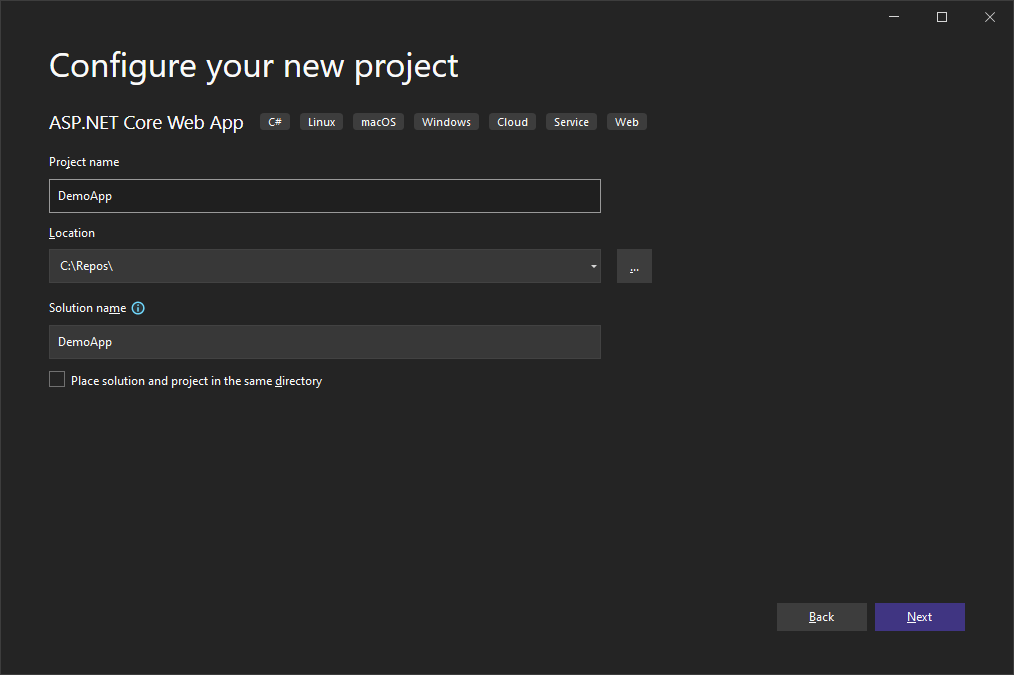
- Add DemoApp as a project name, save to your desired location, then click Next.
- On Additional Information, select .NET 6.0 as the framework, then click Create.
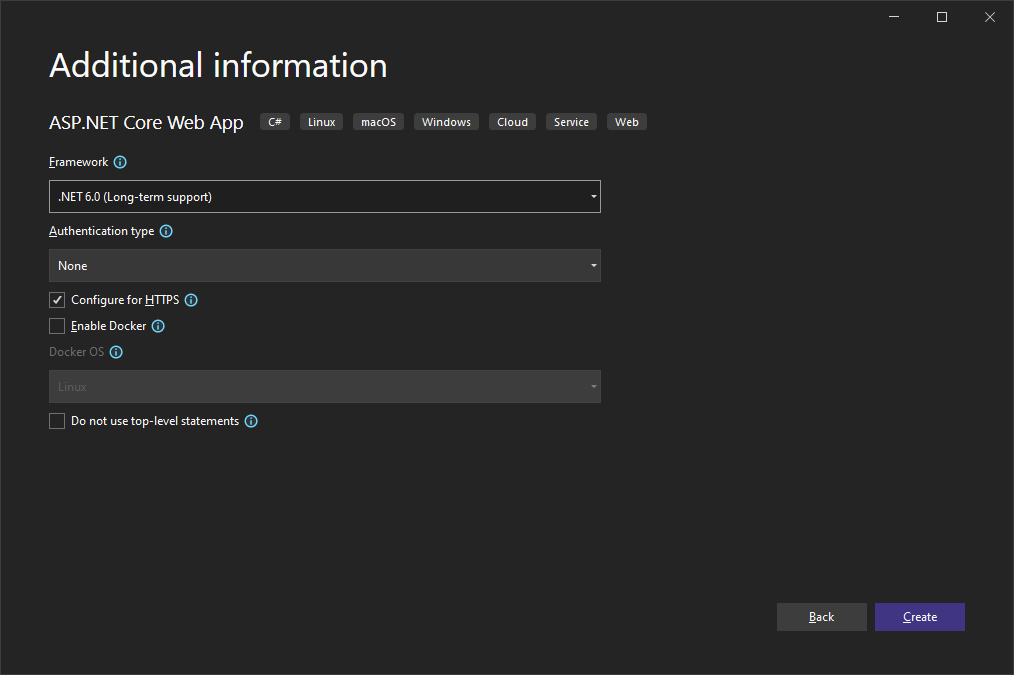
Note: If .NET 6.0 is not available, you probably have an older version of Visual Studio and might not be able to complete the lab. Please make sure you install Visual Studio Community 2022 (or a later version) before proceeding to the next steps.
- Start your application by pressing run button, which starts debug mode, to make sure it builds and loads successfully.
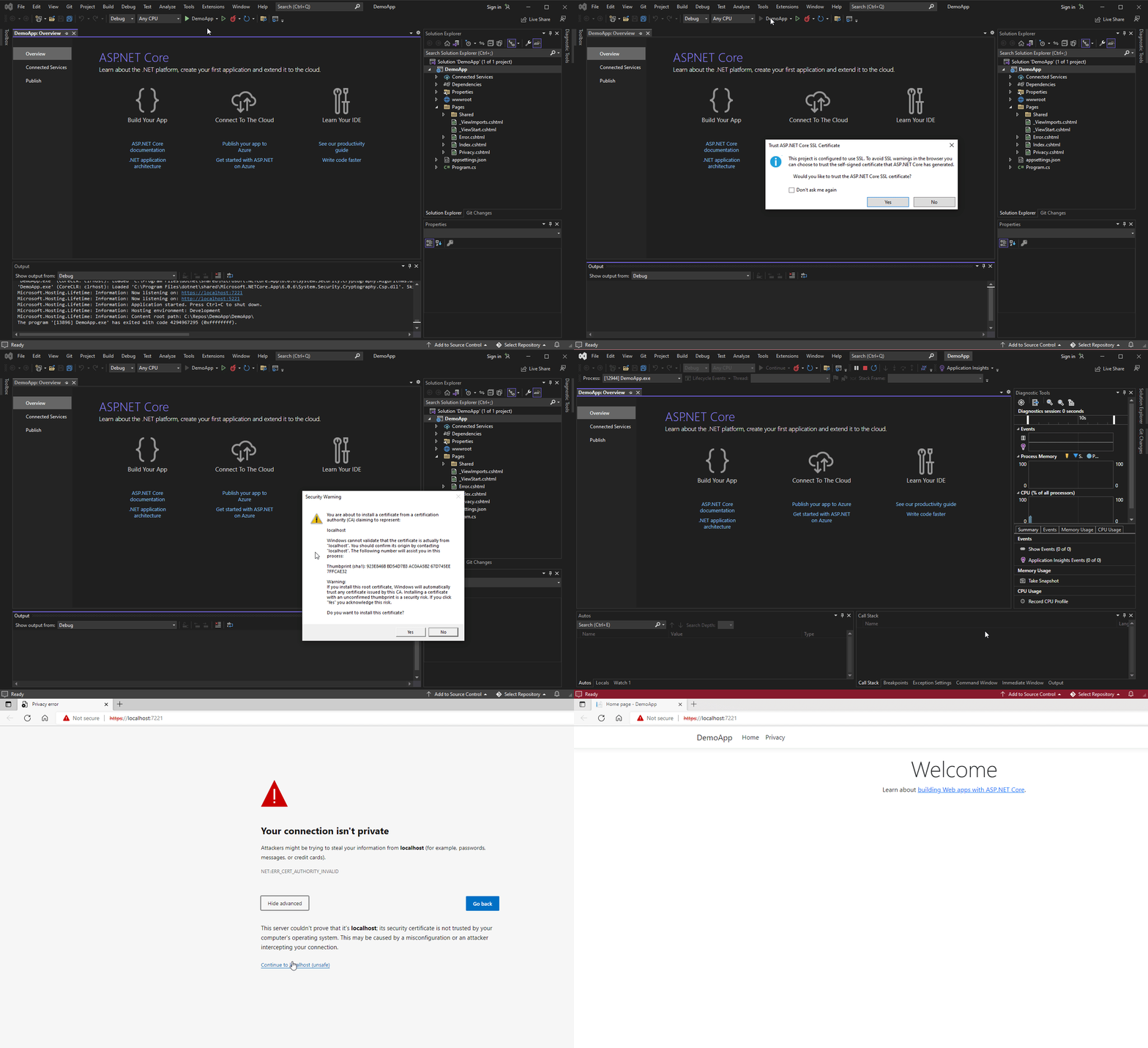
Note: Starting the application for the first time will prompt you to trust the SSL certificate. Click yes on the next two screens. After that, a browser window will automatically pop up and you might have to Continue to localhost (unsafe), since on Step 3 we left Configure for HTTPS selected by default. You're encouraged to read up on SSL, HTTPS, and localhost on your own time.
- After the home page loads, press the Stop Debugging button.
